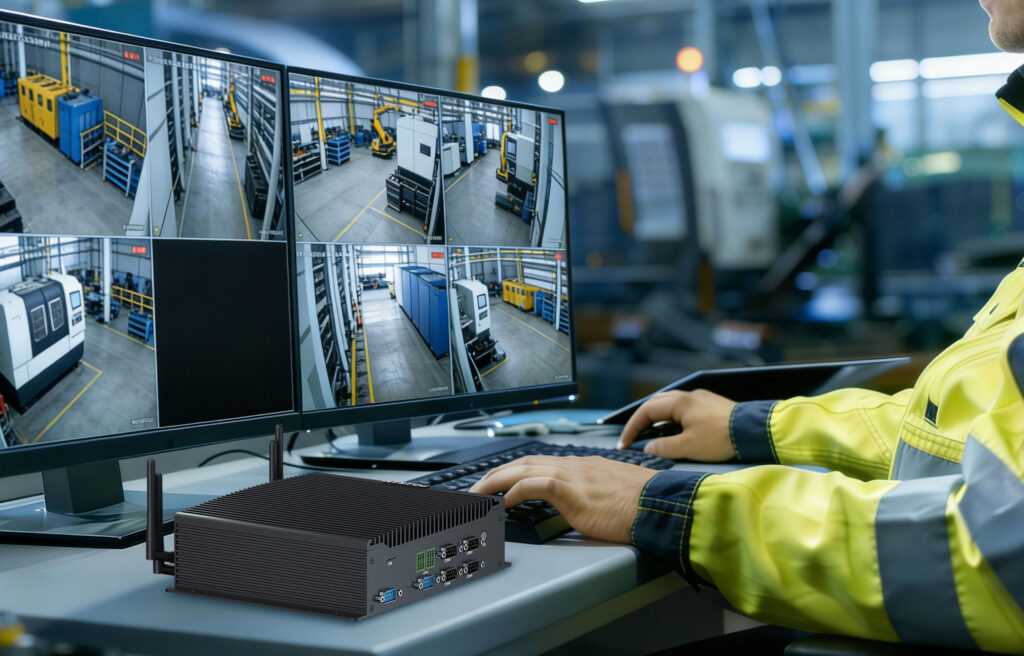
Best Industrial Mini PCs 2026
Best Industrial Mini PCs 2026 Announcements Buyer Guide Comprehensive Tips Occasion Product Review Q&A Tutorials In 2026, Industry 4.0 and smart manufacturing continue to accelerate. Edge computing has moved from pilot projects to large-scale deployment, gradually replacing bulky, power-hungry traditional industrial control computers. As a result, industrial Mini PCs—with their compact size, low power draw, and high reliability—have become the hardware of choice for edge computing. Not only do they meet local data processing needs on industrial sites, but they also help enterprises cut hardware costs, reduce energy use, and boost production efficiency. Core Advantages of Industrial Mini PCs 1. Super Environmental Adaptability Industrial sites—filled with dust, vibration, and wide temperature swings—demand tough computing hardware. Professional industrial Mini PCs typically operate reliably from -10°C to 50°C. In fact, customized models can even handle extreme ranges from -20°C to 60°C. Additionally, their fanless design also boosts dustproof, moisture-proof, and vibration-resistant performance. For example, some units offer IP65 protection and 9–36V wide-voltage power input, ensuring stable operation in harsh conditions. 2. 24/7 Stable Operation Industrial production often runs 24/7, so equipment stability is critical. A single crash can lead to costly downtime. To address this, industrial Mini PCs use low-power chip architectures and industrial-grade components. Consequently, these choices reduce power expenses and minimize failure risks, enabling year-round, uninterrupted operation without frequent restarts or maintenance. 3. Rich Industrial-Grade Interfaces Industrial setups connect to PLCs, sensors, and instruments, so they need diverse serial ports, network ports, and IO interfaces. Specifically, professional industrial Mini PCs usually include: Multiple serial ports: RS-232/422/485 for PLCs, sensors, and instruments Multiple network ports: Gigabit and 10 Gigabit industrial-grade ports, some with PoE support DIO/GPIO: Digital input/output for switch signal detection and control Specialized buses: Support for CAN, Profibus, Modbus, and other industrial protocols Selection Criteria for Industrial Mini PCs in 2026 When choosing an industrial Mini PC, focus on core indicators aligned with your scenario and production goals. This is because it avoids mismatched equipment and unstable operation caused by blind selection. Furthermore, it ensures cost-effectiveness and future scalability, so your hardware can keep up with long-term intelligent upgrades. 1. Performance Indicators: Match Load Requirements and Balance Energy Efficiency Select core performance based on your application to avoid over- or under-provisioning. For instance, for low-load tasks like basic data collection and HMI interfaces, Intel Celeron or Atom processors with 8GB RAM and 256GB SSD are sufficient. On the other hand, for high-load scenarios—such as edge AI inference, real-time video inspection, and complex process control—opt for Intel Core i7/i9 or AMD Ryzen AI series chips, paired with at least 16GB RAM and 512GB SSD. In some cases, deployments may need up to 128GB of memory to run local AI models. Above all, prioritize low-power models to reduce long-term operational costs and strike a balance between high-efficiency computing and low energy use. 2. Interface and Scalability: Meet Current Needs and Reserve Upgrade Space Interface configurations should cover current device connection requirements. To be specific, ensure the number and type of serial ports, network ports, and USB ports match your use case. For scalability, choose models that support memory and storage expansion, as well as 5G, Wi-Fi, and PoE modules. This flexibility lets you adapt to future capacity and scenario expansions, avoiding premature equipment obsolescence. 3. Environmental Adaptability Indicators: Match On-Site Working Conditions For dusty, high-humidity environments like mines or chemical plants, prioritize IP65-rated, fanless models. In contrast, for locations with extreme temperature swings—such as outdoor power equipment or cold storage—select units rated for -20°C to 60°C operation. Additionally, for vibration-prone areas like production lines or AGV trolleys, confirm that the equipment meets industrial vibration-resistance standards to prevent hardware loosening and failure. Best Industrial Mini PCs of 2026 1. HYSTOU H3-N100 Core Advantages: Compact, low power consumption, multiple expansion options, fanless design Performance Configuration: Intel Alder Lake N100, DDR4 (up to 32GB) Interface Expansion: 2×USB2.0, 2×USB3.0, 1×HDMI 2.0, 1×VGA, 2×RJ45 LAN Port, 2×DB RS232 2. HYSTOU H4T Can Core Advantages: Fanless passive cooling design, reinforced body, triple-screen display Performance Configuration: 4.7GHz processor, Dual DDR4 (up to 64GB) Interface Expansion: 4×USB2.0, 4×USB3.0, 1×HDMI 1.4, 1×Type-C, 1×EDP, 2×RJ45 LAN Port, 2×DB CAN Bus (optional), 2×6pin GPIO 3. HYSTOU H6 Fanless Core Advantages: Efficient passive cooling, high-speed network connection, rich interface expansion, triple-screen HD display, portable installation design Performance Configuration: 4.9GHz Processor, Dual DDR4 (up to 64GB) Interface Expansion: 2×USB2.0, 4×USB3.0, 1×HDMI 2.0, 1×HDMI 1.4, 1×DP 1.2, 2×2.5Gbps RJ45 LAN Port, 2×9pin DB Conclusion and Outlook With the in-depth advancement of Industry 4.0 and smart manufacturing, industrial Mini PCs, as the core carrier of edge computing, will be widely used in more fields. In particular, their compact form factor and robust performance make them ideal for a variety of edge use cases. In the future, industrial Mini PCs will develop towards smaller size, higher energy efficiency, and greater intelligence. Furthermore, they will also integrate more advanced technologies such as AI acceleration, 5G communication, and edge storage. As a result, these advancements will provide stronger support for industrial automation and intelligence. HYSTOU HYSTOU has established its R&D headquarters in Shenzhen, drawing on over a decade of experience. Our core team members, who previously served at renowned companies such as Inventec and Quanta Computer, form the backbone of our technical expertise. With robust R&D and innovation capabilities, we remain steadfast in our commitment to pursuing excellence in the field of technology products. Facebook Twitter Youtube Tumblr
Best Industrial Mini PCs 2026 Read More »