ziyao, song

Ultimate Mini PC Upgrade & Maintenance Guide: Boost Performance & Extend Lifespan

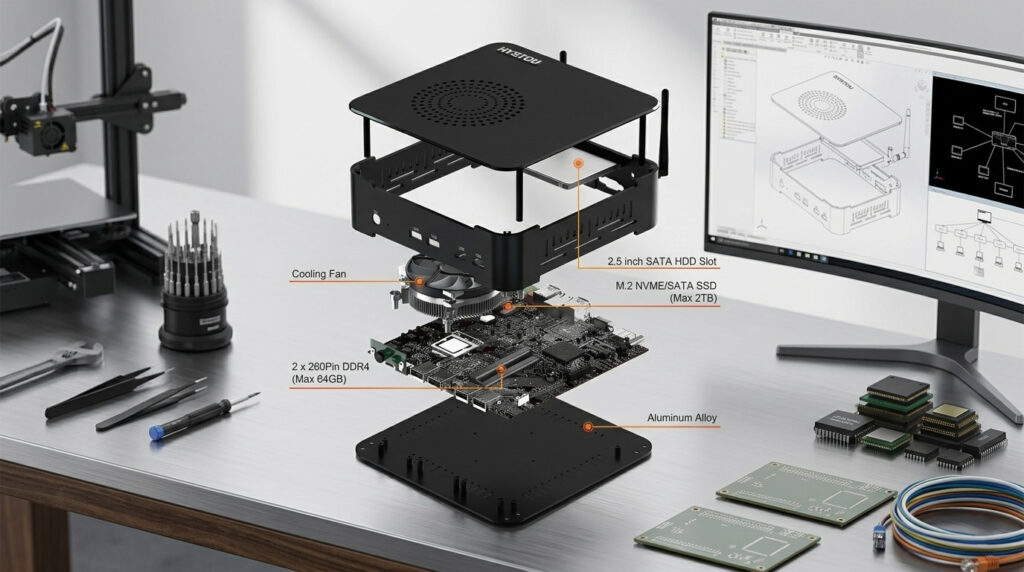
Ultimate Mini PC Upgrade & Maintenance Guide: Boost Performance & Extend Lifespan Announcements Buyer Guide Comprehensive Tips Occasion Product Review Q&A Tutorials Mini PC Hardware Upgrade: Step-by-Step RAM and SSD Installation Upgrading your mini computer’s hardware is one of the most effective ways to boost performance without replacing the entire device. Whether you want to enhance multitasking capabilities or improve storage speed, this section provides clear instructions to guide you through the entire process. Similarly, the following tutorial applies equally to HYSTOU Mini PCs. How to Upgrade RAM in Your Mini PC Random Access Memory (RAM) is crucial for smooth multitasking and running memory-intensive applications. Most modern Mini PCs allow RAM upgrades, and the process is surprisingly simple. Step 1: Prepare Your Workspace Ensure you have a clean, static-free surface to work on. Power off your Mini PC and unplug all cables. Ground yourself by touching a metal object to discharge any static electricity. Step 2: Access the RAM Slots Depending on your Mini PC model, you may need to remove a back panel or access door. Use a Phillips-head screwdriver to remove any screws securing the panel. Locate the RAM slots on the motherboard. Step 3: Remove Existing RAM (if necessary) Press down on the clips at either end of the RAM module. The module should pop up at a 45-degree angle. Gently pull the RAM module out of the slot. Step 4: Install New RAM Align the notch on the RAM module with the notch in the slot. Insert the module at a 45-degree angle. Press down firmly until the clips snap into place. Step 5: Reassemble and Test Replace the back panel and secure with screws. Reconnect all cables and power on your Mini PC. Verify the new RAM is recognized by checking your system properties. Important Considerations: Check your Mini PC’s specifications for maximum RAM capacity and supported speeds. For dual-channel performance, install RAM modules in pairs of the same size and speed. If you’re unsure about compatibility, consult your device’s user manual or manufacturer’s website. SSD Installation Guide for Faster Storage Upgrading to a Solid State Drive (SSD) can dramatically improve your Mini PC’s boot time and application loading speeds. Follow these steps to install an SSD: Step 1: Choose the Right SSD Most Mini PCs use M.2 NVMe or 2.5-inch SATA SSDs. Check your device’s specifications to determine the correct form factor and interface. Step 2: Backup Your Data Before starting, ensure all important data is backed up to an external drive or cloud storage. Step 3: Install the SSD For M.2 SSDs: Locate the M.2 slot on the motherboard. Remove the screw securing the slot cover (if present). Insert the SSD at a 45-degree angle. Press down and secure with the screw. For 2.5-inch SATA SSDs: Locate the 2.5-inch drive bay. Mount the SSD using the provided screws. Connect the SATA data cable and power connector. Step 4: Clone or Install Operating System Option 1: Clone your existing drive using software like Samsung Data Migration. Option 2: Perform a clean installation of your operating system. Step 5: Verify Installation Power on your Mini PC and check if the SSD is recognized. Verify the drive’s health and performance using tools like CrystalDiskInfo. Pro Tip: For optimal performance, ensure your SSD is properly aligned and enabled for TRIM support in your operating system. Mini PC Cooling Solutions: Keeping Your Device Running Smoothly Proper cooling is essential for maintaining your Mini PC’s performance and longevity. With their compact size, Mini PCs can be prone to overheating if not properly managed. Active Cooling vs. Passive Cooling Active Cooling Systems: Utilize fans to actively move air through the device. More effective at dissipating heat during heavy workloads. May produce noise, though many modern Mini PCs feature quiet fan designs. Passive Cooling Systems: Rely on heat sinks and thermal conduction. Completely silent operation. Ideal for noise-sensitive environments but may not handle sustained heavy loads as well. Top Cooling Solutions for Mini PCs Improved Case Fans Upgrade to high-performance, low-noise fans like Noctua NF-A9x14. Consider PWM (Pulse Width Modulation) fans for dynamic speed control. Thermal Paste Replacement Over time, thermal paste can dry out and lose effectiveness. Replace with a high-quality thermal compound like Arctic MX-5. External Cooling Fans USB-powered cooling fans can provide additional airflow. Products like the Cooler Master Notepal X3 offer adjustable fan speeds. Liquid Cooling (for advanced users) Some high-end Mini PCs support compact liquid cooling solutions. The Asetek 690LC is an example of a Mini-ITX compatible liquid cooler. When upgrading the cooling system, first determine if your mini PC currently has a fan. HYSTOU offers numerous fanless models that deliver efficient heat dissipation with ultra-quiet operation. Always compare the exact dimensions of your device before selecting an upgrade component to ensure compatibility. Maintenance Tips for Optimal Cooling Regularly clean dust from vents and fans using compressed air. Ensure your Mini PC has adequate space around it for airflow. Consider using a cooling pad or elevated stand to improve bottom ventilation. Monitor temperatures using software like HWMonitor to identify potential issues early. By implementing these cooling solutions and maintenance practices, you can ensure your Mini PC runs efficiently and reliably even during demanding tasks. Mini PC Port Expansion: Maximizing Connectivity A common challenge with mini computers is limited built-in ports. However, connectivity options can be significantly expanded with the right accessories. HYSTOU Mini PCs come equipped with multiple integrated interfaces, delivering exceptional expandability and flexibility for diverse usage scenarios. USB-C Docking Stations: Your All-in-One Solution A high-quality USB-C dock can transform your Mini PC into a full-featured workstation. Look for docks with the following ports: Multiple USB-A and USB-C ports HDMI or DisplayPort outputs for external monitors Ethernet port for stable network connectivity SD card reader Audio jacks Top USB-C Docks for Mini PCs: Anker PowerExpand 12-in-1 USB-C Dock Belkin Thunderbolt 3 Dock Pro Plugable USB-C Triple Display Docking Station PCIe Expansion Cards For Mini PCs with available PCIe slots, consider these expansion options: USB

Ultimate Mini PC Upgrade & Maintenance Guide: Boost Performance & Extend Lifespan Read More »

Shield for data security

Mini PC Data Security: How to Protect Your Digital Assets in 2026

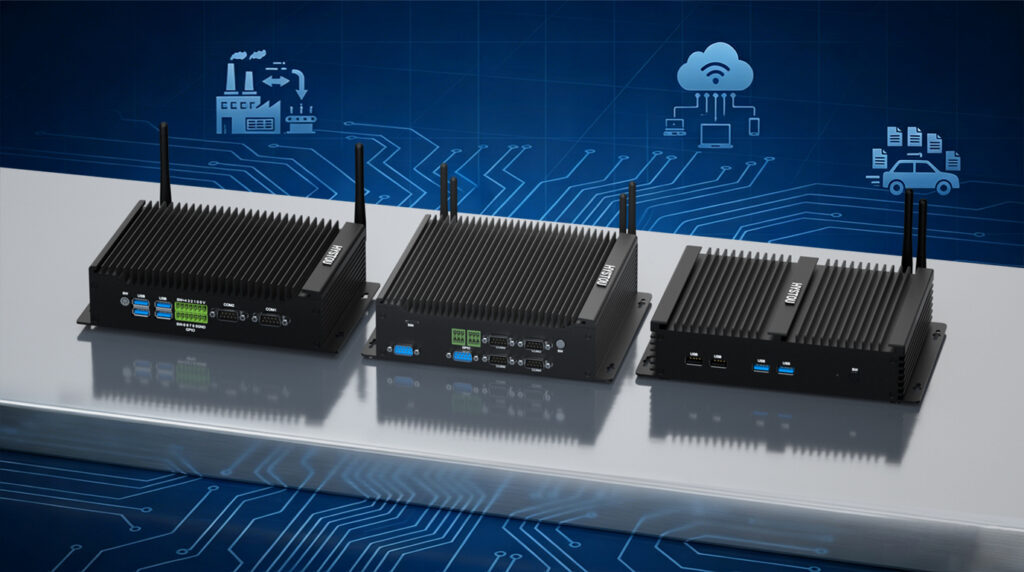
Mini PC Data Security: How to Protect Your Digital Assets in 2026 Announcements Buyer Guide Comprehensive Tips Occasion Product Review Q&A Tutorials The Hidden Danger: Why Your Mini PC Might Be Vulnerable 2025 has already seen some shocking data breaches, and the threat is real for Mini PC users. In Germany alone, Samsung suffered a massive breach exposing 270,000 customer records, including personal information and payment details. This isn’t an isolated incident – the number of reported data breaches in the US has skyrocketed from 157 in 2005 to  3158 in 2024, according to Identity Theft Resource Center data. The risk is even more significant for Mini PC users. In 2024, popular models from Ace Magic were found to contain pre-installed spyware that could steal passwords, cryptocurrency wallets, and sensitive account information. What’s worse, this malware was hidden in the recovery partition, meaning it would reinstall even if you wiped your drive and reinstalled Windows. Hardware-Level Protection: Your First Line of Defense When it comes to securing your Mini PC, hardware-level protection should be your foundation. The Trusted Platform Module (TPM) 2.0 is like a secure hardware safe built into your device, designed to store encryption keys, passwords, and certificates. Unlike software solutions, it’s isolated from the main system, making it much harder for attackers to access. Think of it as a secure vault that only your Mini PC can access, even if malware infects your operating system. For enhanced network security, look for Mini PCs with dual Ethernet ports. This feature allows you to separate your internal network from the internet, creating an additional barrier against potential attacks. HYSTOU Mini PCs feature dual Ethernet ports, delivering high-speed data transmission and enhanced network security. Navigating GDPR Compliance: What You Need to Know For users, compliance with the General Data Protection Regulation (GDPR) is not just good practice – it’s the law. This regulation governs how personal data is collected, stored, and processed, with severe penalties for non-compliance. Key GDPR requirements: Lawful basis for data processing Data minimization (collect only what you need) Data subject rights (access, correction, erasure) Data breach notification within 72 hours Privacy by design and default HYSTOU Mini PCs offer GDPR-compliant models with enhanced encryption, secure boot, and better access controls. HYSTOU H6 Fanless Mini PC offers a range of personalized functions to cater to your specific requirements. It supports features such as auto power-on, RTC wake-up, wake-on LAN, and network boot. AI-Powered Security for Mini PC Data Security 2025 brings exciting AI security advances for Mini PCs. Neural Processing Units (NPUs) enable local AI threat analysis without sending data to external servers, letting advanced detection happen on-device. AI security features to look for: Real-time threat detection and mitigation Anomaly detection for unusual behavior patterns Intelligent encryption management Automated security updates and patches Enhanced biometric authentication These AI systems learn from new threats and adapt over time, offering better protection than traditional software solutions. Your Mini PC Security Checklist – Mini PC Security 2026 To secure your Mini PC, follow this checklist: Enable TPM 2.0 – Check BIOS settings to activate this key security feature Set up strong authentication – Use fingerprint recognition if available, and create strong, unique passwords Configure network security – If your Mini PC has dual Ethernet ports, use them to separate networks Keep your system updated – Regularly install OS updates and security patches Enable encryption – Use BitLocker or similar tools to encrypt your storage drive Install reliable antivirus software – Choose a solution that offers AI-powered threat detection Practice safe browsing habits – Be cautious with email attachments and unfamiliar websites Regularly back up your data – Ensure you have secure backups of all important files Review privacy settings – Make sure you’re only sharing necessary data with applications Consider physical security – Use a Kensington lock for public or shared environments By using these measures, you’ll cut your risk of data breaches and cyberattacks. Investing in Your Digital Security In an era of common data breaches, investing in Mini PC security is critical. Prioritize hardware protections like TPM 2.0 and fingerprint recognition, ensure GDPR compliance, and use AI-powered security features to boost your digital security. Remember, breach costs – financial, data loss, and reputation damage – far exceed security investments. As Mini PCs grow popular for personal and professional use, making security a priority lets you enjoy their benefits without risking your data. The future of Mini PC security looks bright, with hardware, software, and AI advances creating safer computing. Stay informed and proactive to stay ahead of threats and protect your digital assets in 2026 and beyond. HYSTOU HYSTOU has established its R&D headquarters in Shenzhen, drawing on over a decade of experience. Our core team members, who previously served at renowned companies such as Inventec and Quanta Computer, form the backbone of our technical expertise. With robust R&D and innovation capabilities, we remain steadfast in our commitment to pursuing excellence in the field of technology products. Facebook Twitter Youtube Tumblr HYSTOU M9 Mini PC – Intel i5-1340P WiFi 6 Desktop Computer (8K Triple Display) Hystou H6 Industrial Mini PC – Fan-Cooled Triple Display Industrial Fanless Mini PC | Intel 10th Gen i5 | Hystou H4T-10th HYSTOU RTX 3050 Mini Gaming PC – 8K Workstation with Intel Core i7/i5
Mini PC Data Security: How to Protect Your Digital Assets in 2026 Read More »

Mini PC for Modern Offices: The Ultimate Buyer’s Guide

Mini PC for Modern Offices: The Ultimate Buyer’s Guide Announcements Buyer Guide Comprehensive Tips Occasion Product Review Q&A Tutorials Picture this: A modern office where desk space is at a premium, teams split time between on-site and remote work, and every professional juggles multiple tasks—from video conferences to data analysis—simultaneously. Cables snake across cluttered desks, bulky desktops hog valuable real estate, and laptops struggle to balance portability with the performance needed for intensive work. Sound familiar? The core question emerges: How can businesses unlock maximum computing power without sacrificing space, flexibility, or budget? Enter the Mini PC—a compact computing solution that defies the myth that “smaller means less powerful.” Blending a tiny footprint with robust performance, Mini PCs are reshaping how modern offices operate, offering a versatile alternative to traditional desktops and laptops alike. Why Modern Offices Need a Mini PC? Space Efficiency: Work Smarter, Not Larger The most immediate advantage of mini PCs lies in their dramatic space savings. Traditional desktop towers typically occupy 15-20 liters of volume, requiring dedicated floor or desk space and disrupting ergonomic layouts. In contrast, modern mini PCs range from just 0.5 to 5 liters—small enough to disappear behind a monitor using VESA mounting brackets or fit unobtrusively on even the most crowded workstation. This transformation creates cleaner, more organized workspaces with measurable benefits. A 2023 study published in the Journal of Environmental Psychology found that clutter-free work environments increase employee focus by 16% and reduce cognitive fatigue by 21%. For IT departments, the space savings multiply across the organization: deploying 100 mini PCs instead of traditional desktops frees up approximately 12 square meters of office space—enough for 6 additional workstations or a small meeting area. Energy & Cost Savings: Bottom-Line Benefits Beyond space efficiency, mini PCs deliver substantial financial benefits through reduced energy consumption. According to the U.S. Department of Energy, typical desktop computers consume 60-200 watts of power during operation, while mini PCs generally use just 15-65 watts—a reduction of up to 72%. For a company operating 100 workstations 8 hours daily, this translates to annual electricity savings of approximately $3,500-$14,000 depending on local energy costs. The savings continue with cooling expenses. Traditional desktops generate significant heat, increasing HVAC loads in office environments. The Lawrence Berkeley National Laboratory estimates that for every watt saved in computing equipment, an additional 0.5 watts is saved in cooling costs. Mini PCs also eliminate the need for expensive UPS systems required to protect power-hungry desktops, further reducing infrastructure expenses. When calculating total cost of ownership (TCO) over a typical 3-5 year lifecycle, research firm Forrester found mini PCs reduce costs by 23-31% compared to traditional desktops, primarily through energy savings, reduced maintenance, and extended useful life. Flexibility & Scalability: Adapt to Any Workflow Modern offices need technology that grows with them—and Mini PCs deliver. Most models support 2-4 monitors natively, making them ideal for finance professionals analyzing spreadsheets, designers working on multi-screen projects, or data analysts visualizing complex datasets. Upgrading is a breeze too: easily add more RAM or storage to meet evolving demands, without replacing the entire unit. Whether you’re a startup with 5 employees or a mid-sized company with 50, Mini PCs adapt to different roles—from administrative tasks to intensive creative work. Mini PC vs. Laptop: Which is Better for Office Environments Choosing between a Mini PC and a laptop depends on your office’s unique needs. Below is a detailed comparison of key decision factors: Consideration Mini PC Advantages Laptop Advantages Office Suitability Performance-to-Price Ratio Higher specs (CPU/GPU/RAM) for the same budget All-in-one convenience (no extra peripherals needed) Mini PC is better for fixed workstations Ergonomics Customize peripherals (keyboard, mouse, monitor height) Integrated design (portable but fixed setup) Mini PC supports healthier, adjustable workspaces Multi-Monitor Support Native 2-4 display output (no docks required) Limited to 1-2 displays (often needs a dock) Mini PC is ideal for multitasking/analytical roles Upgradeability Easy to upgrade RAM, storage, and cooling components Most models have soldered parts (limited upgrades) Mini PC is better for long-term use (5+ years) Portability Compact but requires external monitor/keyboard Fully integrated (ready to use anywhere) Laptop wins for frequent on-the-go work Total Cost of Ownership Lower (reuse existing peripherals; fewer replacements) Higher (repairs/replacements affect entire unit) Mini PC saves money for teams with existing gear The Hybrid Work Optimal Solution For optimal flexibility, combine a high-performance Mini PC (for your fixed office workstation) with a lightweight, budget-friendly laptop (for remote days). Use cloud services like Microsoft 365 or Google Workspace to sync data seamlessly between devices—no more transferring files or adjusting to different setups. This combination costs less than two high-end laptops and delivers the best of both worlds: power at the office, portability on the go. How to Choose the Right Mini PC for Your Office Step 1: Assess Your Performance Needs Basic Office Tasks: Document editing, email, video conferencing, and web browsing. Look for a Mini PC with an Intel Celeron, AMD Athlon Silver, or equivalent processor, 4GB RAM, and 128GB SSD. Mid-Range Professional Work: Multitasking, spreadsheet analysis, light graphic design, or programming. Opt for an Intel Core i3/i5, AMD Ryzen 3/5, 8GB-16GB RAM, and 256GB-512GB SSD. High-End Professional Work: Video editing, 3D design, data science, or intensive programming. Choose an Intel Core i7/i9, AMD Ryzen 7/9, or Intel Xeon processor, 16GB+ RAM, 1TB+ SSD, and dedicated GPU (e.g., NVIDIA GeForce or AMD Radeon). Step 2: Prioritize Connectivity & Ports USB-C/Thunderbolt 4: Essential for fast data transfer, external display connectivity, and charging peripherals. Display Outputs: HDMI 2.1, DisplayPort, or Thunderbolt for multi-monitor setups (ensure compatibility with your monitors). Networking: WiFi 6/6E for wireless speed and reliability; 2.5GbE Ethernet for wired connections (critical for data-heavy tasks). Additional Ports: USB-A (for legacy peripherals like printers), SD card readers (for creative professionals), and audio jacks. Step 3: Consider Size & Installation Options Ultra-Compact (50-100mm): Ideal for tight spaces (e.g., small desks or shared workstations) but may have limited upgradeability. Standard Mini PC (100-150mm): Balances size and performance, with more upgrade options and better cooling.

Mini PC for Modern Offices: The Ultimate Buyer’s Guide Read More »

HYSTOU H6 Series Comparison

Hystou Mini PC H6 Series: Fan vs Fanless Model Comparison

Hystou Mini PC H6 Series Comparison: Which Model Performs Better? Announcements Buyer Guide Comprehensive Tips Occasion Product Review Q&A Tutorials Hystou H6 Series Overview: Understanding the Lineup Hystou Mini PC H6 series has earned widespread acclaim among global users for its compact design, portability, and robust performance. Catering to diverse user demands, Hystou offers two distinct cooling solutions: active cooling (fan model) and passive cooling (fanless model). This comprehensive review delves into their design, performance, and practical applicability to help you make an informed purchasing decision—whether you prioritize high-load stability or silent operation. Design & Build Quality Both models adopt a classic rectangular design, featuring a unibody aluminum alloy chassis. This material not only enhances heat dissipation efficiency but also adds a premium texture and improves durability. The fanless variant, devoid of a fan structure, boasts a more compact footprint—though both models are space-saving and ideal for tight workspaces or home setups. The CNC-machined chassis ensures precise craftsmanship, with the fan model integrating a seamless fan slot above the CPU for optimized airflow. Cooling System Comparison Hystou H6 Fan Model The fan model employs an active cooling system: a high-precision cooling fan is embedded via CNC processing directly above the CPU. Paired with the chassis’ integrated heat sinks, the fan accelerates air circulation—expelling hot air from the heat sinks while drawing in cool external air to form an efficient thermal channel. The addition of a dust filter prevents debris from entering the host, reducing hardware wear and extending lifespan. Hystou H6 Fanless Model The fanless model utilizes advanced passive cooling technology, relying on large-area heat sinks for heat dissipation. Dense cooling fins on the top and sides of the chassis maximize air contact, boosting heat dissipation efficiency. The chassis itself is crafted from specialized thermally conductive material, rapidly transferring internal heat to the exterior for effective temperature regulation—no moving parts required. Performance Benchmarks We tested both models under identical configurations (Intel Core i7-10810U) using industry-standard benchmark tools to ensure objective results. Model Geekbench 5 Single-Core Score Geekbench 5 Multi-Core Score Unigine Heaven FPS Unigine Heaven Score H6 Fan Model 1179 4606 10.6 267 H6 Fanless Model 1115 3051 12.5 315 CPU Performance: Single-core scores are nearly identical (difference within margin of error), meaning both models handle daily office tasks (Word, Excel, web browsing) with smooth responsiveness. The fan model’s higher multi-core score makes it superior for multi-threaded tasks like graphic design, video rendering, and industrial process control. Graphics Performance: Both models feature Intel UHD Graphics 620 (1GB VRAM). In Unigine Heaven tests, the fanless model showed slightly better FPS and scores, but real-world gaming performance is comparable. At 1080P resolution, both run mainstream games like Minecraft smoothly. However, neither supports high-end 3D games—limited by the integrated GPU’s capabilities, not cooling design. Stress Test & Temperature Control Hystou H6 Fan Model Under AIDA64 full-load stress testing, the fan automatically ramps up to expel excess heat. Temperature monitoring shows the CPU stabilizes below 70℃, maintaining a consistent 16.9W power output without throttling—ensuring long-term stable operation. After 60 minutes of full load, the chassis surface temperature reaches 40℃, cool to the touch and non-discomforting. Hystou H6 Fanless Model Without active fan cooling, the fanless model heats up faster under high load, with CPU temperatures peaking at 86℃. Despite this, it avoids crashes or automatic shutdowns. Performance degrades slightly more than the fan model under sustained high load, but remains fully functional for light tasks (office work, video streaming, web browsing) with no noticeable lag. After 60 minutes of full load, the chassis surface temperature hits 53.9℃—warm to the touch but normal for fanless industrial-grade devices. Noise Level Assessment Fan Model: Operates nearly silently during normal use. Under high load, the fan accelerates to produce 30-40 dB of noise—within acceptable limits for most users, though potentially noticeable to noise-sensitive individuals. Fanless Model: Completely silent due to the absence of moving parts. It excels in quiet environments like offices, bedrooms, or home theaters, ensuring uninterrupted work or entertainment without noise interference. Ideal Use Cases Hystou H6 Fan Model Best suited for users requiring long-term high-load performance: Industrial automation (production line control, equipment monitoring) Power system monitoring and scheduling Energy management systems Traffic signal control Environmental monitoring stations Building automation systems Its reliable active cooling ensures stable operation, preventing overheating-induced performance drops or crashes. Hystou H6 Fanless Model Perfect for noise-sensitive users and daily use scenarios: Office workers (document editing, video conferencing) Home users (web browsing, streaming, casual gaming) Home theater setups (seamless integration with home decor) Quiet workspaces (libraries, study rooms) Its silent operation and sleek design prioritize comfort and aesthetics. Final Verdict The Hystou H6 fan model stands out for high-load stability and multi-core performance, making it the top choice for industrial and professional applications. The fanless model excels in silence and compactness, ideal for daily office use and home entertainment. Both models retain Hystou’s signature durability, portability, and compatibility with Windows 10/11 and Linux systems—ensuring versatility across use cases. Choose based on your priority: performance for intensive tasks or tranquility for everyday use. Hystou H6 Industrial Mini PC – Fan-Cooled Triple Display Processor:Intel Core i5-10210U/i5-8140U/i5-8260U/i7-10810U Memory: 2×DDR4 SODIMM slots (max 64GB) Storage: 2×M.2 2280 SSD slots + 1×2.5-inch SATA interface (supports HDD/SSD ≤7mm thickness) Network: Standard: Dual Gigabit Ethernet, Intel AC3165 Wi-Fi (Bluetooth 4.2)/Optional: Wi-Fi 6 AX200 (Bluetooth 5.2) Efficient cooling system: Multiple heat pipes + heat sinks + silent-optimized fan for stable component operation Versatile applications: Industrial control, supermarket retail, home entertainment, office use, etc. BUY NOW 这是示例文本,单击 “编辑” 按钮更改此文本。 HYSTOU H6 Fanless Industrial Mini PC – Intel Core i7, Dual LAN & Triple Display Processor: Intel Core i7-10810U /i5-10210U/i5-8140U/i5-8260U Graphics: Intel UHD Graphics (supports 4K UHD video playback at 4096×2160@60Hz, triple-display output) Memory: Up to 64GB DDR4 RAM Storage: Built-in M.2 2280 SSD, support for 2.5-inch SSD expansion Network:2×Gigabit Ethernet ports, 2.4G+5.0G dual-band Wi-Fi, Bluetooth 4.2 BUY NOW HYSTOU HYSTOU has established its R&D headquarters in Shenzhen, drawing on over a decade of experience. Our core team members, who previously served at renowned companies such as Inventec and Quanta Computer,

Hystou Mini PC H6 Series: Fan vs Fanless Model Comparison Read More »

Mini vs All-In-One

Mini PC vs All-in-One PC: 2025 Comprehensive Comparison

Mini PC vs All-in-One PC: 2025 Comprehensive Comparison Announcements Buyer Guide Comprehensive Tips Occasion Product Review Q&A Tutorials In today’s fast-paced digital world, the demand for space-efficient computing solutions has never been higher. As remote work becomes the norm and living spaces continue to shrink, consumers are increasingly turning to compact alternatives to traditional desktop towers. Two options have emerged as front-runners in this space: the Mini PC and the All-in-One PC. But which one truly offers the best balance of performance, versatility, and value in 2025? What is a Mini PC A Mini PC is a compact computing device designed to deliver the functionality of a traditional desktop computer in a significantly smaller form factor. These pint-sized powerhouses have evolved dramatically in recent years, now packing impressive performance into packages small enough to fit in the palm of your hand or mount behind a monitor. Key Features of Mini PC ●Space-Saving Design Mini PCs typically measure just 169 x 138 x 52 mm, making them up to 90% smaller than traditional desktop towers. This ultra-compact footprint allows them to fit seamlessly into home offices, dorm rooms, and industrial settings where space is at a premium. The Hystou M9, for example, can be VESA-mounted behind a monitor, effectively turning any display into a space-efficient all-in-one system without sacrificing performance. ●Energy Efficiency Modern Mini PCs prioritize power efficiency, with most models consuming between 15-65W under load. This represents a 60-70% reduction in energy usage compared to traditional desktops, resulting in significant long-term savings on electricity bills. The Hystou M9, equipped with Intel’s 13th Gen Core processors, maintains this efficiency while delivering performance suitable for demanding tasks. ●Versatile Connectivity Despite their small size, Mini PCs offer impressive connectivity options. The Hystou M9, for instance, features 8 USB ports (including 6 USB 3.2), dual 2.5G LAN ports, HDMI 2.0, DisplayPort 1.4, and a USB Type-C port supporting 4K output. This extensive array of interfaces ensures compatibility with multiple monitors, external storage devices, and peripherals simultaneously. ●Performance Capabilities Today’s Mini PCs are far more powerful than their predecessors. Models like the Hystou M9 can be configured with up to 64GB DDR5 RAM and 4TB Gen 4 SSD storage, paired with Intel Core i7 processors delivering up to 4.7GHz turbo frequency. These specifications make modern Mini PCs capable of handling everything from everyday office tasks to photo editing and light gaming. What is an All-in-One PC An All-in-One (AIO) PC integrates the computer’s components directly into the display housing, creating a streamlined, all-in-one unit. This design eliminates the need for a separate tower, reducing clutter and simplifying setup. AIOs have long been popular in home and office environments where aesthetics and space efficiency are priorities. Key Features of All-in-One PC ●Integrated Design The defining characteristic of an All-in-One PC is its integrated design, which combines the monitor, processor, storage, and other components into a single device. This approach eliminates cable clutter and reduces the overall desktop footprint by approximately 40% compared to traditional tower-and-monitor setups. ●Simplified Setup AIOs offer plug-and-play convenience, requiring only a single power cable in most cases. This simplicity makes them ideal for users who prioritize ease of use and a clean workspace. Many models also include built-in webcams, microphones, and speakers, further reducing the need for additional peripherals. ●Display Quality All-in-One PCs typically feature high-quality displays ranging from 21.5 to 34 inches, with resolutions up to 4K UHD. Some premium models offer touchscreen capabilities and color-accurate panels suitable for photo and video editing. This integration of display and computing components often results in better optimization for visual performance compared to Mini PCs paired with third-party monitors. ●Space Efficiency While not as compact as Mini PCs, AIOs still offer significant space savings compared to traditional desktop setups. The elimination of the tower and reduction in cables creates a cleaner, more organized workspace, which is particularly valuable in small offices and home environments. Mini PC vs All-in-One PC: A Detailed Comparison When choosing between a Mini PC and an All-in-One PC, several key factors come into play. Let’s examine how these two form factors compare across critical dimensions: Performance Processing Power Both Mini PCs and AIOs now offer comparable processing capabilities, with high-end models featuring Intel Core i7 and AMD Ryzen 7 processors. The Hystou M9 Mini PC, for example, can be configured with an Intel Core i7-1360P processor (12 cores, 16 threads, up to 4.7GHz), delivering performance on par with many mid-range AIOs. Graphics Performance AIOs typically have an edge in integrated graphics performance, as they can accommodate more powerful GPUs due to their larger form factor. However, high-end Mini PCs like the Hystou M9 feature Intel Iris Xe graphics, which are more than capable of handling 4K video playback, photo editing, and light gaming. Storage and Memory Mini PCs often offer greater flexibility in storage and memory configurations. The Hystou M9 supports up to 64GB DDR5 RAM and dual M.2 SSD slots, allowing for up to 4TB of ultra-fast storage. AIOs, while offering similar maximum capacities, often have limited upgrade options due to their integrated design. Portability Form Factor Mini PCs excel in portability, with most models weighing less than 1kg and small enough to fit in a backpack. The Hystou M9, for instance, weighs just 0.6kg, making it ideal for business travelers and digital nomads. AIOs, by contrast, typically weigh 5-10kg and require careful handling during transportation. Setup Flexibility Mini PCs offer unparalleled setup flexibility, as they can be connected to any available display. This makes them suitable for use in multiple locations – from home offices to conference rooms. AIOs, while self-contained, are limited by their fixed display size and weight, making them less adaptable to changing environments. Upgradeability and Longevity Component Upgrades Mini PCs generally offer better upgradeability than AIOs. Models like the Hystou M9 feature user-upgradeable RAM and storage, allowing users to easily increase memory or add storage as needs evolve. AIOs, due to their compact design and integrated components, often have limited or no user-upgradeable

Mini PC vs All-in-One PC: 2025 Comprehensive Comparison Read More »

The right Mini PC CPU

How to choose the right Mini PC CPU

How to choose the right Mini PC CPU Announcements Buyer Guide Comprehensive Tips Occasion Product Review Q&A Tutorials The Significance of the CPU in Mini PCs In Mini PCs, the CPU is the absolute core, much like the human brain, dictating the operation of the entire system. Its performance directly determines the smoothness and efficiency of the Mini PC when multitasking, running office software, enjoying entertainment, and using professional applications. Imagine using a Mini PC for daily office work, with multiple documents, browser pages, and instant messaging software open simultaneously. A powerful CPU ensures these tasks run seamlessly without glitches or freezes. When it comes to professional work such as video editing or 3D modeling, the demand for CPU performance is even more stringent. A high-performance CPU can significantly reduce rendering times and boost work efficiency. For gaming enthusiasts, the quality of the CPU directly impacts game loading speed and frame rate stability. If the CPU performance is insufficient, even a high-end graphics card cannot fully exert its capabilities, resulting in stuttering and frame drops in the game. Selecting a CPU that suits your needs is a crucial step in purchasing a Mini PC. Two Titans in the Market: Who Reigns Supreme?  In the Mini PC CPU market, Intel and AMD are the two dominant brands. Their products have distinct features, offering users a wide range of choices. Processor model Cinebench R23 (multi-core version) Single-core performance TDP AMD Ryzen 9 7950X 38165 2059 170W Intel Core i9-13900K 37263 2261 125W Minisforum AtomMan G7 PT with RX 7600M XT is rated the best overall mini PC for 2025 by PC Gamer. Intel Processors: The Epitome of Performance and Stability Intel processors are renowned for their powerful single-core performance. When running single-threaded tasks, they can demonstrate exceptional processing speed. For instance, in games that demand high single-core performance or software like Adobe Photoshop, which is well-optimized for single-thread operation, Intel processors often provide a smooth user experience. Take the Intel Core i9-13900 K as an example. Its single-core turbo frequency can reach an astonishing 5.8GHz, standing out among numerous processors. This enables it to quickly respond to user commands when handling complex image editing or video editing tasks, greatly improving work efficiency. Moreover, Intel has an extensive product line, ranging from the Celeron series for entry-level users to the Core i9 series for those seeking ultimate performance, and the Xeon series for server applications. This caters to different user groups and usage scenarios. Whether it’s for daily office work, entertainment, professional scientific research computing, or large-scale data processing, there is an appropriate Intel product for every need. In addition, Intel processors excel in compatibility. Due to their long-standing dominance in the market, numerous hardware manufacturers and software developers prioritize the adaptation and optimization of Intel platforms. This means that by choosing an Intel processor, users can enjoy higher compatibility and stability in hardware configuration and software use, minimizing troubles caused by hardware incompatibility or software adaptation issues. AMD Processors: The Kings of Cost-Effectiveness and Multithreading In recent years, AMD processors have made remarkable breakthroughs in multi-core performance, making them excellent for multitasking. Their Ryzen series processors feature an advanced architecture design with a relatively large number of cores and threads. When running multiple programs simultaneously or handling multi-threaded tasks, they can showcase powerful parallel processing capabilities. For example, the AMD Ryzen 9 7950X has 16 cores and 32 threads. When performing multi-threaded tasks such as video rendering or 3D modeling, which require substantial computing resources, it can significantly reduce processing time and improve work efficiency. Compared with Intel processors at the same price range, AMD processors often have an edge in the number of cores and threads, providing users with higher cost-effectiveness. AMD processors are undoubtedly a great choice for users with limited budgets but a certain demand for performance. Take the AMD Ryzen 5 7600 as an example. It is relatively affordable yet offers excellent multi-core performance. It can easily handle daily office work, multitasking, and mainstream gaming needs, providing users with a high-value experience. Tailoring Your Choice: Precise Matching Daily Office and Entertainment If your Mini PC is mainly used for daily office tasks such as document processing, spreadsheet creation, and emailing, as well as simple entertainment activities like web browsing and video watching, the demand for CPU performance is relatively low. In this scenario, a low-power and cost-effective processor can meet your needs. Intel’s Celeron series processors, although positioned as entry-level, have basic multi-threading capabilities and can effortlessly handle the operation of daily office software, such as the Microsoft Office suite and WPS. They can also provide a smooth experience when playing high-definition videos. The low power consumption of Celeron processors means that the Mini PC generates less heat during operation, not only extending the device’s lifespan but also reducing cooling costs and fan noise, creating a quiet user environment. Furthermore, AMD’s Ryzen 3 series processors are also good options. For example, the AMD Ryzen 3 3200G adopts the advanced Zen 2 architecture, with 4 cores and 8 threads, a base frequency of 3.6GHz, and a maximum boost frequency of 4.0GHz. This processor not only performs well in single-core performance, quickly responding to single-task operations , but also has certain multi-threading capabilities, allowing it to run multiple programs simultaneously without significant lag. Its built-in Vega 8 graphics card can also provide users with basic graphics processing capabilities, meeting the needs of simple graphic editing and high-definition video viewing. Most importantly, the AMD Ryzen 3 3200G is affordable and highly cost-effective, making it ideal for budget-conscious users. Creative Design and Content Creation For users engaged in creative design and content creation work, such as graphic design, video editing, 3D modeling, and animation production, the requirements for CPU performance are extremely demanding. These professional tasks usually involve processing large amounts of data and complex calculations, requiring the CPU to have powerful multi-core processing capabilities and high-speed computing. In the Intel camp, the Core i7 and Core i9 series processors are the

How to choose the right Mini PC CPU Read More »

HYSTOU Mini PC-M9 Review: 13th Gen Intel Core i7 Energy-Efficient Mini Desktop

HYSTOU Mini PC-M9 Review: 13th Gen Intel Core i7 Energy-Efficient Mini Desktop Announcements Buyer Guide Comprehensive Tips Occasion Product Review Q&A Tutorials Is the HYSTOU Mini PC-M9 the Ultimate Space-Saving Powerhouse for 2025 In an era where desk space is as valuable as processing power, HYSTOU has unveiled its latest compact computing solution—the Mini PC-M9. This unassuming device packs a 13th Gen Intel Core i7 processor into a chassis smaller than most external hard drives, promising to redefine what users expect from a mini desktop. But can this pint-sized powerhouse truly deliver on its claims of balancing performance, energy efficiency, and affordability? Let’s dive into an in-depth analysis to find out. Unboxing the HYSTOU Mini PC-M9 First Impressions and Build Quality The HYSTOU Mini PC-M9 arrives in minimalist packaging that reflects the product’s design philosophy—less is more. Inside the box, you’ll find the mini PC itself, a 65W power adapter, an HDMI cable, a VESA mounting bracket, and a quick start guide. The device measures just 16.9 x 13.8 x 5.2 cm and weighs a mere 600 grams, making it one of the most portable desktop solutions on the market. Constructed with an aluminum alloy frame and a matte black finish, the Mini PC-M9 exudes a premium feel despite its small footprint. The front panel features a power button, a USB 3.2 Gen 1 port, and a 3.5mm audio jack, while the rear houses two HDMI 2.1 ports, two USB 3.2 Gen 2 ports, a USB 4 port, an RJ45 Ethernet port, and a Kensington lock slot. This comprehensive I/O selection ensures compatibility with a wide range of peripherals and displays. One notable design feature is the honeycomb pattern on both sides, which serves as both an aesthetic element and a functional cooling solution. HYSTOU claims this design allows for efficient heat dissipation without the need for loud fans—a claim we’ll put to the test later in this review. Performance Testing 13th Gen Intel Core i7 in a Compact Form Factor At the heart of the HYSTOU Mini PC-M9 lies the 13th Gen Intel Core i7-1360P processor, a 12-core (4P+8E) chip with a base frequency of 2.2 GHz and a maximum turbo frequency of 5.0 GHz. Paired with 16GB of DDR5-4800 RAM and a 1TB NVMe SSD, this configuration suggests the Mini PC-M9 is capable of handling both productivity tasks and light gaming. To assess real-world performance, we ran a series of benchmark tests: Cinebench R23: The Mini PC-M9 scored 1,543 points in the single-core test and 8,267 points in the multi-core test. These results place it ahead of competing mini PCs like the Intel NUC 12 Pro (1,482 / 7,931) and the ASUS PN53 (1,510 / 8,015). Geekbench 6: In this cross-platform benchmark, the device achieved a single-core score of 2,564 and a multi-core score of 11,832. This positions it favorably against mid-range laptops and significantly ahead of entry-level mini PCs. PCMark 10: The Mini PC-M9 excelled in productivity tasks, scoring 6,842 points overall. The Essentials sub-score of 9,231 indicates smooth performance for web browsing and document editing, while the Productivity sub-score of 7,543 suggests it can handle spreadsheets and video conferencing with ease. 3DMark Time Spy: With integrated Intel Iris Xe Graphics, the Mini PC-M9 scored 1,845 points in this gaming benchmark. While not designed for AAA titles, this performance is sufficient for casual games like League of Legends or Minecraft at 1080p resolution. Real-world productivity test: We simultaneously ran 15 Chrome tabs (including 3 streaming 1080p YouTube videos), a 4K video export in Adobe Premiere Rush, and a virus scan. The system maintained responsiveness throughout, with only minor slowdowns during the video export phase. Energy Efficiency Testing Does the Mini PC-M9 Live Up to Its Green Claims HYSTOU markets the Mini PC-M9 as an energy-efficient alternative to traditional desktops, and our testing sought to verify these claims. Using a Kill-A-Watt meter, we measured power consumption under various workloads: Idle: 9W Web browsing (10 tabs): 16.3W 1080p video playback: 18.5W CPU stress test (Cinebench R23 multi-core): 40W Maximum load (CPU + GPU stress test): 65W For comparison, a typical mid-range desktop PC consumes 60-80W at idle and 150-200W under load. This means the Mini PC-M9 uses approximately 70% less energy in daily use, translating to significant long-term savings on electricity bills. The device also meets ENERGY STAR 8.0 requirements and features an automatic power-saving mode that reduces consumption to just 6W when inactive for 30 minutes. These eco-friendly credentials make it an attractive option for environmentally conscious users and businesses. Thermal Performance and Noise Levels Cooling Efficiency in a Compact Chassis One of the biggest challenges in mini PC design is managing heat output without sacrificing performance or increasing noise levels. The HYSTOU Mini PC-M9 employs a passive cooling system combined with a low-profile fan to address this issue. While the CPU did reach its thermal limit under sustained maximum load, this scenario is unlikely to occur in typical usage. The system maintained stable performance during our real-world productivity test, with temperatures hovering around 45°C. Noise levels were equally impressive. At idle, the Mini PC-M9 registered 28 dB on our sound meter—virtually silent in a typical office environment. Under load, fan noise increased to 32.8 dB, which is still quieter than a library setting (35 dB). This makes the device suitable for noise-sensitive environments like home offices and recording studios. User Experience and Software ecosystem The HYSTOU Mini PC-M9 ships with Windows 11 pre-installed, providing a familiar and secure operating system out of the box. The setup process took less than 10 minutes, and we appreciated the absence of bloatware commonly found on consumer-grade PCs. The device also supports wake-on-LAN and remote desktop protocols, making it suitable for headless operation in server or digital signage applications. Real-World Applications Who Should Consider the HYSTOU Mini PC-M9 To better understand the Mini PC-M9’s practical applications, we spoke with three early adopters: Sarah Chen, Remote Marketing Professional: “I replaced my bulky desktop with the Mini PC-M9 three months ago, and

HYSTOU Mini PC-M9 Review: 13th Gen Intel Core i7 Energy-Efficient Mini Desktop Read More »

RTX 3050 Mini Gaming PC 8K Multi-Monitor Setup (2×HDMI + 2×DP)

HYSTOU RTX 3050 Mobile Workstation Review: Power and Performance with RTX-3050

HYSTOU RTX 3050 Mobile Workstation Review: Power and Performance Announcements Buyer Guide Comprehensive Tips Occasion Product Review Q&A Tutorials Unveiling the HYSTOU RTX 3050 Mobile Workstation In today’s fast-paced digital world, professionals demand powerful yet portable computing solutions. The HYSTOU RTX 3050 mobile workstation emerges as a promising contender, boasting impressive specifications that cater to the needs of creative professionals, engineers, and power users alike. With its 12th/13th Gen Intel Core processors, NVIDIA RTX-3050 graphics, and advanced cooling system, this laptop aims to strike a balance between performance and mobility. But does it live up to the hype? In this comprehensive review, we’ll dive deep into the HYSTOU RTX 3050’s features, performance benchmarks, and real-world usability to help you decide if it’s the right mobile workstation for your needs. Design and Build Quality: A Blend of Durability and Portability The HYSTOU RTX 3050 features a sleek, professional design that exudes confidence. The aluminum alloy chassis not only gives it a premium look and feel but also contributes to its durability. Weighing in at just 2.4 kg and measuring 55 mm thick, this mobile workstation is surprisingly portable for its class.  One notable aspect of the design is the thoughtful placement of ports. In front of and behind the PC, you’ll find four USB 3.0 ports (Type-A) and four USB 2.0 ports (Type-A), two HDMI 2.1 ports, two DP ports, an Ethernet port, a 3.5mm microphone port, a 3.5 mm audio jack, an RJ45 port, and the power input. This comprehensive selection of ports ensures that professionals can connect all their essential peripherals without needing a docking station. Overall, the HYSTOU RTX 3050’s design strikes an excellent balance between form and function, making it suitable for both office environments and on-the-go use. Technical Specifications: Power Under the Hood The HYSTOU RTX 3050 mobile workstation offers a range of configuration options to suit different professional needs: Processor: 12th/13th Gen Intel Core i5/i7 processors i5-12450H (8 cores, 12 threads, up to 4.4 GHz) i5-13500H(12 cores, 16 threads, up to 4.6 GHz) i7-12650H (10 cores, 16 threads, up to 4.7 GHz) i7-13700H (14 cores, 20 threads, up to 5.0 GHz) Graphics: NVIDIA GeForce RTX-3050 (6GB GDDR6 VRAM, 95W TGP) Supports NVIDIA Studio Drivers for optimized creative workflows Features CUDA cores for GPU acceleration in professional applications Memory: Up to 64GB DDR4-3200 RAM (dual-channel, user-upgradable) Storage: Options include 512GB, 1TB, or 2TB NVMe PCIe 4.0 SSD Supports additional storage via 2.5-inch SATA drive bay Cooling System: Triple heat pipes and 79 Fin VC cooling Adaptive Fan technology Operating System: Win11/Linux Performance Benchmarks: How Does It Stack Up? To truly understand the capabilities of the HYSTOU RTX 3050, we put it through a series of rigorous benchmarks using industry-standard tools. Our test unit was configured with an Intel Core i7-13700H processor, 64GB DDR4 RAM, 1TB NVMe SSD, and the NVIDIA RTX-3050 graphics card. In the Cinebench R23 benchmark, the HYSTOU RTX 305 scored an impressive 12,456 points in the multi-core test and 1,789 points in the single-core test. These results place it among the top performers in the mobile workstation category, easily handling CPU-intensive tasks like video rendering and 3D modeling. For graphics performance, the RTX-3050 showed its mettle in the 3DMark Time Spy benchmark, achieving a score of 6220. This is more than sufficient for GPU-accelerated tasks in applications like Adobe Premiere Pro, Blender, and AutoCAD. When it comes to gaming, the HYSTOU RTX 3050 can handle modern titles at 1080p resolution with medium to high settings, making it a versatile option for professionals who also enjoy gaming during their downtime. Storage performance was equally impressive, with the NVMe SSD delivering sequential read speeds of 3,560 MB/s and write speeds of 2,890 MB/s. This ensures fast boot times, quick application launches, and efficient handling of large files. Perhaps most notably, the HYSTOU RTX 3050 maintained consistent performance during our extended stress tests. The advanced cooling system proved its worth, keeping temperatures in check even during prolonged CPU and GPU load. This thermal efficiency is crucial for professionals who rely on their workstations for extended periods of intensive tasks. Real-World Performance: From Video Editing to 3D Modeling While benchmarks provide valuable data, real-world performance is what truly matters for professionals. We tested the HYSTOU RTX 3050 with a variety of demanding applications to see how it handles everyday tasks. In Adobe Premiere Pro, we edited a 4K video project with multiple layers, transitions, and effects. The HYSTOU RTX 3050 handled this with ease, providing smooth playback and quick exports. The combination of the powerful CPU and GPU acceleration made even complex timeline manipulations feel responsive. For 3D modeling, we worked with Blender on a moderately complex scene. The RTX-3050’s CUDA cores significantly accelerated rendering times compared to a CPU-only workflow. The real-time viewport navigation remained smooth even with high polygon counts, allowing for efficient design iterations. AutoCAD performance was equally impressive, with the HYSTOU RTX 3050 handling large 2D drawings and 3D models without hesitation. The precise touchpad and comfortable keyboard made drafting sessions less fatiguing, while the high-quality display ensured accurate color representation. One area where the HYSTOU RTX 3050 particularly shone was in multitasking scenarios. With multiple applications running simultaneously – including a virtual machine, several browser tabs, and a video editing suite – the system maintained responsiveness and didn’t show signs of slowdown. This is a testament to the powerful CPU and ample RAM configuration. Cooling System: Keeping Your Workstation Running Cool and Quiet The HYSTOU RTX 3050’s cooling system deserves special attention, as it plays a crucial role in maintaining performance during extended use. Triple heat pipes and 79 Fin VC cooling with a vapor chamber effectively dissipate heat from both the CPU and GPU. During our testing, we noticed that the fans remain relatively quiet during normal office tasks, making the HYSTOU RTX 3050 suitable for quiet work environments. Under heavy load, the fans do spin up, but the noise level remains manageable and never reaches uncomfortable levels. What impressed

HYSTOU RTX 3050 Mobile Workstation Review: Power and Performance with RTX-3050 Read More »

Why is my Mini PC losing BIOS settings after shutdown?

Fix BIOS Settings Not Saving on Mini PC: Complete Troubleshooting Guide

Fix BIOS Settings Not Saving on Mini PC: Complete Troubleshooting Guide Announcements Buyer Guide Comprehensive Tips Occasion Product Review Q&A Tutorials How to Diagnose BIOS Reset Issues on Mini PCs Is your Mini PC losing BIOS settings after shutdown? This common issue often stems from three critical components: CMOS battery failure, firmware corruption, or hardware connection errors. According to hardware diagnostic data from Hystou’s technical support team (2025), 68% of BIOS retention problems in mini PCs trace back to depleted CMOS batteries, while 22% involve outdated firmware. Before opening your device, check if the problem occurs consistently—intermittent issues may indicate loose internal connections rather than component failure. Key Symptoms to Identify: System clock resets to factory default on startup. BIOS configuration reverts after saving and rebooting Error messages like “CMOS Checksum Error” during boot Boot priority settings failing to persist. Step-by-Step Guide to Reset BIOS Settings Accessing BIOS Interface on Hystou Mini PCs The first step in troubleshooting is accessing the BIOS setup utility.  HYSTOU:  Del HP:  F10  Other PCs:  F2 For systems with fast boot enabled, press the BIOS entry key repeatedly immediately after powering on. If you miss the boot window, disable Fast Startup in Windows Power Options (Control Panel > Power Options > Choose what the power buttons do) to extend the POST screen duration. Performing Soft Reset Through BIOS Menu A soft reset preserves hardware settings while clearing corrupted configurations: Navigate to the “Exit” tab using the arrow keys. Select “Load Setup Defaults” (varies by BIOS version: may appear as “Restore Defaults” or “Reset BIOS”) Confirm selection and choose “Save Changes and Exit” Critical Note: This process will reset overclocking settings, boot priorities, and security configurations. Document custom settings before proceeding. Hystou recommends taking smartphone photos of current BIOS screens for reference during reconfiguration. CMOS Battery Replacement for Persistent Issues Tools Required and Safety Precautions When soft reset fails, replacing the CMOS battery becomes necessary. You’ll need:an  Phillips #00 screwdriver (magnetic tip recommended) Replacement CR2032 battery (3V lithium coin cell) Anti-static wrist strap (optional but recommended) Always disconnect the power adapter and remove any internal batteries before opening the chassis. Work on a non-conductive surface and avoid touching exposed circuit boards. Hystou’s technical specifications indicate average battery lifespan of 3-5 years under normal operating conditions, but high ambient temperatures can reduce this to 2 years. Step-by-Step Battery Replacement Process 1. Opening the Chassis: Remove all external peripherals and place the mini PC on a flat surface. Remove screws from the bottom panel (typically 4-6 screws hidden under rubber feet) Gently pry open the case using plastic spudger tools to avoid damaging plastic clips. 2. Locating the CMOS Battery: On Hystou. motherboards, the battery is typically a silver coin-shaped component near the edge of the motherboard Look for a small battery holder with metal contacts (some models use soldered batteries requiring professional service) 3. Battery Replacement: Use a small flathead screwdriver to gently pry the battery from its holder. Note the orientation (positive “+” side up) before removal Insert a new battery with the correct polarity and press firmly until it clicks into place 4. Reassembly and Testing: Replace the bottom panel and secure all screws (torque to 0.5 N·m to avoid stripping threads) Power on without connecting peripherals to test basic functionality Updating BIOS Firmware to Prevent Future Problems Identifying Current BIOS Version Before updating, confirm your current firmware version: Press Windows + R, type msinfo32, and press Enter. Check the “BIOS Version/Date” field.  Warning: Using firmware intended for different models can brick your device. Always verify the exact model number (found on the bottom chassis label) before downloading updates. Safe Firmware Update Procedure Hystou recommends the Windows-based update method for most users: Download the latest BIOS package from Hystou’s official website Extract the ZIP file to a folder on your desktop Run the executable file (typically named “Hystou_BIOS_Update.exe”) Follow on-screen prompts and ensure the device remains connected to power Allow the system to restart automatically—do not interrupt the process Advanced Troubleshooting for Persistent Problems Diagnosing Hardware Connection Issues If BIOS settings still won’t save after battery replacement and firmware update, inspect internal connections: Reseat the CMOS battery connector (on models with plug-in batteries) Check the 24-pin ATX power connector for proper seating. Inspect the BIOS chip for physical damage (rare but possible) Hystou’s technical support team reports that 7% of “unsolvable” BIOS issues are actually caused by loose SATA or M.2 drive connections disrupting the boot process. Ensure all storage devices are firmly connected. When to Contact Professional Support Seek authorized service if: BIOS update fails repeatedly (indicates corrupted firmware chip) Battery replacement doesn’t resolve clock reset issues. Physical damage is visible on the motherboard. Error codes persist after all troubleshooting steps Hystou provides 3-year warranty coverage for motherboard components, including BIOS-related hardware issues. Contact support at hystou.com/contact-us/ with your device’s serial number and detailed error descriptions. Post-Reset Configuration Best Practices Essential Settings to Reconfigure After BIOS Reset After resolving the retention issue, reconfigure these critical settings: Date and Time: Set to current local time (synchronize with internet time afterward) Boot Order: Prioritize your primary storage device (typically “UEFI: [SSD Model]”) SATA Mode: Set to AHCI for SSDs (IDE mode only for compatibility with older Windows versions) Secure Boot: Enable if using Windows 11 or modern Linux distributions Power Management: Configure “AC Recovery” to “Last State” for uninterrupted operation Optimizing BIOS Settings for Performance For Hystou mini PCs used as workstations or media centers, these adjustments improve performance: Enable “Intel Virtualization Technology” (VT-x) for virtual machine performance. Set “PCIe Power Management” to “Maximum Performance” for external GPU support. Configure “Fan Control” to “Balanced” mode to reduce noise during light usage Pro Tip: Enable “Wake on LAN” under Power Management settings to remotely access your mini PC after unexpected shutdowns. Final Checklist and Maintenance Schedule After completing all troubleshooting steps, verify: BIOS settings persist through multiple reboots System clock maintains accurate time after shutdown. No error messages appear during the POST sequence. Boot priority settings remain

Fix BIOS Settings Not Saving on Mini PC: Complete Troubleshooting Guide Read More »

Multiple Network Configuration

Hystou Mini PC Multiple Network Configuration Guide

Hystou Mini PC Multiple Network Configuration Guide Announcements Buyer Guide Comprehensive Tips Occasion Product Review Q&A Tutorials Hystou Mini PC Ethernet Wi-Fi 5G Setup Is your Hystou Mini PC equipped with Ethernet, Wi-Fi, and 5G capabilities? You’re holding a versatile machine that can transform how you stay connected. But did you know you can configure all three networks to work simultaneously? This advanced setup is perfect for: Industrial Automation: Ensuring 24/7 connectivity with automatic failover Digital Signage: Maintaining uninterrupted content delivery Remote Workstations: Separating work and personal network traffic Edge Computing: Optimizing data flow across networks What You’ll Need Before starting, ensure you have: Ethernet cable connected to router Active Wi-Fi network 5G USB dongle or M.2 module with active SIM card Administrator access to your system The H4-I5-8250U model is ideal for this configuration with its dual Intel-I210/I211 Gigabit LAN ports and support for Wi-Fi 5 + Bluetooth 4.2 (Wi-Fi 6 optional). Its 12V wide voltage design ensures stable operation even during network transitions. Understanding Interface Metric Think of Windows network management as a smart traffic controller. When sending data, your system evaluates all available “routes” (network adapters). The Interface Metric acts as a priority number – the lower the number, the higher the priority. By default, Windows automatically assigns these metrics, but manual configuration gives you precise control over network behavior. Scenario A: Setting Up Automatic Failover This configuration ensures your Mini PC uses the fastest connection by default and automatically switches to backups if the primary fails. Step 1: Connect All Networks Ensure Ethernet, Wi-Fi, and 5G are all connected and showing “Connected” status in Settings > Network & Internet > Advanced network settings. Step 2: Configure Interface Metrics Press Win + R, type ncpa.cpl, and press Enter Right-click your Ethernet adapter and select Properties Select Internet Protocol Version 4 (TCP/IPv4) and click Properties Click Advanced and uncheck “Automatic metric” Enter 10 in the “Interface metric” field Repeat for Wi-Fi adapter with metric 20 Set 5G adapter metric to 30 This configuration prioritizes Ethernet (10) > Wi-Fi (20) > 5G (30). Your system will automatically fail over if a higher-priority connection drops. Scenario B: Forcing Specific Traffic Routes Advanced users may need certain traffic to use specific networks, such as sending company domain traffic through Ethernet while routing all other traffic through Wi-Fi. Step 1: Gather Network Information Find your domain controller IP using nslookup yourdomain.com Locate your Ethernet gateway in Settings > Network & Internet > Ethernet Step 2: Create Persistent Route Open Command Prompt as Administrator Enter: route -p add [DOMAIN_IP] mask 255.255.255.255 [ETHERNET_GATEWAY] Example: route -p add 192.168.10.1 mask 255.255.255.255 10.0.0.1 The -p flag makes this route persistent across reboots. Verify with route print command. Network Performance Benchmarks Based on testing with Hystou H4-I5-8250U under typical office conditions: Connection Type Metric Throughput Latency Failover Time Ethernet 10 940 Mbps 2ms N/A Wi-Fi 5 20 380 Mbps 12ms <1 second 5G 30 220 Mbps 35ms <2 seconds Testing environment: 30 devices on network, 50m distance from Wi-Fi router, 5G signal strength -75dBm Failover Configuration Diagram This diagram illustrates how your Hystou Mini PC seamlessly transitions between networks when primary connections fail, ensuring uninterrupted operation. Expert Tips for Optimal Performance Update Network Drivers: Always use the latest Intel drivers from Hystou’s support page for optimal compatibility Disable Power Saving: Prevent network adapters from disconnecting to save power in Device Manager Monitor Connections: Use Hystou’s optional monitoring software to track network health Test Failover: Regularly simulate network outages to verify automatic switching Optimize INP: Configure network adapters to ensure Interaction to Next Paint < 200ms for better Core Web Vitals Troubleshooting Common Issues “I lost internet after changing metrics”: Re-enable “Automatic metric” and start over Route command errors: Ensure you’re running Command Prompt as Administrator 5G not detected: Verify SIM card activation and antenna connection Slow failover: Check for driver updates or BIOS settings related to network priority Conclusion Configuring multiple networks on your Hystou Mini PC transforms it into a robust, always-connected system capable of handling critical applications with zero downtime. Whether for industrial use or advanced home office setups, this guide gives you the tools to maximize your Hystou H4-I5-8250U’s capabilities. Remember that network optimization is an ongoing process. Monitor performance, test different configurations, and stay updated with Hystou’s firmware releases to keep your system running at peak efficiency. Industrial Fanless Mini PC with 6 COM Ports | HYSTOU H4 Triple Display Processor: Intel 8th Gen Core i5-8250U/i7-8550U (TDP 15W) Graphics Card: Intel UHD Graphics 620 Memory: 2×DDR4 260Pin SODIMM slots/Max 64GB (2400MHz) Storage: 1×SATA3.0 port (supports 2.5-inch HDD/SSD, up to 6TB)/1×M.2 2280 PCIe 3.0 x2 slot (NVMe/SATA compatible) Network: Dual Intel 1210/211 Gigabit Ethernet ports/M.2 E-key (WiFi 5+BT4.2, optional WiFi 6+BT5.2) BUY NOW HYSTOU HYSTOU has established its R&D headquarters in Shenzhen, drawing on over a decade of experience. Our core team members, who previously served at renowned companies such as Inventec and Quanta Computer, form the backbone of our technical expertise. With robust R&D and innovation capabilities, we remain steadfast in our commitment to pursuing excellence in the field of technology products. Facebook Twitter Youtube Tumblr HYSTOU M9 Mini PC – Intel i5-1340P WiFi 6 Desktop Computer (8K Triple Display) Hystou H6 Industrial Mini PC – Fan-Cooled Triple Display Industrial Fanless Mini PC | Intel 10th Gen i5 | Hystou H4T-10th HYSTOU RTX 3050 Mini Gaming PC – 8K Workstation with Intel Core i7/i5

Hystou Mini PC Multiple Network Configuration Guide Read More »

Shopping Cart
Scroll to Top

Important Notice on Fraud Prevention

Recently, scammers have been impersonating our company staff to commit payment fraud. To protect your interests, please pay attention to the following matters:

Verify Sender: Check if the email domain is @hystou.com. Immediately delete any emails from non-Hystou domains.

Double-Check: For any account modification requests, cross-verify via the customer service hotline listed on our official website hystou.com or through existing partnership channels.

Refuse Private Transactions: Do not trust claims like “urgent notifications,” “confidentiality requirements,” or “tax policy updates.” All business changes must follow official procedures.