ziyao, song

Minimalist tech poster for Intel vs AMD rivalry with blue vs red color scheme and futuristic geometric design.

Intel vs AMD for Mini PC: Key Differences You Need to Know Before Buying

Intel vs AMD for Mini PC: Key Differences You Need to Know Before Buying Announcements Buyer Guide Comprehensive Tips Occasion Product Review Q&A Tutorials Why Processor Choice Matters for Mini PCs When it comes to mini PCs, the processor is the heart of the device—determining how smoothly it runs daily tasks, handles multitasking, and adapts to your specific needs. Unlike traditional desktop PCs, mini PCs prioritize compact size and energy efficiency, making the choice between Intel and AMD processors even more critical. Both brands offer powerful options tailored for mini form factors, but they differ significantly in performance strengths, power consumption, compatibility, and price. This guide breaks down those key differences, helping you make an informed decision when shopping for your next mini PC. What to Expect from This Comparison We’ll focus on the aspects that matter most for mini PC users: performance (for productivity, light gaming, and media streaming), power efficiency (critical for small devices with limited cooling), compatibility with software and peripherals, and value for money. We’ll also highlight which processor brand is better suited for different use cases, so you can match your mini PC to your daily habits—whether you’re using it for office work, home entertainment, or light creative tasks. Core Differences Between Intel and AMD Processors for Mini PCs Performance: Speed, Multitasking, and Gaming The performance of Intel and AMD processors in mini PCs varies based on their architecture, core count, and clock speeds—but each brand has distinct strengths that align with different user needs. Intel’s Performance Strengths for Mini PCs Intel processors, particularly the Core i3, i5, and i7 lines (such as the 13th Gen Core i7-13620H), excel in single-core performance. Single-core speed is crucial for tasks that rely on one core to run, such as web browsing, word processing, and most productivity software. This makes Intel a top choice for users who prioritize smooth, responsive daily use—even when running multiple light applications at once.Intel’s integrated graphics (like UHD 770) are reliable for basic tasks, including streaming 4K video and casual web-based games. However, they are less powerful than AMD’s integrated graphics, making Intel less ideal for users who want to play light to mid-tier PC games on their mini PC without a dedicated GPU. AMD’s Performance Strengths for Mini PCs AMD’s Ryzen processors (such as the Ryzen 7 8745H) shine in multi-core performance, offering more cores and threads at similar price points compared to Intel. This makes AMD perfect for users who need to run multiple demanding applications simultaneously—like video editing, programming, or running virtual machines. Multi-core performance also enhances media streaming and content creation tasks, making AMD a great fit for creative professionals using mini PCs.AMD’s integrated Radeon graphics (such as Radeon 780M) are significantly more powerful than Intel’s UHD graphics. The Radeon 780M, for example, can handle 1080P medium-quality gaming for titles like League of Legends and Genshin Impact, while Intel’s UHD 770 is limited to basic casual games. This makes AMD the better choice for users who want to enjoy light gaming or graphics-intensive tasks without investing in a dedicated graphics card. Power Consumption & Heat Management (Critical for Mini PCs) Mini PCs have limited space for cooling systems, so power consumption and heat output are make-or-break factors. Both Intel and AMD offer low-power processors, but their efficiency varies.Intel processors typically have a lower base power consumption (TDP) for entry-level and mid-range models—often between 15W and 35W. This means they generate less heat, which is ideal for ultra-compact mini PCs that use passive cooling or small fans. Intel’s 13th Gen Core i5 processors, for example, have a TDP of 28W, making them stable and quiet even during extended use.AMD’s Ryzen processors, while powerful, often have a slightly higher TDP (between 25W and 45W) for comparable performance. However, AMD’s newer Ryzen models (like the Ryzen 7 8745H with 70W performance release) use more efficient architecture, meaning they deliver better performance per watt than older generations. This higher TDP can lead to more heat, but most modern mini PCs are designed with adequate cooling to handle AMD’s processors—especially if you’re not pushing them to their maximum capacity. Compatibility & Software Support For most users, compatibility with operating systems and software will not be an issue—but there are a few key differences to note.Intel processors have long been the industry standard, so they offer broad compatibility with all major operating systems (Windows, Linux, macOS) and software applications. This is particularly beneficial for users who rely on specialized software—like enterprise tools, older programs, or Linux distributions—that may have better optimization for Intel architecture.AMD processors are also compatible with all major operating systems, but some older software or specialized tools may have limited optimization for AMD’s Ryzen architecture. However, this gap has narrowed significantly in recent years, and most modern software (including Windows 11, Adobe Creative Cloud, and popular programming tools) works seamlessly with AMD processors. AMD also offers better support for newer technologies like PCIe 4.0, which can improve storage and peripheral speeds in mini PCs with compatible hardware. Price-to-Value Ratio Price is a key consideration for most mini PC buyers, and AMD and Intel differ significantly in their value proposition.AMD processors offer better value for money, especially in the mid-range and high-end segments. A mid-range AMD Ryzen 5 processor, for example, provides more cores, threads, and better integrated graphics than a comparable Intel Core i5 processor—often at a lower price. This makes AMD ideal for budget-conscious users who want maximum performance without overspending.Intel processors are generally more expensive for comparable performance, but they offer better single-core speed and lower power consumption—making them worth the premium for users who prioritize daily responsiveness and energy efficiency. Entry-level Intel Core i3 processors are also competitively priced, making them a good choice for users who only need basic performance for web browsing and office work. Which Processor is Right for Your Mini PC? Best for Office & Productivity: Intel or AMD? If your mini PC is primarily for office work, web browsing, or productivity tasks (like

Intel vs AMD for Mini PC: Key Differences You Need to Know Before Buying Read More »

Windows Series

Is Windows 11 Worth Upgrading for Your Mini PC?

Is Windows 11 Worth Upgrading for Your Mini PC? Announcements Buyer Guide Comprehensive Tips Occasion Product Review Q&A Tutorials The decision to upgrade to Windows 11 has been a topic of debate among PC users since its release. For mini PC owners, this decision carries unique considerations due to the compact form factor and specialized use cases. Whether you’re using an industrial mini PC for factory automation or a compact workstation for creative workflows, understanding the implications of Windows 11 is crucial.This guide will analyze the key factors to help you determine if upgrading to Windows 11 is the right choice for your mini PC. Key Factors to Consider 1. Hardware Requirements Windows 11 introduces stricter hardware requirements compared to its predecessor: 1GHz or faster dual-core processor with at least 64-bit architecture 4GB RAM minimum (8GB recommended for optimal performance) 64GB storage space UEFI firmware with Secure Boot capability TPM 2.0 chip for enhanced security For Industrial Mini PCs: Many industrial mini PCs were manufactured before these requirements were established. While some models may support Windows 11, others might require hardware upgrades or BIOS updates. It’s important to check with your manufacturer for compatibility. For Office & Creative Mini PCs: Most modern office and creative mini PCs should meet these requirements without issue. However, older models might need component upgrades to ensure smooth performance. 2. Performance Impact Windows 11 brings several performance improvements over Windows 10: Enhanced gaming performance with Auto HDR and DirectStorage Improved multitasking with Snap Layouts and Snap Groups Better battery life optimization for mobile mini PCs Industrial Applications: For industrial use cases, the performance impact will depend on the specific workload. While some industrial applications may benefit from Windows 11’s improved security features, others might experience compatibility issues with legacy software. Office & Creative Workflows: Windows 11’s multitasking features can significantly improve productivity for office and creative professionals. The enhanced gaming capabilities also make it a great choice for content creators who need to edit video or run resource-intensive applications. 3. Security Enhancements Windows 11 includes several new security features: Built-in TPM 2.0 support for enhanced encryption Secure Boot by default to prevent malware attacks Microsoft Defender Application Guard for isolated browsing Industrial Mini PCs:Security is critical for industrial environments where mini PCs are used to control machinery or process sensitive data. Windows 11’s security enhancements can help protect against cyber threats and ensure the integrity of industrial operations.Office & Creative Mini PCs:While security is always important, office and creative users may not require the same level of security as industrial users. However, Windows 11’s security features can still provide peace of mind and help protect against common cyber threats. 4. Software Compatibility One of the biggest concerns with upgrading to Windows 11 is software compatibility. Some older applications may not work properly on the new operating system. Industrial Applications: Many industrial applications are custom-built or use legacy software that may not be compatible with Windows 11. It’s important to test your applications before upgrading to ensure they work correctly. Office & Creative Software: Most modern office and creative software should be compatible with Windows 11. However, some older plugins or add-ons may require updates to work properly. Recommendations For Industrial Mini PC Users If your mini PC meets the hardware requirements and your industrial applications are compatible with Windows 11, upgrading can provide enhanced security and performance. If your mini PC doesn’t meet the hardware requirements or your applications are not compatible with Windows 11, it’s recommended to stick with Windows 10. Always back up your data and test your applications in a non-production environment before upgrading. For Office & Creative Mini PC Users If your mini PC meets the hardware requirements, upgrading to Windows 11 is highly recommended for improved performance and productivity. If you rely on legacy software that may not be compatible with Windows 11, it’s recommended to wait until the software is updated or use a dual-boot setup. Consider upgrading your hardware if your mini PC doesn’t meet the minimum requirements for Windows 11. Conclusion Upgrading to Windows 11 can provide several benefits for mini PC users, including enhanced security, improved performance, and new productivity features. However, it’s important to carefully consider your hardware requirements, software compatibility, and specific use cases before making a decision.For industrial mini PC users, the decision to upgrade should be based on a thorough assessment of your applications and hardware compatibility. For office and creative users, upgrading to Windows 11 is generally recommended if your mini PC meets the minimum requirements.Ultimately, the decision to upgrade to Windows 11 depends on your specific needs and circumstances. By carefully considering the factors outlined in this guide, you can make an informed decision that will benefit your mini PC usage. Final Checklist Due to their unique characteristics, HYSTOU Business Mini PC units are versatile across industrial operations, including digital signage, industrial automation, medical monitoring, retail management, remote work, and education. They often replace traditional PCs in flexible workstation setups, helping companies optimize workspace, reduce energy consumption, enhance mobility, and achieve efficient computing. Space Optimization and Workspace Efficiency The HYSTOU Business Mini PC‘s small footprint allows multiple units to be installed in the space occupied by a single traditional desktop. This feature also facilitates custom dedicated server setups, helping organize office areas into clean, comfortable workplaces that enhance employee efficiency and company productivity. Why Choose HYSTOU? In a market flooded with generic mini PCs, HYSTOU stands out with its focus on business-grade reliability. Every unit undergoes rigorous testing to ensure 24/7 operation, and the company offers a 3-year warranty—unheard of in the consumer electronics space. Their customer support team specializes in small business needs, guiding you through configuration, installation, and upgrades. But don’t just take our word for it. Over 5,000 small businesses worldwide have made the switch, with 94% reporting measurable cost savings within the first year. As one satisfied customer put it: “The HYSTOU Business Mini PC isn’t just a computer—it’s a cost-cutting tool that pays for itself

Is Windows 11 Worth Upgrading for Your Mini PC? Read More »

Technical support concept for mini computer troubleshooting

Mini PC Troubleshooting Guide: Fix Boot, Display, Performance Issues Easily

Mini PC Troubleshooting Guide: Fix Boot, Display, Performance Issues Easily Announcements Buyer Guide Comprehensive Tips Occasion Product Review Q&A Tutorials Compact Power Needs Care Mini PCs have become a popular choice for home entertainment, office work, and education, thanks to their compact size, energy efficiency, and sufficient performance. Like any precision electronic device, Mini PCs may encounter minor issues after long-term use. This guide provides a systematic self-diagnosis and solution plan to help you restore functionality quickly. Meanwhile, [Your Brand Name] always stands behind you with reliable after-sales support. Part 1: General Pre-Check Steps (Golden Three Steps) 1. Try Restarting Many temporary software glitches can be resolved with a simple restart. 2. Check Connections and Power Supply Ensure the power adapter is securely plugged in, and peripherals like video cables, keyboards, and mice are connected correctly. 3. Listen and Observe Pay attention to abnormal indicator lights, fan noise, or burning odors. Part 2: Classified Troubleshooting & Solutions Category 1: Boot and Display Issues Issue 1: No Response When Pressing Power Button (Indicator Not Lit) Troubleshooting: Check if the power outlet and adapter are supplying electricity; try replacing with an adapter of the same specification; inspect if the power port on the back of the unit is loose.Solutions: Ensure the power circuit is normal; contact support to replace it with an original adapter if the adapter is faulty. Issue 2: Indicator Lit But No Display (Black Screen) Troubleshooting: Check the monitor power and signal cables (HDMI/DP, etc.); try replacing the cable or monitor port; confirm the monitor input source is selected correctly.Solutions: Reconnect or replace the cable; wait for a few moments after booting—some systems take time to recover from sleep/hibernation. Issue 3: Stuck on Brand Logo (BIOS) Screen Troubleshooting: May be caused by unrecognized boot device (hard drive) or corrupted system boot files.Solutions: Enter BIOS to check if the hard drive is recognized; try resetting BIOS to default settings; prepare a system recovery disk. Category 2: System, Software & Performance Issues Issue 4: Frequent Blue Screens, Freezes, or Automatic Restarts Troubleshooting: Possible causes include software conflicts, driver issues, memory faults, or overheating.Solutions: Enter Safe Mode to uninstall recently installed software/updates; update or roll back hardware drivers; use memory diagnostic tools; monitor CPU/GPU temperatures (see Issue 7). Issue 5: Slow Operation and Unresponsive Performance Troubleshooting: Open Task Manager to check if CPU, memory, or disk usage is consistently high; verify if the system drive (usually C: drive) has less than 10% free space.Solutions: Disable unnecessary startup items and background programs; clean disk space, run disk defragmentation (for HDD) or optimization (for SSD); consider upgrading RAM or replacing with a larger SSD (if your model supports expansion). Category 3: Hardware & Peripheral Issues Issue 6: USB Port Not Recognizing Devices Troubleshooting: Try plugging the device into another USB port; check if the device itself is functional.Solutions: In Device Manager, uninstall devices under “Universal Serial Bus Controllers”, then scan for hardware changes; update motherboard chipset drivers. Issue 7: Overheating and Loud Fan Noise Troubleshooting: This is a common concern for Mini PCs. Check if air vents are blocked; ensure the unit is not placed on soft surfaces like beds or carpets.Solutions: Use the Mini PC on a hard, well-ventilated surface; regularly clean air vents with a small brush or air blower; replace thermal paste with higher-performance ones if possible (professional operation recommended). Issue 8: Unstable or Disappearing Wi-Fi/Bluetooth Connection Troubleshooting: Check router status; update wireless network adapter drivers.Solutions: Re-enable the wireless adapter in Device Manager; reset network settings (Windows Network Reset); consider using an external USB wireless adapter or Gigabit Ethernet cable for stability. Category 4: Audio Issues Issue 9: No Sound or Abnormal Sound Troubleshooting: Check if speakers/headphones are connected correctly and volume is turned on; verify the correct output device is selected in system sound settings.Solutions: Update sound card drivers; right-click the volume icon in the system tray and select “Troubleshoot sound problems” while playing audio. Part 3: Advanced Issues & Repair Recommendations Know the Limits: Stop operation and contact professional support if the above methods fail, or you encounter the following situations: Persistent blue screens with specific hardware error codes. Physical damage or signs of liquid intrusion on the unit. Distinct burning odor from inside the device. Failure to boot after self-upgrading hardware. Pre-Repair Preparation: Back up important data and record detailed fault phenomena and attempted steps. This will greatly help technicians locate the problem quickly. Part 4: Daily Maintenance & Best Practices (Prevention is Better Than Cure) Keep Ventilated and Dry: This is key to extending the Mini PC’s lifespan. Regular System Updates and Cleaning: Install system and driver updates; use disk cleaning tools. Safe Usage: Use a stable power supply to avoid sudden power outages; shut down properly. Rational Upgrades: Understand your Mini PC’s expandability and upgrade RAM or hard drive as needed. Your Reliable Partner The core of Mini PC troubleshooting is “from external to internal, from software to hardware”. Every HYSTOU Mini PC undergoes rigorous testing, and we are confident in our product quality. If your issue remains unresolved, feel free to contact our professional technical team via [Contact us] page. We are ready to provide further assistance to ensure a smooth and hassle-free user experience. HYSTOU HYSTOU has established its R&D headquarters in Shenzhen, drawing on over a decade of experience. Our core team members, who previously served at renowned companies such as Inventec and Quanta Computer, form the backbone of our technical expertise. With robust R&D and innovation capabilities, we remain steadfast in our commitment to pursuing excellence in the field of technology products. Facebook Twitter Youtube Tumblr

Mini PC Troubleshooting Guide: Fix Boot, Display, Performance Issues Easily Read More »

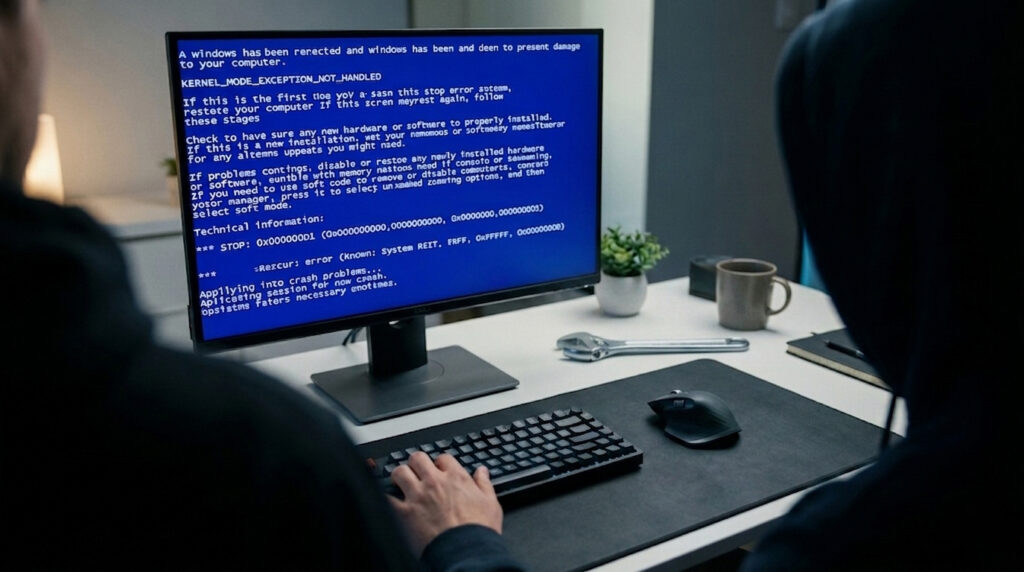
Visual representation of computer system crash and technical malfunction.

Why Do Mini PCs Crash? Causes, Solutions & Prevention Guide

Why Do Mini PCs Crash? Causes, Solutions & Prevention Guide Announcements Buyer Guide Comprehensive Tips Occasion Product Review Q&A Tutorials We’ve all been there: you’re in the middle of a crucial project, video call, or deadline, and suddenly your computer freezes—screen stuck, mouse unresponsive, or worse, a blue screen of death (BSOD) pops up. For compact, high-integration Mini PCs, these crashes feel even more frustrating, as their small form factor seems to amplify such issues. But here’s the truth: no crash happens without a reason. Understanding the root causes and responding correctly is especially vital for Mini PCs. This article will provide you with a complete set of diagnoses, solutions, and prevention strategies to keep your device running smoothly. Part 1: Common Culprits Behind Mini PCs Crashes Poor Heat Dissipation – The No.1 Killer of Mini PCs Mini PCs face a unique challenge: their limited internal space. When the heat dissipation design is subpar, air ducts get clogged with dust, or airflow is inadequate, CPUs and GPUs are prone to overheating. As temperatures spike, the system may either throttle performance to cool down or shut down abruptly to protect hardware. High-quality Mini PCs tackle this problem through thoughtful engineering: all-metal casiimproveoost hdissipationtion, intelligent temperature-controlled fans adjust spbased ong to load, and three-dimensional air duct systems optimize airflow—effectively keeping overheating at bay. Software Conflicts & System Failures Software-related issues stand out as another major cause of crashes. Incompatible device drivers, failed system updates, conflicting background programs, or virus/malware infections can all disrupt system stability. Even a single corrupted system file has the potential to trigger unexpected freezes or restarts. To minimize such risks, regularly update to stable software versions and rely on reliable security tools. Hardware Failures or Aging Loose or faulty RAM modules, bad sectors on solid-state drives (SSDs), and unstable power supply (especially when using non-standard adapters) are common hardware-related causes of crashes. Our Mini PCs prioritize quality from the outset: we use brand-name RAM and SSDs that undergo rigorous testing, paired with stable power adapters, to reduce hardware failure rates at the source. This commitment to premium components ensures long-term reliability. Power Supply Issues Insufficient power output, low-quality adapters, or sudden power outages can damage system files and lead to crashes. Using original or certified high-quality power adapters is critical—they deliver consistent voltage and offer protection against surges, safeguarding both hardware and data. Hardware Resource Overload Running too many resource-intensive programs at the same time can exceed the capacity of your RAM or CPU. When the system becomes overwhelmed, it may freeze or crash. Managing background processes and closing unused programs can significantly lower this risk. Part 2: Step-by-Step Troubleshooting & Solutions Step 1: Emergency “First Aid” If possible, save your work immediately. If the system is unresponsive, perform a forced restart (hold the power button for 5-10 seconds). After restarting, check if the issue persists—occasional crashes may be a one-time glitch, but repeated ones demand further investigation. Step 2: Diagnose Based on Scenarios Scenario A: Frequent Crashes with a Hot Chassis When your Mini PC’s chassis feels hot and crashes occur frequently, focus on cleaning dust from air ducts and fans. Additionally, check if the fans are functioning properly and improve the device’s placement—ensure it’s in a well-ventilated area, not blocked by other objects. Scenario B: Crashes After Installing New Software/Drivers If crashes start right after installing new software or drivers, boot into Safe Mode. From there, uninstall the recently installed software or roll back the drivers to a previous stable version. Scenario C: Random Crashes with BSOD Codes When random crashes happen alongside BSOD codes, record the specific code and search for its meaning. Utilize the system’s built-in Memory Diagnostic Tool to check RAM, and use CrystalDiskInfo to monitor the health of your SSD/HDD. Scenario D: Crashes During Startup If your Mini PC crashes during startup, try repairing startup items, resetting BIOS settings, or performing a system restore or reinstallation. Step 3: General Optimization & Maintenance Tips Regularly clean disk space and defragment mechanical hard drives (this step is unnecessary for SSDs). Keep the operating system and drivers updated to stable versions—avoid beta updates unless necessary. Use legitimate security software to scan for malware and steer clear of suspicious downloads. Manage startup programs to reduce system load—disable unnecessary apps from launching on boot. Part 3: How to Build a “Crash-Proof” Environment for Your Mini PC? Develop Proper Usage Habits Place your Mini PC in a well-ventilated area, away from high temperatures and humidity. Always use original or certified power adapters to ensure a stable power supply. Avoid moving the device while it’s running to prevent loose hardware connections. Make Smart Hardware Selections When purchasing a Mini PC, opt for a brand that prioritizes heat dissipation, premium components, and stable driver support—like ours. Our devices feature efficient silent cooling systems, strict compatibility testing, a high-quality component supply chain, and dedicated after-sales technical support, ensuring reliable performance for years to come. Our Commitment We understand that stability is non-negotiable for Mini PC users. That’s why every unit undergoes rigorous testing for heat resistance, hardware compatibility, and power stability. Our after-sales team is always available to assist with troubleshooting, providing peace of mind for every user. Conclusion While computer crashes are frustrating, they’re almost always traceable. With scientific troubleshooting and regular maintenance, your Mini PC can run stably for the long term. Ultimately, choosing a scientifically designed, high-quality Mini PC is the foundation of a smooth experience. We’re dedicated to providing you with not just a compact and powerful device, but a reliable companion for your digital life.Discover more about how our Mini PCs eliminate crash risks through innovative design, or contact us for a customized configuration plan tailored to your needs. HYSTOU HYSTOU has established its R&D headquarters in Shenzhen, drawing on over a decade of experience. Our core team members, who previously served at renowned companies such as Inventec and Quanta Computer, form the backbone of our technical expertise. With robust R&D and innovation capabilities, we

Why Do Mini PCs Crash? Causes, Solutions & Prevention Guide Read More »

Showcasing floating computer hardware components, including a motherboard, a mini PC with an RGB fan, RAM modules, and an SSD solid-state drive.

Gaming Mini PC Configuration Guide: Essential Specs for 2026

Gaming Mini PC Configuration Guide: Essential Specs for 2026 Announcements Buyer Guide Comprehensive Tips Occasion Product Review Q&A Tutorials Gaming Mini PC Configuration: What You Need for Smooth Gameplay Bulky gaming towers are no longer a desk staple. Today’s gaming mini PCs pack impressive power into compact frames. They’re perfect for space-saving setups, living room gaming, or LAN parties. But not all mini PCs perform equally. Gaming performance relies heavily on specific hardware configurations. This guide breaks down key specs to prioritize. It helps you balance power, portability, and value. Key Processor (CPU) Requirements for Gaming Mini PCs The CPU is your gaming mini PC’s “brain.” It handles in-game calculations, AI, and multitasking like streaming while gaming. For smooth gameplay, pick processors with high clock speeds and strong multi-core performance. This is critical for modern games that use multiple threads.Top picks include Intel Core Ultra 7/9 series (e.g., Core Ultra 9 185H) and AMD Ryzen 7/9 HX series (e.g., Ryzen AI 9 HX 370). These chips offer 6-8 cores (12-16 threads). Base clock speeds start at 2.5GHz+, with boost speeds up to 5.0GHz+. They easily handle AAA games and concurrent tasks. Avoid entry-level CPUs like Intel Core i3 or AMD Ryzen 3. They may struggle with graphically intensive titles or future game updates.Choose between Intel and AMD based on your ecosystem. Intel pairs well with Arc GPUs for ray tracing. AMD’s Ryzen processors have high-performance Radeon graphics. They’re great for budget builds without dedicated GPUs. Graphics Card (GPU): The Backbone of Gaming Performance For gaming, the GPU matters more than the CPU. It renders in-game visuals, handles texture details, and determines frame rates. Mini PCs have space limits. Focus on compact dedicated GPUs or powerful integrated graphics that don’t sacrifice performance.Compact dedicated GPUs for mini PCs include NVIDIA GeForce RTX 4060 and AMD Radeon RX 7600. They support 1080p/1440p gaming at 60+ FPS on medium-high settings. Top integrated graphics options are AMD Radeon 890M (in Ryzen 9 HX 370) and Intel Arc 140T (in Core Ultra 9). They run popular games like Fortnite, Valorant, and FIFA smoothly at 1080p. Avoid GPUs with less than 4GB VRAM. Modern games need ample video memory for high-resolution textures.Ray tracing support enhances immersion. Look for RTX or Arc GPUs if you want realistic lighting in games like Cyberpunk 2077. For budget builds, prioritize GPU performance over other specs. It has the most direct impact on gameplay quality. RAM: Ensure Smooth Multitasking and Gameplay RAM acts as temporary storage for in-game data. It lets the CPU and GPU access information quickly. Insufficient RAM causes stutters, load delays, and crashes. This is especially true when multitasking or playing open-world games.The minimum RAM for gaming mini PCs is 16GB DDR5 (5600MHz+). 8GB will bottleneck modern titles. Opt for 32GB DDR5 for optimal performance. It enables seamless multitasking—gaming, streaming, and Discord at the same time. It also future-proofs your system for upcoming games. Prioritize dual-channel RAM. It boosts memory bandwidth by up to 50% compared to single-channel setups. Avoid DDR4 RAM if possible. DDR5 offers faster speeds and better energy efficiency for gaming.Expandability is key. Choose a mini PC that supports up to 64GB or 128GB RAM. This lets you upgrade later without replacing the entire system. Storage: Speed and Capacity for Gaming Game load times and system responsiveness depend on storage. Mini PCs benefit from fast, compact storage. It saves space and generates less heat.Use an NVMe SSD as primary storage (minimum 512GB). Look for read speeds of 3500MB/s+. This cuts load times for open-world games and speeds up boot times. For game libraries, try a hybrid setup. Use a 1TB NVMe SSD for frequently played games. Add a 2TB+ HDD for extra storage—ideal for older titles or media. Avoid SATA SSDs if you can. NVMe is 3-5x faster. Ensure the mini PC has M.2 slots for SSD upgrades. This is the standard for compact systems.For portable gamers, external SSDs work well. Choose USB 3.2 Gen 2 or Thunderbolt 4 for fast transfer speeds. No internal upgrades are needed. Cooling System and Connectivity: Overlooked Essentials Gaming generates heat. Mini PCs’ compact design worsens thermal pressure. Poor cooling causes throttling (reduced performance) and long-term hardware damage. Look for advanced cooling solutions. Options include dual copper heat pipes, high-static fans, or liquid cooling (premium models).Geekom’s Ice Blast 2.0 system, for example, boosts thermal efficiency by 52% vs. standard designs. It keeps operation quiet during intense gameplay.Connectivity is another critical factor. Ensure the mini PC has these ports: at least one HDMI 2.1 or DisplayPort 1.4 (for 4K/144Hz monitors), 2-3 USB 3.2 Gen 2 ports (for gaming peripherals), a 2.5Gbps LAN port (for lag-free online gaming), and Wi-Fi 7 support (for wireless flexibility). Bluetooth 5.3 is ideal for wireless controllers and headsets. Avoid mini PCs with only USB 2.0 ports or outdated Wi-Fi 5. They limit peripheral compatibility and network performance. Final Tips for Choosing a Gaming Mini PC Balance performance and portability. Need a travel-friendly system? Prioritize integrated graphics and fanless cooling for quiet operation. For stationary setups, pick a mini PC with a dedicated GPU and expandable storage. Always check real-world benchmarks for the specific model. Don’t rely solely on specs—thermal design and component optimization vary by brand. HYSTOU HYSTOU has established its R&D headquarters in Shenzhen, drawing on over a decade of experience. Our core team members, who previously served at renowned companies such as Inventec and Quanta Computer, form the backbone of our technical expertise. With robust R&D and innovation capabilities, we remain steadfast in our commitment to pursuing excellence in the field of technology products. Facebook Twitter Youtube Tumblr

Gaming Mini PC Configuration Guide: Essential Specs for 2026 Read More »

air cooling vs H6 fanless cooling

Liquid Cooling vs. Air Cooling vs. Fanless: Which is Best for Your Mini PC?

Liquid Cooling vs. Air Cooling vs. Fanless: Which is Best for Your Mini PC? Announcements Buyer Guide Comprehensive Tips Occasion Product Review Q&A Tutorials When choosing a new computer, most people naturally focus on the processor speed or RAM capacity. However, there is another critical factor that determines the longevity of your device: the cooling system. In fact, without proper thermal management, even the fastest CPU will slow down. Consequently, performance drops, and hardware can eventually fail. Therefore, if you are looking for a reliable PC, you need to understand your cooling options. Currently, the debate is often between Liquid Cooling vs. Air Cooling. But, for industrial applications and Mini PCs, there is a third, superior contender: Fanless (Passive) Cooling. In this guide, we will compare these three methods. Furthermore, we will explain why fanless technology is often the smarter choice for business environments. Understanding the Three Main Cooling Methods Before we compare them, let’s briefly look at how each system works. Specifically, we will look at Standard Air, Liquid, and Passive Cooling. 1. Active Air Cooling: The Standard Option Generally speaking, active air cooling is the most common method found in home computers. How it works:It uses a metal heatsink placed on the CPU to draw heat away. Simultaneously, a fan blows air through the metal fins to push that heat out of the case. The Upside: It is cost-effective and simple to install. The Downside: Unfortunately, fans generate noise. Moreover, moving parts wear out over time. Most importantly, fans suck in dust, which can cause short circuits. 2. Liquid Cooling: The Gamer’s Choice On the other hand, we have liquid cooling, also known as water cooling. This is popular among gamers. How it works:This system uses a pump to circulate coolant liquid through tubes. The liquid travels to a radiator, where fans blow air to cool it down. Finally, it cycles back to the CPU. The Upside: It is extremely efficient for high-performance tasks like gaming. The Downside: However, it is expensive and risky. For instance, if the liquid leaks, it can destroy the PC. Additionally, the pump requires maintenance. 3. Fanless (Passive) Cooling: The Industrial Choice Finally, there is Hystou’s specialty: Fanless cooling. How it works:Unlike the other methods, fanless cooling removes the weakest link: the fan. Instead, the entire chassis of the Mini PC acts as a giant heatsink. Made of aluminum alloy, the case naturally absorbs and dissipates heat. The Upside: First, it produces 0dB noise. Second, it requires zero maintenance. Third, because there is no airflow inside, no dust can enter. The Downside: It is not designed for extreme overclocking, but it is perfect for stability. Comparison: Liquid vs. Air vs. Fanless To summarize the differences, let’s look at the comparison table below. Feature Active Air Cooling Liquid Cooling Fanless (Hystou) Noise Level Moderate Low (Pump noise) Silent Maintenance Frequent (Dusting) High (Leak checks) Zero Maintenance Reliability Medium Risk of leakage Ultra High Dust Risk High High None (Sealed) Best For Home Office Gaming Industry / Business Why Fanless Cooling Wins for Business & Industry Although liquid cooling looks impressive, it is not practical for professional environments. For this reason, Hystou recommends Fanless Air Cooling for industrial use. Below, we highlight three key reasons why. 1. The “Dust Killer” Advantage First of all, dust is the enemy of electronics. In factories or warehouses, active fans act like vacuum cleaners. As a result, they suck dust and moisture into the computer. Eventually, this causes overheating. In contrast, Hystou Fanless PCs are fully sealed. Therefore, dust simply cannot get inside. 2. Zero Mechanical Failure Secondly, fans are mechanical parts. Over time, bearings dry out and motors burn out. Because of this, standard PCs require frequent repairs. However, fanless systems utilize solid-state physics. An aluminum block never fails. Thus, they are perfect for 24/7 operations. 3. Absolute Silence Lastly, noise pollution is a real issue. For libraries or quiet offices, the hum of a fan is distracting. Hence, a fanless PC offers a completely silent experience. Which Should You Choose? Choose Liquid Cooling if: You are building a massive tower PC specifically for playing AAA games at maximum settings and don’t mind the maintenance risk. Choose Active Air Cooling if: You are on a very tight budget and don’t mind the noise or occasional cleaning. Choose Fanless Cooling (Hystou) if: You need a reliable, durable computer for work, industrial control, or media playback. If you want a “set it and forget it” device that runs 24/7 without maintenance, Fanless is the only logical choice. Ready to experience the reliability of Fanless Technology?Explore our range of [Industrial Fanless Mini PCs] or [Contact Our Team] to find the perfect customized solution for your specific requirements. HYSTOU HYSTOU has established its R&D headquarters in Shenzhen, drawing on over a decade of experience. Our core team members, who previously served at renowned companies such as Inventec and Quanta Computer, form the backbone of our technical expertise. With robust R&D and innovation capabilities, we remain steadfast in our commitment to pursuing excellence in the field of technology products. Facebook Twitter Youtube Tumblr

Liquid Cooling vs. Air Cooling vs. Fanless: Which is Best for Your Mini PC? Read More »

Minimalist edge computing poster featuring mini PC and smart city skyline in blue and black color scheme

Mini PCs in Edge Computing: Transforming Decentralized Processing with HYSTOU

Mini PCs in Edge Computing: Transforming Decentralized Processing with HYSTOU Announcements Buyer Guide Comprehensive Tips Occasion Product Review Q&A Tutorials The Edge Computing Revolution Edge computing has emerged as a critical architecture in the era of IoT and real-time data processing. By bringing computational power closer to data sources, organizations can reduce latency, enhance security, and lower bandwidth costs. Mini PCs have become ideal hardware platforms for edge deployments due to their compact size, energy efficiency, and powerful performance. HYSTOU, a leading mini PC supplier, has developed specialized solutions tailored for edge computing applications. This article explores how HYSTOU’s mini PCs are enabling innovative edge computing deployments across industries. Why Mini PCs are Ideal for Edge Computing Fanless & Industrial-Grade Durability Models like the HYSTOU K4 Fanless Industrial PC and H3-N100 Intel N100 Fanless Industrial Mini PC are designed for harsh edge environments. Their fanless design eliminates moving parts, reducing the risk of failure due to dust, vibration, or temperature fluctuations—critical for industrial floors, outdoor kiosks, or remote monitoring sites. Space Efficiency Traditional server racks require significant physical space, making them impractical for edge locations like retail stores, factory floors, or remote monitoring stations. HYSTOU mini PCs are as small as 13.5 × 12.7 × 3.9cm (H3 model) weighing just 600g, allowing deployment in tight spaces without compromising performance. Energy Efficiency Edge computing devices often operate 24/7 in remote locations with limited power infrastructure. HYSTOU mini PCs consume only 18W of power on average, which is 1/15th of conventional desktops. This reduces annual electricity costs by approximately $80 per device. Performance Modern edge applications require robust processing capabilities for tasks like computer vision, predictive maintenance, and real-time analytics. HYSTOU’s 12th/13th Gen Intel Core processors deliver up to 5.0GHz clock speeds, supporting complex workloads previously reserved for desktop computers. HYSTOU Mini PC Models for Edge Computing Industrial Edge Computing H4-12th The H4-12th model is specifically designed for rugged industrial environments. Key features include: Intel Core i5-1235U processor (4 cores, 8 threads) Intel UHD Graphics for AI acceleration 6 serial ports for industrial connectivity 4K dual display support Intelligent cooling enables low-noise operation. This model is ideal for manufacturing automation, smart factory deployments, and industrial IoT gateways. P09B-4L Industrial Firewall Mini PC For network edge applications, the P09B-4L offers: Intel Alder Lake N100 processor 4x 2.5G Ethernet ports DDR5 memory for high-speed data processing Compact fanless design This model excels as a network edge router, VPN gateway, or industrial firewall solution. H3-N100 Fanless Industrial Mini PC The H3-N100 combines affordability with reliability: Intel N100 processor (4 cores, 4 threads) Intel UHD Graphics for basic AI tasks 4K display support Wide operating temperature range (-20°C to 50°C) Perfect for remote monitoring, digital signage, and basic edge computing tasks. Elevate Your Edge Computing with HYSTOU Mini PCs Edge computing is no longer a niche technology—it’s a necessity for businesses seeking real-time insights, reduced latency, and enhanced security. HYSTOU’s mini PCs combine compact design, industrial-grade durability, powerful processing, and flexible connectivity to meet the unique demands of edge deployments. Whether you’re building an industrial automation system, a smart security network, or a retail POS solution, HYSTOU has a mini PC tailored to your needs. By choosing HYSTOU, you’re not just investing in hardware—you’re partnering with a leading mini PC supplier that understands the complexities of edge computing. Explore HYSTOU’s full range of mini PCs today and take the first step toward faster, more reliable data processing. HYSTOU HYSTOU has established its R&D headquarters in Shenzhen, drawing on over a decade of experience. Our core team members, who previously served at renowned companies such as Inventec and Quanta Computer, form the backbone of our technical expertise. With robust R&D and innovation capabilities, we remain steadfast in our commitment to pursuing excellence in the field of technology products. Facebook Twitter Youtube Tumblr

Mini PCs in Edge Computing: Transforming Decentralized Processing with HYSTOU Read More »

The difference between Memory and Storage

 RAM vs. Storage: Don’t Buy the Wrong Mini PC Specs

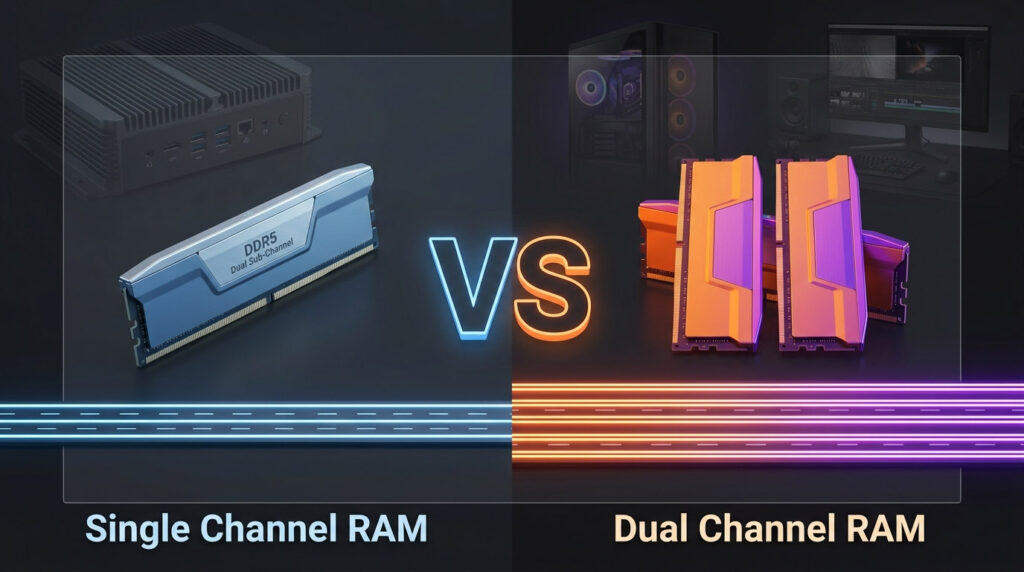
RAM vs. Storage: Don’t Buy the Wrong Mini PC Specs Announcements Buyer Guide Comprehensive Tips Occasion Product Review Q&A Tutorials When shopping for a Mini PC, do you often feel confused by the numbers? You see “8GB RAM” and “512GB SSD Storage.” They both look like “capacity” measured in Gigabytes, but they do completely different things. Many people mistake one for the other. The result? Choosing the wrong combination can lead to a computer that freezes constantly or runs out of space in a month. Today, we will clear up the confusion in the simplest way possible. By the end of this guide, you will know exactly what specs to look for to get the perfect Mini PC for your needs. The Core Concepts: The Chef and The Kitchen To understand the difference, let’s imagine your Mini PC is a Professional Kitchen. 1. RAM (Random Access Memory) The Analogy: RAM is the Chef’s Countertop (Workstation). How it works: This is where the chef (your CPU) actually does the work. When you open a program, it’s like putting ingredients on the countertop to chop and mix. Why size matters: If your countertop is huge (High RAM), the chef can prepare a salad, a steak, and a dessert all at the same time without running out of space. If the countertop is tiny, the chef has to constantly clean up one task before starting another, which slows everything down. Key Feature: It is super fast, but volatile. When you turn off the lights (shut down the PC), the countertop is wiped clean. 2. Storage (Drive/SSD) The Analogy: Storage is the Pantry and Fridge. How it works: This is where you keep all your ingredients permanently. Your Windows operating system, installed software, family photos, and movies live here. Why size matters: A larger pantry means you can stock more food. It doesn’t make the cooking faster, but it ensures you have space to keep everything you buy. Key Feature: It is non-volatile. Even if the power goes out, the food in the pantry stays there safe and sound. Note: Most modern Mini PCs use SSDs (Solid State Drives), which are much faster than the old spinning HDDs. Quick Comparison: At a Glance Here is the breakdown of the technical differences: Feature RAM (Memory) Storage (SSD/Drive) Role Temporary Workspace Permanent Warehouse Analogy Countertop Pantry Speed Extremely Fast Slower than RAM (but SSDs are fast) Capacity Small (e.g., 8GB – 64GB) Large (e.g., 256GB – 2TB+) Permanence Data lost when power off Data saved forever Impact System smoothness & Multitasking How many files/apps you can keep What Does This Mean for Your Mini PC? Understanding the bottleneck is crucial. If your system lacks RAM, the computer is forced to use the slower SSD as temporary memory (paging), causing significant lag. Conversely, if storage is insufficient, you cannot save new data, but system performance may remain stable until the drive is completely full. Here is how to choose based on how you use the computer: For Basic Office & Online Classes: Recommendation: 8GB RAM + 256GB SSD Verdict: The budget-friendly choice. Perfect for browsing, Word documents, and Zoom calls. For Efficiency & Light Creation: Recommendation: 16GB RAM + 512GB SSD Verdict: The standard for 2024. Great for keeping 20+ Chrome tabs open, Photoshop work, and light multitasking. For Pros, Programmers & Designers: Recommendation: 32GB+ RAM + 1TB NVMe SSD Verdict: A large “countertop” for heavy tools. Essential for video editing, compiling code, or running virtual machines. For Home Theater & Media Centers: Recommendation: 16GB RAM + 2TB Storage Verdict: You don’t need massive RAM, but you need a huge “Pantry” to store 4K movies and show collections. Special Advice for Mini PC Buyers Mini PCs are famous for being compact, but this size comes with a rule: Check the upgradeability. Unlike large desktop towers, some Mini PCs have soldered RAM (meaning you cannot change it later). Pro Tip: Always prioritize getting enough RAM upfront. You can usually add an external hard drive for more Storage later, but if your RAM is soldered and too small, you might need to buy a whole new computer. Tech Check: Look for “Dual Channel” memory support for better speed, and ensure the SSD is “NVMe PCIe” for the fastest load times. Conclusion To summarize: RAM is for Speed (Multitasking), and Storage is for Capacity (Holding Files). Now that you understand the specs, you can look at our product list with confidence. We offer a variety of configurations tailored to your specific workflow. If you are still unsure, contact our support team, and we will help you build the perfect setup! HYSTOU HYSTOU has established its R&D headquarters in Shenzhen, drawing on over a decade of experience. Our core team members, who previously served at renowned companies such as Inventec and Quanta Computer, form the backbone of our technical expertise. With robust R&D and innovation capabilities, we remain steadfast in our commitment to pursuing excellence in the field of technology products. Facebook Twitter Youtube Tumblr

 RAM vs. Storage: Don’t Buy the Wrong Mini PC Specs Read More »

Mini PC vs Desktop: Who is the Real Winner for Your Next Setup?

Mini PC vs Desktop: Who is the better fit for Your Next Setup? Announcements Buyer Guide Comprehensive Tips Occasion Product Review Q&A Tutorials The Choice is No Longer Just About Specs—It’s About Balancing Performance with Lifestyle Do you find yourself hesitating before buying a new computer? On one hand, you might feel a natural resistance to the massive, dust-gathering chassis of a traditional desktop tower eating up your legroom. On the other hand, a lingering worry remains: “Can a box the size of a sandwich really handle my workload?” Let’s clear the air. In today’s tech landscape, the choice is no longer a simple brawl over raw performance numbers. It is a question of matching technology to your living environment. For most users, lifestyle factors like space and flexibility matter as much as specs; for a small group of power users, raw performance remains non-negotiable. The 3-Dimensional Showdown: Where the Mini PC Shines To help you decide, let’s look at the three critical factors that actually impact your daily usage: Space, Efficiency, and Flexibility. 1. Space & Design: The “Desk Aesthetics” Revolution The Desktop: Modern desktops also offer compact chassis options (e.g., ITX cases) with optimized cable management, and their open architecture allows for easy upgrades of GPUs, storage, and cooling systems—an irreplaceable advantage for users needing long-term scalability. The Mini PC: Imagine a powerful computer that fits in the palm of your hand. You can mount it behind a monitor (VESA mount), tuck it into a bookshelf, or let it sit on your desk as a piece of minimalist art. It transforms your workspace from a crowded cockpit into a Zen-like zone of productivity. It’s not just a PC; it’s part of your interior decor. 2. Performance & Efficiency: The “Good Enough” vs. “Smart Enough” Debate The Desktop: Yes, for the top 1% of users (hardcore overclockers), the tower wins on raw expansion. But it comes at a cost: high power consumption (often 300W+), heat, and fan noise. TDP (Thermal Design Power) is a measure of how much heat a processor generates. Lower TDP means less power consumption and quieter operation. The Mini PC:Modern Mini PCs utilize the mobile and desktop-class architectures, such as the AMD Ryzen 7/9 series or Intel Core i7/i9 processors. These chips feature integrated graphics capable of handling 4K video playback, complex coding environments, and mainstream gaming with ease. Mainstream gaming (e.g., League of Legends, Minecraft) runs smoothly at 1080p/60fps, but AAA titles (e.g., Cyberpunk 2077) may require low-to-medium settings—unlike high-end desktops that support 4K/120fps with dedicated GPUs.Furthermore, they operate at a remarkably low TDP (Thermal Design Power), typically ranging from 30W to 65W. For 90% of users, this is the “smarter” performance. You get a snappy, responsive experience without the roar of cooling fans or a spike in your electricity bill. It is high-performance with a low carbon footprint. 3. Flexibility: Redefining the “Personal” Computer The Desktop: Once you plug it in, it stays there.  The Mini PC:  It’s a chameleon: by day, it’s a workstation; by night, it’s a 4K home theater PC or a silent home server. Creating Mini PCs That Don’t Compromise: Meet HYSTOU M9 If a mini PC aligns with your lifestyle, the HYSTOU M9 series addresses common pain points of compact devices: unlike most mini PCs that require dongles for basic connectivity, it offers full I/O ports (USB-C, HDMI 2.0, dual LAN) for plug-and-play use; its dual-channel DDR5 slots and dual M.2 NVMe support ensure you can upgrade performance as your needs grow—no compromise on expandability despite its small size. Processor: Equipped with the Intel Core i7-1360P, delivering desktop-grade processing speeds. Connectivity: Unlike standard dongle-heavy laptops, we provide a full array of I/O ports including USB-C, HDMI 2.0, and dual LAN ports. Cooling: Our proprietary Intelligent cooling design ensures the system remains whisper-quiet even under load. Expandability: Features dual-channel DDR5 RAM slots and dual M.2 NVMe SSD support for future-proof upgrades. With our intelligent management software pre-installed, performance tuning is automated, ensuring your device adapts to your workflow, not the other way around. Which Path Should You Take? Stick with the Traditional Tower IF: You are a competitive AAA gamer requiring ultra-high frame rates and distinct massive GPUs. You are a professional video editor or 3D renderer requiring sustained 100% CPU/GPU loads 24/7. You need 4+ hard drives and multiple PCIe capture cards inside the chassis. The Mini PC is Your Perfect Match IF: The Urban Professional: You want a clean, cable-free desk to switch seamlessly between reports, meetings, and streaming. The Freelancer: You need to switch between home office, coffee shops, and client sites—requiring a portable device (without laptop battery anxiety) and powerful enough for light video editing or graphic design. The Student/Renter: A lifesaver for dormitories and small apartments, maximizing the use of limited space. The Family Hub: You need a shared computer for the kids’ homework, your taxes, and 4K movies in the living room. Business Owners: You want to deploy a fleet of computers that are easy to maintain, energy-efficient, and look professional. Tech Enthusiasts: You want to experiment with home labs, servers, or retro gaming emulation without buying bulky hardware. The Future is Compact As we move towards a more connected and mobile world, the demand for space-efficient computing solutions will only grow. The Mini PC is not just a passing trend—it represents the future of personal computing, where technology integrates seamlessly with our lives rather than dominating them. HYSTOU HYSTOU has established its R&D headquarters in Shenzhen, drawing on over a decade of experience. Our core team members, who previously served at renowned companies such as Inventec and Quanta Computer, form the backbone of our technical expertise. With robust R&D and innovation capabilities, we remain steadfast in our commitment to pursuing excellence in the field of technology products. Facebook Twitter Youtube Tumblr

Mini PC vs Desktop: Who is the Real Winner for Your Next Setup? Read More »

Intel Celeron vs Intel Core

Intel Celeron vs. Intel Core: Which Mini PC Processor is Right for You?

Intel Celeron vs. Intel Core: Which Mini PC Processor is Right for You? Announcements Buyer Guide Comprehensive Tips Occasion Product Review Q&A Tutorials Mini PCs have become a staple for home offices, media centers, and light-duty workstations, thanks to their compact design and energy efficiency. When it comes to choosing a Mini PC, the processor is the most critical component—and two of Intel’s most popular lines, Celeron and Core, often top the options list. But what sets them apart? The Basics: Defining the Contenders Intel Celeron: Basic Performance for Light Tasks Intel Celeron processors are entry-level chips designed for minimal computing needs. Typical Celeron models for Mini PCs (such as the Celeron J1900) feature 4 cores and 4 threads, with base frequencies around 2.0 GHz and boost frequencies up to 2.42 GHz. These specs are sufficient for simple tasks like web browsing, word processing, and streaming basic 1080p video. However, they struggle with multitasking (e.g., running multiple browser tabs + office software) or any CPU-intensive work like video editing or light gaming. Intel Core: Powerful Performance for Demanding Tasks Intel Core processors (including Core i3, i5, i7, and i9) are mid-to-high-end chips built for performance. Even entry-level Core models like the Core i3-1215U outperform Celeron significantly: they offer 6 cores and 8 threads (thanks to Intel’s hyper-threading technology), base frequencies of 1.2 GHz, and boost frequencies up to 4.4 GHz. In benchmark tests, the Core i3-1215U delivers 67% higher single-core performance and 206% higher multi-core performance than the Celeron J1900 in Cinebench R23. This makes Core processors ideal for Mini PCs used for multitasking, content creation (e.g., photo editing), 4K video streaming, and even light gaming. Key Differences: A Deep Dive for Mini PC Buyers Now that we have a basic understanding of what Celeron and Core processors are, let’s take a closer look at the key differences between them. This will help you make a more informed decision when choosing a Mini PC processor. 1. Performance Under Load Think of the Celeron as a city car and the Core series as a highway cruiser. Celeron: Perfect for single tasks. If you are opening a web browser, checking email, or editing a text document, it feels snappy. However, if you open 20 Chrome tabs and try to watch a 4K video simultaneously, a Celeron Mini PC will start to stutter. Core (i3/i5/i7): Designed for multitasking. An Intel Core i5 Mini PC can handle Photoshop, background downloads, and video streaming all at once without breaking a sweat. 2. Heat and Power Consumption (TDP) This is crucial for Mini PCs. Celeron: These chips run very cool. Many Celeron Mini PCs are fanless (silent) because the CPU generates very little heat. If silence is your priority, Celeron is often the winner. Core: While efficient, powerful Core chips (especially i7 or i9) generate more heat. These Mini PCs usually require active cooling fans. You might hear a quiet “whir” when the system is working hard. 3. Graphics Capabilities Celeron: Good for static displays, digital signage, or basic 1080p/4K video playback. Not suitable for modern gaming. Core: Integrated Intel UHD or Iris Xe graphics on Core chips are significantly stronger. You can play light games (like League of Legends or CS:GO) and edit videos much smoother on a Core i5 or i7. Comparison Table: At a Glance Feature Intel Celeron Mini PC Intel Core Mini PC (i3/i5) Price Affordable Moderate to High Multitasking Basic (1-3 apps) Excellent (Heavy usage) Gaming Solitaire/Retro only Light eSports / Casual Noise Level Often Silent/Fanless Usually has a quiet fan Best For Kiosks, Basic Office, Streaming Creative Work, Home Server, Gaming Which One Should You Buy? Don’t overspend on power you don’t need, but don’t underspend and frustrate yourself with a slow computer. Here is our honest recommendation based on customer feedback: Choose an Intel Celeron Mini PC if: You are budget-conscious: You need a computer for under 200-300. Basic usage: You only use the PC for Microsoft Word, Excel, and web browsing. Media Center: You want a small box attached to your TV purely for Netflix or YouTube. Digital Signage: You are running a display in a shop or restaurant. Industrial use: You need a fanless PC that won’t suck in dust. Choose an Intel Core Mini PC if: You are a power user: You hate waiting for apps to open. Content Creation: You do photo editing, light video editing, or coding. Multitasking: You have dual monitors and keep many apps open. Home Server/Lab: You plan to run Plex servers, Virtual Machines (VMs), or Docker containers. Longevity: You want a PC that will still feel fast 3-4 years from now. Conclusion Intel Celeron and Intel Core processors serve distinct purposes in the Mini PC market. Celeron is the ideal choice for budget-conscious users needing basic, low-power performance for light tasks, while Intel Core is the go-to for anyone requiring multitasking capabilities, CPU-intensive work, or future-proofing. By evaluating your usage habits, budget, and performance needs, you can easily decide which processor is the best fit for your Mini PC.   HYSTOU HYSTOU has established its R&D headquarters in Shenzhen, drawing on over a decade of experience. Our core team members, who previously served at renowned companies such as Inventec and Quanta Computer, form the backbone of our technical expertise. With robust R&D and innovation capabilities, we remain steadfast in our commitment to pursuing excellence in the field of technology products. Facebook Twitter Youtube Tumblr

Intel Celeron vs. Intel Core: Which Mini PC Processor is Right for You? Read More »

Shopping Cart
Scroll to Top

Important Notice on Fraud Prevention

Recently, scammers have been impersonating our company staff to commit payment fraud. To protect your interests, please pay attention to the following matters:

Verify Sender: Check if the email domain is @hystou.com. Immediately delete any emails from non-Hystou domains.

Double-Check: For any account modification requests, cross-verify via the customer service hotline listed on our official website hystou.com or through existing partnership channels.

Refuse Private Transactions: Do not trust claims like “urgent notifications,” “confidentiality requirements,” or “tax policy updates.” All business changes must follow official procedures.