ziyao, song

The high-speed, connected, and all-around performance of HYSTOU P09B-4L

How to Turn Your Mini PC into a Powerful Router & Switch: The Ultimate Home Lab Guide

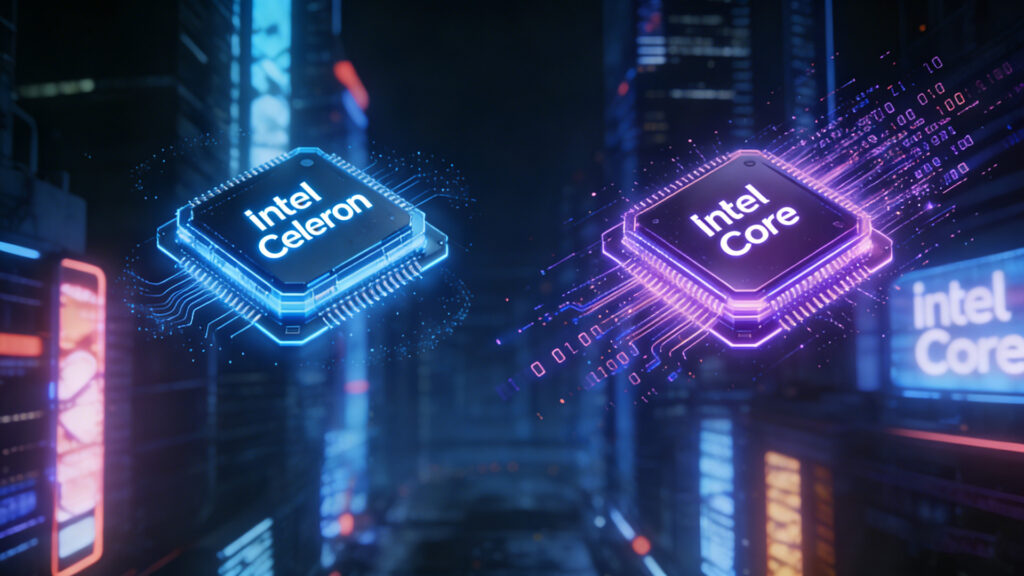
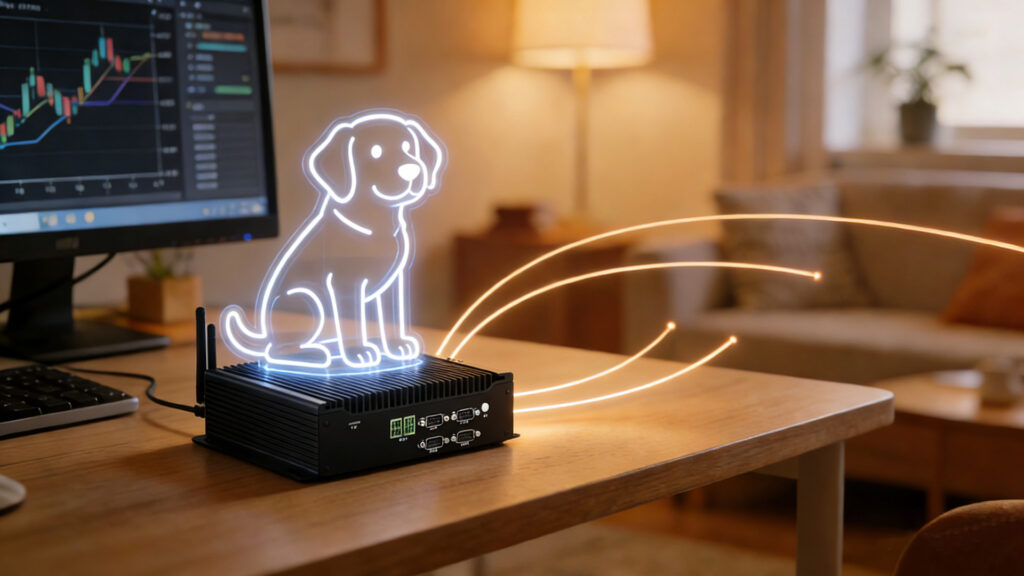
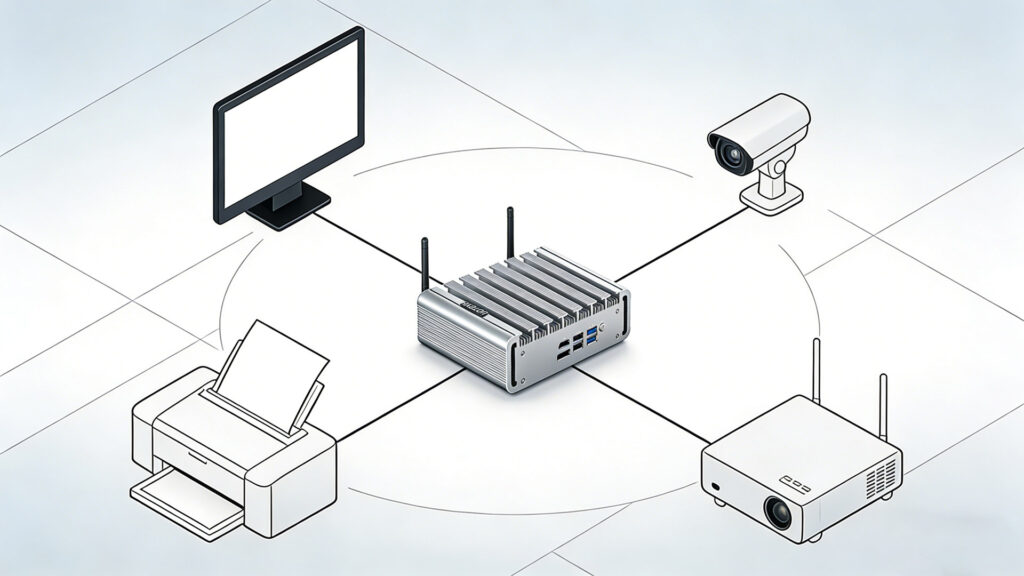
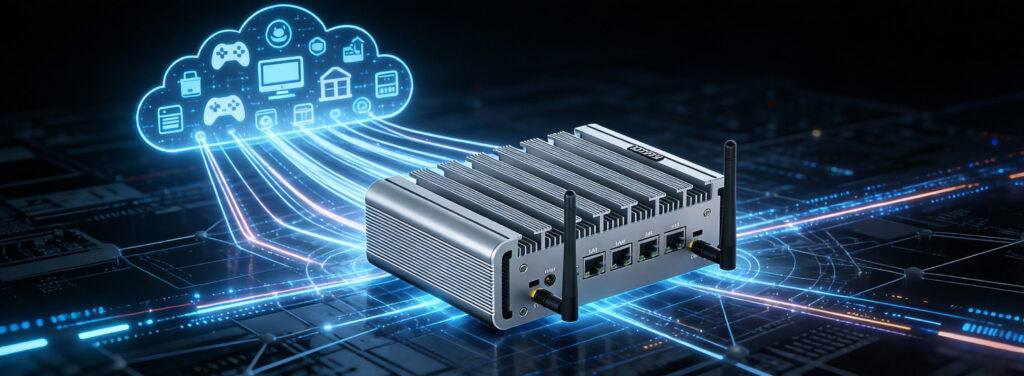
How to Turn Your Mini PC into a Powerful Router & Switch: The Ultimate Guide Announcements Buyer Guide Comprehensive Tips Occasion Product Review Q&A Tutorials Are you tired of your consumer-grade router crashing when you try to download a large game or run a VPN? It’s a common frustration. The plastic box provided by your ISP simply isn’t built for heavy lifting. Here is the secret that networking enthusiasts have known for years: The best router isn’t a router at all—it’s a Mini PC. In this guide, we will walk you through how to transform a compact Mini PC into a robust enterprise-grade router and switch. Whether you are building a home lab or just want faster internet, this project is the ultimate upgrade. Why Choose a Mini PC Over a Traditional Router? Before we start plugging in cables, let’s look at why this switch makes sense. A high-end gaming router can cost upwards of $300. However, even expensive routers often use weak mobile processors. A Mini PC offers: Superior Processing Power: Handle Gigabit or even 2.5GbE speeds with Deep Packet Inspection (DPI) enabled. VPN Performance: Run WireGuard or OpenVPN at full speed without slowing down your network. Ad Blocking: Install plugins like pfBlockerNG to block ads for the entire house. Hardware Requirements: What You Need To build a “soft router,” you don’t need a massive tower PC. In fact, smaller is better for energy efficiency. Minimum Specs for a Router Build: CPU: Intel Celeron N5105, N100, or equivalent. These processors support AES-NI, which is crucial for encryption acceleration. RAM: 4GB is the minimum, but 8GB is recommended if you plan to run additional packages like Suricata (Intrusion Detection). Storage: 64GB SSD is more than enough for the operating system and logs. Network Ports: This is critical. You need at least dual LAN ports (RJ45). One port will be your WAN (Internet in), and the other will be your LAN (Network out). Personal Tip: If you are looking at our store catalogue, look for the fanless models. Since your router stays on 24/7, a fanless Mini PC prevents dust buildup and ensures silent operation in your living room. Choosing Your Software: pfSense vs. OPNsense You will need a specialized operating system to turn the PC into a router. pfSense The industry standard. It is incredibly stable, has massive community support, and is what we generally recommend for beginners. OPNsense A fork of pfSense with a more modern user interface and faster update cycles. If you prefer a cleaner look, go with this. OpenWrt Lighter and more focused on Wi-Fi support, but slightly more complex to configure on x86 hardware compared to the other two. Step-by-Step: The Configuration Process Step 1: Prepare the Installation MediaDownload the ISO image of your chosen OS (e.g., pfSense Community Edition). Use a tool like Rufus to burn the image onto a USB stick. Step 2: BIOS SettingsPlug the USB into your Mini PC. Enter the BIOS (usually by pressing Delete or F7 on startup). Ensure that “Power on after power failure” is enabled. This ensures your internet comes back online automatically after a blackout. Step 3: InstallationBoot from the USB drive. Follow the on-screen prompts to install the OS to your SSD. During the setup, the system will ask you to assign interfaces: WAN Interface: Connect this to your modem. LAN Interface: Connect this to your PC for configuration. Step 4: Accessing the Web DashboardOnce installed, the Mini PC will display an IP address (usually 192.168.1.1). Open a web browser on a connected computer, type in that IP, and log in with the default credentials. Can I Use It as a Switch? (The “Bridge” Method) Many users ask: “My Mini PC has 4 LAN ports. Can I use the other 3 as a switch?” The short answer is yes, but there is a catch. In a dedicated hardware switch, a specialized chip handles traffic switching extremely fast. In a Mini PC, the CPU has to do this work via software (called “Bridging”). How to Configure a Bridge: In your router OS (pfSense/OPNsense), go to Interfaces > Assignments. Create a Bridge interface and add your extra LAN ports (e.g., ETH2, ETH3, ETH4) to it. Assign the IP address to the Bridge itself, not the individual ports. Expert Advice: While bridging works for connecting a printer or a smart home hub, I rarely recommend it for high-speed file transfers (like NAS to PC). It eats up CPU cycles. For the best performance, use one port on the Mini PC to go to a cheap unmanaged 8-port switch, and plug all your devices into that. Conclusion: Is It Worth the Effort? Absolutely. Transforming a Mini PC into a router gives you enterprise-level control over your network. It is more stable, more secure, and significantly faster than what your ISP provides. Are you ready to build your soft router? We offer a variety of options for you to create your soft router, and they are sure to win you over. HYSTOU P09B-6L Fanless firewall Mini PC Processor: Intel Celeron N100 Graphics Card: Integrated Graphics Memory: 1×DDR5 SODIMM slot (max 32GB, 4800MHz) Storage: 1×M.2 NVMe SSD + 1×SATA 3.0 HDD/SSD Network: 6×2.5G Ethernet, Wi-Fi 5 + BT 4.2 Additional Features: Fanless design, aluminum alloy body for heat dissipation, supports VESA wall mounting and DIN rail installation, Compatible with pfSense/OPNsense/Windows/Linux systems, 3-year hardware warranty + lifetime technical support Learn More HYSTOU P09B-4L Fanless firewall Mini PC Processor: Intel Alder Lake N100 (4 cores,4 threads,6M cache, up to 3.40GHz) Graphics Card: Intel UHD Graphics Memory: DDR5 memory technology(higher frequency and bandwidth support) Storage: 1*M.2 PCIE 3.0 SSD slots 1*SATA3.0 2.5inch Network: 4*LAN ports Additional Features:Fanless cooling system for silent operation and low power consumption,Blutooth and Wi-Fi connectivity Learn More HYSTOU HYSTOU has established its R&D headquarters in Shenzhen, drawing on over a decade of experience. Our core team members, who previously served at renowned companies such as Inventec and Quanta Computer, form the backbone of our technical expertise. With robust R&D and innovation capabilities, we remain steadfast in our commitment to pursuing excellence in the field of

How to Turn Your Mini PC into a Powerful Router & Switch: The Ultimate Home Lab Guide Read More »

Kensington Lock: The Complete Guide to Securing Your Mini PC

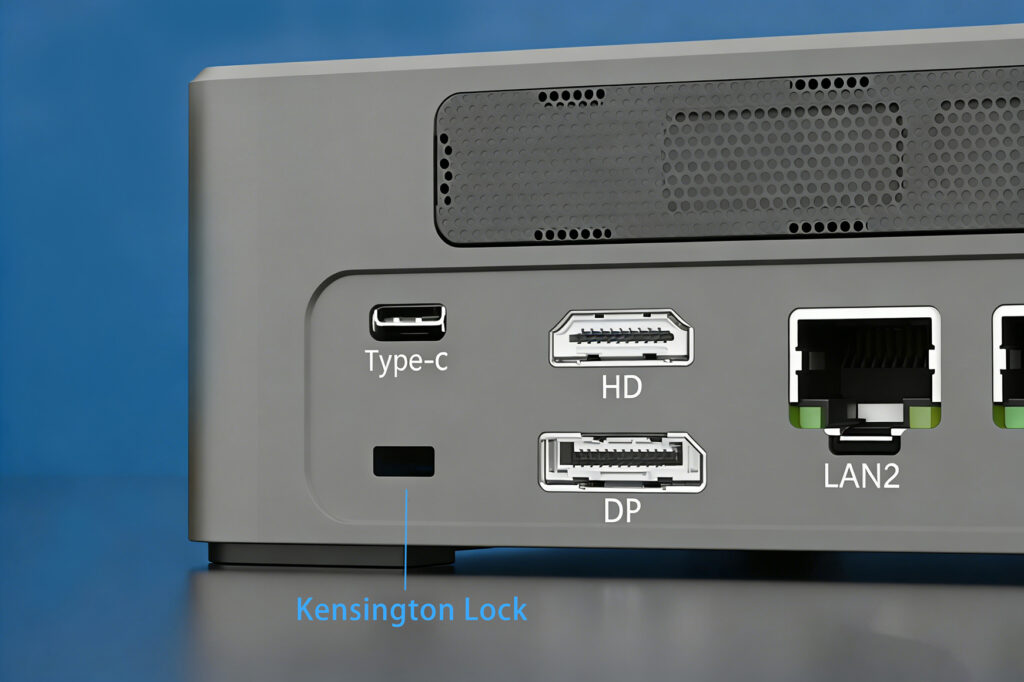
Kensington Lock: The Complete Guide to Securing Your Mini PC Announcements Buyer Guide Comprehensive Tips Occasion Product Review Q&A Tutorials Why Do Mini PCs Need Physical Security? When you invest in a high-performance Mini PC for office work, education, or home entertainment, software security like firewalls and antivirus programs is only half the battle. Physical security—preventing unauthorized access or theft of the device itself—often gets overlooked until it’s too late. Imagine walking away from your open office desk for 30 seconds, only to return and find your Mini PC gone, taking critical data and hardware investment with it. This is where the Kensington Lock (also called K-Slot or security slot) comes in. Invented by Kensington in 1990, this industrial-standard anti-theft system has protected over 300 million devices worldwide, from laptops to monitors—and yes, Mini PCs too. For devices in high-risk areas like classrooms, retail stores, or shared workspaces, it’s not just a “nice-to-have” accessory but a critical line of defense. What Exactly Is a Kensington Lock? At its core, a Kensington Lock is a simple yet effective security system that anchors your Mini PC to a fixed object (like a desk or wall) using a steel cable and a specialized lock mechanism. Here’s how it works: The K-Slot: Your Mini PC’s Security Portal Look at the side or back of your Mini PC—you’ll likely spot a small rectangular slot (roughly 3mm wide x 7mm long). This is the K-Slot, the universal interface for Kensington Locks. Most commercial-grade Mini PCs include this slot, often marked with a small padlock icon. How It Secures Your Device The lock system has two main parts: T-shaped Lock Head: Inserted into the K-Slot and rotated to lock into place. Steel Cable: Attaches to the lock head on one end and wraps around a fixed object (e.g., desk leg, wall anchor) on the other. Anti-theft mechanism:The lock’s T-bolt inserts into the K-Slot and rotates to lock. The steel cable wraps around a fixed anchor point (such as a table leg or wall mount), creating a physical barrier against theft—thieves would need to cut the thick steel cable or damage the device to remove it. Does Your Mini PC Support Kensington Lock? Most commercial-grade mini PCs come standard with a Kensington lock slot. Here’s how to verify compatibility:           ✅Check specifications: View the specifications on the product details page of the product you purchased.           ✅Inspect the device chassis: Carefully examine the sides and back of the device for the rectangular lock slot. Exceptions to Note Some ultra-compact Mini PCs may skip the K-Slot to save space. If yours lacks one, don’t worry—we’ll cover workarounds later! How to Use a Kensington Lock: 3 Simple Steps Securing your Mini PC takes less than 5 minutes. Here’s how to do it right: Step 1: Choose the Right Lock Kensington Locks aren’t one-size-fits-all. Pick based on your needs: Key Locks: Traditional and reliable. Best for personal use. Combination Locks: No keys to lose . Great for shared devices. Smart Locks: App-controlled or RFID-enabled. Ideal for enterprise IT teams managing multiple devices. Pro Tip: Opt for a cable thickness of 4mm or more with anti-cut technology (like Kevlar reinforcement). Look for products with TAA compliance certification (for government/education procurement) or “Sold Secure” certification to ensure anti-theft performance. Kensington’s original locks are a reliable choice, and third-party brands like Master Lock also offer compatible models. Step 2: Install the Lock Head Align the T-shaped lock tongue with the K-Slot on your Mini PC. Push firmly and rotate the key (or enter your combination) clockwise until you hear a “click.” Tug gently on the lock to ensure it’s anchored—no wobbling means it’s secure. Step 3: Anchor the Cable Wrap the steel cable around a fixed, immovable object (e.g., metal desk leg, floor anchor). Avoid wooden legs (they can be sawed through). Thread the cable end back through the lock’s loop or clasp to create a tight, secure loop. Pull the cable to remove slack—this minimizes leverage for thieves trying to pry the lock loose. Real-World Scenarios & Expert Tips Where Kensington Locks Shine Open Offices: Preventing “Opportunistic Theft” of Company Assets Retail Stores: Securing Mini-PCs Powering In-Store Displays Classrooms/Labs: Protecting Shared Educational Equipment Home Use: Preventing Device Falls Caused by Children Pulling Pro Security Hacks Record Serial Numbers: Store lock serial numbers in a secure location Regular Inspections: Check cables for wear and locks for rust quarterly Multi-Layer Protection: Implement “physical + data” dual security through BIOS passwords and hard drive encryption FAQs: Your Kensington Lock Questions Answered Q1: My Mini PC has no K-Slot. What now?   Use a VESA Mount Adapter (e.g., Kensington VESA Mount Security Plate) to attach your Mini PC to the back of a monitor, then lock the monitor via its K-Slot. Alternatively, use an anti-theft cabinet or cable management tray with built-in locks. Q2: Can thieves just cut the cable?   High-quality cables (like Kensington’s Carbon Fiber Reinforced models) resist bolt cutters and wire snips. While no lock is 100% theft-proof, the goal is to make theft time-consuming enough to deter opportunistic thieves. Q3: Are Kensington Locks travel-friendly?   Yes! Compact models like the Kensington NanoSaver (1.8m cable) are lightweight enough for travel. Just wrap the cable around a hotel desk leg or luggage rack (always ask hotel staff for permission first). Small Lock, Big Peace of Mind In an era where mini PCs are widely used in business operations and home media centers, protecting your hardware investment shouldn’t be an afterthought. Kensington Lock offers a cost-effective and easy-to-use solution that can be set up in minutes, significantly reducing the risk of theft and allowing you to focus on the efficient use of your devices. Stay secure, and keep your Mini PC where it belongs—with you. HYSTOU HYSTOU has established its R&D headquarters in Shenzhen, drawing on over a decade of experience. Our core team members, who previously served at renowned companies such as Inventec and Quanta Computer,

Kensington Lock: The Complete Guide to Securing Your Mini PC Read More »

What is GPIO? A Complete Guide for Mini PC Users

What is GPIO? A Complete Guide for Mini PC Users Announcements Buyer Guide Comprehensive Tips Occasion Product Review Q&A Tutorials What It Is and Why It Matters for Mini PCs In the world of mini PCs, there are numerous features that enhance their versatility, and GPIO is undoubtedly one of the most valuable for tech enthusiasts, hobbyists, and even small-scale industrial users. But what exactly is GPIO? For those new to the term, GPIO might sound like technical jargon, but its core concept is straightforward. In this comprehensive guide, we’ll break down everything you need to know about GPIO, focusing specifically on its relevance to mini PCs—from basic definitions to practical applications. Whether you’re looking to build a home automation system, a custom monitoring device, or simply expand your mini PC’s capabilities, understanding GPIO is the first step. GPIO, short for General-Purpose Input/Output, refers to a set of programmable pins on a computer’s motherboard (or single-board computer, which is the foundation of most mini PCs). Unlike dedicated ports (such as USB, HDMI, or Ethernet) that have fixed functions, GPIO pins can be configured by the user to act as either input or output devices. This flexibility is what makes GPIO so powerful. Typically, a mini PC’s GPIO header consists of multiple pins (common configurations include 16-pin, 20-pin, or 40-pin setups), each of which can be controlled via software (such as Python, C++, or specialized GPIO management tools). The voltage levels of GPIO pins are usually standardized—most mini PCs use 3.3V or 5V, which is important to note to avoid damaging connected components.  Key Characteristics of GPIO Pins on Mini PCs To fully grasp how GPIO works with your mini PC, it’s essential to understand its key characteristics. These features determine how you can use GPIO pins and what types of projects they’re suitable for: Programmability: As mentioned earlier, the biggest advantage of GPIO is its programmability. Users can define the function of each pin (input or output) through code or configuration tools. For example, you can set a pin to detect the signal from a motion sensor (input) or control the on/off state of an LED light (output). Voltage Compatibility: Most mini PC GPIO pins operate at 3.3V, while some may support 5V. It’s crucial to check your mini PC’s specifications before connecting external devices—using a 5V device with a 3.3V GPIO pin can cause permanent damage to your mini PC’s motherboard. Pin Count: The number of GPIO pins varies by mini PC model. Entry-level mini PCs may have 16 or 20 GPIO pins, while high-performance models designed for industrial use may offer 40 or more. More pins mean more opportunities to connect multiple external devices simultaneously. Multifunctional Modes: Many GPIO pins on modern mini PCs support additional modes beyond basic input/output. These include I2C (Inter-Integrated Circuit), SPI (Serial Peripheral Interface), and UART (Universal Asynchronous Receiver/Transmitter), which are communication protocols that allow your mini PC to interact with a wide range of sensors, actuators, and other electronic components. The HYSTOU H6 fanless mini PC has a 14-pin GPIO interface. Pins 0-4 work as output pins. Pins 5-9 support both input and output. This gives stable, reliable hardware expansion for daily hobby projects and small applications. The mini host also comes with various other interfaces. These meet more diverse usage needs. Practical Applications of GPIO on Mini PCs GPIO’s versatility opens up a world of possibilities for mini PC users. Here are some of the most popular and practical applications to inspire your next project: Home Automation One of the most common uses of GPIO is building home automation systems. With your mini PC and a few external components (such as relays, sensors, and actuators), you can control lights, fans, thermostats, and other home appliances remotely. For example, you can connect a motion sensor to a GPIO pin to trigger lights when someone enters a room, or use a temperature sensor to automatically adjust your HVAC system. Many users choose mini PCs for home automation because they’re compact, energy-efficient, and can run 24/7 without consuming much power. Custom Monitoring Systems GPIO pins are perfect for creating custom monitoring devices. Whether you want to monitor the temperature and humidity of your greenhouse, the water level in a tank, or the power consumption of your home, GPIO can help. By connecting sensors to your mini PC’s GPIO pins, you can collect real-time data, store it in a database, and even set up alerts for abnormal conditions. For example, a small business owner could use a mini PC with GPIO to monitor the temperature of a walk-in cooler—if the temperature rises above a certain threshold, the system can send an email or SMS alert to the owner. Hobbyist and Educational Projects GPIO is an excellent tool for hobbyists and students who want to learn about electronics and programming. From building a simple LED blinker to a more complex robot or weather station, GPIO provides a hands-on way to learn how hardware and software interact. Many educational institutions use mini PCs with GPIO for STEM courses, as they’re affordable and easy to use. Additionally, there’s a large community of hobbyists online who share project tutorials and code snippets, making it easy to get started even if you have no prior experience. How to Get Started with GPIO on Your Mini PC Getting started with GPIO is easier than you might think. Here’s a step-by-step guide to help you begin: Check Your Mini PC’s GPIO Specifications: First, refer to your mini PC’s user manual or official website to confirm the number of GPIO pins, voltage levels, and supported communication protocols. This will help you choose compatible external components. Gather the Necessary Tools and Components: You’ll need a few basic tools, such as a breadboard, jumper wires, and external components (like LEDs, sensors, or relays). These are widely available online and are relatively affordable. Choose a Programming Language or Tool: Most mini PCs support programming languages like Python, which is beginner-friendly and has a large number of

What is GPIO? A Complete Guide for Mini PC Users Read More »

Fanless vs Fan-Cooled Mini PCs: Which is Better for Industrial Environments

Fanless vs Fan-Cooled Mini PCs: Which is Better for Industrial Environments Announcements Buyer Guide Comprehensive Tips Occasion Product Review Q&A Tutorials Industrial Mini PC Showdown Fanless vs Fan-Cooled for Hystou Systems In the fast-paced world of industrial computing, the choice between fanless and fan-cooled mini PCs can have a huge impact on your operations. On one side, there’s the Hystou K4 with its appearance design, standing strong against dust. On the other hand, the H6 Fan-Cooled model boasts powerful Intel Core i7 processors. But which one truly fits your industrial needs? Let’s take a closer look at this critical decision. HYSTOU K4 The Industrial Challenge: Dust, Vibration and Extreme Temperatures Industrial environments are tough on equipment. Factories are filled with dust, warehouses have extreme temperature swings, and production lines never seem to stop. Traditional computers often fail in these conditions, but Hystou’s industrial mini PCs are built to handle the heat, quite literally. The K4 and H3 – N100 fanless models can operate in temperatures ranging from -20°C to 60°C. This is a game – changer for industries like food processing, where freezers and ovens create extreme temperature differences. In contrast, the H6 Fan – Cooled model, with its active cooling system, is better suited for controlled environments that need high – performance computing. Fanless Design: The Silent Workhorse The beauty of fanless design lies in its simplicity and reliability. Without fans, there are no parts that can wear out or get clogged with dust. This significantly reduces maintenance needs and downtime. In textile mills where lint fills the air or in mining operations with constant dust, the K4’s sealed design becomes a lifesaver. The passive cooling system, combined with the aluminum chassis, does more than just dissipate heat. It also provides excellent electromagnetic interference (EMI) protection. This is crucial in environments with heavy machinery, where electrical noise can disrupt sensitive data acquisition. One often overlooked advantage is silent operation. In noise – sensitive environments like laboratories or recording studios that still need industrial – grade computing, fanless systems are the only way to go. Fan – Cooled Power: When Performance Matters Most The H6 Fan – Cooled model is a powerhouse compared to its fanless siblings. The Intel Core i7 processor delivers significantly more computing power, making it suitable for tasks like real – time video analytics in smart factories or complex simulations in research facilities. The multi – display capability is a standout feature. In control rooms where operators need to monitor multiple processes simultaneously, the ability to drive three independent displays from a single compact unit saves valuable space and reduces cable clutter. However, this performance comes with trade – offs. The active cooling system requires regular maintenance to ensure the fan doesn’t get clogged with dust. In environments with heavy particulate matter, you might find yourself cleaning the fan filter monthly instead of the yearly maintenance required for fanless models. Making the Decision: Key Factors to Consider When choosing between fanless and fan – cooled industrial mini PCs, consider these critical factors: Environment Conditions: If your facility has extreme temperatures (-20°C to 60°C), high dust levels, or high humidity, fanless models like the K4 or H3 – N100 are the way to go. For controlled environments where performance is paramount, the H6 Fan – Cooled model offers superior computing power. Maintenance Requirements: Fanless systems require minimal maintenance, making them ideal for remote locations or hard – to – reach installations. Fan – cooled systems need regular fan and filter maintenance but provide better performance for intensive tasks. Performance Needs: Light to moderate tasks like basic automation, data logging, or simple HMI applications are perfect for fanless models. Heavy computational tasks such as machine vision, complex simulations, or multi – display control systems benefit from the H6’s processing power. Longevity and Reliability: Fanless systems generally have a longer lifespan in harsh environments due to fewer moving parts. Fan – cooled systems can provide more processing power but may require more frequent component upgrades to keep up with evolving performance needs. Real – World Applications: Which Model Fits Your Industry Let’s look at how different industries might benefit from each model: Manufacturing: The K4’s 6 COM ports make it ideal for connecting to legacy PLCs and sensors on the factory floor. Its dust resistance ensures reliable operation even in machining environments. Oil and Gas: The H3 – N100’s wide temperature range and rugged design make it suitable for both offshore platforms and onshore drilling operations. Smart Cities: The H6 Fan – Cooled model’s processing power and multi – display capability are perfect for traffic management systems, where real – time video analytics and multiple camera feeds need to be processed simultaneously. Food and Beverage: The IP65 rating of the K4 allows for washdown procedures in food processing facilities, ensuring compliance with hygiene standards. Transportation: The H3 – N100’s compact size and low power consumption make it suitable for railway and logistics applications where space and power are limited. The Verdict: Balancing Reliability and Performance There’s no one – size – fits – all answer in the fanless vs fan – cooled debate. Hystou’s K4 and H3 – N100 fanless models excel in harsh environments where reliability and low maintenance are critical. They offer silent operation, dust resistance, and a wide operating temperature range. On the other hand, the H6 Fan – Cooled model is the clear choice when processing power and multi – display capabilities are paramount. It delivers desktop – level performance in a compact form factor, making it suitable for control rooms, research facilities, and other environments where computing demands are high. The good news is that with Hystou’s diverse product lineup, you don’t have to compromise. You can deploy fanless models on the factory floor where dust and vibration are concerns and use fan – cooled systems in the control room where performance is critical. This hybrid approach ensures optimal performance and reliability across your entire operation. As industrial computing continues to evolve, Hystou’s

Fanless vs Fan-Cooled Mini PCs: Which is Better for Industrial Environments Read More »

Solid state drive types

Solid State Drive Types: Buyer Guide for Mini PC Users

Solid State Drive Types: Buyer Guide for Mini PC Users Announcements Buyer Guide Comprehensive Tips Occasion Product Review Q&A Tutorials Understanding SSD Interfaces: Which One Fits Your Mini PC When building or upgrading a mini PC, choosing the right SSD interface is critical for balancing performance and compatibility. The interface determines how fast data travels between your storage and the rest of the system, directly impacting boot times, application loading speeds, and overall responsiveness. Let’s break down the three main interface types available in 2025 and which mini PC configurations they best suit. SATA III: The Reliable Workhorse SATA III remains a viable option for older mini PCs or those on a tight budget. With a maximum throughput of 6 Gbps (approximately 600 MB/s), SATA SSDs like the Crucial MX500 offer a significant upgrade over mechanical hard drives while maintaining broad compatibility. These drives typically come in 2.5-inch form factors or M.2 SATA variants, making them easy to install in most systems. While SATA III can’t match newer interfaces in raw speed, it provides excellent value for everyday tasks like web browsing, document editing, and media consumption. For mini PCs used as home theater systems or basic workstations, SATA III SSDs deliver more than enough performance at a lower cost point. NVMe over PCIe 3.0/4.0: The Sweet Spot for Most Users NVMe (Non-Volatile Memory Express) SSDs have revolutionized storage performance by leveraging the PCIe bus directly. PCIe 3.0 x4 NVMe drives offer theoretical bandwidth up to 32 Gbps (around 3500 MB/s), while PCIe 4.0 x4 models like the Western Digital Black SN850X push this to 64 Gbps (approximately 7300 MB/s). These drives use the compact M.2 form factor, perfect for space-constrained mini PCs. The Samsung 990 Pro, with its sequential read speeds of 7450 MB/s, demonstrates the performance potential of PCIe 4.0 NVMe. For gaming mini PCs or content creation workstations, PCIe 4.0 NVMe SSDs provide a noticeable improvement in load times and file transfers without the premium price tag of the latest generation. PCIe 5.0: Future-Proofing for Power Users The newest addition to the SSD landscape, PCIe 5.0 NVMe drives like the Crucial T705, boast theoretical speeds up to 128 Gbps (around 14000 MB/s). While these speeds are impressive on paper, their real-world benefits in mini PCs are currently limited by both hardware and software constraints. Most mini PC motherboards as of 2025 still feature PCIe 4.0 slots, and few applications can fully utilize the increased bandwidth. However, for users building high-end mini PCs with the latest processors and planning to keep their system for several years, PCIe 5.0 offers future-proofing. It’s important to note that these drives often require active cooling to manage heat, which can be challenging in the compact enclosures typical of mini PCs. Decoding NAND Flash: TLC vs QLC in Mini PC Applications The type of NAND flash memory used in an SSD significantly impacts its performance, durability, and cost. In 2025, TLC (Triple-Level Cell) and QLC (Quad-Level Cell) are the most common options, each with distinct advantages for mini PC users. TLC: Balancing Performance and Endurance TLC flash stores three bits of data per memory cell, striking an excellent balance between speed, durability, and affordability. Modern TLC SSDs, such as the Samsung 990 Pro, utilize advanced controllers and SLC caching to deliver impressive performance. With typical endurance ratings of 600-1200 TBW (Terabytes Written) for 1TB drives, TLC is well-suited for most mini PC applications, including gaming, content creation, and daily productivity tasks. The Crucial P310, featuring TLC NAND, demonstrates how this technology can deliver sequential read speeds up to 7100 MB/s at a reasonable price point. For users who demand consistent performance and plan to keep their mini PC for 3-5 years, TLC remains the recommended choice. QLC: Maximizing Capacity on a Budget QLC flash increases storage density by packing four bits per cell, enabling higher capacities at lower cost per gigabyte. Drives like the Western Digital Blue SN580 QLC offer 2TB or more of storage at prices that compete with smaller TLC models. While QLC traditionally lagged in write performance and endurance (typically 300-600 TBW for 1TB drives), advancements in controller technology and over-provisioning have significantly improved their viability. QLC SSDs excel in read-heavy scenarios, making them ideal for media libraries, backup drives, or secondary storage in mini PCs. For users prioritizing capacity over raw performance, QLC provides an excellent value proposition, though it’s generally not recommended as the primary drive in systems requiring frequent large file writes. Form Factors and Mini PC Compatibility The physical design of an SSD is crucial when building or upgrading a mini PC, where space is often at a premium. Understanding the different form factors available in 2025 will help ensure a seamless installation and optimal performance. “HYSTOU Mini PCs feature versatile internal slots and external ports, supporting multiple SSD configurations for flexible storage expansion.” Intel Slots:  2×M.2 PCIe 4.0 SSD slots (NVMe 2 supports PCIe 4.0×4) 1×SATA 3.0 interface (for 2.5″ HDD/SSD, ≤7mm thickness) External Ports: 6x USB 3.2 + 2x USB 2.0 ports 1x Type-C(Supports Thunderbolt 4, with a maximum transmission bandwidth of 40Gbps.) M.2: The Compact Champion M.2 has become the dominant form factor for modern SSDs, particularly in mini PCs. These small, stick-like drives come in various lengths (2230, 2242, 2260, 2280, 22110) [AI生成] and widths, with 2280 being the most common. M.2 SSDs can use either SATA or NVMe protocols, so it’s essential to check your mini PC’s motherboard specifications. The advantage of M.2 is its direct mounting on the motherboard, eliminating the need for data and power cables. This not only saves space but also improves airflow in compact cases. For example, the Kingston NV3 M.2 NVMe SSD fits easily into tight spaces while delivering speeds up to 6000 MB/s, making it perfect for small form factor builds. 2.5-inch: The Versatile Veteran While less common in new mini PC designs, 2.5-inch SSDs still have their place, especially in older systems or those requiring multiple drives. These drives typically use the

Solid State Drive Types: Buyer Guide for Mini PC Users Read More »

Ultimate Mini PC Upgrade & Maintenance Guide: Boost Performance & Extend Lifespan

Ultimate Mini PC Upgrade & Maintenance Guide: Boost Performance & Extend Lifespan Announcements Buyer Guide Comprehensive Tips Occasion Product Review Q&A Tutorials Mini PC Hardware Upgrade: Step-by-Step RAM and SSD Installation Upgrading your mini computer’s hardware is one of the most effective ways to boost performance without replacing the entire device. Whether you want to enhance multitasking capabilities or improve storage speed, this section provides clear instructions to guide you through the entire process. Similarly, the following tutorial applies equally to HYSTOU Mini PCs. How to Upgrade RAM in Your Mini PC Random Access Memory (RAM) is crucial for smooth multitasking and running memory-intensive applications. Most modern Mini PCs allow RAM upgrades, and the process is surprisingly simple. Step 1: Prepare Your Workspace Ensure you have a clean, static-free surface to work on. Power off your Mini PC and unplug all cables. Ground yourself by touching a metal object to discharge any static electricity. Step 2: Access the RAM Slots Depending on your Mini PC model, you may need to remove a back panel or access door. Use a Phillips-head screwdriver to remove any screws securing the panel. Locate the RAM slots on the motherboard. Step 3: Remove Existing RAM (if necessary) Press down on the clips at either end of the RAM module. The module should pop up at a 45-degree angle. Gently pull the RAM module out of the slot. Step 4: Install New RAM Align the notch on the RAM module with the notch in the slot. Insert the module at a 45-degree angle. Press down firmly until the clips snap into place. Step 5: Reassemble and Test Replace the back panel and secure with screws. Reconnect all cables and power on your Mini PC. Verify the new RAM is recognized by checking your system properties. Important Considerations: Check your Mini PC’s specifications for maximum RAM capacity and supported speeds. For dual-channel performance, install RAM modules in pairs of the same size and speed. If you’re unsure about compatibility, consult your device’s user manual or manufacturer’s website. SSD Installation Guide for Faster Storage Upgrading to a Solid State Drive (SSD) can dramatically improve your Mini PC’s boot time and application loading speeds. Follow these steps to install an SSD: Step 1: Choose the Right SSD Most Mini PCs use M.2 NVMe or 2.5-inch SATA SSDs. Check your device’s specifications to determine the correct form factor and interface. Step 2: Backup Your Data Before starting, ensure all important data is backed up to an external drive or cloud storage. Step 3: Install the SSD For M.2 SSDs: Locate the M.2 slot on the motherboard. Remove the screw securing the slot cover (if present). Insert the SSD at a 45-degree angle. Press down and secure with the screw. For 2.5-inch SATA SSDs: Locate the 2.5-inch drive bay. Mount the SSD using the provided screws. Connect the SATA data cable and power connector. Step 4: Clone or Install Operating System Option 1: Clone your existing drive using software like Samsung Data Migration. Option 2: Perform a clean installation of your operating system. Step 5: Verify Installation Power on your Mini PC and check if the SSD is recognized. Verify the drive’s health and performance using tools like CrystalDiskInfo. Pro Tip: For optimal performance, ensure your SSD is properly aligned and enabled for TRIM support in your operating system. Mini PC Cooling Solutions: Keeping Your Device Running Smoothly Proper cooling is essential for maintaining your Mini PC’s performance and longevity. With their compact size, Mini PCs can be prone to overheating if not properly managed. Active Cooling vs. Passive Cooling Active Cooling Systems: Utilize fans to actively move air through the device. More effective at dissipating heat during heavy workloads. May produce noise, though many modern Mini PCs feature quiet fan designs. Passive Cooling Systems: Rely on heat sinks and thermal conduction. Completely silent operation. Ideal for noise-sensitive environments but may not handle sustained heavy loads as well. Top Cooling Solutions for Mini PCs Improved Case Fans Upgrade to high-performance, low-noise fans like Noctua NF-A9x14. Consider PWM (Pulse Width Modulation) fans for dynamic speed control. Thermal Paste Replacement Over time, thermal paste can dry out and lose effectiveness. Replace with a high-quality thermal compound like Arctic MX-5. External Cooling Fans USB-powered cooling fans can provide additional airflow. Products like the Cooler Master Notepal X3 offer adjustable fan speeds. Liquid Cooling (for advanced users) Some high-end Mini PCs support compact liquid cooling solutions. The Asetek 690LC is an example of a Mini-ITX compatible liquid cooler. When upgrading the cooling system, first determine if your mini PC currently has a fan. HYSTOU offers numerous fanless models that deliver efficient heat dissipation with ultra-quiet operation. Always compare the exact dimensions of your device before selecting an upgrade component to ensure compatibility. Maintenance Tips for Optimal Cooling Regularly clean dust from vents and fans using compressed air. Ensure your Mini PC has adequate space around it for airflow. Consider using a cooling pad or elevated stand to improve bottom ventilation. Monitor temperatures using software like HWMonitor to identify potential issues early. By implementing these cooling solutions and maintenance practices, you can ensure your Mini PC runs efficiently and reliably even during demanding tasks. Mini PC Port Expansion: Maximizing Connectivity A common challenge with mini computers is limited built-in ports. However, connectivity options can be significantly expanded with the right accessories. HYSTOU Mini PCs come equipped with multiple integrated interfaces, delivering exceptional expandability and flexibility for diverse usage scenarios. USB-C Docking Stations: Your All-in-One Solution A high-quality USB-C dock can transform your Mini PC into a full-featured workstation. Look for docks with the following ports: Multiple USB-A and USB-C ports HDMI or DisplayPort outputs for external monitors Ethernet port for stable network connectivity SD card reader Audio jacks Top USB-C Docks for Mini PCs: Anker PowerExpand 12-in-1 USB-C Dock Belkin Thunderbolt 3 Dock Pro Plugable USB-C Triple Display Docking Station PCIe Expansion Cards For Mini PCs with available PCIe slots, consider these expansion options: USB

Ultimate Mini PC Upgrade & Maintenance Guide: Boost Performance & Extend Lifespan Read More »

Shield for data security

Mini PC Data Security: How to Protect Your Digital Assets in 2026

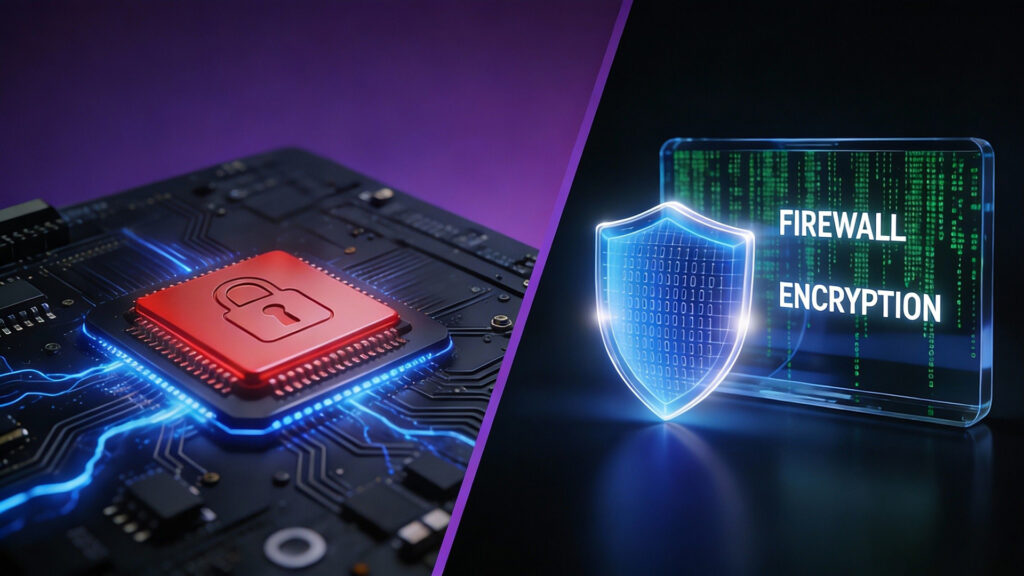
Mini PC Data Security: How to Protect Your Digital Assets in 2026 Announcements Buyer Guide Comprehensive Tips Occasion Product Review Q&A Tutorials The Hidden Danger: Why Your Mini PC Might Be Vulnerable 2025 has already seen some shocking data breaches, and the threat is real for Mini PC users. In Germany alone, Samsung suffered a massive breach exposing 270,000 customer records, including personal information and payment details. This isn’t an isolated incident – the number of reported data breaches in the US has skyrocketed from 157 in 2005 to  3158 in 2024, according to Identity Theft Resource Center data. The risk is even more significant for Mini PC users. In 2024, popular models from Ace Magic were found to contain pre-installed spyware that could steal passwords, cryptocurrency wallets, and sensitive account information. What’s worse, this malware was hidden in the recovery partition, meaning it would reinstall even if you wiped your drive and reinstalled Windows. Hardware-Level Protection: Your First Line of Defense When it comes to securing your Mini PC, hardware-level protection should be your foundation. The Trusted Platform Module (TPM) 2.0 is like a secure hardware safe built into your device, designed to store encryption keys, passwords, and certificates. Unlike software solutions, it’s isolated from the main system, making it much harder for attackers to access. Think of it as a secure vault that only your Mini PC can access, even if malware infects your operating system. For enhanced network security, look for Mini PCs with dual Ethernet ports. This feature allows you to separate your internal network from the internet, creating an additional barrier against potential attacks. HYSTOU Mini PCs feature dual Ethernet ports, delivering high-speed data transmission and enhanced network security. Navigating GDPR Compliance: What You Need to Know For users, compliance with the General Data Protection Regulation (GDPR) is not just good practice – it’s the law. This regulation governs how personal data is collected, stored, and processed, with severe penalties for non-compliance. Key GDPR requirements: Lawful basis for data processing Data minimization (collect only what you need) Data subject rights (access, correction, erasure) Data breach notification within 72 hours Privacy by design and default HYSTOU Mini PCs offer GDPR-compliant models with enhanced encryption, secure boot, and better access controls. HYSTOU H6 Fanless Mini PC offers a range of personalized functions to cater to your specific requirements. It supports features such as auto power-on, RTC wake-up, wake-on LAN, and network boot. AI-Powered Security for Mini PC Data Security 2025 brings exciting AI security advances for Mini PCs. Neural Processing Units (NPUs) enable local AI threat analysis without sending data to external servers, letting advanced detection happen on-device. AI security features to look for: Real-time threat detection and mitigation Anomaly detection for unusual behavior patterns Intelligent encryption management Automated security updates and patches Enhanced biometric authentication These AI systems learn from new threats and adapt over time, offering better protection than traditional software solutions. Your Mini PC Security Checklist – Mini PC Security 2026 To secure your Mini PC, follow this checklist: Enable TPM 2.0 – Check BIOS settings to activate this key security feature Set up strong authentication – Use fingerprint recognition if available, and create strong, unique passwords Configure network security – If your Mini PC has dual Ethernet ports, use them to separate networks Keep your system updated – Regularly install OS updates and security patches Enable encryption – Use BitLocker or similar tools to encrypt your storage drive Install reliable antivirus software – Choose a solution that offers AI-powered threat detection Practice safe browsing habits – Be cautious with email attachments and unfamiliar websites Regularly back up your data – Ensure you have secure backups of all important files Review privacy settings – Make sure you’re only sharing necessary data with applications Consider physical security – Use a Kensington lock for public or shared environments By using these measures, you’ll cut your risk of data breaches and cyberattacks. Investing in Your Digital Security In an era of common data breaches, investing in Mini PC security is critical. Prioritize hardware protections like TPM 2.0 and fingerprint recognition, ensure GDPR compliance, and use AI-powered security features to boost your digital security. Remember, breach costs – financial, data loss, and reputation damage – far exceed security investments. As Mini PCs grow popular for personal and professional use, making security a priority lets you enjoy their benefits without risking your data. The future of Mini PC security looks bright, with hardware, software, and AI advances creating safer computing. Stay informed and proactive to stay ahead of threats and protect your digital assets in 2026 and beyond. HYSTOU HYSTOU has established its R&D headquarters in Shenzhen, drawing on over a decade of experience. Our core team members, who previously served at renowned companies such as Inventec and Quanta Computer, form the backbone of our technical expertise. With robust R&D and innovation capabilities, we remain steadfast in our commitment to pursuing excellence in the field of technology products. Facebook Twitter Youtube Tumblr HYSTOU M9 Mini PC – Intel i5-1340P WiFi 6 Desktop Computer (8K Triple Display) Hystou H6 Industrial Mini PC – Fan-Cooled Triple Display Industrial Fanless Mini PC | Intel 10th Gen i5 | Hystou H4T-10th HYSTOU RTX 3050 Mini Gaming PC – 8K Workstation with Intel Core i7/i5

Mini PC Data Security: How to Protect Your Digital Assets in 2026 Read More »

Mini PC for Modern Offices: The Ultimate Buyer’s Guide

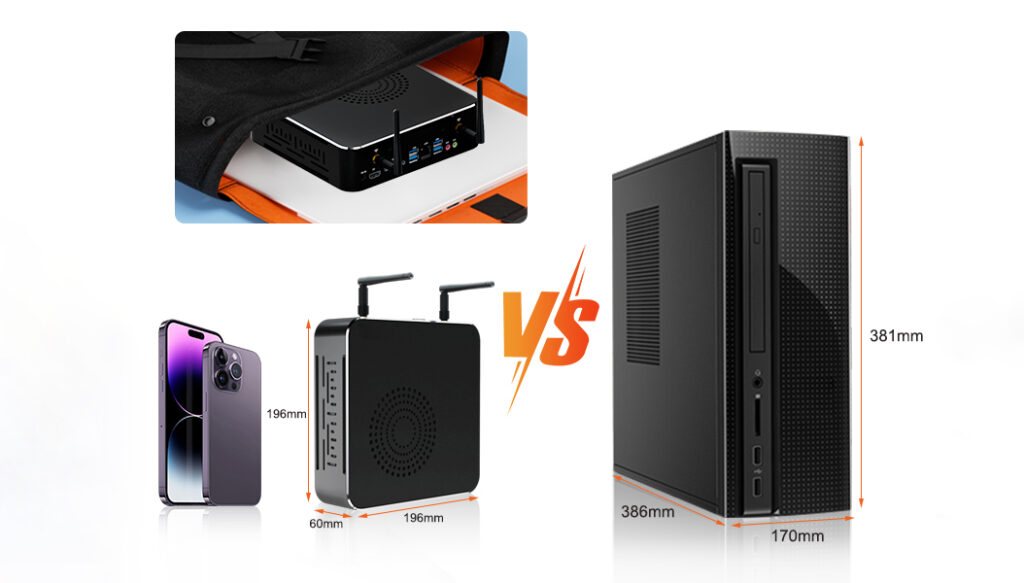
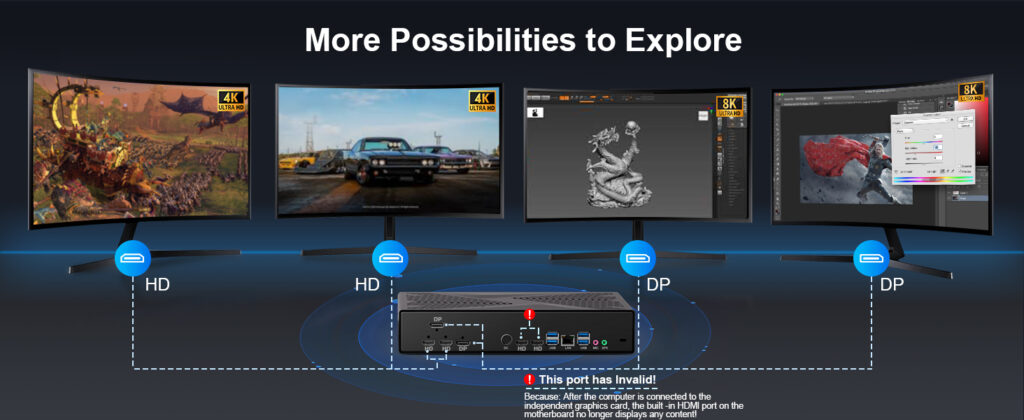
Mini PC for Modern Offices: The Ultimate Buyer’s Guide Announcements Buyer Guide Comprehensive Tips Occasion Product Review Q&A Tutorials Picture this: A modern office where desk space is at a premium, teams split time between on-site and remote work, and every professional juggles multiple tasks—from video conferences to data analysis—simultaneously. Cables snake across cluttered desks, bulky desktops hog valuable real estate, and laptops struggle to balance portability with the performance needed for intensive work. Sound familiar? The core question emerges: How can businesses unlock maximum computing power without sacrificing space, flexibility, or budget? Enter the Mini PC—a compact computing solution that defies the myth that “smaller means less powerful.” Blending a tiny footprint with robust performance, Mini PCs are reshaping how modern offices operate, offering a versatile alternative to traditional desktops and laptops alike. Why Modern Offices Need a Mini PC? Space Efficiency: Work Smarter, Not Larger The most immediate advantage of mini PCs lies in their dramatic space savings. Traditional desktop towers typically occupy 15-20 liters of volume, requiring dedicated floor or desk space and disrupting ergonomic layouts. In contrast, modern mini PCs range from just 0.5 to 5 liters—small enough to disappear behind a monitor using VESA mounting brackets or fit unobtrusively on even the most crowded workstation. This transformation creates cleaner, more organized workspaces with measurable benefits. A 2023 study published in the Journal of Environmental Psychology found that clutter-free work environments increase employee focus by 16% and reduce cognitive fatigue by 21%. For IT departments, the space savings multiply across the organization: deploying 100 mini PCs instead of traditional desktops frees up approximately 12 square meters of office space—enough for 6 additional workstations or a small meeting area. Energy & Cost Savings: Bottom-Line Benefits Beyond space efficiency, mini PCs deliver substantial financial benefits through reduced energy consumption. According to the U.S. Department of Energy, typical desktop computers consume 60-200 watts of power during operation, while mini PCs generally use just 15-65 watts—a reduction of up to 72%. For a company operating 100 workstations 8 hours daily, this translates to annual electricity savings of approximately $3,500-$14,000 depending on local energy costs. The savings continue with cooling expenses. Traditional desktops generate significant heat, increasing HVAC loads in office environments. The Lawrence Berkeley National Laboratory estimates that for every watt saved in computing equipment, an additional 0.5 watts is saved in cooling costs. Mini PCs also eliminate the need for expensive UPS systems required to protect power-hungry desktops, further reducing infrastructure expenses. When calculating total cost of ownership (TCO) over a typical 3-5 year lifecycle, research firm Forrester found mini PCs reduce costs by 23-31% compared to traditional desktops, primarily through energy savings, reduced maintenance, and extended useful life. Flexibility & Scalability: Adapt to Any Workflow Modern offices need technology that grows with them—and Mini PCs deliver. Most models support 2-4 monitors natively, making them ideal for finance professionals analyzing spreadsheets, designers working on multi-screen projects, or data analysts visualizing complex datasets. Upgrading is a breeze too: easily add more RAM or storage to meet evolving demands, without replacing the entire unit. Whether you’re a startup with 5 employees or a mid-sized company with 50, Mini PCs adapt to different roles—from administrative tasks to intensive creative work. Mini PC vs. Laptop: Which is Better for Office Environments Choosing between a Mini PC and a laptop depends on your office’s unique needs. Below is a detailed comparison of key decision factors: Consideration Mini PC Advantages Laptop Advantages Office Suitability Performance-to-Price Ratio Higher specs (CPU/GPU/RAM) for the same budget All-in-one convenience (no extra peripherals needed) Mini PC is better for fixed workstations Ergonomics Customize peripherals (keyboard, mouse, monitor height) Integrated design (portable but fixed setup) Mini PC supports healthier, adjustable workspaces Multi-Monitor Support Native 2-4 display output (no docks required) Limited to 1-2 displays (often needs a dock) Mini PC is ideal for multitasking/analytical roles Upgradeability Easy to upgrade RAM, storage, and cooling components Most models have soldered parts (limited upgrades) Mini PC is better for long-term use (5+ years) Portability Compact but requires external monitor/keyboard Fully integrated (ready to use anywhere) Laptop wins for frequent on-the-go work Total Cost of Ownership Lower (reuse existing peripherals; fewer replacements) Higher (repairs/replacements affect entire unit) Mini PC saves money for teams with existing gear The Hybrid Work Optimal Solution For optimal flexibility, combine a high-performance Mini PC (for your fixed office workstation) with a lightweight, budget-friendly laptop (for remote days). Use cloud services like Microsoft 365 or Google Workspace to sync data seamlessly between devices—no more transferring files or adjusting to different setups. This combination costs less than two high-end laptops and delivers the best of both worlds: power at the office, portability on the go. How to Choose the Right Mini PC for Your Office Step 1: Assess Your Performance Needs Basic Office Tasks: Document editing, email, video conferencing, and web browsing. Look for a Mini PC with an Intel Celeron, AMD Athlon Silver, or equivalent processor, 4GB RAM, and 128GB SSD. Mid-Range Professional Work: Multitasking, spreadsheet analysis, light graphic design, or programming. Opt for an Intel Core i3/i5, AMD Ryzen 3/5, 8GB-16GB RAM, and 256GB-512GB SSD. High-End Professional Work: Video editing, 3D design, data science, or intensive programming. Choose an Intel Core i7/i9, AMD Ryzen 7/9, or Intel Xeon processor, 16GB+ RAM, 1TB+ SSD, and dedicated GPU (e.g., NVIDIA GeForce or AMD Radeon). Step 2: Prioritize Connectivity & Ports USB-C/Thunderbolt 4: Essential for fast data transfer, external display connectivity, and charging peripherals. Display Outputs: HDMI 2.1, DisplayPort, or Thunderbolt for multi-monitor setups (ensure compatibility with your monitors). Networking: WiFi 6/6E for wireless speed and reliability; 2.5GbE Ethernet for wired connections (critical for data-heavy tasks). Additional Ports: USB-A (for legacy peripherals like printers), SD card readers (for creative professionals), and audio jacks. Step 3: Consider Size & Installation Options Ultra-Compact (50-100mm): Ideal for tight spaces (e.g., small desks or shared workstations) but may have limited upgradeability. Standard Mini PC (100-150mm): Balances size and performance, with more upgrade options and better cooling.

Mini PC for Modern Offices: The Ultimate Buyer’s Guide Read More »

HYSTOU H6 Series Comparison

Hystou Mini PC H6 Series: Fan vs Fanless Model Comparison

Hystou Mini PC H6 Series Comparison: Which Model Performs Better? Announcements Buyer Guide Comprehensive Tips Occasion Product Review Q&A Tutorials Hystou H6 Series Overview: Understanding the Lineup Hystou Mini PC H6 series has earned widespread acclaim among global users for its compact design, portability, and robust performance. Catering to diverse user demands, Hystou offers two distinct cooling solutions: active cooling (fan model) and passive cooling (fanless model). This comprehensive review delves into their design, performance, and practical applicability to help you make an informed purchasing decision—whether you prioritize high-load stability or silent operation. Design & Build Quality Both models adopt a classic rectangular design, featuring a unibody aluminum alloy chassis. This material not only enhances heat dissipation efficiency but also adds a premium texture and improves durability. The fanless variant, devoid of a fan structure, boasts a more compact footprint—though both models are space-saving and ideal for tight workspaces or home setups. The CNC-machined chassis ensures precise craftsmanship, with the fan model integrating a seamless fan slot above the CPU for optimized airflow. Cooling System Comparison Hystou H6 Fan Model The fan model employs an active cooling system: a high-precision cooling fan is embedded via CNC processing directly above the CPU. Paired with the chassis’ integrated heat sinks, the fan accelerates air circulation—expelling hot air from the heat sinks while drawing in cool external air to form an efficient thermal channel. The addition of a dust filter prevents debris from entering the host, reducing hardware wear and extending lifespan. Hystou H6 Fanless Model The fanless model utilizes advanced passive cooling technology, relying on large-area heat sinks for heat dissipation. Dense cooling fins on the top and sides of the chassis maximize air contact, boosting heat dissipation efficiency. The chassis itself is crafted from specialized thermally conductive material, rapidly transferring internal heat to the exterior for effective temperature regulation—no moving parts required. Performance Benchmarks We tested both models under identical configurations (Intel Core i7-10810U) using industry-standard benchmark tools to ensure objective results. Model Geekbench 5 Single-Core Score Geekbench 5 Multi-Core Score Unigine Heaven FPS Unigine Heaven Score H6 Fan Model 1179 4606 10.6 267 H6 Fanless Model 1115 3051 12.5 315 CPU Performance: Single-core scores are nearly identical (difference within margin of error), meaning both models handle daily office tasks (Word, Excel, web browsing) with smooth responsiveness. The fan model’s higher multi-core score makes it superior for multi-threaded tasks like graphic design, video rendering, and industrial process control. Graphics Performance: Both models feature Intel UHD Graphics 620 (1GB VRAM). In Unigine Heaven tests, the fanless model showed slightly better FPS and scores, but real-world gaming performance is comparable. At 1080P resolution, both run mainstream games like Minecraft smoothly. However, neither supports high-end 3D games—limited by the integrated GPU’s capabilities, not cooling design. Stress Test & Temperature Control Hystou H6 Fan Model Under AIDA64 full-load stress testing, the fan automatically ramps up to expel excess heat. Temperature monitoring shows the CPU stabilizes below 70℃, maintaining a consistent 16.9W power output without throttling—ensuring long-term stable operation. After 60 minutes of full load, the chassis surface temperature reaches 40℃, cool to the touch and non-discomforting. Hystou H6 Fanless Model Without active fan cooling, the fanless model heats up faster under high load, with CPU temperatures peaking at 86℃. Despite this, it avoids crashes or automatic shutdowns. Performance degrades slightly more than the fan model under sustained high load, but remains fully functional for light tasks (office work, video streaming, web browsing) with no noticeable lag. After 60 minutes of full load, the chassis surface temperature hits 53.9℃—warm to the touch but normal for fanless industrial-grade devices. Noise Level Assessment Fan Model: Operates nearly silently during normal use. Under high load, the fan accelerates to produce 30-40 dB of noise—within acceptable limits for most users, though potentially noticeable to noise-sensitive individuals. Fanless Model: Completely silent due to the absence of moving parts. It excels in quiet environments like offices, bedrooms, or home theaters, ensuring uninterrupted work or entertainment without noise interference. Ideal Use Cases Hystou H6 Fan Model Best suited for users requiring long-term high-load performance: Industrial automation (production line control, equipment monitoring) Power system monitoring and scheduling Energy management systems Traffic signal control Environmental monitoring stations Building automation systems Its reliable active cooling ensures stable operation, preventing overheating-induced performance drops or crashes. Hystou H6 Fanless Model Perfect for noise-sensitive users and daily use scenarios: Office workers (document editing, video conferencing) Home users (web browsing, streaming, casual gaming) Home theater setups (seamless integration with home decor) Quiet workspaces (libraries, study rooms) Its silent operation and sleek design prioritize comfort and aesthetics. Final Verdict The Hystou H6 fan model stands out for high-load stability and multi-core performance, making it the top choice for industrial and professional applications. The fanless model excels in silence and compactness, ideal for daily office use and home entertainment. Both models retain Hystou’s signature durability, portability, and compatibility with Windows 10/11 and Linux systems—ensuring versatility across use cases. Choose based on your priority: performance for intensive tasks or tranquility for everyday use. Hystou H6 Industrial Mini PC – Fan-Cooled Triple Display Processor:Intel Core i5-10210U/i5-8140U/i5-8260U/i7-10810U Memory: 2×DDR4 SODIMM slots (max 64GB) Storage: 2×M.2 2280 SSD slots + 1×2.5-inch SATA interface (supports HDD/SSD ≤7mm thickness) Network: Standard: Dual Gigabit Ethernet, Intel AC3165 Wi-Fi (Bluetooth 4.2)/Optional: Wi-Fi 6 AX200 (Bluetooth 5.2) Efficient cooling system: Multiple heat pipes + heat sinks + silent-optimized fan for stable component operation Versatile applications: Industrial control, supermarket retail, home entertainment, office use, etc. BUY NOW 这是示例文本,单击 “编辑” 按钮更改此文本。 HYSTOU H6 Fanless Industrial Mini PC – Intel Core i7, Dual LAN & Triple Display Processor: Intel Core i7-10810U /i5-10210U/i5-8140U/i5-8260U Graphics: Intel UHD Graphics (supports 4K UHD video playback at 4096×2160@60Hz, triple-display output) Memory: Up to 64GB DDR4 RAM Storage: Built-in M.2 2280 SSD, support for 2.5-inch SSD expansion Network:2×Gigabit Ethernet ports, 2.4G+5.0G dual-band Wi-Fi, Bluetooth 4.2 BUY NOW HYSTOU HYSTOU has established its R&D headquarters in Shenzhen, drawing on over a decade of experience. Our core team members, who previously served at renowned companies such as Inventec and Quanta Computer,

Hystou Mini PC H6 Series: Fan vs Fanless Model Comparison Read More »

Mini vs All-In-One

Mini PC vs All-in-One PC: 2025 Comprehensive Comparison

Mini PC vs All-in-One PC: 2025 Comprehensive Comparison Announcements Buyer Guide Comprehensive Tips Occasion Product Review Q&A Tutorials In today’s fast-paced digital world, the demand for space-efficient computing solutions has never been higher. As remote work becomes the norm and living spaces continue to shrink, consumers are increasingly turning to compact alternatives to traditional desktop towers. Two options have emerged as front-runners in this space: the Mini PC and the All-in-One PC. But which one truly offers the best balance of performance, versatility, and value in 2025? What is a Mini PC A Mini PC is a compact computing device designed to deliver the functionality of a traditional desktop computer in a significantly smaller form factor. These pint-sized powerhouses have evolved dramatically in recent years, now packing impressive performance into packages small enough to fit in the palm of your hand or mount behind a monitor. Key Features of Mini PC ●Space-Saving Design Mini PCs typically measure just 169 x 138 x 52 mm, making them up to 90% smaller than traditional desktop towers. This ultra-compact footprint allows them to fit seamlessly into home offices, dorm rooms, and industrial settings where space is at a premium. The Hystou M9, for example, can be VESA-mounted behind a monitor, effectively turning any display into a space-efficient all-in-one system without sacrificing performance. ●Energy Efficiency Modern Mini PCs prioritize power efficiency, with most models consuming between 15-65W under load. This represents a 60-70% reduction in energy usage compared to traditional desktops, resulting in significant long-term savings on electricity bills. The Hystou M9, equipped with Intel’s 13th Gen Core processors, maintains this efficiency while delivering performance suitable for demanding tasks. ●Versatile Connectivity Despite their small size, Mini PCs offer impressive connectivity options. The Hystou M9, for instance, features 8 USB ports (including 6 USB 3.2), dual 2.5G LAN ports, HDMI 2.0, DisplayPort 1.4, and a USB Type-C port supporting 4K output. This extensive array of interfaces ensures compatibility with multiple monitors, external storage devices, and peripherals simultaneously. ●Performance Capabilities Today’s Mini PCs are far more powerful than their predecessors. Models like the Hystou M9 can be configured with up to 64GB DDR5 RAM and 4TB Gen 4 SSD storage, paired with Intel Core i7 processors delivering up to 4.7GHz turbo frequency. These specifications make modern Mini PCs capable of handling everything from everyday office tasks to photo editing and light gaming. What is an All-in-One PC An All-in-One (AIO) PC integrates the computer’s components directly into the display housing, creating a streamlined, all-in-one unit. This design eliminates the need for a separate tower, reducing clutter and simplifying setup. AIOs have long been popular in home and office environments where aesthetics and space efficiency are priorities. Key Features of All-in-One PC ●Integrated Design The defining characteristic of an All-in-One PC is its integrated design, which combines the monitor, processor, storage, and other components into a single device. This approach eliminates cable clutter and reduces the overall desktop footprint by approximately 40% compared to traditional tower-and-monitor setups. ●Simplified Setup AIOs offer plug-and-play convenience, requiring only a single power cable in most cases. This simplicity makes them ideal for users who prioritize ease of use and a clean workspace. Many models also include built-in webcams, microphones, and speakers, further reducing the need for additional peripherals. ●Display Quality All-in-One PCs typically feature high-quality displays ranging from 21.5 to 34 inches, with resolutions up to 4K UHD. Some premium models offer touchscreen capabilities and color-accurate panels suitable for photo and video editing. This integration of display and computing components often results in better optimization for visual performance compared to Mini PCs paired with third-party monitors. ●Space Efficiency While not as compact as Mini PCs, AIOs still offer significant space savings compared to traditional desktop setups. The elimination of the tower and reduction in cables creates a cleaner, more organized workspace, which is particularly valuable in small offices and home environments. Mini PC vs All-in-One PC: A Detailed Comparison When choosing between a Mini PC and an All-in-One PC, several key factors come into play. Let’s examine how these two form factors compare across critical dimensions: Performance Processing Power Both Mini PCs and AIOs now offer comparable processing capabilities, with high-end models featuring Intel Core i7 and AMD Ryzen 7 processors. The Hystou M9 Mini PC, for example, can be configured with an Intel Core i7-1360P processor (12 cores, 16 threads, up to 4.7GHz), delivering performance on par with many mid-range AIOs. Graphics Performance AIOs typically have an edge in integrated graphics performance, as they can accommodate more powerful GPUs due to their larger form factor. However, high-end Mini PCs like the Hystou M9 feature Intel Iris Xe graphics, which are more than capable of handling 4K video playback, photo editing, and light gaming. Storage and Memory Mini PCs often offer greater flexibility in storage and memory configurations. The Hystou M9 supports up to 64GB DDR5 RAM and dual M.2 SSD slots, allowing for up to 4TB of ultra-fast storage. AIOs, while offering similar maximum capacities, often have limited upgrade options due to their integrated design. Portability Form Factor Mini PCs excel in portability, with most models weighing less than 1kg and small enough to fit in a backpack. The Hystou M9, for instance, weighs just 0.6kg, making it ideal for business travelers and digital nomads. AIOs, by contrast, typically weigh 5-10kg and require careful handling during transportation. Setup Flexibility Mini PCs offer unparalleled setup flexibility, as they can be connected to any available display. This makes them suitable for use in multiple locations – from home offices to conference rooms. AIOs, while self-contained, are limited by their fixed display size and weight, making them less adaptable to changing environments. Upgradeability and Longevity Component Upgrades Mini PCs generally offer better upgradeability than AIOs. Models like the Hystou M9 feature user-upgradeable RAM and storage, allowing users to easily increase memory or add storage as needs evolve. AIOs, due to their compact design and integrated components, often have limited or no user-upgradeable

Mini PC vs All-in-One PC: 2025 Comprehensive Comparison Read More »

Shopping Cart
Scroll to Top
Schedule a chat

We will get in touch in 1 business day.

Important Notice on Fraud Prevention

Recently, scammers have been impersonating our company staff to commit payment fraud. To protect your interests, please pay attention to the following matters:

Verify Sender: Check if the email domain is @hystou.com. Immediately delete any emails from non-Hystou domains.

Double-Check: For any account modification requests, cross-verify via the customer service hotline listed on our official website hystou.com or through existing partnership channels.

Refuse Private Transactions: Do not trust claims like “urgent notifications,” “confidentiality requirements,” or “tax policy updates.” All business changes must follow official procedures.