Mini PC Setup for Parents: 5 Essential Preconfigured Settings
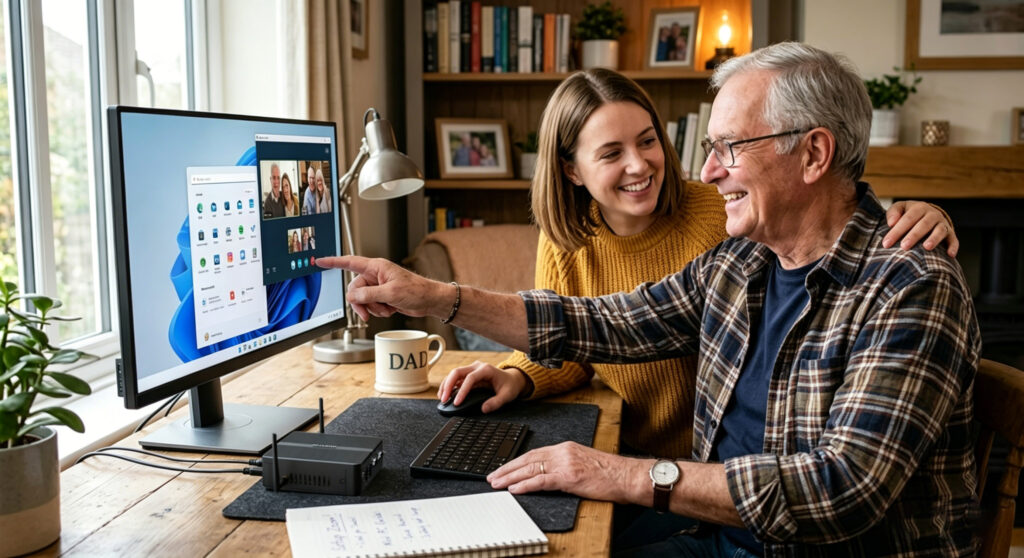
When purchasing a Mini PC for elderly parents, hardware represents only half of the solution. Without proper configuration, even the most capable device can become a source of frustration for senior users. This guide provides everything needed to transform a standard Mini PC into a parent-friendly technology solution that seniors can use with confidence.
Research indicates that seniors who maintain regular digital connections with family members experience improved mental well-being and reduced feelings of isolation. Video calls, shared photo albums, and messaging platforms help bridge the physical distance that often separates families across different cities or countries. A properly configured Mini PC becomes an essential tool for maintaining these vital connections.
Why Mini PC Is the Perfect Choice for Parents
When selecting a computer for elderly users, Mini PCs offer several distinct advantages over traditional desktops and laptops. Understanding these benefits helps users make informed purchasing decisions and ensures satisfaction with the final setup.
Compact Size and Simple Setup
Mini PCs are incredibly small and lightweight. They can fit anywhere—next to the TV, on a small desk, or mounted behind a monitor. There is no bulky tower taking up valuable space. This simplicity appeals to older adults who may feel overwhelmed by large equipment and multiple cables.
Cost-Effective Solution
These devices offer excellent value without sacrificing essential functionality. For parents who primarily need video calling, photo viewing, and web browsing, there is no requirement to invest in high-end specifications. A mid-range Mini PC handles all common senior computing needs while remaining budget-friendly.
Easy Maintenance and Reliability
Mini PCs have fewer moving components than traditional desktops. There is less that can break, collect dust, or require maintenance. Most models operate reliably for years with minimal intervention. This means fewer support calls and more peace of mind for the entire family.
Tip: When selecting a Mini PC for seniors, choose models with at least 8GB RAM and 256GB storage. These specifications ensure smooth performance for daily tasks without unnecessary expense.
Silent and Energy-Efficient Operation
Traditional desktop towers can be noisy and power-hungry. Mini PCs are designed for silent or near-silent operation with excellent energy efficiency. This creates a peaceful computing environment where parents can focus on their activities without distracting background noise or high electricity bills.
Portability and Flexibility
Mini PCs are highly portable devices that users can easily move between locations. Whether parents want to use their computer in the living room for family video calls or move it to a home office for document work, the compact design allows for effortless relocation. This flexibility accommodates changing needs without requiring multiple devices.
Top Hardware Picks: Reliable Mini PCs for Seniors
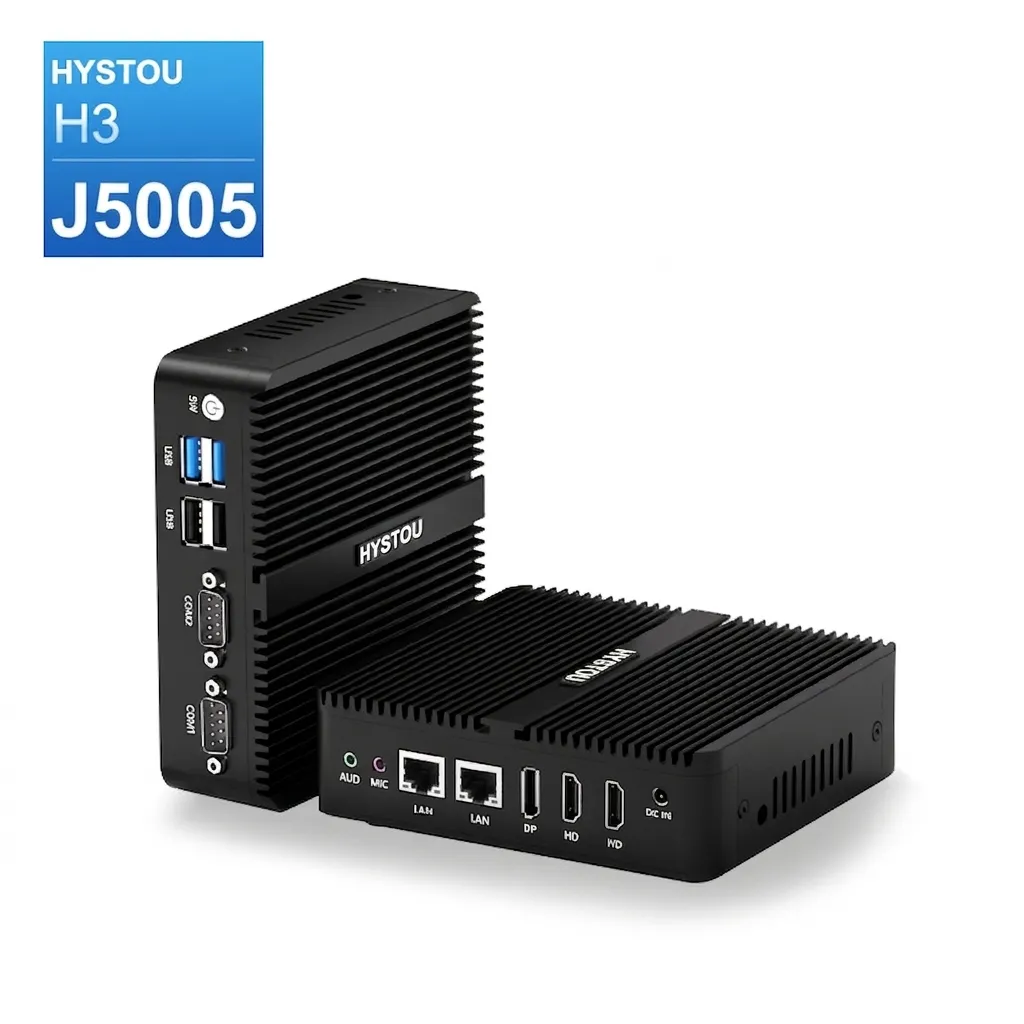
Hystou H3 (J5005): The Silent Entry-Level Champion
Key Advantage: This is a fanless Mini PC, meaning it operates in total silence. It’s the perfect companion for parents who value a peaceful environment for reading or relaxing without the distracting hum of a traditional computer.
Why It Fits: Powered by the Intel J5005, it handles video calls, HD streaming, and web browsing with ease. Its ultra-compact footprint keeps the desk clutter-free and simple.
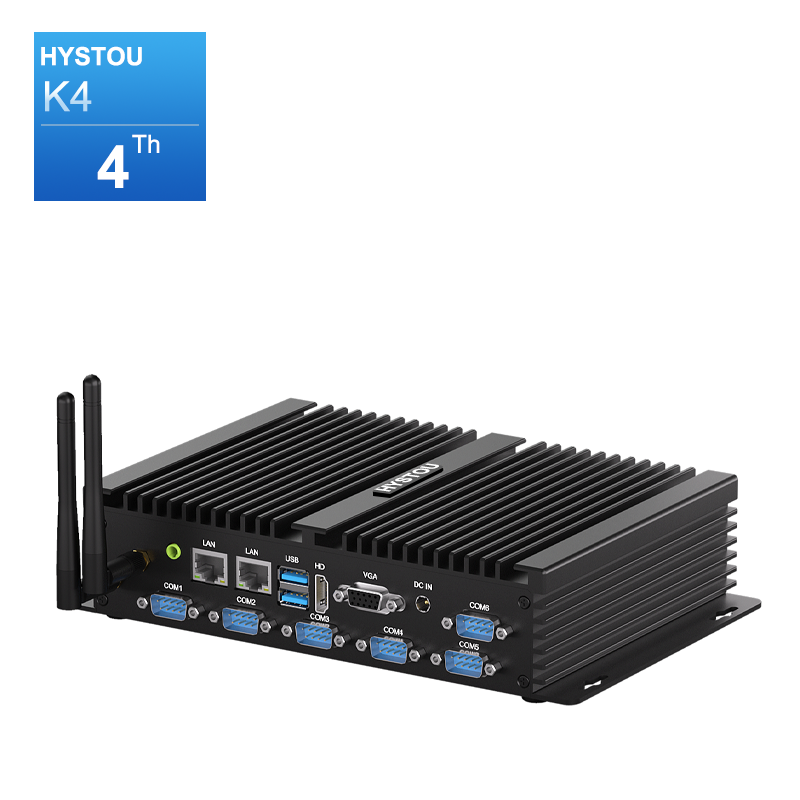
Hystou K4: Industrial-Grade Stability for Peace of Mind
- Key Advantage: Built with a rugged industrial-grade design and a full aluminum alloy chassis, the K4 offers superior heat dissipation and structural durability.
Why It Fits: If you are looking for a “set it and forget it” solution, the K4 is ideal. Its fanless, dust-proof construction ensures it remains reliable even in less-than-ideal environments. It’s a heavy-duty device that minimizes the need for technical support visits.
The 5 Essential Preconfigured Settings
The following five configuration areas form the foundation of an effective senior-friendly Mini PC setup. Each area addresses specific pain points that elderly users commonly experience. Taking the time to configure these settings properly will save countless hours of frustration and support requests in the future.
1. Simplified Desktop Interface
The default Windows desktop contains numerous icons, shortcuts, and widgets that can overwhelm senior users. A cluttered interface confuses and increases the likelihood of accidental clicks on the wrong items. Therefore, simplifying the desktop is the first and most important configuration step.
Remove Unnecessary Icons
Delete every icon except the essential applications. The desktop should display only three to five items: the browser, email application, video call software, and photo viewer. This minimal approach makes finding anything effortless and reduces cognitive load.
Set Large Icons
Increase the icon size to the maximum setting. Many seniors experience reduced fine motor control, making small click targets frustrating to use. Larger icons are significantly easier to click accurately, reducing errors and frustration.
Customize and Lock the Taskbar
Configure the taskbar to show only pinned applications that are actually needed. Lock the taskbar position to prevent accidental changes. Now parents can launch their applications with one click, without navigating through mysterious menus.
2. Large Fonts and High Contrast Display
Vision naturally changes with age, and what appears normal to younger users may be completely unreadable for seniors. Adjusting every visual setting to maximize readability is essential for a positive computing experience.
Windows Display Settings
Websites frequently use small fonts that strain senior eyes. Configure the browser to force larger text across all web pages by accessing browser settings and adjusting the default font size to at least 18px or larger. This makes reading articles and browsing websites comfortable without squinting or leaning closer to the screen.
Browser Font Configuration
Set the text size to 125% or 150% in Windows display settings. This affects menus, dialog boxes, and system text throughout the operating system. Additionally, consider enabling high contrast mode for sharper text and darker backgrounds.
Enable Reading Mode
Modern browsers like Chrome, Edge, and Firefox offer reader modes that strip away advertisements and distractions. These modes display articles in clean, large text with optimized formatting. Set this as the default browsing experience for maximum comfort.
Tip: Consider pairing the Mini PC with a large monitor (24 inches or bigger) featuring an IPS display. This combination significantly improves viewing angles and reduces eye strain for elderly users.
3. Automatic Updates and Security Software
Security is crucial for any computer user, and seniors are often targeted by scams, phishing attempts, and malware. Without proper protection, elderly users may inadvertently download malicious software or visit dangerous websites. Multiple layers of security provide comprehensive protection.
Windows Automatic Updates
Configure Windows to update automatically during sleeping hours. This ensures the system stays current with security patches without interrupting daily use or displaying confusing update prompts to parents.
Antivirus Software Installation
Install a reputable antivirus program such as Windows Defender (built-in and free), Norton, or McAfee. The software should run silently in the background with automatic regular scans. Real-time protection provides defense against threats without requiring user intervention.
Browser Security Extensions
Add reputable ad blockers and anti-phishing extensions to browsers. These tools block malicious websites before they can cause harm. Popular options include uBlock Origin, Privacy Badger, and built-in browser protection features.
4. Preinstalled Essential International Applications
Downloading and installing software confuses many seniors. They may accidentally download wrong programs, click deceptive buttons, or end up with unwanted browser toolbars. Preinstalling all necessary applications eliminates these issues and ensures parents have everything they need from day one.
📹 Video Calling
Zoom, Skype, Google Meet
📷 Photo Management
Google Photos, Windows Photos
🌐 Browsers
Chrome, Edge, Firefox
🎬 Entertainment
Netflix, Spotify, YouTube, VLC
5. Creating a Simple User Guide and Support Documentation
Even with perfectly configured settings, seniors benefit from written guidance. They will inevitably forget steps over time, and having a reference document prevents unnecessary frustration and support calls. Therefore, creating comprehensive documentation is the final essential step.
Desktop Quick Reference Card
Create a laminated card that explains each desktop icon. For each application, include what the program does and when to use it. This visual guide sits next to the computer as an always-available reminder.
Step-by-Step Instructions
Write simple instructions for common tasks using large text and clear screenshots or illustrations. Essential tutorials include making video calls, viewing photos, browsing websites, and playing videos. Each step should be independently actionable without requiring knowledge of other steps.
Emergency Contact Information
Add a prominent contact card near the computer displaying the primary support contact’s phone number and email. If something goes wrong, parents have a clear path to assistance. This provides peace of mind for both seniors and their families.
Remote Assistance Configuration
Configure Windows Quick Assist or third-party remote desktop software such as TeamViewer or AnyDesk. When problems arise, family members can take control of the computer remotely to fix issues without visiting in person. This capability has saved countless trips and ensures timely support.
Remote assistance setup: Install TeamViewer or AnyDesk on both the Mini PC and a family member’s device. Create a laminated instruction card showing parents exactly which buttons to press to initiate a remote support session.
Additional Settings to Enhance the Experience
Beyond the essential configurations, several additional adjustments further improve usability for senior users. These refinements create an even more comfortable computing environment that reduces the learning curve and increases daily satisfaction.
Voice Control Features
Enable Windows built-in voice recognition for hands-free operation. This feature assists parents when typing becomes difficult or when they prefer verbal commands. Configure voice access in Windows Settings → Accessibility → Speech to provide an alternative interaction method.
Simplified Startup Process
Consider configuring the computer to bypass the login screen when using a local account without password protection. This removes an unnecessary barrier and allows direct access to the desktop. However, balance convenience with security based on individual circumstances.
One-Click Application Launching
Pin frequently used applications to the Windows taskbar for instant access with a single click. This eliminates the need to navigate through menus or search for programs. Prioritize the four or five most-used applications for maximum efficiency.
Notification Management
Disable most notification sounds and pop-ups in Windows Settings → System → Notifications. These distractions confuse seniors and interrupt their activities. A quiet computing environment is more pleasant, focused, and less overwhelming.
Training Tips for Teaching Parents to Use Technology
Configuring the computer is only half the solution. Families also need to teach their parents how to use the device effectively. The following techniques have proven successful for countless families and create positive learning experiences.
Start with Basics Only
Do not overwhelm new users with features. Focus teaching only on the essentials: video calling and photo viewing. These two activities provide immediate value and motivation while building foundational skills. Introduce additional features only after mastering the basics completely.
Practice Through Repetition
Seniors often learn best through repetition. Practice the same tasks multiple times during initial training sessions. Have parents perform actions themselves while you observe. This builds muscle memory and confidence that stick with them over time.
Be Patient and Encouraging
Mistakes are a natural part of learning. Avoid criticism or rushing during training sessions. Celebrate small victories and progress. Positive reinforcement makes learning enjoyable rather than stressful, which significantly improves outcomes.
Schedule Regular Check-Ins
Set up weekly video calls to check progress and address questions. Small problems addressed early prevent larger frustrations later. This ongoing support keeps parents motivated and ensures they continue using their Mini PC confidently.
Tip: Learning pace varies significantly for everyone. Some seniors pick up technology quickly and independently. Others need months of patient guidance. Adjust expectations accordingly and focus on progress rather than speed. The goal is sustainable usage, not rapid mastery.
In Conclusion: Making Technology Accessible for Seniors
In conclusion, setting up a Mini PC for parents requires an upfront investment of time and effort. However, this investment pays dividends significantly over the long term. Parents receive a computer that genuinely serves their needs, while families gain peace of mind knowing they can use it safely and independently.

HYSTOU
HYSTOU has established its R&D headquarters in Shenzhen, drawing on over a decade of experience. Our core team members, who previously served at renowned companies such as Inventec and Quanta Computer, form the backbone of our technical expertise. With robust R&D and innovation capabilities, we remain steadfast in our commitment to pursuing excellence in the field of technology products.