How to Fix Unusually Loud Fan Noise in Hystou Mini PCs
Introduction
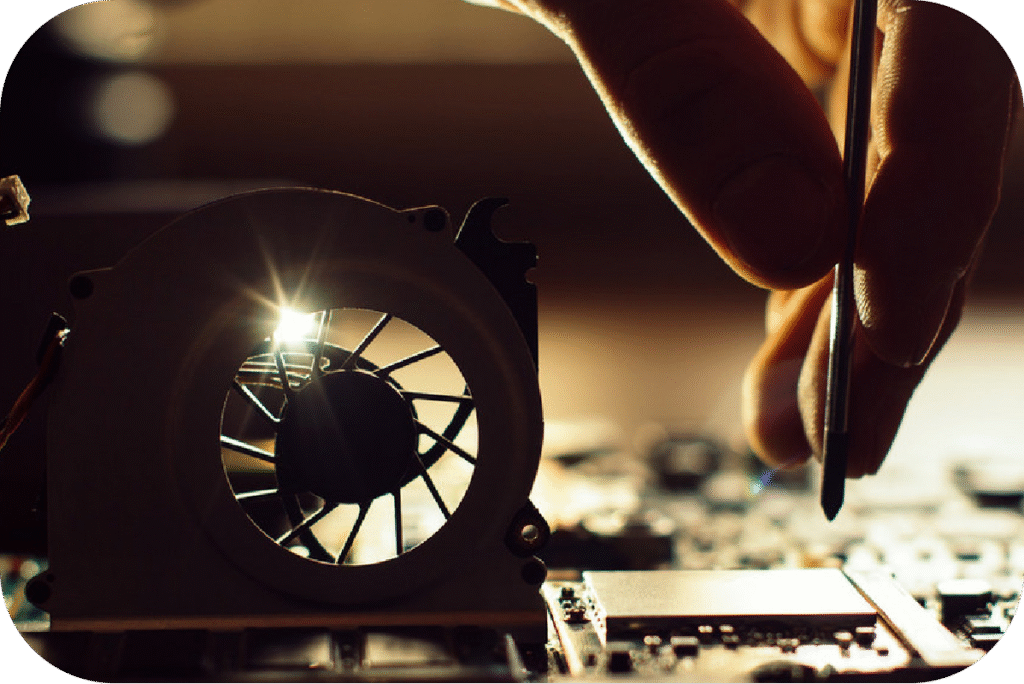
Hystou mini PCs are renowned for their compact design and reliable performance, making them a popular choice for home offices, small businesses, and industrial applications. However, encountering unusually loud fan noise during operation can disrupt your workflow, cause distractions, and signal potential thermal throttling or hardware strain.
In this guide, we break down the “5 most common causes of fan noise in Hystou mini PCs” and provide actionable, step-by-step solutions. All methods are tailored to Hystou’s thermal architecture so you can diagnose and eliminate noise issues safely, extending your system’s operational lifespan.
Cause 1: Improper Cable Arrangement or Insecure Fan Installation
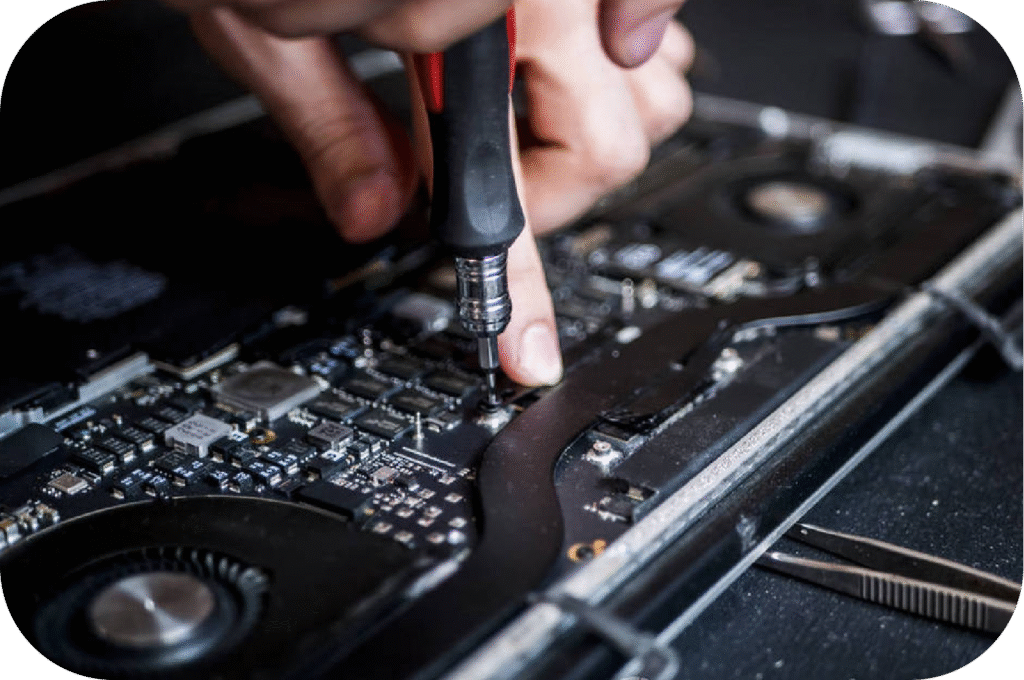
Hystou mini PCs feature a space-saving internal layout. Over time or after internal SSD/RAM upgrades, loose cables can shift into the fan’s rotation path, causing clicking or scraping noises. Furthermore, slightly loose mounting screws can cause chassis chatter.
- Power off your Hystou mini PC and disconnect all cables (power supply, display cables, USB peripherals).
- Open the chassis cover using a small Phillips-head screwdriver.
- Inspect the fan blades: Gently push internal cables (such as SATA or internal Wi-Fi antenna wires) away from the fan assembly. Secure them using heat-resistant cable ties.
- Check the fan screws: Verify that the 4 fan housing screws are snug. Avoid over-tightening to prevent damaging the mounting tabs.
- Reassemble, reconnect power, and verify if the scraping noise is resolved.
Cause 2: Dust Buildup Around Cooling Vents & Heat Sinks
Compact cooling vents accumulate dust over time. Impaired airflow forces the thermal control system to ramp up fan RPM to prevent CPU throttling, producing significantly higher fan noise.
Note on Dust Isolation: Certain sealed chassis designs (such as the H4-12th V2 series) feature externally mounted fans designed to cool chassis fins directly without drawing dust inside the sealed motherboard compartment. For standard Mini PC layouts, regular cleaning remains critical.
Power off and unplug the unit completely.
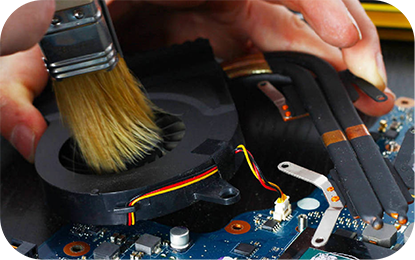
Use a can of compressed air held 6–8 inches away from the exhaust vents.
Pro Tip: Hold the fan blades still with a soft cotton swab while blowing compressed air to prevent back-spin current or bearing damage.
Wipe the external surface with a soft microfiber cloth.
Cause 3: Malware or Background Processes Causing High CPU Usage
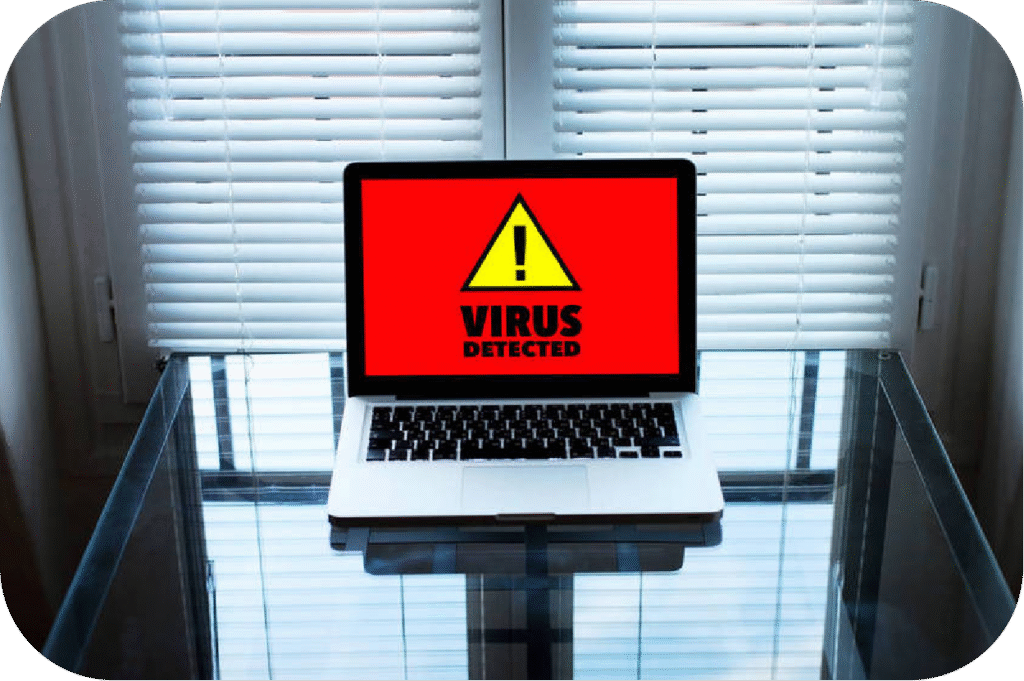
Unexpectedly high fan speeds during idle states are frequently caused by background malware, crypto-miners, or runaway system processes driving CPU utilization to 90%+.
- Open Task Manager (`Ctrl` + `Shift` + `Esc`) and sort processes by CPU
If an unknown process is consuming excessive resources, reboot into Safe Mode:
Go to Settings > System > Recovery
Next to Advanced startup, select Restart now.
Navigate to Troubleshoot > Advanced options > Startup Settings > Restart, then select Safe Mode.
- Run a comprehensive scan using **Windows Defender** or a recognized anti-malware tool like Malwarebytes.
Quarantine or remove flagged threats to return idle CPU load to normal (typically 2%–10%).
Cause 4: Surface Resonance & Vibration
- Apply Rubber Feet: Stick high-density silicone or rubber pads onto the four bottom corners of the chassis.
- Use an Elevated Stand: Elevating the mini PC improves passive airflow beneath the baseplate while isolating vibrations.
- Isolate Nearby Devices: Ensure a minimum gap of 4–6 inches between the PC and potential external vibration sources (e.g., external hard drives or desktop speakers).
Cause 5: Fan Wear and Tear
- Isolate the noise source: Confirm that the sound originates from the CPU fan rather than an external mechanical HDD.
- Check Warranty Status: Hystou provides a standard warranty coverage policy. If your PC is within the warranty period, reach out with your serial number to request a replacement fan module.
- Replacement Best Practice: When swapping out thermal modules, clean off old thermal compound using isopropyl alcohol and apply a fresh layer of high-grade thermal paste to the CPU die before attaching the new heat sink assembly.
Conclusion
- Perform monthly visual checks for dust buildup.
- Run quarterly antivirus scans.
- Use Hystou’s official accessories (pads, stands, fans) for compatibility.
FAQ Section
Q1: Will opening my Hystou mini PC to clean dust void my warranty?
No. Standard cleaning and RAM/SSD expansion do not void your warranty, provided no internal components are physically damaged during the process.
Q2: Can I replace the internal fan with a third-party cooler?
Due to the custom form factor and specific header pinouts used in mini PC enclosures, we strongly recommend using original Hystou replacement fans to ensure proper PWM speed control and physical fit.
Q3: Why is my brand-new Hystou mini PC fan running fast on first boot?
During initial setup, Windows performs background indexing, updates, and driver installations, which briefly drive CPU temperatures up. The fan noise should stabilize once all background setup is complete.

HYSTOU
HYSTOU has established its R&D headquarters in Shenzhen, drawing on over a decade of experience. Our core team members, who previously served at renowned companies such as Inventec and Quanta Computer, form the backbone of our technical expertise. With robust R&D and innovation capabilities, we remain steadfast in our commitment to pursuing excellence in the field of technology products.