Quick Win: 3-Second Emergency Fix for Frozen Computers
Random computer freezes can instantly disrupt your gaming, office work, or entertainment. If your computer stops responding to mouse or keyboard inputs, don’t panic. Before digging into complex root causes, use this 3-second keyboard shortcut to try unfreezing your PC immediately.
3-Second Urgent Fix (No Data Loss)
- Shortcut: Press Win + Ctrl + Shift + B at the same time
- Effect: Your screen will flicker once, and you’ll hear a beep sound
- What it does: This forces your graphics card driver to restart instantly. It fixes 80% of random display-related freezes without closing any open programs or losing unsaved work.
If this shortcut fails, hold the power button for 5-10 seconds to perform a hard restart. Wait 15 seconds before turning it back on to allow hardware components to reset completely.
Advanced Troubleshooting: Fix "No Error Message" Random Freezes
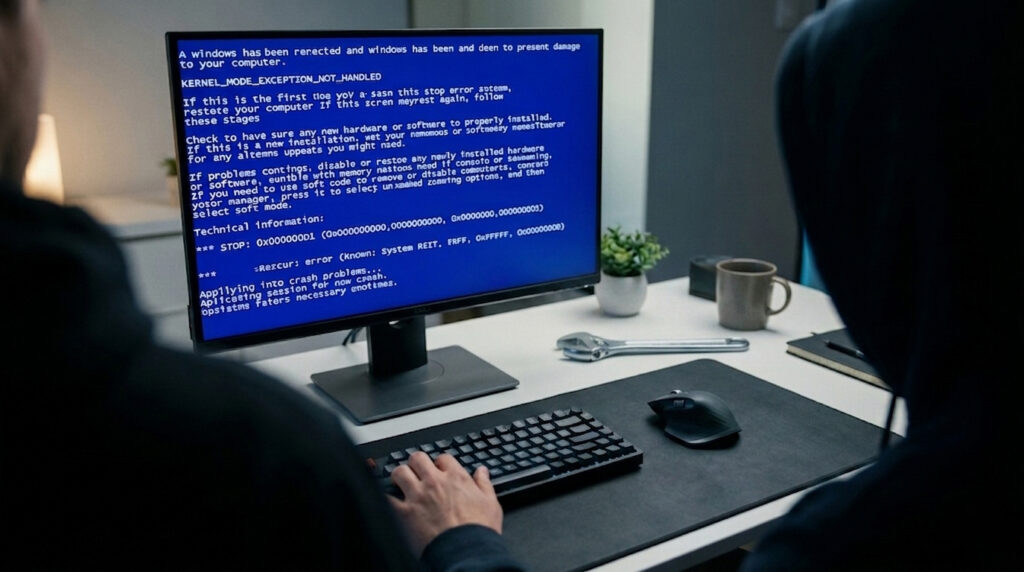
The most frustrating type of freeze is when your computer locks up with no error message, no blue screen, and no warning. Most online guides don’t cover this issue properly. Instead of guessing, use these two Windows built-in diagnostic tools to find the exact culprit.
Tool 1: Windows Reliability Monitor (Most User-Friendly)
- How to open: Search “Reliability” in the Windows taskbar search box
- What it shows: A daily timeline of all system events, including crashes, freezes, software installations, and Windows updates
- How to use: Look for red “X” icons on the days your computer froze. Click on them to see detailed error reports. You’ll find exactly which software, driver, or update caused the freeze.
Tool 2: Windows Event Viewer (Most Detailed)
- How to open: Press Win + X and select “Event Viewer”
- Navigate to: Windows Logs > System
- Filter for: Click “Filter Current Log” on the right and check only “Critical” and “Error” levels
- Key errors to look for:
- Kernel-Power (Event ID 41): Indicates unexpected shutdowns, often caused by power supply issues or overheating
- Display Driver nvlddmkm/amdkmdag: Confirms graphics driver crashes
- Disk Errors (Event ID 7, 11, 51): Warns of failing hard drive or SSD
Common Causes of Computer Freezes
Firstly, we need to figure out why a computer freezes. Most freezing issues come from five major aspects. They are overheating problems, faulty software and program conflicts, insufficient system memory, outdated or corrupted drivers, and hardware failures. Most minor freezes are caused by software and overheating. Only a few repeated freezes result from hardware damage.
1. Device Overheating
Long-term dust accumulation blocks computer fans and ventilation holes. Poor heat dissipation makes CPU and GPU temperature too high. To protect internal chips, the system will automatically freeze or crash. This is the top reason for laptop random freezes.
2. Software & Program Conflicts
Too many startup programs run in the background, consuming system resources. In addition, incompatible third-party software, defective browser extensions, or malware will cause system program crashes and computer freezes. Many users face computer freezes when opening multiple tabs or heavy software.
3. Insufficient Memory & Full System Disk
If your RAM is too small to support running heavy games or design software, the computer will freeze instantly. Besides, a full system drive leaves no space for system cache and data operations. It will also lead to slow response and frequent freezes.
4. Outdated or Corrupted Drivers
Graphics card, sound card, and motherboard drivers control hardware operation. Outdated, missing, or corrupted drivers will cause abnormal hardware operation. This triggers computer freezes, especially during gaming and video playback.
5. Hardware Aging & Failure
Long-term use will lead to aging of RAM, hard disk, and motherboard. Bad sectors on the hard disk and loose hardware connections will cause sudden computer freezes. This usually happens on old computers that have been used for more than 3 years.
Targeted Fixes for Different Computer Freeze Scenarios
Secondly, we provide simple and effective step-by-step fixes for every freeze cause. All methods are beginner-friendly and require no professional tech skills.
Fix Freezes Caused by Overheating
First, power off the computer and unplug all power cords. Use a soft brush or compressed air to clean dust on fans and ventilation holes. Secondly, place the laptop on a flat and hard surface. Do not use it on beds or quilts that block heat dissipation. Furthermore, you can equip a laptop cooling pad for long-term high-load use. Finally, replace the thermal paste every 2 years for old computers to improve heat dissipation.
Fix Freezes Caused by Software Conflicts
When the computer freezes temporarily, press Ctrl + Shift + Esc to open Task Manager. Find programs marked “Not Responding” and click “End Task” to unfreeze the computer. Meanwhile, disable unnecessary startup programs in Task Manager’s Startup tab. This reduces background resource occupation. In addition, uninstall recently installed incompatible software and clean invalid browser extensions. Finally, run a full virus scan with the system antivirus tools.
Fix Freezes Caused by Insufficient Memory & Full Disk
First, delete useless files, cache, and unused software to free up system disk space. Keep at least 10GB of free space on the system drive for normal system operation. Secondly, close redundant background programs when running heavy software. If your computer still freezes frequently, upgrade the RAM capacity. It is the most fundamental fix for low-memory computer freezes.
Fix Freezes Caused by Abnormal Drivers
Open the device manager on your computer. Check for hardware devices with yellow error marks. Right-click the device and select “Update Driver” or “Uninstall and Reinstall Driver”. Moreover, you can download official drivers from the brand’s official website. Official drivers are more stable and avoid compatibility freezes.
Fix Freezes Caused by Hardware Faults
For desktop computers, power off the device and re-plug the RAM sticks and hard disk data cables to fix loose connections. Use the system built-in disk check tools to scan and repair hard disk bad sectors. If the computer still freezes randomly after all software fixes, send it to a professional repair shop for hardware detection and replacement.
Daily Computer Maintenance Tips to Avoid Freezes
Thirdly, daily maintenance is the key to stopping repeated computer freezes. Here are simple and practical long-term maintenance rules.
1. Clean computer dust every 3-6 months. Keep fans and ventilation holes unobstructed to avoid overheating.
2. Regularly clean system junk files and browser cache. Do not let the system disk be full.
3. Disable useless startup programs to reduce system load.
4. Update system and official drivers regularly to fix compatibility bugs.
5. Scan for viruses and malware every week to avoid malicious program occupation.
6. Do not run multiple heavy programs at the same time to prevent RAM overload.
Conclusion
In short, most computer freezes are caused by overheating, software conflicts, and insufficient memory. You can solve 90% of freeze problems through cleaning dust, optimizing system settings, and repairing drivers. Only a few old devices need hardware replacement. With proper daily maintenance, you can effectively prevent random computer freezes and keep your computer running stably for a long time.
HYSTOU has established its R&D headquarters in Shenzhen, drawing on over a decade of experience. Our core team members, who previously served at renowned companies such as Inventec and Quanta Computer, form the backbone of our technical expertise. With robust R&D and innovation capabilities, we remain steadfast in our commitment to pursuing excellence in the field of technology products.