

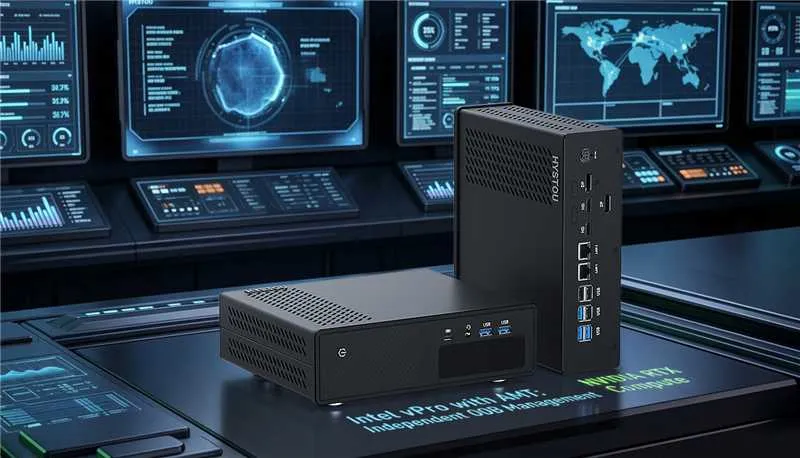
Fix Intel vPro AMT KVM Black Screen on HYSTOU GT-U: Dual Graphics Setup Guide
Fix Intel vPro AMT KVM Black Screen on HYSTOU GT-U: Dual Graphics Setup Guide Announcements Buyer Guide Comprehensive Tips Occasion Product Review Q&A Tutorials TL;DR / Quick Fix Why is AMT KVM showing a black screen? Intel AMT KVM captures video output solely from the CPU’s integrated graphics (iGPU). When an NVIDIA RTX 5050/5060 dedicated GPU is installed, the GT-U BIOS disables the iGPU by default. The Fix: Enter BIOS (F2) -> Advanced -> System Agent (SA) Configuration -> Graphics Configuration -> Set iGPU Multi-Monitor to Enabled and Primary Display to PEG. If running headless, plug an HDMI Dummy Plug into the motherboard iGPU port to load EDID display metadata. Introduction The HYSTOU GT-U series combines desktop-class NVIDIA RTX 5050/RTX 5060 graphics performance with Intel vPro® enterprise-grade out-of-band remote management. However, users deploying dedicated GPU (dGPU) models often encounter a critical configuration challenge: Intel AMT remote KVM displays a pitch-black screen, even though local monitor output works perfectly. This guide details the technical relationship between dual graphics mode and vPro functionality, provides standard step-by-step BIOS and network configuration workflows, and addresses common deployment pitfalls. Dual Graphics Mode vs. Intel vPro AMT Understanding how these two independent systems interact on a dedicated GPU mini PC is key to fixing remote KVM display issues. What Is iGPU Multi-Monitor (Dual Graphics Mode)? Dual graphics mode allows the CPU’s integrated graphics (iGPU) and the NVIDIA dedicated GPU (dGPU) to operate simultaneously. By default, most mini PC motherboards disable the iGPU as soon as a dGPU is detected. Dual graphics mode overrides this behavior. Note: This is not SLI or CrossFire—the two GPUs do not combine render pipelines for a single application. Instead, each GPU independently powers its own display interfaces and execution pipelines. What Is Intel vPro with AMT Technology? Intel vPro is a hardware-level, enterprise management platform operating below the operating system layer. Powered by Active Management Technology (AMT), IT administrators can remotely control power states, access BIOS/MEBx interfaces, and perform full desktop KVM interaction—even if the OS is crashed, corrupted, or powered off. On the HYSTOU GT-U, vPro traffic routes strictly through the dedicated Intel I226-LM 2.5G management LAN port. Why Dedicated GPUs Cause AMT KVM Black Screens Intel AMT’s hardware KVM capture engine reads frame buffer data exclusively from the Intel CPU’s iGPU. It cannot capture or encode frame buffers from a discrete NVIDIA or AMD GPU. When an RTX 5050 is active in the GT-U without dual graphics mode enabled, the BIOS completely powers down the iGPU. As a result: Local displays plugged into the RTX 5050 render correctly. Remote AMT KVM receives no frame buffer feed from the powered-down iGPU, resulting in a black screen. Why Enable Dual Graphics Mode for vPro on HYSTOU GT-U? Enabling dual graphics mode on your RTX-equipped GT-U delivers key operational benefits for remote management: Unlock Complete Remote KVM Control Restores full remote desktop access, remote BIOS configuration, and OS reimaging capabilities instead of limiting you to basic power on/off controls. Zero Compromise on Local Gaming & AI Workloads Configuring the primary display to PEG ensures your local monitors, 3D rendering, and AI tasks draw 100% of their power from the RTX 5050/5060. The iGPU runs quietly in the background dedicated to KVM encoding and management tasks. Out-of-Band Redundancy for Industrial & Edge Site Deployments Even if an NVIDIA driver update fails, crashes, or causes a system BSOD, the independent iGPU management channel remains online, allowing remote diagnostic access and system restoration. Hardware Encoding Offloading The built-in Intel QuickSync engine on the iGPU can handle lightweight video decoding, media streaming, or background IP camera monitoring, keeping the RTX GPU dedicated to heavy compute workloads. Step-by-Step Guide: Set Up vPro & AMT on HYSTOU GT-U (RTX) Follow this setup sequence to deploy Intel vPro AMT on your GT-U RTX 5050/5060 mini PC. Pre-Deployment Checklist Processor: Verify your GT-U unit features a vPro-supported processor (e.g., Intel Core Ultra 5-135H or Ultra 7-165H). Network: Connect a physical RJ45 Ethernet cable to the dedicated Intel I226-LM vPro LAN port (Wi-Fi does not support out-of-band KVM hardware capture). Hardware: Prepare a standard keyboard and an HDMI/DP Dummy Plug (EDID Emulator) for headless environments. Step 1: Enable iGPU Multi-Monitor in BIOS Power on the GT-U and repeatedly press F2 (or Del) when the HYSTOU logo appears to enter BIOS Setup. Press F7 if necessary to enter Advanced Mode. Navigate to: Advanced ->System Agent (SA) Configuration -> Graphics Configuration. Configure the following parameters: iGPU Multi-Monitor: Set to Enabled (Core toggle to keep Intel iGPU active alongside dGPU) Integrated Graphics: Set to Enabled Primary Display: Set to PEG (Forces local OS and applications to utilize the RTX dGPU as primary rendering device) DVMT Pre-Allocated: Set to 128MB or 256MB (Allocates adequate video memory buffer for remote KVM resolution scaling) Press F10 to save changes and reboot. Step 2: Display Wiring & Headless EDID Configuration Standard Multi-Monitor Setup: Connect your primary local display to the RTX 5050 HDMI/DP port. Connect a secondary display to the motherboard’s native HDMI/DP port. Headless Deployment (No Physical Monitors): Plug an HDMI Dummy Plug (EDID Emulator) into the motherboard’s native iGPU video port. Without an active EDID signal, the iGPU display pipeline will sleep, causing KVM to remain black. Step 3: Install Drivers in Correct Sequence To prevent graphics initialization conflicts in Windows: Install the latest Intel Graphics Driver (Iris Xe / Arc) first. Install the latest NVIDIA GeForce Game Ready / Studio Driver second. Open Device Manager -> Display Adapters and verify that both Intel(R) Graphics and NVIDIA GeForce RTX 5050 display active, with no warning icons. Step 4: Initialize MEBx & Verify Remote KVM Connection Reboot the GT-U. Press Ctrl + P during POST execution to enter the Intel MEBx (Management Engine BIOS Extension) setup menu. Log in using the default MEBx password: admin. Change the default password immediately when prompted. Password Requirements: At least 8 characters, containing uppercase, lowercase, numbers, and special symbols (e.g., vPro#2026!GTU). Navigate to Intel AMT Configuration -> Network Setup to assign static IP parameters
Fix Intel vPro AMT KVM Black Screen on HYSTOU GT-U: Dual Graphics Setup Guide Read More »