How to Enable LAN Wake (WOL) on Your Mini PC: Complete Guide (2026)
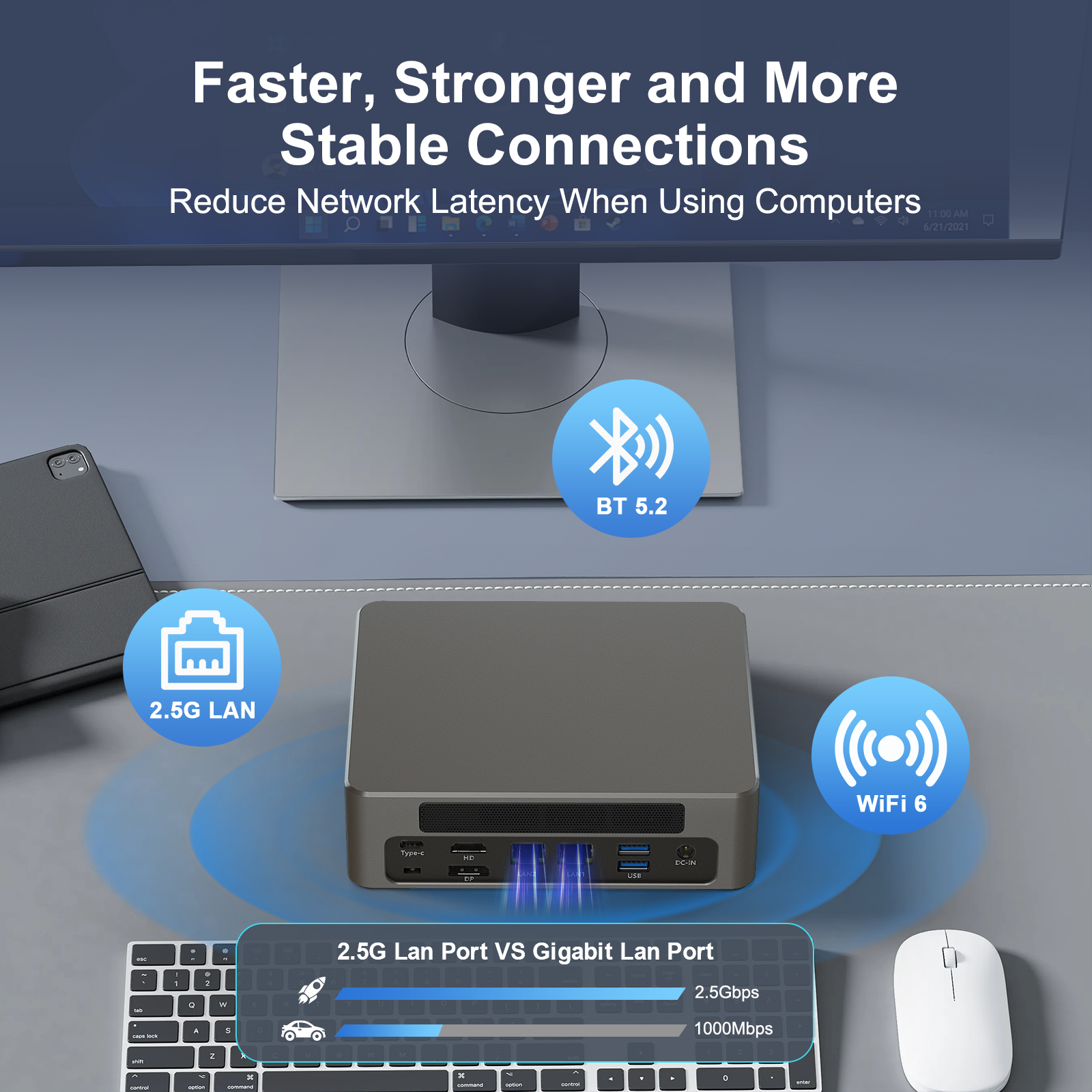
Many people buy mini PCs for their small size, space-saving design, and low power consumption. They are often used as home NAS, lightweight office hosts, soft routers, or hanging devices placed in corners.
However, there is a common trouble in daily use. When the device is turned off, you have to go and turn it on manually to access files or control programs remotely. This is time-consuming and troublesome.
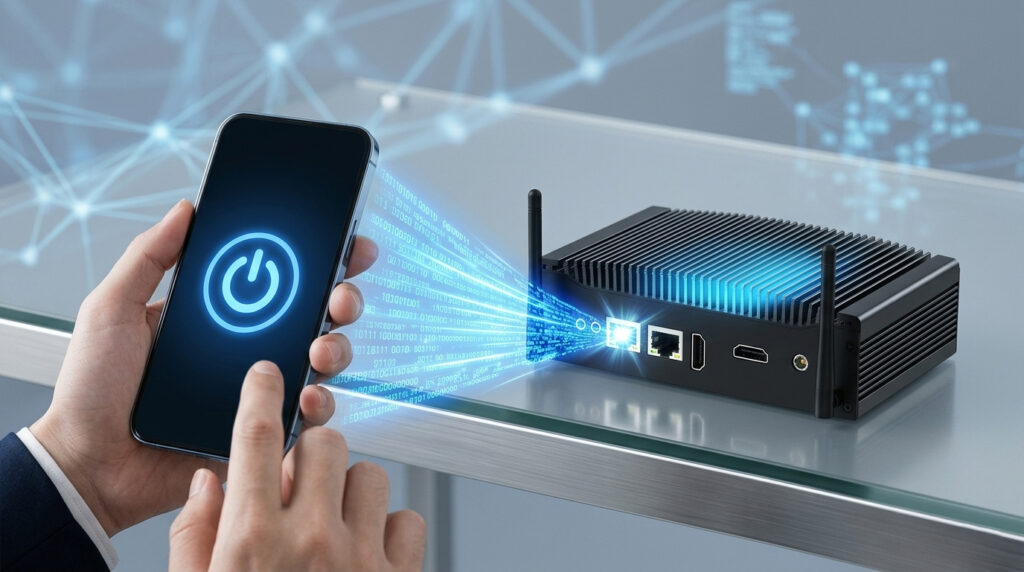
In fact, you can easily solve this pain point by mastering the small skill of “Wake-on-LAN (WOL)”. Without touching the mini PC at all, you can send a remote command with your phone, another computer, or even a router to make the shut-down or hibernating mini PC start automatically.
Today, we will explain WOL in the simplest terms. You will learn what it is, how useful it is for mini PC users, and how to enable this feature step by step. Even beginners can easily follow along.
What is Wake-on-LAN (WOL)?
WOL, short for Wake-on-LAN, is simply defined as sending a special “wake-up command” through the local area network (LAN) to automatically start a mini PC that is shut down or in hibernation.
You can think of it as installing a “remote wake-up switch” for your mini PC. Even when the mini PC is turned off, its network card remains in ultra-low power standby mode, like a sentry on duty at all times.
Once it receives the correct “wake-up command” (called a “Magic Packet” in the industry), it will immediately trigger the boot process—no manual operation is needed at all.
Important reminder: WOL does not require the mini PC to stay on standby all the time (which would consume electricity). As long as the device is plugged in and the network card supports this feature, remote wake-up is achievable.
This perfectly aligns with the core advantages of mini PCs: low power consumption and energy savings. It is especially suitable for scenarios where the device is placed in a corner and nis ot easy to turn on manually frequently.
Key Point: Why is WOL Useful for Mini PC Users?
For the mainstream usage scenarios of mini PCs, WOL is not an “extra bonus” but a “necessary skill”. These 3 scenarios are the most practical—see if you can relate:
Home NAS Scenario: Access Files Remotely Without Going to the Machine Room
Many people use mini PCs to build lightweight NAS for storing photos, videos, and backup files. But you don’t have to keep the mini PC on 24/7 (even with low power consumption, the electricity bill will add up over a year).
With WOL enabled, when you want to access files on the NAS while away from home, you can send a wake-up command with your phone. The mini PC will start automatically. After accessing the files, you can shut it down remotely again.
This not only does not delay usage but also saves electricity. According to the 2026 mini PC power consumption data, the standby power consumption is only 8W. Turning it on on demand can save nearly 200 yuan in electricity bills a year compared to 24/7 standby.
Office/Hanging Scenario: Remote Control, No Need to Run to the Site
Use the mini PC as an office host, monitoring host, or to hang and run programs or PCDN. You don’t need to operate it frequently, but you may occasionally need remote maintenance or data retrieval.
With WOL, whether you are in the company or at home, as long as you are on the same LAN (or connected via VPN), you can wake up the device. After completing the remote control, you can shut it down.
This eliminates the need to go to the site to turn it on manually, greatly improving efficiency. It is especially suitable for small office scenarios or personal hanging needs.
Soft Router/Industrial Control Scenario: Cluster Management, Flexible and Worry-Free
Users who use mini PCs as soft routers or industrial controllers often need to manage multiple devices. With WOL enabled, you can send wake-up commands in batches through one device.
There is no need to turn on each device manually one by one. It adapts to the remote management needs of complex network environments, and the low power consumption feature also reduces the overall operation and maintenance costs.
Practical Tutorial: Enable WOL on Mini PC in 3 Steps
Most mainstream mini PCs (such as ASUS NUC, MSI CubiNUC, Intel NUC, and various domestic mini hosts) support WOL. The core steps are “BIOS Settings + System Settings + Disable Fast Startup”.
Each step is simple and easy to follow. The operational differences between different brands of mini PCs are small. You can refer to the official tutorials of the corresponding brands for adjustments.
Step 1: BIOS Settings (Key Step to Enable Hardware Wake-Up Permission)
BIOS is the “hardware control center” of the mini PC. You need to enable WOL-related permissions here first. The operation steps are as follows:
- After the mini PC is shut down, plug in the power. When starting up, press the “F2” or “Del” key continuously (slightly different for different brands, which will be prompted on the startup screen) to enter the BIOS settings interface.
- Press “F7” to enter Advanced Mode (some models are in Advanced Mode by default, so you can skip this step). Find the “Advanced” option, click to enter “APM Configuration” (Power Management Configuration);
- Find the “ErP” option and set it to “Disabled”. Then find the “Power On By PCI-E” or “Wake on LAN” option and set it to “Enabled”;
- Press “F10” to save the settings and restart. The BIOS settings are complete.
Tip: If you cannot find the corresponding options, you can refer to the manual of your mini PC or visit the brand’s official website to check (such as ASUS and MSI both have detailed mini PC WOL setting tutorials).
Some Intel NUC models need to enable the “Wake-on-LAN from S4/S5” option in the “Power” menu of the BIOS and set it to “Power On – Normal Boot”.
Step 2: System Settings (Universal for Windows/Linux, Enable Network Card Wake-Up)
After enabling BIOS, you also need to set the network card in the operating system to allow it to receive “wake-up commands”. There are two systems: Windows and Linux. The steps are as follows:
Windows System
- Right-click “Start” on the desktop and select “Device Manager”;
- Expand “Network Adapters”, find the wired network card of the mini PC (wireless network cards mostly do not support WOL, so prioritize wired), right-click and select “Properties”;
- Switch to the “Power Management” tab, check “Allow this device to wake the computer”, and it is recommended to also check “Only allow a magic packet to wake the computer” (more stable);
- Switch to the “Advanced” tab, find the “Shutdown Wake-On-LAN” and “Magic Packet Wake-Up” options, set both to “Enabled”, and click OK.
Linux System
- Open the terminal and first install the tool: sudo apt install ethtool.
- Check the WOL support status of the network card: sudo ethtool network card name (you can view it through ip addr, such as enp114s0). If supported, it will display “supports wake-on: g”;
- Enable WOL function: sudo ethtool -s network card name wol g;
- Set WOL to be enabled automatically at startup to avoid failure after restart (specific steps can refer to the corresponding Linux system tutorial).
Step 3: Disable Fast Startup (Avoid Interference, Must Do!)
The “Fast Startup” function of the Windows system will interfere with WOL wake-up, leading to wake-up failure. It must be disabled:
- Enter “Choose a power plan” in the Windows search bar and click to open.
- Click “Choose what the power buttons do”, then click “Change settings that are currently unavailable”;
- Uncheck “Turn on fast startup” and click “Save changes”. This step is not required for Linux systems.
What to Use to Send "Wake-Up Commands"?
After the settings are completed, you need to send a “wake-up command” (Magic Packet) to another device. Here are 3 simple and easy-to-operate methods. No complex settings are needed, and beginners can use them:
- Mobile APP: Search for “WOL Wake-Up” or “Remote Power On” in the app store and download any one (such as Wake On Lan, UU Remote). Enter the MAC address of the mini PC (which can be viewed in the network card properties in Device Manager) and click Wake Up.
- Some APPs support scan code configuration, which is more convenient.
- Computer Software: Windows users are recommended to use “WakeMeOnLan” (lightweight and free). Linux users use the “ether-wake” command-line tool. Enter the MAC address to send the wake-up command.
- Router: If your home router supports WOL (most smart routers do), find the “WOL Wake-Up” option in the router management background, enter the MAC address of the mini PC, and you can wake it up remotely. You can even set a scheduled wake-up for more convenience.
Common Problem Troubleshooting: Wake-Up Failed? Check These 4 Points
Many people fail to wake up the device after setting it up. Most of the time, it is due to these 4 reasons. Check them one by one to solve the problem without contacting after-sales service:
- Mini PC is not plugged in: WOL requires the device to be in “powered standby” mode. It must remain connected to the power supply after shutdown; otherwise, it cannot be woken up.
- The wake-up function is not enabled on the network card. Recheck the power management and advanced settings in Device Manager to ensure the relevant options are enabled.
- Not on the same LAN: By default, WOL can only be used within the same LAN. For cross-network segments (such as when you are away from home), you need to configure “directed broadcast forwarding” on the router or connect via VPN before waking up.
- Device does not support WOL: Very few older mini PCs (such as those with 100M network cards or old motherboards) may not support WOL. You can check the device manual or consult the brand’s customer service.
- Currently, mini PCs produced after 2024 (such as those equipped with Intel N100, Ryzen AI chips) all support this feature.
Mini PC + WOL, Unlock More Practical Uses
Mastering Wake-on-LAN allows you to give full play to the advantages of mini PCs: small size, low power consumption, and easy deployment. You can unlock more worry-free uses:
- Lightweight NAS: Wake up on demand to store home data and access it remotely. It is more energy-efficient than traditional NAS and smaller in size, suitable for small apartments.
- Office Hanging: Place it in the corner of the company, wake it up remotely to process files and run programs. It does not take up desktop space and is low-noise, causing no disturbance.
- Soft Router + Monitoring: Wake up the mini PC remotely to realize both routing and monitoring functions, solving home network and security needs in one stop.
- Game Hanging: Use the mini PC to hang and run game tasks. There is no need to keep it on all the time. Wake it up when needed to save electricity and not occupy the resources of the main machine.
In fact, WOL is not a complex technology. As long as you follow the steps above to set it up, you can make your mini PC more flexible and worry-free.
All our mini PC series (equipped with low-power processors such as Intel N100 and Ryzen AI) fully support the WOL function. We can help preset relevant settings before delivery, so you can use it directly after receiving the product.
Easily unlock the new experience of remote control and let the small mini PC exert greater value~
What to Use to Send "Wake-Up Commands"?
After the settings are completed, you need to send a “wake-up command” (Magic Packet) with another device. Here are 3 simple and easy-to-operate methods. No complex settings are needed, and beginners can use them:
- Mobile APP: Search for “WOL Wake-Up” or “Remote Power On” in the app store and download any one (such as Wake On Lan, UU Remote). Enter the MAC address of the mini PC (which can be viewed in the network card properties in Device Manager) and click Wake Up.
- Some APPs support scan code configuration, which is more convenient;
- Computer Software: Windows users are recommended to use “WakeMeOnLan” (lightweight and free). Linux users use the “ether-wake” command-line tool. Enter the MAC address to send the wake-up command;
- Router: If your home router supports WOL (most smart routers do), find the “WOL Wake-Up” option in the router management background, enter the MAC address of the mini PC, and you can wake it up remotely. You can even set a scheduled wake-up for more convenience.

HYSTOU
HYSTOU has established its R&D headquarters in Shenzhen, drawing on over a decade of experience. Our core team members, who previously served at renowned companies such as Inventec and Quanta Computer, form the backbone of our technical expertise. With robust R&D and innovation capabilities, we remain steadfast in our commitment to pursuing excellence in the field of technology products.