

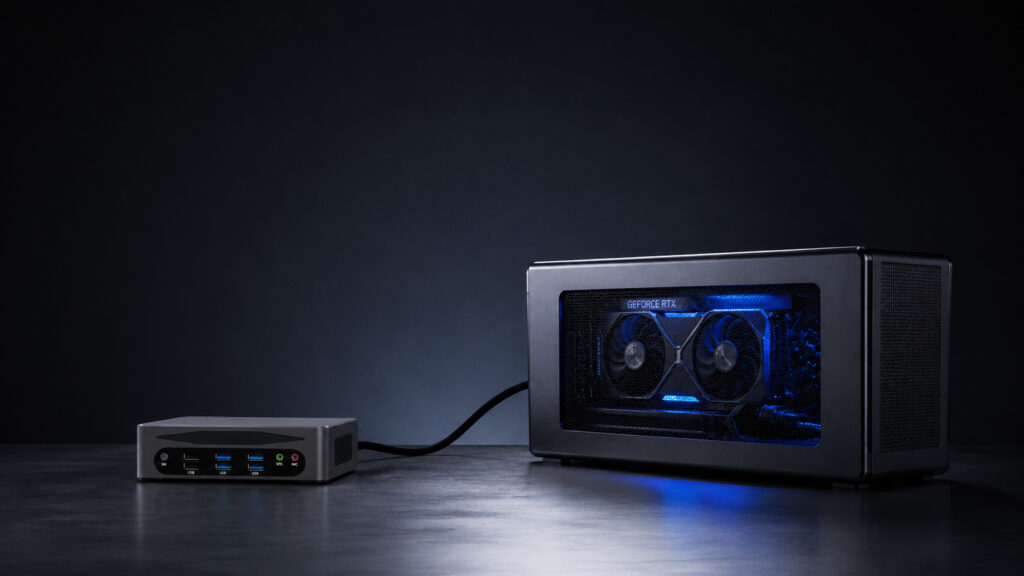
Can Mini PC Use External GPU?
Can Mini PC Use External GPU? Announcements Buyer Guide Comprehensive Tips Occasion Product Review Q&A Tutorials If you own a Mini PC, you may often wonder: Can a Mini PC use an external GPU (eGPU)?The answer is yes.An external GPU is a game-changer for Mini PC users who need better graphics performance.Unlike internal GPU upgrades, eGPU is practical and flexible.It helps Mini PCs break through graphics limitations without changing the device itself. 1. Requirements for Using an External GPU with Mini PC Not all Mini PCs can connect to an external GPU.You need to meet specific requirements to ensure smooth operation.Here are the key conditions you must check first. Compatible Ports The most critical requirement is a compatible port on your Mini PC.Without the right port, an external GPU cannot work.The recommended ports are Thunderbolt 3, Thunderbolt 4, USB4, or OCuLink.These ports support PCIe tunneling, which is essential for eGPU connectivity.Note that a regular USB-C port is not enough.It does not support PCIe tunneling and cannot transmit the large amount of data required by an external GPU. Comparison of Different eGPU Ports Different eGPU ports vary in bandwidth, performance loss, and use cases.Understanding their differences helps you choose the right one for your Mini PC.Below is a clear comparison of the most common eGPU ports: Port Type Bandwidth Typical Performance Loss Hot Plug Support Compatibility Best For Thunderbolt 3 40Gbps 15-20% Yes Most modern Mini PCs and eGPU enclosures General use, casual gaming Thunderbolt 4 40Gbps 10-20% Yes Newer Intel-based Mini PCs Gaming, video editing, professional work USB4 20-40Gbps 15-25% Yes Budget-friendly modern Mini PCs Casual users, light productivity OCuLink (PCIe 4.0 x4) 64Gbps <5% No High-end performance-focused Mini PCs 3D rendering, AI training, competitive gaming BIOS/Firmware Compatibility Even if your Mini PC has a compatible port, you need to ensure its BIOS or firmware supports eGPU.First, update your Mini PC’s BIOS and system to the latest version.This avoids recognition issues between the Mini PC and the external GPU.For Intel-based Mini PCs, enable VT-d/IOMMU technology in the BIOS.This optimizes data transmission and ensures stable operation. Supporting Hardware You need three key hardware components to use an external GPU with your Mini PC.First, an eGPU enclosure.It has a PCIe slot, an independent power supply (300-700W), and a cooling system.Second, a desktop graphics card.Choose a model with power consumption ≤350W based on the enclosure’s power supply.Third, a high-quality connection cable.Use the cable that comes with the eGPU enclosure to ensure stable data transmission. System Requirements Windows 10 or 11 is the best choice for eGPU compatibility.Most eGPUs work seamlessly with these systems.Some Linux distributions support eGPUs, but they require additional configuration.It is not recommended for beginners. 2. Benefits of Using an External GPU with Mini PC Using an external GPU with your Mini PC brings many practical benefits.It solves the problem of poor graphics performance of Mini PCs.At the same time, it retains the advantages of Mini PCs, such as compact size and portability. Boost Graphics Performance Significantly Most Mini PCs rely on integrated graphics, which are only suitable for daily office work and video playback.With an external GPU, your Mini PC can handle 3D rendering, video editing, and even 1080p/1440p gaming.It meets the needs of professional users and gamers.From practical testing, OCuLink offers the lowest performance loss (less than 5%) for eGPU, while Thunderbolt 4 has a loss of 10-20%. Flexible Upgrade and Cost-Saving Unlike internal GPU upgrades, you don’t need to replace the entire Mini PC to upgrade the external GPU.When your graphics needs increase, you only need to replace the graphics card or eGPU enclosure.This saves money in the long run. Retain Mini PC’s Portability Mini PCs are loved for their compact size and light weight.An external GPU is a separate device.You can disconnect the eGPU when you need to carry the Mini PC.When you are at home or the office, connect it to get powerful graphics performance. Support Multi-Monitor Setup Most eGPU enclosures have multiple video output ports, such as HDMI and DisplayPort.This allows your Mini PC to connect multiple monitors at the same time.It improves work efficiency for office and design users. 3. Step-by-Step Guide to Set Up External GPU for Mini PC Setting up an external GPU for your Mini PC is not complicated.Follow these simple steps, and you can use it smoothly. Step 1: Check Compatibility Again Before starting, confirm your Mini PC has a Thunderbolt 3/4, USB4, or OCuLink port.Update the BIOS and system to the latest version.This avoids recognition failures. Step 2: Prepare All Hardware Gather your Mini PC, eGPU enclosure, desktop graphics card, connection cable, and monitor.Install the graphics card into the eGPU enclosure.Connect the enclosure’s power supply and ensure it is properly fixed. Step 3: Connect the Devices The connection process differs slightly depending on your port type.For Thunderbolt 3/4 and USB4: You can safely plug the cable into your Mini PC even if it is powered on.For OCuLink and M.2 solutions: Fully shut down your Mini PC first. OCuLink does not support hot plugging. Connecting while powered on may cause system crashes or hardware damage.Use the dedicated cable to connect the eGPU enclosure to the compatible port of your Mini PC.Connect your monitor to the video output port of the eGPU enclosure. Step 4: Power On and Install Drivers First, turn on the eGPU enclosure.Then turn on your Mini PC (if you are using OCuLink).The system will detect the new hardware immediately. No need to wait several minutes.Download and install the latest graphics card driver from the official website of NVIDIA or AMD.Restart your Mini PC after the driver installation is complete. Step 5: Set the Default GPU Right-click on the desktop and select “Display Settings” (Windows 10/11).Find “Graphics settings” and select the apps or games you want to run with the external GPU.Set the external GPU as the default graphics processor.Save the settings and restart the app. FAQ Q: Can I use an NVIDIA external GPU with an AMD Mini PC? A: Yes, you can. The compatibility depends
Can Mini PC Use External GPU? Read More »