

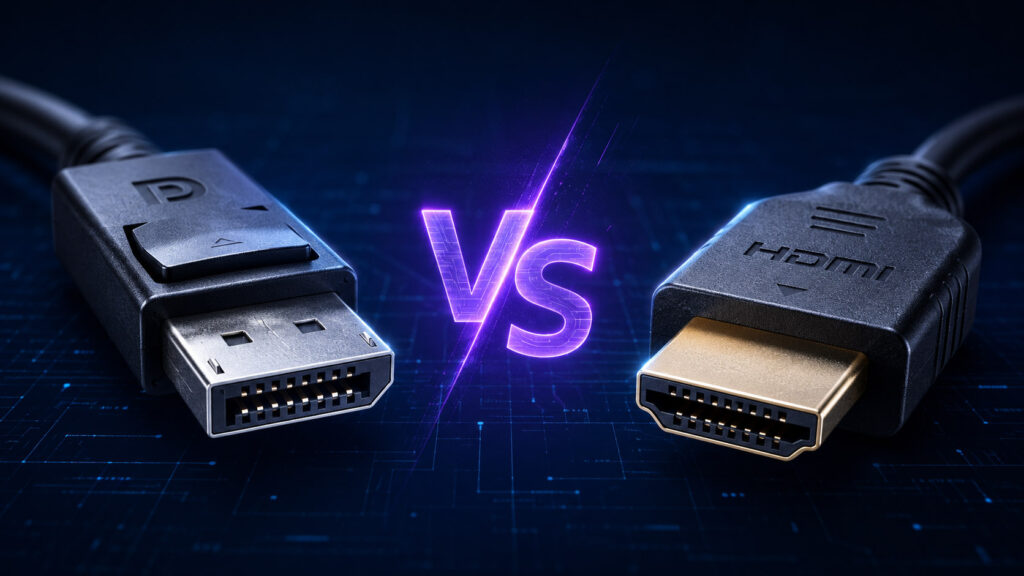
DisplayPort vs HDMI: Ultimate Showdown 2026 – Which One Should You Choose?
DisplayPort vs HDMI: Ultimate Showdown 2026 – Which One Should You Choose? Announcements Buyer Guide Comprehensive Tips Occasion Product Review Q&A Tutorials If you’ve ever bought a monitor, graphics card, Mini PC, or TV, you’ve probably seen two common ports: DisplayPort (DP) and HDMI.Many people mix them up. They look similar, but they’re designed for different purposes.This guide breaks down the key differences between DisplayPort and HDMI in simple terms.It also helps you choose the right one for gaming, work, home theater, or multi-monitor setups – no technical jargon required. What Are DP and HDMI? First, let’s get the basics right. Both DP and HDMI are digital ports. They transmit video and audio from your device (like a PC or console) to a display (like a monitor or TV).But their design goals are totally different. DisplayPort (DP): Made for PCs and Professionals DisplayPort is developed by VESA (Video Electronics Standards Association).It was created specifically for computers, monitors, and professional setups.DP is royalty-free, which means manufacturers don’t need to pay fees to use it.It’s known for high performance and advanced features for PC users. In 2026, DisplayPort is mainly available via USB-C ports through DP Alt Mode.Thunderbolt 4, which is widely used in laptops and Mini PCs, also natively supports DisplayPort. It can transmit DP signals through USB-C ports, making it easier to connect external displays.DP Alt Mode turns a USB-C port into a DisplayPort port. This is a game-changer for thin laptops and Mini PCs, which often have limited dedicated ports. It allows a single USB-C port to handle video, audio, and data transfer at the same time. HDMI: Made for Home Entertainment HDMI (High-Definition Multimedia Interface) is managed by the HDMI Licensing Administrator. It was designed for consumer electronics: TVs, game consoles, projectors, and set-top boxes. HDMI has wide compatibility. It’s the standard for home theaters and entertainment systems.Unlike DP, manufacturers need to pay licensing fees to use HDMI ports. Key Specs Comparison: Version Matters More Than Port Type A common myth: “DP is always better than HDMI.” That’s not true.The performance depends more on the version of DP/HDMI than the port itself.Below is a simple comparison table of popular versions (2026 update): Port Version Max Bandwidth Max Resolution/Refresh Rate (Uncompressed) Key Features DP 1.4 32.4 Gbps 8K@30Hz / 4K@120Hz DSC Compression, HDR10, MST DP 2.0 80 Gbps 8K@60Hz / 4K@240Hz Higher Bandwidth, Enhanced DSC DP 2.1 (UHBR20) 80 Gbps 8K@120Hz / Dual 4K@144Hz UHBR20, Uncompressed 8K, Dual-Screen Support HDMI 2.0 18 Gbps 4K@60Hz / 2K@144Hz HDR, 21:9 Widescreen HDMI 2.1 48 Gbps 8K@60Hz / 4K@120Hz eARC, VRR, ALLM, DSC 1.2 Note: DSC (Display Stream Compression) is a game-changer for DP.It lets DP deliver higher resolution and refresh rates without losing image quality.Even DP 1.4 can reach 4K@240Hz with DSC. Importantly, HDMI 2.1 also supports DSC 1.2 – it can also achieve 4K@240Hz or higher when DSC is enabled. Key Feature Differences: Beyond Resolution Besides resolution and refresh rate, DP and HDMI have unique features.These features decide which one is better for your needs. Multi-Monitor Support: DP Daisy Chain vs Direct Connection This is a common confusion for many users, especially Mini PC owners.Let’s break it down clearly.First, direct connection: If your Mini PC has multiple HDMI and DP ports, you can plug one monitor into each port.This is the most common and stable way to set up multiple monitors.Each port is an independent video channel. It won’t share bandwidth, so 4K or high-refresh-rate content stays smooth.Second, DP MST Daisy Chain: This is a backup option for devices with only one DP port (like thin laptops).To use it, your monitors need both a DP IN (input) and a DP OUT (output) port.You connect your PC to the first monitor’s DP IN, then the first monitor’s DP OUT to the second monitor’s DP IN.This way, one DP port on your PC can support 2-3 monitors.In contrast, HDMI does NOT support daisy chaining.One HDMI port can only connect to one monitor – no exceptions.For Mini PCs with multiple ports, you’ll never need DP daisy chaining. Direct connection is better. Audio Features: eARC for Home Theaters Both DP and HDMI can transmit multi-channel audio.But HDMI has a big advantage for home theaters: eARC (Enhanced Audio Return Channel).eARC sends high-quality, uncompressed audio from your TV back to your soundbar or AV receiver.DP does not support eARC. It’s fine for PC audio, but not ideal for home theater setups. Gaming Features: VRR and Compatibility Both ports support VRR (Variable Refresh Rate) to reduce screen tearing.But DP has better compatibility with G-SYNC and FreeSync (popular gaming technologies).It also has lower latency, which is better for competitive gaming.HDMI 2.1 supports VRR, too, but some devices have compatibility issues. Physical Design: Lock vs No Lock DP ports have a small latch (lock). It keeps the cable securely connected.This is great for desktops or monitors that don’t move often.HDMI ports have no latch. The cable stays in place with friction only.It’s easier to plug and unplug, but it can come loose if you move the device. Scenario-Based Guide: Choose the Right One for You The best port depends on your device and how you use it.Here’s a simple guide for 2026: For Gaming If you have a high-refresh monitor (144Hz+), use DP.DP 1.4, 2.0, or 2.1 will unlock the full refresh rate of your gaming monitor. DP 2.1 (UHBR20) is now standard on high-end graphics cards, supporting uncompressed 8K@120Hz.If you play on a console (PS5, Xbox Series X/S) and a TV, use HDMI 2.1.It’s the only way to get 4K@120Hz and VRR for console gaming. For Professional Work (Design, Video Editing) Choose DP. It has higher bandwidth and more stable color transmission.4K/8K professional monitors work best with DP 2.0 or DP 2.1. DP 2.1 (UHBR20) supports uncompressed 8K@120Hz or dual 4K@144Hz, ideal for high-end professional work.It ensures accurate colors and smooth performance for editing or design work. For Home Entertainment (TV, Projector) Use HDMI. It’s the standard for TVs, projectors, and set-top boxes. HDMI 2.1 is perfect for
DisplayPort vs HDMI: Ultimate Showdown 2026 – Which One Should You Choose? Read More »