DisplayPort vs HDMI: Ultimate Showdown 2026 – Which One Should You Choose?
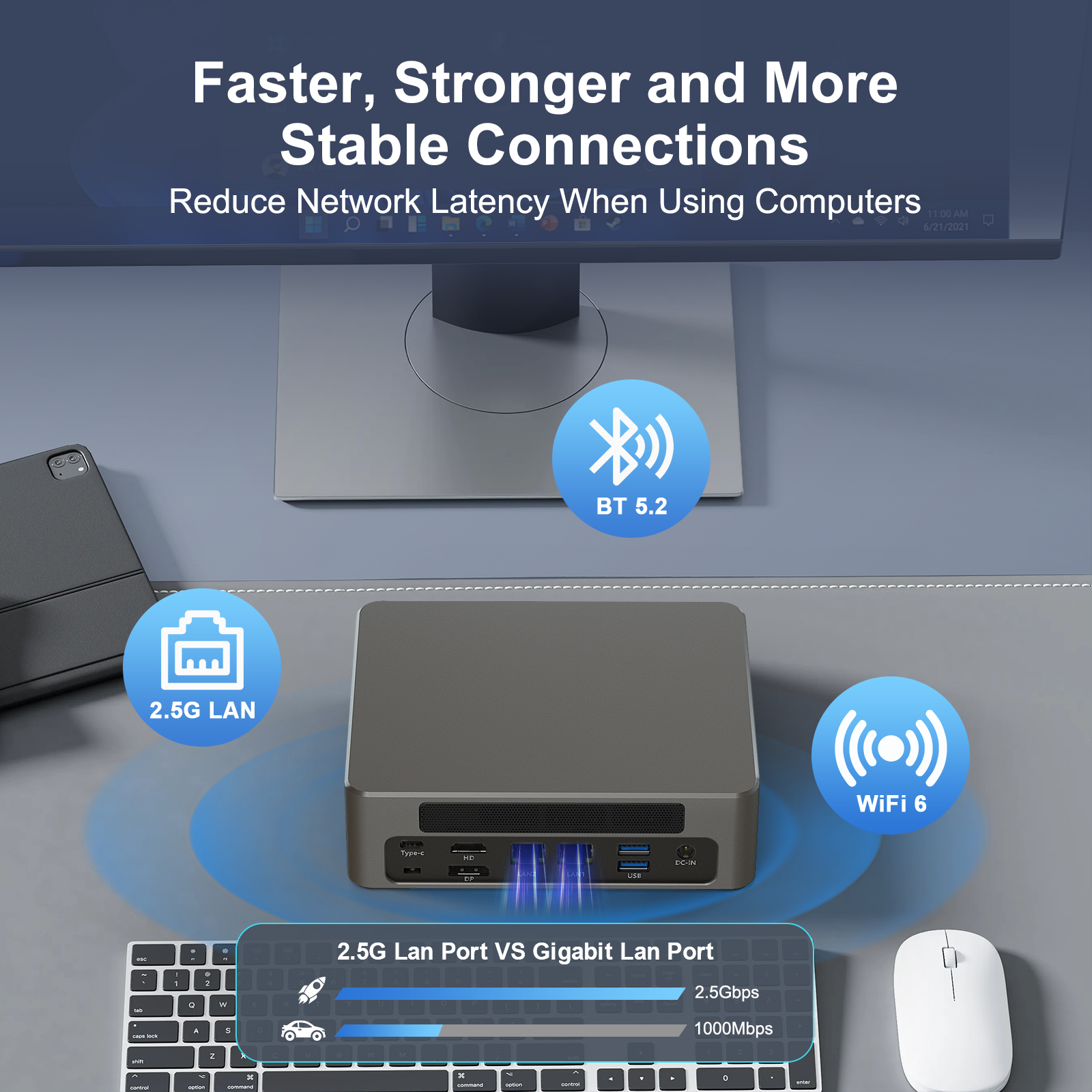
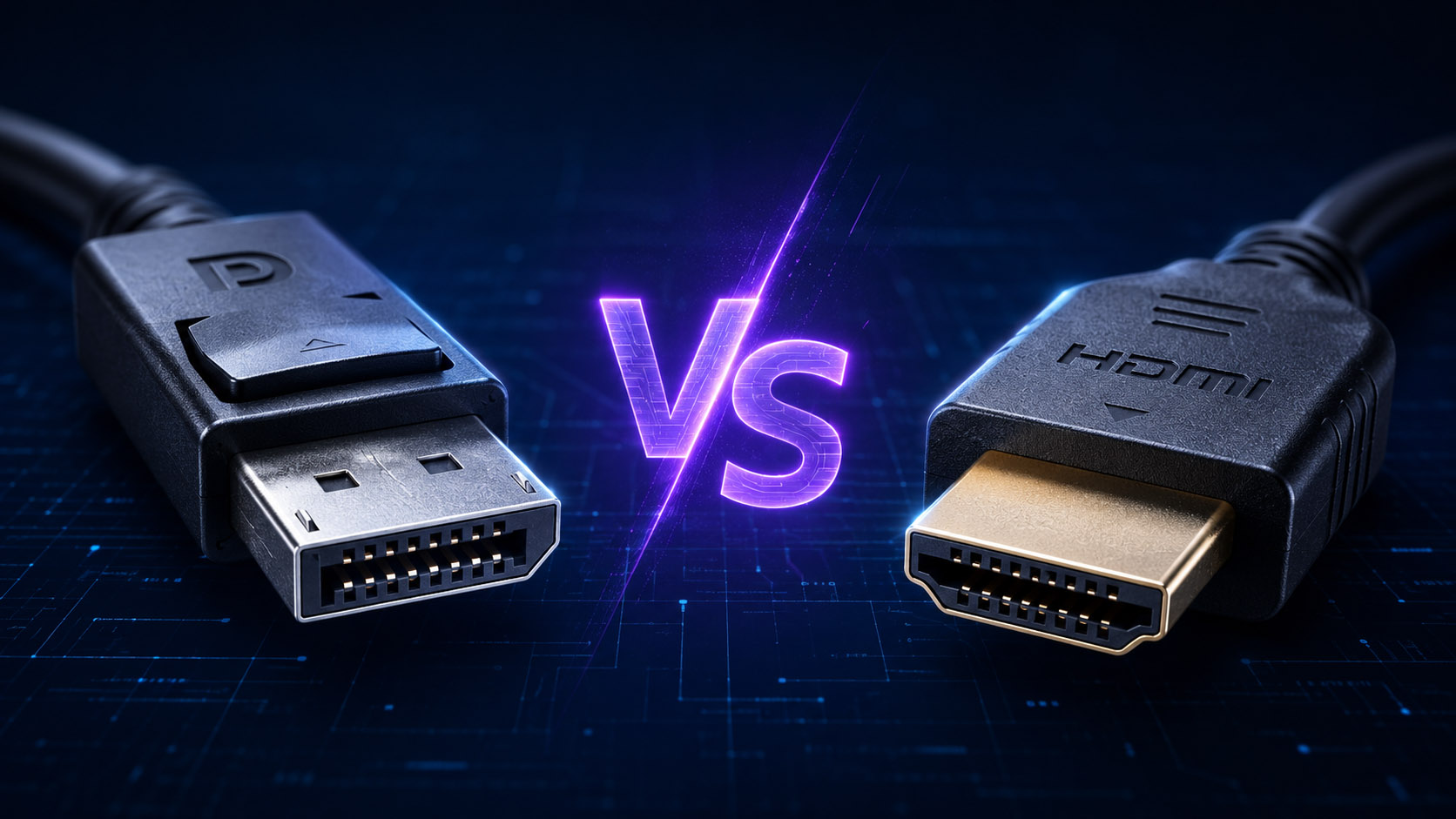
If you’ve ever bought a monitor, graphics card, Mini PC, or TV, you’ve probably seen two common ports: DisplayPort (DP) and HDMI.
Many people mix them up. They look similar, but they’re designed for different purposes.
This guide breaks down the key differences between DisplayPort and HDMI in simple terms.
It also helps you choose the right one for gaming, work, home theater, or multi-monitor setups – no technical jargon required.
What Are DP and HDMI?
First, let’s get the basics right. Both DP and HDMI are digital ports. They transmit video and audio from your device (like a PC or console) to a display (like a monitor or TV).
But their design goals are totally different.
DisplayPort (DP): Made for PCs and Professionals
DisplayPort is developed by VESA (Video Electronics Standards Association).
It was created specifically for computers, monitors, and professional setups.
DP is royalty-free, which means manufacturers don’t need to pay fees to use it.
It’s known for high performance and advanced features for PC users. In 2026, DisplayPort is mainly available via USB-C ports through DP Alt Mode.
Thunderbolt 4, which is widely used in laptops and Mini PCs, also natively supports DisplayPort. It can transmit DP signals through USB-C ports, making it easier to connect external displays.
DP Alt Mode turns a USB-C port into a DisplayPort port. This is a game-changer for thin laptops and Mini PCs, which often have limited dedicated ports. It allows a single USB-C port to handle video, audio, and data transfer at the same time.
HDMI: Made for Home Entertainment
HDMI (High-Definition Multimedia Interface) is managed by the HDMI Licensing Administrator. It was designed for consumer electronics: TVs, game consoles, projectors, and set-top boxes. HDMI has wide compatibility. It’s the standard for home theaters and entertainment systems.
Unlike DP, manufacturers need to pay licensing fees to use HDMI ports.
Key Specs Comparison: Version Matters More Than Port Type
A common myth: “DP is always better than HDMI.” That’s not true.
The performance depends more on the version of DP/HDMI than the port itself.
Below is a simple comparison table of popular versions (2026 update):
Port Version | Max Bandwidth | Max Resolution/Refresh Rate (Uncompressed) | Key Features |
DP 1.4 | 32.4 Gbps | 8K@30Hz / 4K@120Hz | DSC Compression, HDR10, MST |
DP 2.0 | 80 Gbps | 8K@60Hz / 4K@240Hz | Higher Bandwidth, Enhanced DSC |
DP 2.1 (UHBR20) | 80 Gbps | 8K@120Hz / Dual 4K@144Hz | UHBR20, Uncompressed 8K, Dual-Screen Support |
HDMI 2.0 | 18 Gbps | 4K@60Hz / 2K@144Hz | HDR, 21:9 Widescreen |
HDMI 2.1 | 48 Gbps | 8K@60Hz / 4K@120Hz | eARC, VRR, ALLM, DSC 1.2 |
Note: DSC (Display Stream Compression) is a game-changer for DP.
It lets DP deliver higher resolution and refresh rates without losing image quality.
Even DP 1.4 can reach 4K@240Hz with DSC. Importantly, HDMI 2.1 also supports DSC 1.2 – it can also achieve 4K@240Hz or higher when DSC is enabled.
Key Feature Differences: Beyond Resolution
Besides resolution and refresh rate, DP and HDMI have unique features.
These features decide which one is better for your needs.
Multi-Monitor Support: DP Daisy Chain vs Direct Connection
This is a common confusion for many users, especially Mini PC owners.
Let’s break it down clearly.
First, direct connection: If your Mini PC has multiple HDMI and DP ports, you can plug one monitor into each port.
This is the most common and stable way to set up multiple monitors.
Each port is an independent video channel. It won’t share bandwidth, so 4K or high-refresh-rate content stays smooth.
Second, DP MST Daisy Chain: This is a backup option for devices with only one DP port (like thin laptops).
To use it, your monitors need both a DP IN (input) and a DP OUT (output) port.
You connect your PC to the first monitor’s DP IN, then the first monitor’s DP OUT to the second monitor’s DP IN.
This way, one DP port on your PC can support 2-3 monitors.
In contrast, HDMI does NOT support daisy chaining.
One HDMI port can only connect to one monitor – no exceptions.
For Mini PCs with multiple ports, you’ll never need DP daisy chaining. Direct connection is better.
Audio Features: eARC for Home Theaters
Both DP and HDMI can transmit multi-channel audio.
But HDMI has a big advantage for home theaters: eARC (Enhanced Audio Return Channel).
eARC sends high-quality, uncompressed audio from your TV back to your soundbar or AV receiver.
DP does not support eARC. It’s fine for PC audio, but not ideal for home theater setups.
Gaming Features: VRR and Compatibility
Both ports support VRR (Variable Refresh Rate) to reduce screen tearing.
But DP has better compatibility with G-SYNC and FreeSync (popular gaming technologies).
It also has lower latency, which is better for competitive gaming.
HDMI 2.1 supports VRR, too, but some devices have compatibility issues.
Physical Design: Lock vs No Lock
DP ports have a small latch (lock). It keeps the cable securely connected.
This is great for desktops or monitors that don’t move often.
HDMI ports have no latch. The cable stays in place with friction only.
It’s easier to plug and unplug, but it can come loose if you move the device.
Scenario-Based Guide: Choose the Right One for You
The best port depends on your device and how you use it.
Here’s a simple guide for 2026:
For Gaming
If you have a high-refresh monitor (144Hz+), use DP.
DP 1.4, 2.0, or 2.1 will unlock the full refresh rate of your gaming monitor. DP 2.1 (UHBR20) is now standard on high-end graphics cards, supporting uncompressed 8K@120Hz.
If you play on a console (PS5, Xbox Series X/S) and a TV, use HDMI 2.1.
It’s the only way to get 4K@120Hz and VRR for console gaming.
For Professional Work (Design, Video Editing)
Choose DP. It has higher bandwidth and more stable color transmission.
4K/8K professional monitors work best with DP 2.0 or DP 2.1. DP 2.1 (UHBR20) supports uncompressed 8K@120Hz or dual 4K@144Hz, ideal for high-end professional work.
It ensures accurate colors and smooth performance for editing or design work.
For Home Entertainment (TV, Projector)
Use HDMI. It’s the standard for TVs, projectors, and set-top boxes.
HDMI 2.1 is perfect for 4K/8K TVs and home theaters.
Its eARC feature makes it easy to connect soundbars or AV receivers.
For Multi-Monitor Office Setups
If your PC has multiple ports, use direct connection (one monitor per port).
If your PC has only one DP port, use DP daisy chaining (with compatible monitors).
HDMI can’t do daisy chaining, so you’ll need a graphics card with multiple HDMI ports.
For Laptop/Mini PC External Displays
Priority order: DP > HDMI 2.1 > HDMI 2.0.
Mini PCs usually have multiple ports, so direct connection is the way to go.
Common Myths About DP and HDMI (2026)
Let’s debunk the most common mistakes people make.
Myth 1: HDMI 2.1 is better than DP 1.4
Not always. For 4K@120Hz, they’re similar.
But DP 1.4 supports DSC, which lets it reach 4K@240Hz. HDMI 2.1 also supports DSC 1.2 and can achieve the same or higher refresh rates with DSC enabled.
DP also has better multi-monitor support.
Myth 2: More expensive cables mean better performance
No. As long as the cable is certified for the right version (e.g., DP 1.4, HDMI 2.1), it will work.
You don’t need to buy expensive “premium” cables.
Myth 3: DP can’t transmit audio
False. All DP versions support multi-channel audio.
It just doesn’t have eARC like HDMI.
Myth 4: Adapters don’t affect performance
Adapters can reduce performance.
Active adapters may lose some bandwidth. Passive adapters only work with low resolutions/refresh rates.
It’s better to use the native port if possible.
Final Verdict: DP vs HDMI in 2026
DisplayPort is the best choice for PCs, high-refresh monitors, and professional setups.
It’s faster, more flexible, and better for multi-monitor use.
HDMI is the best choice for home entertainment, TVs, and game consoles.
It’s more compatible and has better audio features for home theaters.
Remember: Check the version of your ports and cables.
A newer version (such as DP 2.0, DP 2.1, or HDMI 2.1) will always perform better than an older one. DP 2.1 (UHBR20) has become the standard for high-end graphics cards in 2026.
FAQs
Q: Can I use DP and HDMI at the same time on a Mini PC?
A: Yes! If your Mini PC has both ports, you can connect one monitor to DP and another to HDMI. They work independently.
Q: Do all monitors support DP daisy chaining?
A: No. Your monitor needs both DP IN and DP OUT ports. Check the monitor’s specs first.
Q: Is HDMI 2.1 enough for 8K gaming?
A: Yes. HDMI 2.1 supports 8K@60Hz, which is perfect for 8K TVs and consoles.
Q: Which is better for VR headsets?
A: DP is better. It has higher bandwidth and lower latency, which is crucial for VR.

HYSTOU
HYSTOU has established its R&D headquarters in Shenzhen, drawing on over a decade of experience. Our core team members, who previously served at renowned companies such as Inventec and Quanta Computer, form the backbone of our technical expertise. With robust R&D and innovation capabilities, we remain steadfast in our commitment to pursuing excellence in the field of technology products.