Mini PC Troubleshooting Guide: Fix Boot, Display, Performance Issues Easily
Compact Power Needs Care
Mini PCs have become a popular choice for home entertainment, office work, and education, thanks to their compact size, energy efficiency, and sufficient performance. Like any precision electronic device, Mini PCs may encounter minor issues after long-term use. This guide provides a systematic self-diagnosis and solution plan to help you restore functionality quickly. Meanwhile, [Your Brand Name] always stands behind you with reliable after-sales support.
Part 1: General Pre-Check Steps (Golden Three Steps)
1. Try Restarting
Many temporary software glitches can be resolved with a simple restart.
2. Check Connections and Power Supply
Ensure the power adapter is securely plugged in, and peripherals like video cables, keyboards, and mice are connected correctly.
3. Listen and Observe
Pay attention to abnormal indicator lights, fan noise, or burning odors.
Part 2: Classified Troubleshooting & Solutions
Category 1: Boot and Display Issues
Issue 1: No Response When Pressing Power Button (Indicator Not Lit)
Troubleshooting: Check if the power outlet and adapter are supplying electricity; try replacing with an adapter of the same specification; inspect if the power port on the back of the unit is loose.
Solutions: Ensure the power circuit is normal; contact support to replace it with an original adapter if the adapter is faulty.
Issue 2: Indicator Lit But No Display (Black Screen)
Troubleshooting: Check the monitor power and signal cables (HDMI/DP, etc.); try replacing the cable or monitor port; confirm the monitor input source is selected correctly.
Solutions: Reconnect or replace the cable; wait for a few moments after booting—some systems take time to recover from sleep/hibernation.
Issue 3: Stuck on Brand Logo (BIOS) Screen
Troubleshooting: May be caused by unrecognized boot device (hard drive) or corrupted system boot files.
Solutions: Enter BIOS to check if the hard drive is recognized; try resetting BIOS to default settings; prepare a system recovery disk.
Category 2: System, Software & Performance Issues
Issue 4: Frequent Blue Screens, Freezes, or Automatic Restarts
Troubleshooting: Possible causes include software conflicts, driver issues, memory faults, or overheating.
Solutions: Enter Safe Mode to uninstall recently installed software/updates; update or roll back hardware drivers; use memory diagnostic tools; monitor CPU/GPU temperatures (see Issue 7).
Issue 5: Slow Operation and Unresponsive Performance
Troubleshooting: Open Task Manager to check if CPU, memory, or disk usage is consistently high; verify if the system drive (usually C: drive) has less than 10% free space.
Solutions: Disable unnecessary startup items and background programs; clean disk space, run disk defragmentation (for HDD) or optimization (for SSD); consider upgrading RAM or replacing with a larger SSD (if your model supports expansion).
Category 3: Hardware & Peripheral Issues
Issue 6: USB Port Not Recognizing Devices
Troubleshooting: Try plugging the device into another USB port; check if the device itself is functional.
Solutions: In Device Manager, uninstall devices under “Universal Serial Bus Controllers”, then scan for hardware changes; update motherboard chipset drivers.
Issue 7: Overheating and Loud Fan Noise
Troubleshooting: This is a common concern for Mini PCs. Check if air vents are blocked; ensure the unit is not placed on soft surfaces like beds or carpets.
Solutions: Use the Mini PC on a hard, well-ventilated surface; regularly clean air vents with a small brush or air blower; replace thermal paste with higher-performance ones if possible (professional operation recommended).
Issue 8: Unstable or Disappearing Wi-Fi/Bluetooth Connection
Troubleshooting: Check router status; update wireless network adapter drivers.
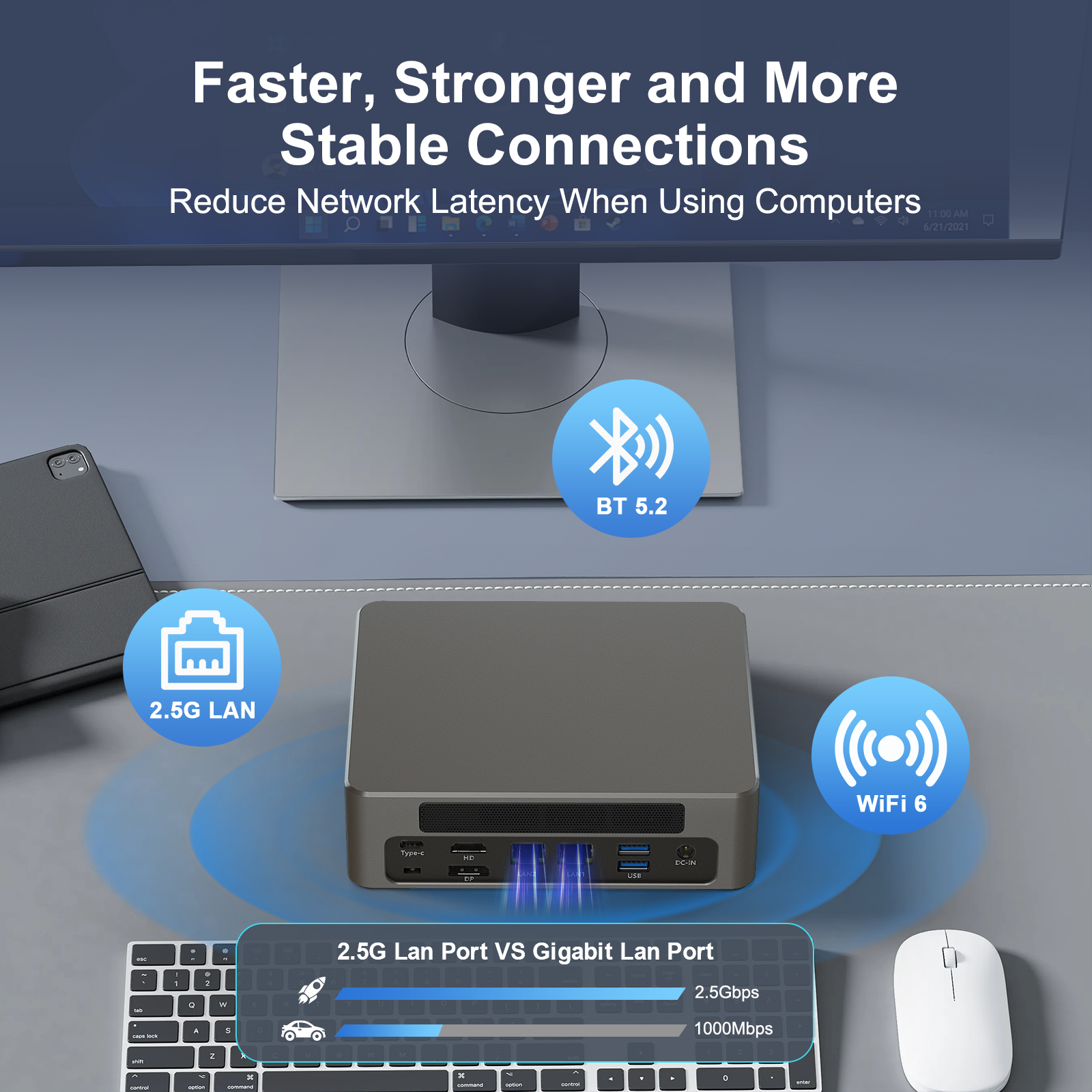
Solutions: Re-enable the wireless adapter in Device Manager; reset network settings (Windows Network Reset); consider using an external USB wireless adapter or Gigabit Ethernet cable for stability.
Category 4: Audio Issues
Issue 9: No Sound or Abnormal Sound
Troubleshooting: Check if speakers/headphones are connected correctly and volume is turned on; verify the correct output device is selected in system sound settings.
Solutions: Update sound card drivers; right-click the volume icon in the system tray and select “Troubleshoot sound problems” while playing audio.
Part 3: Advanced Issues & Repair Recommendations
Know the Limits: Stop operation and contact professional support if the above methods fail, or you encounter the following situations:
- Persistent blue screens with specific hardware error codes.
- Physical damage or signs of liquid intrusion on the unit.
- Distinct burning odor from inside the device.
- Failure to boot after self-upgrading hardware.
Pre-Repair Preparation: Back up important data and record detailed fault phenomena and attempted steps. This will greatly help technicians locate the problem quickly.
Part 4: Daily Maintenance & Best Practices (Prevention is Better Than Cure)
- Keep Ventilated and Dry: This is key to extending the Mini PC’s lifespan.
- Regular System Updates and Cleaning: Install system and driver updates; use disk cleaning tools.
- Safe Usage: Use a stable power supply to avoid sudden power outages; shut down properly.
- Rational Upgrades: Understand your Mini PC’s expandability and upgrade RAM or hard drive as needed.
Your Reliable Partner
The core of Mini PC troubleshooting is “from external to internal, from software to hardware”. Every HYSTOU Mini PC undergoes rigorous testing, and we are confident in our product quality. If your issue remains unresolved, feel free to contact our professional technical team via [Contact us] page. We are ready to provide further assistance to ensure a smooth and hassle-free user experience.

HYSTOU
HYSTOU has established its R&D headquarters in Shenzhen, drawing on over a decade of experience. Our core team members, who previously served at renowned companies such as Inventec and Quanta Computer, form the backbone of our technical expertise. With robust R&D and innovation capabilities, we remain steadfast in our commitment to pursuing excellence in the field of technology products.