Hystou Mini PC Multiple Network Configuration Guide
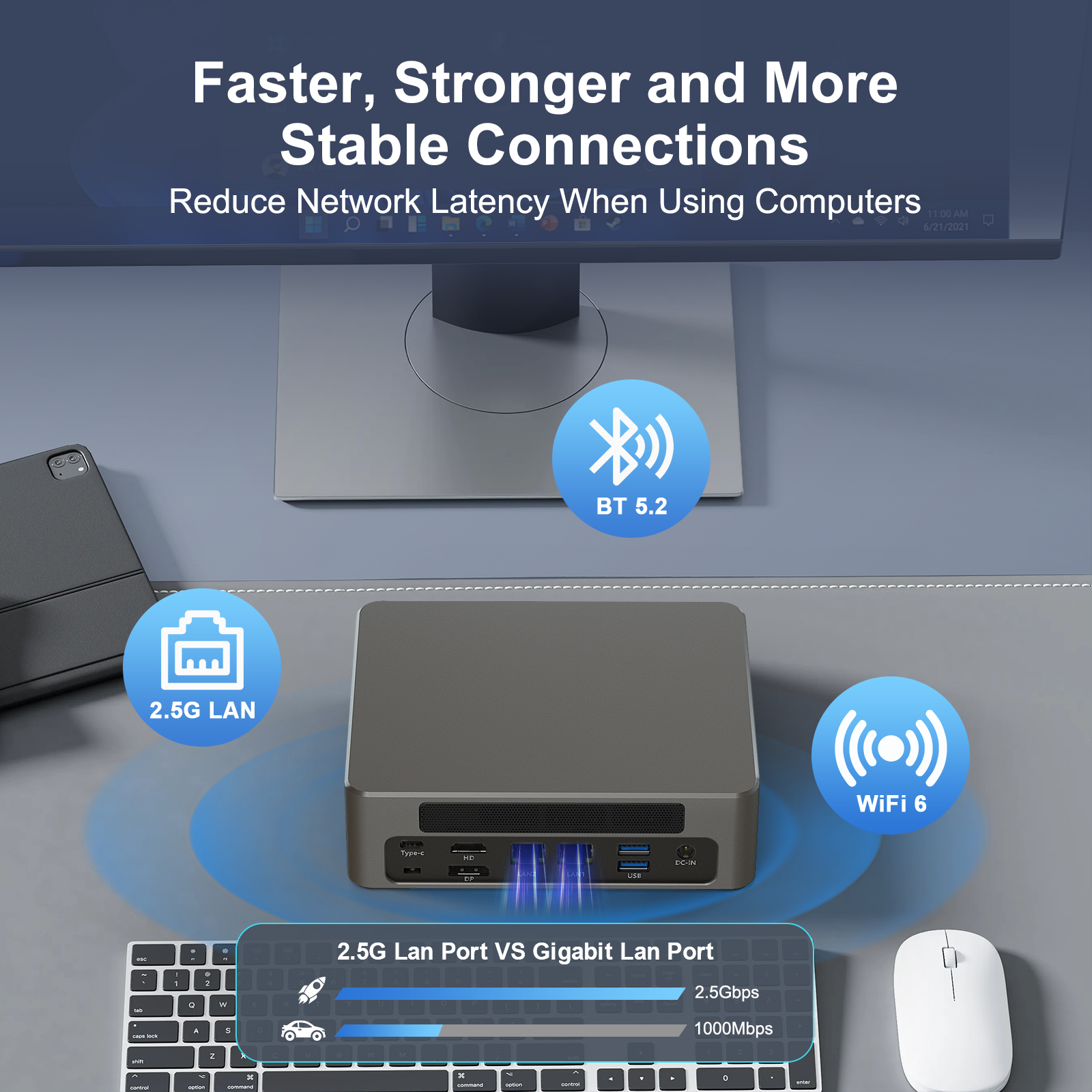

Hystou Mini PC Ethernet Wi-Fi 5G Setup
Is your Hystou Mini PC equipped with Ethernet, Wi-Fi, and 5G capabilities? You’re holding a versatile machine that can transform how you stay connected. But did you know you can configure all three networks to work simultaneously?
This advanced setup is perfect for:
Industrial Automation: Ensuring 24/7 connectivity with automatic failover
Digital Signage: Maintaining uninterrupted content delivery
Remote Workstations: Separating work and personal network traffic
Edge Computing: Optimizing data flow across networks
What You'll Need
Before starting, ensure you have:
Ethernet cable connected to router
Active Wi-Fi network
5G USB dongle or M.2 module with active SIM card
Administrator access to your system
The H4-I5-8250U model is ideal for this configuration with its dual Intel-I210/I211 Gigabit LAN ports and support for Wi-Fi 5 + Bluetooth 4.2 (Wi-Fi 6 optional). Its 12V wide voltage design ensures stable operation even during network transitions.
Understanding Interface Metric
Think of Windows network management as a smart traffic controller. When sending data, your system evaluates all available “routes” (network adapters). The Interface Metric acts as a priority number – the lower the number, the higher the priority.
By default, Windows automatically assigns these metrics, but manual configuration gives you precise control over network behavior.
Scenario A: Setting Up Automatic Failover
This configuration ensures your Mini PC uses the fastest connection by default and automatically switches to backups if the primary fails.
Step 1: Connect All Networks
Ensure Ethernet, Wi-Fi, and 5G are all connected and showing “Connected” status in Settings > Network & Internet > Advanced network settings.
Step 2: Configure Interface Metrics
Press Win + R, type ncpa.cpl, and press Enter
Right-click your Ethernet adapter and select Properties
Select Internet Protocol Version 4 (TCP/IPv4) and click Properties
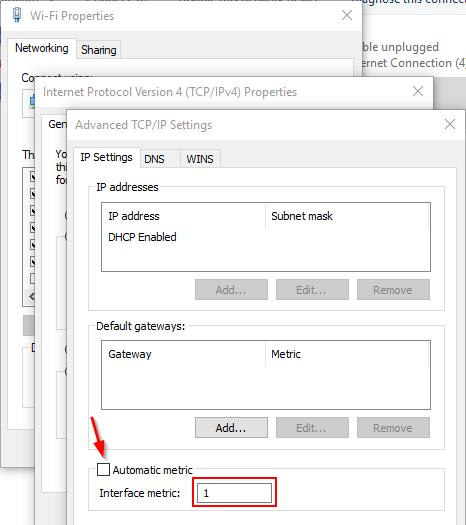
Click Advanced and uncheck “Automatic metric”
Enter 10 in the “Interface metric” field
Repeat for Wi-Fi adapter with metric 20
Set 5G adapter metric to 30
This configuration prioritizes Ethernet (10) > Wi-Fi (20) > 5G (30). Your system will automatically fail over if a higher-priority connection drops.
Scenario B: Forcing Specific Traffic Routes
Advanced users may need certain traffic to use specific networks, such as sending company domain traffic through Ethernet while routing all other traffic through Wi-Fi.
Step 1: Gather Network Information
Find your domain controller IP using nslookup yourdomain.com
Locate your Ethernet gateway in Settings > Network & Internet > Ethernet
Step 2: Create Persistent Route
Open Command Prompt as Administrator
Enter: route -p add [DOMAIN_IP] mask 255.255.255.255 [ETHERNET_GATEWAY]
Example: route -p add 192.168.10.1 mask 255.255.255.255 10.0.0.1
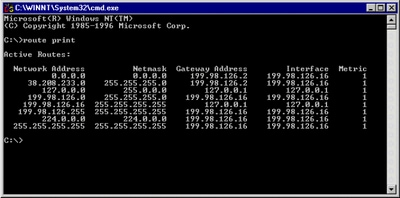
The -p flag makes this route persistent across reboots. Verify with route print command.
Network Performance Benchmarks
Based on testing with Hystou H4-I5-8250U under typical office conditions:
Connection Type | Metric | Throughput | Latency | Failover Time |
|---|---|---|---|---|
Ethernet | 10 | 940 Mbps | 2ms | N/A |
Wi-Fi 5 | 20 | 380 Mbps | 12ms | <1 second |
5G | 30 | 220 Mbps | 35ms | <2 seconds |
Testing environment: 30 devices on network, 50m distance from Wi-Fi router, 5G signal strength -75dBm
Failover Configuration Diagram
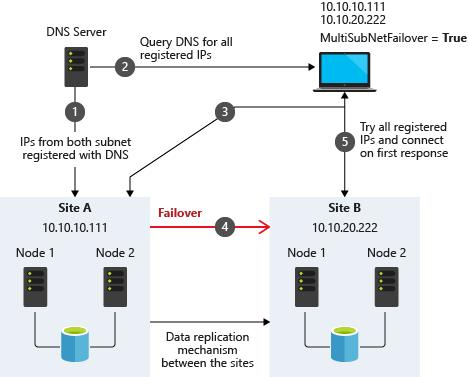
This diagram illustrates how your Hystou Mini PC seamlessly transitions between networks when primary connections fail, ensuring uninterrupted operation.
Expert Tips for Optimal Performance
Update Network Drivers: Always use the latest Intel drivers from Hystou’s support page for optimal compatibility
Disable Power Saving: Prevent network adapters from disconnecting to save power in Device Manager
Monitor Connections: Use Hystou’s optional monitoring software to track network health
Test Failover: Regularly simulate network outages to verify automatic switching
Optimize INP: Configure network adapters to ensure Interaction to Next Paint < 200ms for better Core Web Vitals
Troubleshooting Common Issues
“I lost internet after changing metrics”: Re-enable “Automatic metric” and start over
Route command errors: Ensure you’re running Command Prompt as Administrator
5G not detected: Verify SIM card activation and antenna connection
Slow failover: Check for driver updates or BIOS settings related to network priority
Conclusion
Configuring multiple networks on your Hystou Mini PC transforms it into a robust, always-connected system capable of handling critical applications with zero downtime. Whether for industrial use or advanced home office setups, this guide gives you the tools to maximize your Hystou H4-I5-8250U’s capabilities.
Remember that network optimization is an ongoing process. Monitor performance, test different configurations, and stay updated with Hystou’s firmware releases to keep your system running at peak efficiency.
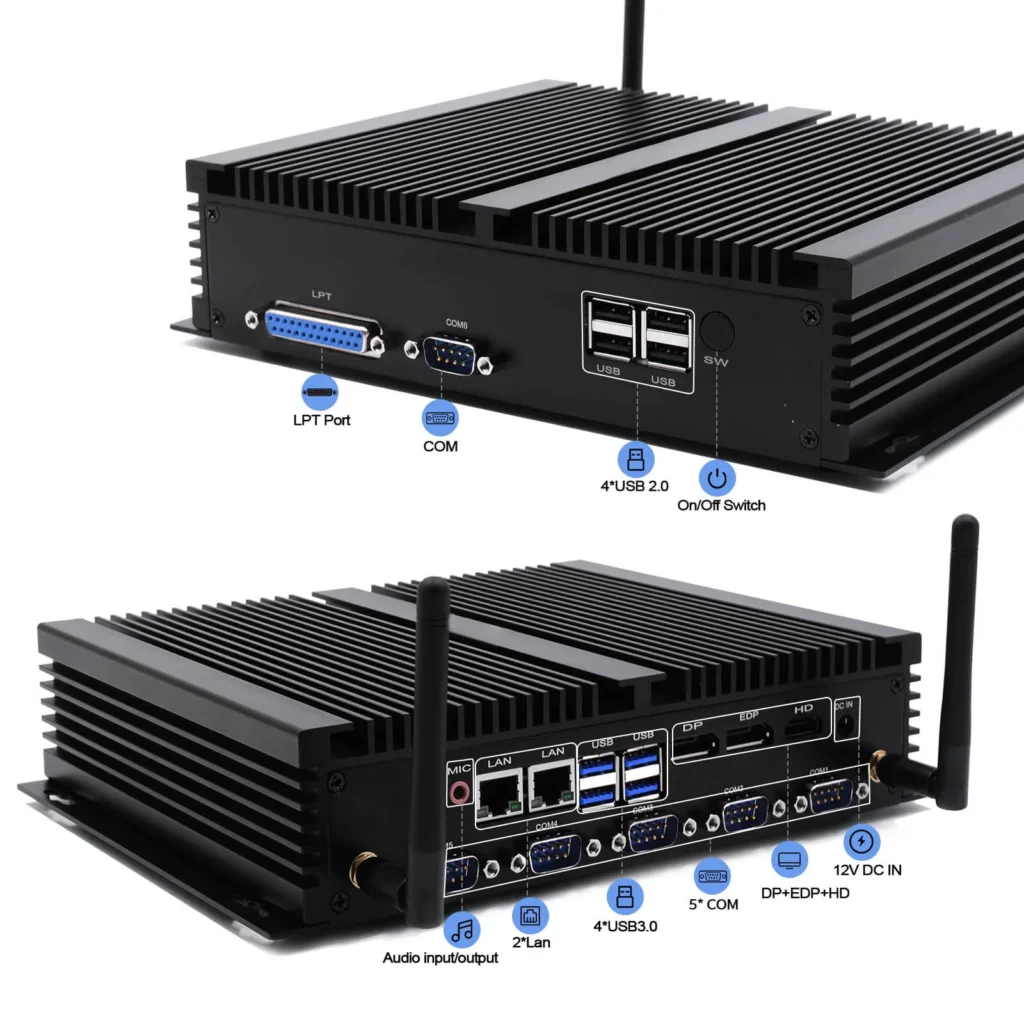
Industrial Fanless Mini PC with 6 COM Ports | HYSTOU H4 Triple Display
- Processor: Intel 8th Gen Core i5-8250U/i7-8550U (TDP 15W)
- Graphics Card: Intel UHD Graphics 620
- Memory: 2×DDR4 260Pin SODIMM slots/Max 64GB (2400MHz)
- Storage: 1×SATA3.0 port (supports 2.5-inch HDD/SSD, up to 6TB)/1×M.2 2280 PCIe 3.0 x2 slot (NVMe/SATA compatible)
- Network: Dual Intel 1210/211 Gigabit Ethernet ports/M.2 E-key (WiFi 5+BT4.2, optional WiFi 6+BT5.2)

HYSTOU
HYSTOU has established its R&D headquarters in Shenzhen, drawing on over a decade of experience. Our core team members, who previously served at renowned companies such as Inventec and Quanta Computer, form the backbone of our technical expertise. With robust R&D and innovation capabilities, we remain steadfast in our commitment to pursuing excellence in the field of technology products.