How to Turn Your Mini PC into a Powerful Router & Switch: The Ultimate Guide

Are you tired of your consumer-grade router crashing when you try to download a large game or run a VPN? It’s a common frustration. The plastic box provided by your ISP simply isn’t built for heavy lifting.
Here is the secret that networking enthusiasts have known for years: The best router isn’t a router at all—it’s a Mini PC.
In this guide, we will walk you through how to transform a compact Mini PC into a robust enterprise-grade router and switch. Whether you are building a home lab or just want faster internet, this project is the ultimate upgrade.
Why Choose a Mini PC Over a Traditional Router?
Before we start plugging in cables, let’s look at why this switch makes sense. A high-end gaming router can cost upwards of $300. However, even expensive routers often use weak mobile processors.
A Mini PC offers:
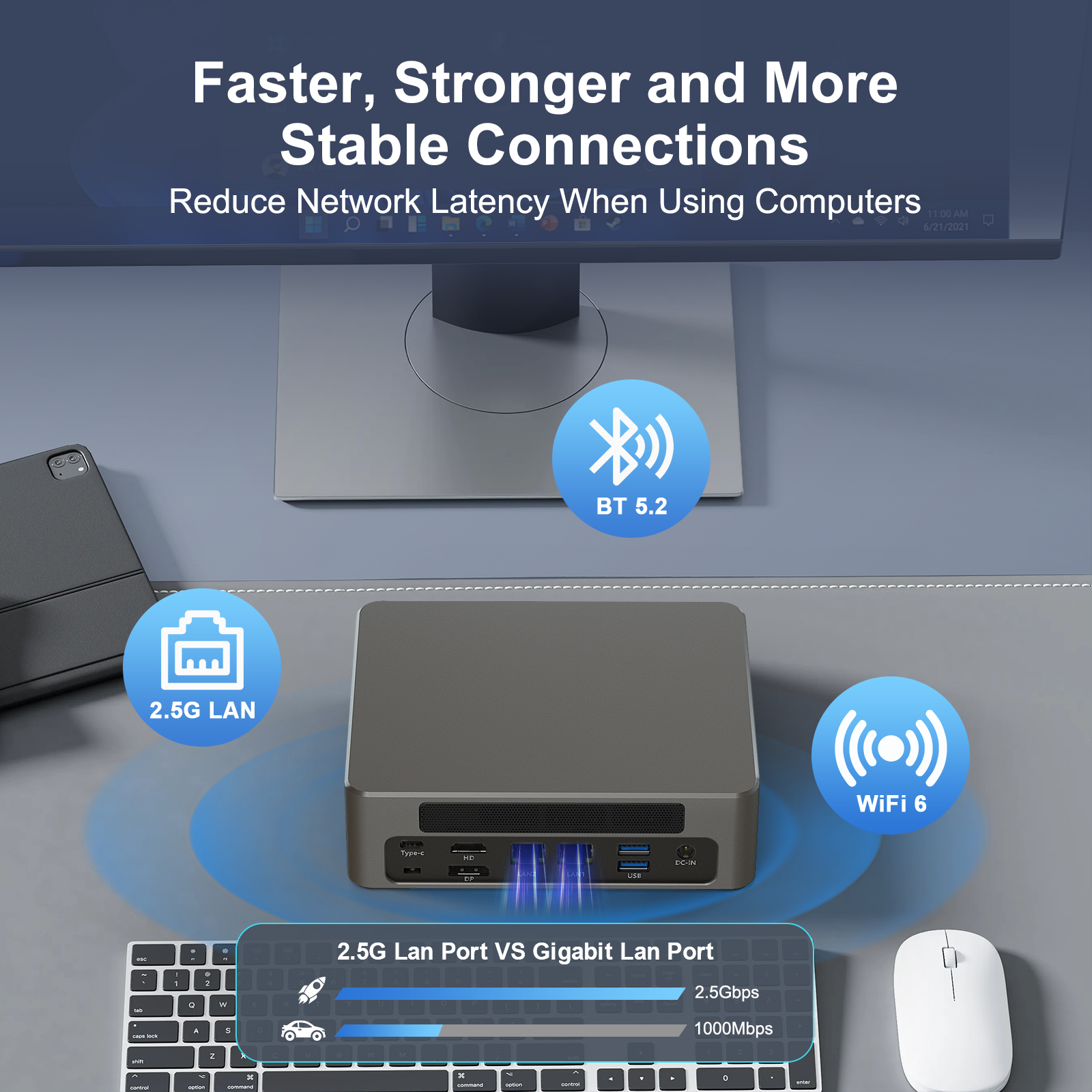
Superior Processing Power: Handle Gigabit or even 2.5GbE speeds with Deep Packet Inspection (DPI) enabled.
VPN Performance: Run WireGuard or OpenVPN at full speed without slowing down your network.
Ad Blocking: Install plugins like pfBlockerNG to block ads for the entire house.
Hardware Requirements: What You Need
To build a “soft router,” you don’t need a massive tower PC. In fact, smaller is better for energy efficiency.
Minimum Specs for a Router Build:
CPU: Intel Celeron N5105, N100, or equivalent. These processors support AES-NI, which is crucial for encryption acceleration.
RAM: 4GB is the minimum, but 8GB is recommended if you plan to run additional packages like Suricata (Intrusion Detection).
Storage: 64GB SSD is more than enough for the operating system and logs.
Network Ports: This is critical. You need at least dual LAN ports (RJ45). One port will be your WAN (Internet in), and the other will be your LAN (Network out).
Personal Tip: If you are looking at our store catalogue, look for the fanless models. Since your router stays on 24/7, a fanless Mini PC prevents dust buildup and ensures silent operation in your living room.
Choosing Your Software: pfSense vs. OPNsense
You will need a specialized operating system to turn the PC into a router.
pfSense
The industry standard. It is incredibly stable, has massive community support, and is what we generally recommend for beginners.
OPNsense
A fork of pfSense with a more modern user interface and faster update cycles. If you prefer a cleaner look, go with this.
OpenWrt
Lighter and more focused on Wi-Fi support, but slightly more complex to configure on x86 hardware compared to the other two.
Step-by-Step: The Configuration Process
Step 1: Prepare the Installation Media
Download the ISO image of your chosen OS (e.g., pfSense Community Edition). Use a tool like Rufus to burn the image onto a USB stick.
Step 2: BIOS Settings
Plug the USB into your Mini PC. Enter the BIOS (usually by pressing Delete or F7 on startup). Ensure that “Power on after power failure” is enabled. This ensures your internet comes back online automatically after a blackout.
Step 3: Installation
Boot from the USB drive. Follow the on-screen prompts to install the OS to your SSD. During the setup, the system will ask you to assign interfaces:
WAN Interface: Connect this to your modem.
LAN Interface: Connect this to your PC for configuration.
Step 4: Accessing the Web Dashboard
Once installed, the Mini PC will display an IP address (usually 192.168.1.1). Open a web browser on a connected computer, type in that IP, and log in with the default credentials.
Can I Use It as a Switch? (The "Bridge" Method)
Many users ask: “My Mini PC has 4 LAN ports. Can I use the other 3 as a switch?”
The short answer is yes, but there is a catch.
In a dedicated hardware switch, a specialized chip handles traffic switching extremely fast. In a Mini PC, the CPU has to do this work via software (called “Bridging”).
How to Configure a Bridge:
In your router OS (pfSense/OPNsense), go to Interfaces > Assignments.
Create a Bridge interface and add your extra LAN ports (e.g., ETH2, ETH3, ETH4) to it.
Assign the IP address to the Bridge itself, not the individual ports.
Expert Advice: While bridging works for connecting a printer or a smart home hub, I rarely recommend it for high-speed file transfers (like NAS to PC). It eats up CPU cycles. For the best performance, use one port on the Mini PC to go to a cheap unmanaged 8-port switch, and plug all your devices into that.
Conclusion: Is It Worth the Effort?
Absolutely. Transforming a Mini PC into a router gives you enterprise-level control over your network. It is more stable, more secure, and significantly faster than what your ISP provides.
Are you ready to build your soft router? We offer a variety of options for you to create your soft router, and they are sure to win you over.

HYSTOU P09B-6L Fanless firewall Mini PC
- Processor: Intel Celeron N100
- Graphics Card: Integrated Graphics
- Memory: 1×DDR5 SODIMM slot (max 32GB, 4800MHz)
- Storage: 1×M.2 NVMe SSD + 1×SATA 3.0 HDD/SSD
- Network: 6×2.5G Ethernet, Wi-Fi 5 + BT 4.2
- Additional Features: Fanless design, aluminum alloy body for heat dissipation, supports VESA wall mounting and DIN rail installation, Compatible with pfSense/OPNsense/Windows/Linux systems, 3-year hardware warranty + lifetime technical support

HYSTOU P09B-4L Fanless firewall Mini PC
- Processor: Intel Alder Lake N100 (4 cores,4 threads,6M cache, up to 3.40GHz)
- Graphics Card: Intel UHD Graphics
- Memory: DDR5 memory technology(higher frequency and bandwidth support)
- Storage: 1*M.2 PCIE 3.0 SSD slots 1*SATA3.0 2.5inch
- Network: 4*LAN ports
- Additional Features:Fanless cooling system for silent operation and low power consumption,Blutooth and Wi-Fi connectivity

HYSTOU
HYSTOU has established its R&D headquarters in Shenzhen, drawing on over a decade of experience. Our core team members, who previously served at renowned companies such as Inventec and Quanta Computer, form the backbone of our technical expertise. With robust R&D and innovation capabilities, we remain steadfast in our commitment to pursuing excellence in the field of technology products.