How to Fix "Invalid Signature Detected" Error When Booting from USB on Mini PC
Understanding the "Invalid Signature Detected" Error on Mini PCs
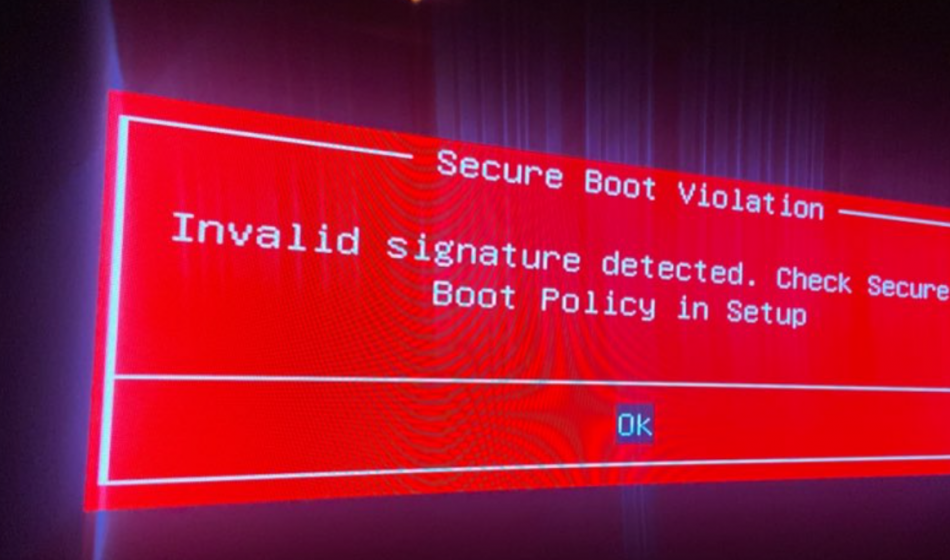
When you try to boot your mini PC from a USB drive and encounter the “Invalid signature detected” error, it can be a frustrating experience. This error typically occurs due to a conflict between your mini PC’s security settings and the USB drive’s boot files.
The “Invalid signature detected” error is closely related to the Secure Boot feature found in most modern computers, including mini PCs. Secure Boot is a security standard designed to ensure that your computer only boots using software that is trusted by the manufacturer.
While this feature enhances system security, it can sometimes prevent legitimate USB boot drives from loading, especially if they contain custom operating systems or modified boot files. This is why understanding how Secure Boot interacts with USB booting is crucial for resolving the “Invalid signature detected” error.
Why Secure Boot Causes Issues with USB Booting on Mini PCs
Secure Boot works by verifying the digital signature of each piece of boot software before allowing it to run. If the software’s signature isn’t recognized or trusted by your mini PC’s firmware, the “Invalid signature detected” error will appear.
This is a common issue when using custom-built USB boot drives or trying to install alternative operating systems on your mini PC. Hystou mini PCs, like many other modern computing devices, come with Secure Boot enabled by default.
While this is great for security, it can be a hurdle when you need to boot from external media. The good news is that there are ways to work around this restriction without compromising your system’s overall security.
Step-by-Step Guide to Fix "Invalid Signature Detected" Error
Accessing BIOS/UEFI Settings on Your Mini PC
The first step in resolving the “Invalid signature detected” error is to access your mini PC’s BIOS or UEFI settings. The process may vary slightly by Hystou model, but these general steps apply:
Power off your mini PC completely.
Turn it on and immediately start pressing the BIOS access key repeatedly. For most Hystou mini PCs, this is either the Del key or the F2 key.
If continuous key presses do not work, try pressing the keys rapidly immediately after powering on. For some models, use the Fn key in combination with function keys (e.g., Fn+F2).
If unsure which key to use, check your mini PC’s user manual or the Hystou website for model-specific instructions.
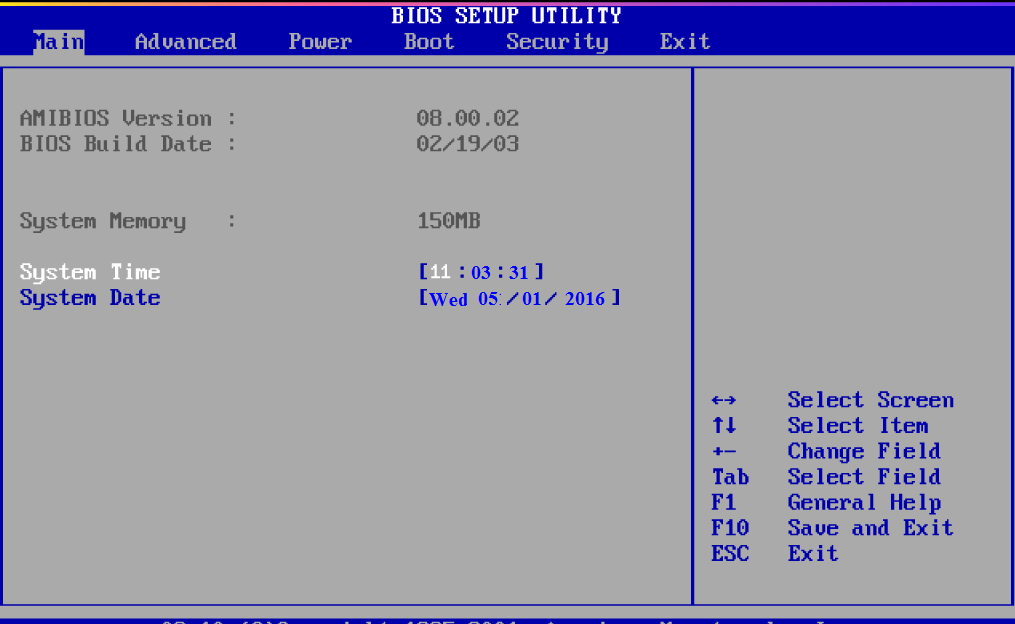
Once in the BIOS/UEFI interface, navigate to the security settings. These are typically found under a “Security” or “Boot” tab.
The BIOS interface is usually divided into several tabs with options like “Main”, “Advanced”, “Security”, and “Boot” displayed in the top navigation bar. Use the keyboard arrow keys to switch between tabs.
Disabling Secure Boot on Hystou Mini PCs
After accessing the security settings in your mini PC’s BIOS/UEFI, follow these steps to disable Secure Boot and fix the “Invalid signature detected” error:
Locate the “Secure Boot” option. It may be listed under a submenu like “Secure Boot Configuration”. In some BIOS versions, this option may be hidden under the “Authentication” submenu, requiring an administrator password to modify.
Select “Secure Boot” and set it to “Disabled”. Options are usually displayed in a drop-down menu, changing from the default “Enabled” to “Disabled”. Some interfaces highlight modified settings in a different color.
Save your changes and exit the BIOS/UEFI interface. This is typically done by pressing F10 or selecting “Save & Exit”. Ensure you choose “Save Changes and Exit” rather than “Discard Changes and Exit”.
On some devices, a confirmation dialog box will appear. Click “Yes” to save the changes.
Disabling Secure Boot should resolve the “Invalid signature detected” error in most cases. However, if issues persist, additional steps may be necessary.
Enabling Legacy Boot Mode as an Alternative Solution
If disabling Secure Boot alone doesn’t fix the “Invalid signature detected” error, enable Legacy Boot Mode (also known as BIOS Mode) on your mini PC:
Return to the BIOS/UEFI settings as described earlier.
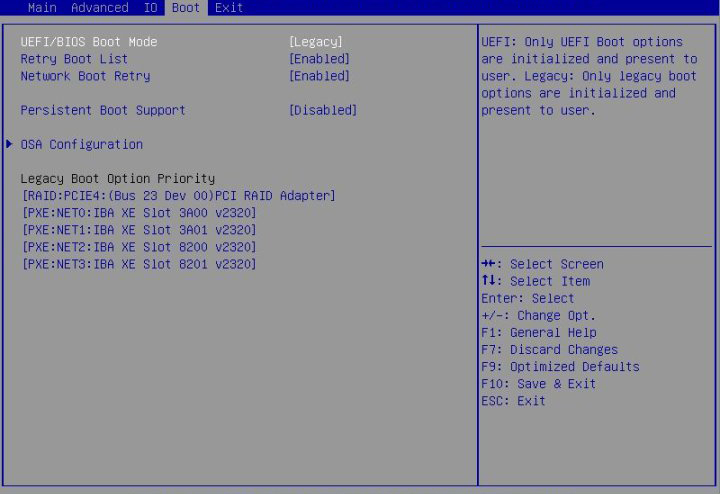
Look for a setting called “Boot Mode,” “UEFI/Legacy Boot,” or similar. This is usually located under the “Boot” tab, sometimes displayed as “Boot List Option”.
It typically offers three choices: “UEFI”, “Legacy”, or “Both”. Select “Legacy Boot” or “UEFI and Legacy” if available.
When selecting “Both”, ensure Legacy mode is prioritized by moving the Legacy USB drive option to the top of the boot list.
Save your changes and exit the BIOS/UEFI interface.
Enabling Legacy Boot Mode allows your mini PC to use the older BIOS boot method, which is often more compatible with non-standard USB boot drives when encountering the “Invalid signature detected” error.
Verifying the Fix: Testing Your USB Boot Drive
After making changes to your mini PC’s BIOS/UEFI settings, it’s important to verify that the “Invalid signature detected” error has been resolved:
- Insert your USB boot drive into your mini PC.
- Power on your mini PC and press the boot menu key (usually F12 or F10) to access the boot device selection menu. The startup menu keys vary depending on the brand and model of the device; common options include F9 and F11. For HYSTOU devices, the F11 key is used for startup. During the startup process, a brief message is usually displayed at the bottom of the screen.
- Select your USB drive from the list of available boot devices. In the startup menu, the USB drive usually offers two options. The option prefixed with “UEFI” corresponds to the UEFI mode, while the one without the prefix represents the Legacy mode. You should choose the mode based on your previous settings.
- If everything works correctly, your mini PC should now boot from the USB drive without displaying the “Invalid signature detected” error.
If you’re still having trouble, double-check your BIOS/UEFI settings to ensure that Secure Boot is disabled and Legacy Boot is enabled if needed. You may also want to try using a different USB port or creating a new bootable USB drive.
Advanced Troubleshooting: Updating Your Mini PC's BIOS
In some cases, the “Invalid signature detected” error may persist even after disabling Secure Boot. This can happen if your mini PC’s BIOS/UEFI firmware is outdated. To address this, you can try updating your mini PC’s BIOS:
- Visit the Hystou support website and navigate to the downloads section for your specific mini PC model. Make sure to download a BIOS file that is compatible with your specific device model; using an incorrect BIOS file may prevent the device from booting properly.
- Look for the latest BIOS update and download it to your computer.
- Follow the manufacturer’s instructions to install the BIOS update. This typically involves creating a bootable USB drive with the update files or using a Windows-based utility. The Windows Update tool typically displays the current BIOS version as well as information about the available updates. It also features prominent “Flash” or “Update” buttons; during the update process, a progress bar is displayed, and a warning message reminding users not to turn off the power is also shown.
Important: BIOS updates can be risky if not performed correctly. Make sure to follow the manufacturer’s instructions carefully and never interrupt a BIOS update process.
Preventing Future "Invalid Signature Detected" Errors
To avoid encountering the “Invalid signature detected” error in the future, consider these preventive measures:
- When creating USB boot drives, use reputable tools and verified ISO files whenever possible.
- Keep your mini PC’s operating system and firmware updated to ensure compatibility with the latest security standards.
- If you frequently need to boot from USB drives, consider leaving Secure Boot disabled but taking other security precautions, such as using antivirus software and only using trusted boot media.
Conclusion: Resolving "Invalid Signature Detected" Error on Hystou Mini PCs
The “Invalid signature detected” error when booting from a USB drive on your Hystou mini PC is typically caused by Secure Boot restrictions. By following the steps outlined in this tutorial, you can resolve this issue and successfully boot from your USB drive. Remember to disable Secure Boot in your BIOS/UEFI settings, and if necessary, enable Legacy Boot Mode. For persistent issues, consider updating your mini PC’s BIOS firmware.
Hystou mini PCs are designed to be versatile and user-friendly, and with these simple adjustments, you can unlock their full potential by using custom USB boot drives. If you have any further questions or need additional support, please don’t hesitate to contact Hystou’s customer service team.
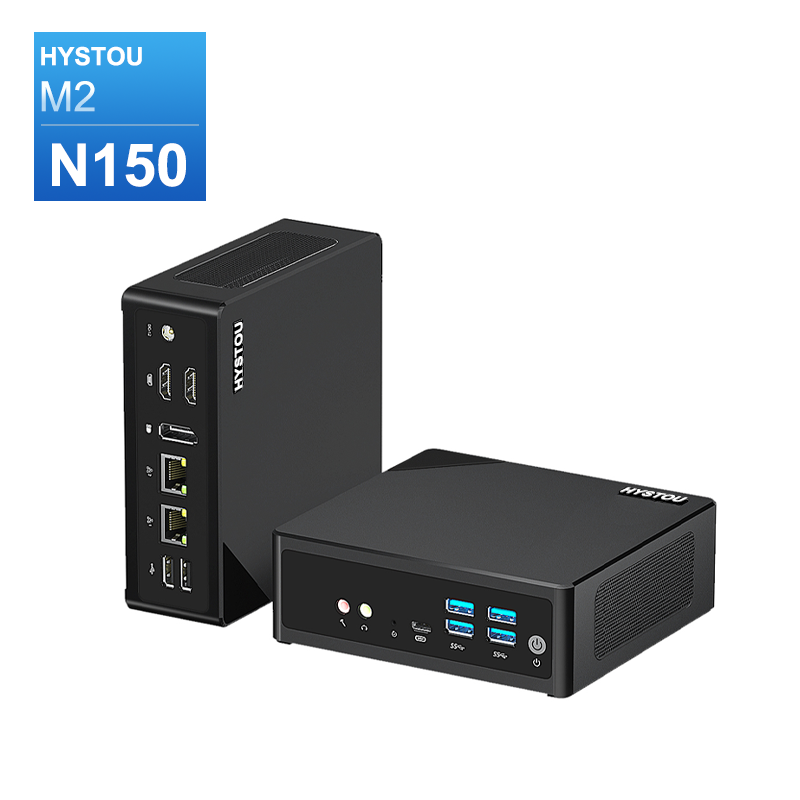
HYSTOU M2 Mini PC with Intel N150/N305 CPU – Dual Gigabit Ethernet & 4K Display
- Processor: Intel N150 or Intel i3-N305
- Graphics card: Intel® UHD Graphics
- Memory: DDR5 262Pin SODIMM, supports 4800Mhz, maximum capacity 32GB
- Storage: M.2 NVMe SSD (up to 4TB) + SATA3.0 interface (supports 2.5-inch HDD/SSD, thickness ≤7mm)
- Wireless and Bluetooth: Default WIFI 5 and Bluetooth 4.2, optional WIFI 6 (AX200) and Bluetooth 5.2

HYSTOU
HYSTOU has established its R&D headquarters in Shenzhen, drawing on over a decade of experience. Our core team members, who previously served at renowned companies such as Inventec and Quanta Computer, form the backbone of our technical expertise. With robust R&D and innovation capabilities, we remain steadfast in our commitment to pursuing excellence in the field of technology products.