operations@hystou.com

How to Choose the Best Industrial Mini PC: The Ultimate 2025 Guide

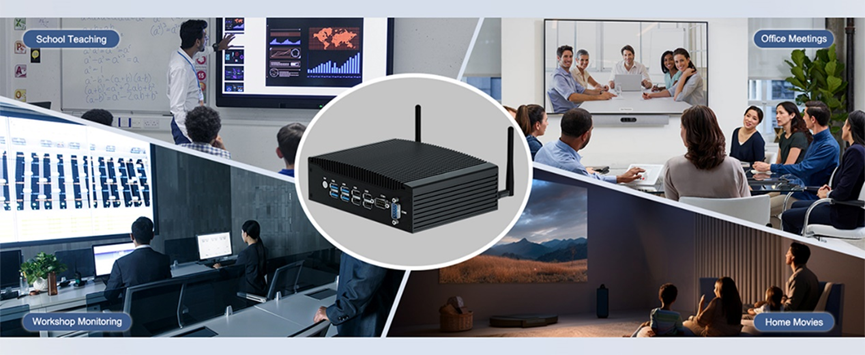
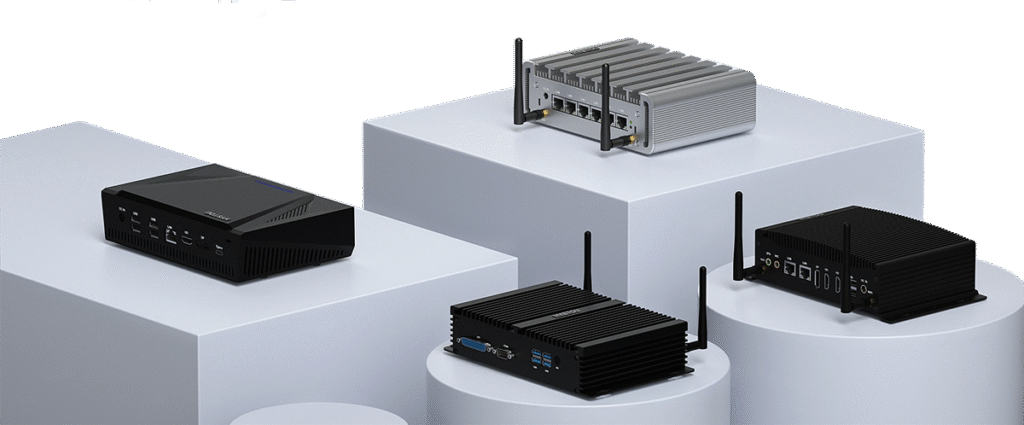
How to Choose the Best Industrial Mini PC: The Ultimate 2025 Guide Announcements Buyer Guide Comprehensive Tips Occasion Product Review Q&A Tutorials In the modern Industry 4.0 era, the Industrial Mini PC plays a pivotal role. Acting as the brain of automated production processes, these devices are responsible for data acquisition, machine vision, monitoring, and system control. Therefore, knowing how to choose an Industrial Mini PCcorrectly is critical for ensuring productivity and system stability. Unlike consumer-grade computers, industrial computers are engineered specifically for harsh environments. This guide will walk you through the essential factors to consider, ensuring you select the perfect solution for your needs. Assessing Your Deployment Environment Before selecting an Industrial Mini PC, you must evaluate where it will be used. Industrial environments pose unique challenges: Conditions: Extreme temperatures, high humidity, dust, and vibrations.Space: Do you need a compact form factor for tight spaces?Requirements: Do you need high processing power for AI or low power consumption for simple data logging? 8 Key Factors When Choosing an Industrial Computer 1. Durability and Reliability In tough settings, your equipment must be resilient. A Rugged Mini PC should offer protection against dust, water, and shock. Fanless Industrial PCs are often preferred as they eliminate cooling fans—a common point of failure—and prevent dust ingress, ensuring long-term reliability. 2. Performance Capabilities Beyond meeting basic application needs, your Industrial Mini PC should possess sufficient performance headroom to handle future tasks, such as edge analytics or complex algorithms. HYSTOU offers configurations ranging from energy-efficient processors to high-performance Intel Core i7/i9 CPUs. 3. Scalability and Compatibility Technology evolves rapidly. Your industrial computer should offer good scalability, such as Mini-PCIe or M.2 slots, to support future upgrades like 4G/5G modules, Wi-Fi, or expanded storage. Compatibility with existing legacy systems (e.g., Windows 7/10/11, Linux) is also crucial to avoid integration issues. 4. Connectivity and I/O Ports Stable data communication is vital.    Legacy Support: COM ports (RS232/422/485) for connecting PLCs and industrial sensors.    Protocols: Support for Modbus, Profibus, and EtherCAT.    Security: Multi-LAN ports for secure network segmentation and stable data transmission. 5. Customization Options Standard models don’t fit every application. HYSTOU Industrial Mini PCs offer extensive customization, from chassis design and specific waterproof I/O ports to BIOS modification (e.g., Auto Power On, Watchdog), ensuring the device fits your specific workflow perfectly. 6. Wide Temperature Range From cold storage facilities to scorching manufacturing plants, an industrial computer must operate reliably in extreme temperature ranges (often -20°C to 70°C). 7. Power Stability Industrial power grids can be unstable. Reliable industrial PCs feature Wide Voltage Input support and power management systems to protect against over-voltage, surges, and short circuits. Space Optimization and Workspace Efficiency The HYSTOU Business Mini PC‘s small footprint allows multiple units to be installed in the space occupied by a single traditional desktop. This feature also facilitates custom dedicated server setups, helping organize office areas into clean, comfortable workplaces that enhance employee efficiency and company productivity. 8. Physical Security Protecting your data involves physical security measures. Look for Kensington lock slots, tamper-proof chassis designs, and TPM 2.0 support to prevent unauthorized access and ensure data integrity. Choosing the Right Chassis Form Factor Selecting the correct form factor is essential for deployment:1. DIN-Rail/Embedded: Ideal for control cabinets where space is at a premium.2. Wall-Mount/Standalone: Flexible for workshops or outdoor locations; easy to move and maintain.3. Rackmount: Best for centralized server rooms (standard 19-inch racks).4. Panel PC: Integrates a touchscreen monitor with the PC, perfect for HMI (Human-Machine Interface) applications. Why Choose a HYSTOU Industrial Mini PC? Selecting a reputable supplier is key to success. Here is why **HYSTOU** is the trusted choice for industrial computing: Industry Experience: Years of expertise in delivering solutions for automation, digital signage, and IoT. Quality Assurance: rigorous testing (vibration, temperature, aging) ensures every HYSTOU Industrial Mini PC meets the highest standards of durability. Diverse Product Line: A vast selection of fanless PCs, rugged computers, and high-performance mini PCs to suit any industry. Technical Support: Comprehensive after-sales service and technical guidance to resolve issues quickly. Cost-Effectiveness: High-quality industrial solutions at competitive prices, optimizing your ROI. Budget and Conclusion When selecting an Industrial Mini PC, consider the Total Cost of Ownership (TCO), not just the initial price tag. While consumer PCs may seem cheaper, their high failure rate in industrial settings leads to downtime and replacement costs. Investing in a robust HYSTOU Industrial Mini PC ensures longevity, stability, and long-term savings. Ready to enhance your industrial operations? Contact HYSTOU today to find the perfect industrial computing solution tailored to your needs. HYSTOU HYSTOU has established its R&D headquarters in Shenzhen, drawing on over a decade of experience. Our core team members, who previously served at renowned companies such as Inventec and Quanta Computer, form the backbone of our technical expertise. With robust R&D and innovation capabilities, we remain steadfast in our commitment to pursuing excellence in the field of technology products. Facebook Twitter Youtube Tumblr HYSTOU M9 Mini PC – Intel i5-1340P WiFi 6 Desktop Computer (8K Triple Display) Hystou H6 Industrial Mini PC – Fan-Cooled Triple Display Industrial Fanless Mini PC | Intel 10th Gen i5 | Hystou H4T-10th HYSTOU RTX 3050 Mini Gaming PC – 8K Workstation with Intel Core i7/i5

How to Choose the Best Industrial Mini PC: The Ultimate 2025 Guide Read More »

Hystou mini pc

What is a Mini PC? A Comprehensive Guide from Home Office to Industrial Automation

What is a Mini PC? A Comprehensive Guide from Home Office to Industrial Automation Announcements Buyer Guide Comprehensive Tips Occasion Product Review Q&A Tutorials As hardware technology evolves, the computing landscape is undergoing a shift. Beyond traditional desktops and laptops, the Mini PC has emerged as a game-changer, revolutionizing how we live and work. Defining the Mini PC: Small Form Factor, Massive Potential A Mini PC, technically known as a Small Form Factor (SFF) computer, takes up a fraction of the space of a traditional tower. However, do not let the compact aesthetic fool you; immense power is hidden within this small chassis.Essentially, a Mini PC integrates the processor, RAM, and storage of a full-sized desktop into a device that fits in the palm of your hand. With minimal compromises, it is fully capable of handling diverse scenarios, from home entertainment and business operations to deep learning tasks. Why Choose a Mini PC? Key Benefits for Personal & Business Use “Is a Mini PC worth the investment?” This is a common question. If you value efficiency, sustainability, and flexibility, an Office Mini PC is likely your ideal match. 1. Ultimate Space Efficiency and Silent Operation The most obvious advantage is size. For cramped offices, dorms, or minimalist setups, a Mini PC can vanish behind a monitor or sit quietly in a corner. Many modern models feature advanced fanless or quiet-cooling designs, ensuring a clutter-free and noise-free environment. 2. Superior Energy Efficiency Mini PCs are renowned for their low power consumption compared to traditional desktops. This design not only significantly reduces electricity bills but also aligns with green initiatives. By lowering your carbon footprint, you are making a choice that is both improved for your budget and the planet. 3. Mobility and Flexibility Lightweight and portable, Mini PCs are perfect for hybrid work environments. Whether you need a powerful presentation tool, a versatile remote server, or a portable media center, these devices adapt to your needs instantly. 4. Versatile Applications Despite their size, Mini PCs support multiple monitors and extensive peripherals. Home Entertainment: Stream 4K/8K content seamlessly. Digital Signage: A cost-effective control terminal for advertising displays. Home Server: A private cloud storage solution that saves space. Industrial Mini PC: The Engine of Modern Industry Beyond consumer use, the Industrial Mini PC is driving the smart transformation of the manufacturing sector: Industrial Automation: Acting as the core for PLC or DCS systems to precisely control production lines. Edge Computing: Processing data at the source to reduce latency and optimize performance via real-time analytics. Surveillance & Security: Managing high-definition monitoring systems 24/7 and tracking environmental data. IoT Gateway: Bridging sensors and the cloud to create smart factories and enable remote management. Embedded AI: Integrated into heavy machinery for predictive maintenance using machine learning algorithms. Digital Transformation: Serving as ERP terminals to visualize data for better managerial decision-making. Buying Guide: Considerations and Longevity Before purchasing, it is crucial to understand the capabilities and lifecycle of these devices. Performance vs. User Needs For daily tasks, web browsing, and document editing, a Mini PC is flawless. Historically, heavy 3D rendering or AAA gaming was a challenge, but modern high-end models are now bridging that gap effectively. Expandability and Connectivity Due to the compact size, port selection requires attention. Assess your need for multiple displays or specific peripherals beforehand. While some ultra-thin models utilize soldered RAM/SSD, many performant options still offer upgradeable components. Lifespan Analysis A well-maintained, high-quality Mini PC typically lasts between 3 to 7 years. Longevity depends on: Build Quality: Premium materials and thermal design are key. Usage Patterns: Routine office use extends lifespan compared to 24/7 high-load operations. Environment: Protection from heat, humidity, and dust is essential. HYSTOU Mini PC: Elevating Your Tech Experience In a saturated market, selecting the right brand matters. HYSTOU Mini PC offers flagship solutions designed for performance and innovation: 1. The Professionals’ Choice: HYSTOU Mini PC M9 The ultimate Office Mini PC. Core Power: Powered by Intel’s 12th/13th Gen Core processors for seamless multitasking. Efficiency: Advanced thermal management ensures smooth operation during long work sessions. Connectivity: A comprehensive array of ports to connect all your business peripherals. 2. The Gamer’s Dream: Gaming Mini PC GT Engineered specifically as a high-performance Gaming Mini PC Raw Performance: Tested to run major AAA titles, including Black Myth: Wukong, smoothly. All-Rounder: Excellent for professional A/V systems, video editing, and high-load digital signage. Aesthetic: A futuristic design that saves desk space while adding a premium tech feel to your setup. Verdict: Should You Buy a Mini PC? Undoubtedly, the Mini PC represents the future of computing hardware. Whether you are a minimalist user, a business seeking robust Industrial Mini PC solutions, or an enthusiast looking for a powerful Gaming Mini PC, these devices offer the perfect balance of performance, space savings, and energy efficiency. Ready to upgrade your digital life? Visit our website to explore the full HYSTOU Mini PC lineup and let our experts guide you to the perfect computing solution. HYSTOU HYSTOU has established its R&D headquarters in Shenzhen, drawing on over a decade of experience. Our core team members, who previously served at renowned companies such as Inventec and Quanta Computer, form the backbone of our technical expertise. With robust R&D and innovation capabilities, we remain steadfast in our commitment to pursuing excellence in the field of technology products. Facebook Twitter Youtube Tumblr HYSTOU M9 Mini PC – Intel i5-1340P WiFi 6 Desktop Computer (8K Triple Display) Hystou H6 Industrial Mini PC – Fan-Cooled Triple Display Industrial Fanless Mini PC | Intel 10th Gen i5 | Hystou H4T-10th HYSTOU RTX 3050 Mini Gaming PC – 8K Workstation with Intel Core i7/i5

What is a Mini PC? A Comprehensive Guide from Home Office to Industrial Automation Read More »

Fanless Mini PC in the Factory

Why You Need Fanless Computers? The Complete Guide for 2025

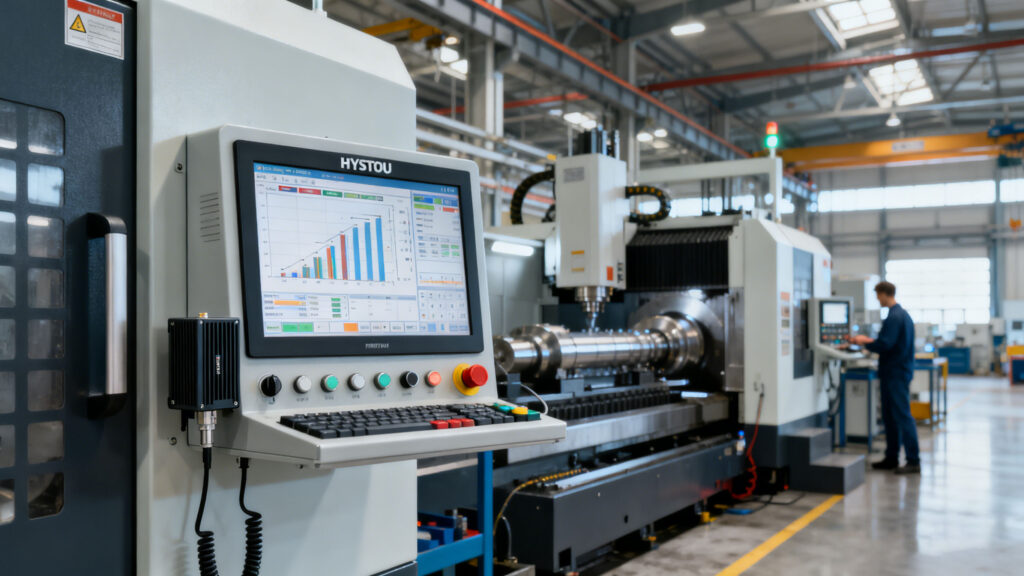
Why You Need Fanless Computers? The Complete Guide for 2025 Announcements Buyer Guide Comprehensive Tips Occasion Product Review Q&A Tutorials Why Fanless Computers Are Transforming Industrial Computing in 2025 In the dusty floors of manufacturing plants and the bustling corridors of healthcare facilities, a silent revolution is taking place. Traditional desktop computers with their whirring fans are gradually being replaced by fanless systems that operate with barely a whisper. This shift isn’t just about noise reduction—it’s about reliability, durability, and performance in some of the most challenging environments on Earth. But what exactly makes these fanless machines so special, and could they be the right choice for your business? Let’s dive in. Understanding Fanless Technology: How It Works and Why It Matters At the heart of every fanless computer lies a brilliant engineering principle: passive cooling. Instead of relying on mechanical fans to dissipate heat, these systems use heat sinks, thermal pads, and carefully designed casings to draw heat away from critical components. This approach eliminates one of the most common points of failure in traditional computers—the fan—while also reducing power consumption by up to 30% compared to conventional systems, according to a 2024 study by the International Data Corporation (IDC). Key Components of Fanless Design: • Aluminum Alloy Chassis: Acts as a natural heat sink • Low-Power Processors: Intel Celeron and Core i3/i5/i7 models optimized for efficiency • Solid-State Drives: No moving parts for increased reliability • Custom Thermal Management: Strategic component placement for optimal heat distribution 5 Critical Industries Benefiting Most from Fanless Computers Fanless computers aren’t just a niche technology—they’re becoming essential tools across multiple industries. Let’s explore which sectors are reaping the biggest rewards: Manufacturing and Industrial Automation In factory environments, where dust, moisture, and continuous vibration are daily challenges, customer data collected from 2023 to 2024 has shown that HYSTOU’s fanless computers can reduce downtime by an average of 47% compared to traditional PCs. Their sealed enclosures prevent particulate damage to internal components, making them an ideal choice for CNC machine control and production line monitoring. Healthcare Facilities Hospitals require computers that can operate 24/7 without interruption while maintaining strict hygiene standards. Fanless medical-grade computers from HYSTOU feature antimicrobial coatings and can be easily sanitized, reducing the risk of cross-contamination. Their silent operation is particularly valuable in patient rooms and operating theaters where noise pollution can affect patient recovery and surgical precision. Transportation and Logistics From in-vehicle infotainment systems to warehouse inventory management, fanless computers excel in mobile environments. Their ability to withstand extreme temperature fluctuations (-20°C to 60°C) and shock resistance makes them perfect for trucks, trains, and shipping containers.  Retail and Point-of-Sale Modern retail environments demand reliable computing at the point of sale, self-checkout stations, and digital signage. Fanless POS systems offer the dual advantages of silent operation and space efficiency, allowing retailers to maximize floor space while minimizing customer distractions. The absence of fans also means lower maintenance costs and longer service life—typically 5-7 years compared to 3-4 years for conventional POS systems. Outdoor Digital Signage and Kiosks Digital billboards and interactive kiosks face unique challenges from weather, temperature extremes, and vandalism. Fanless outdoor computers from HYSTOU features ruggedized casings that can withstand rain, snow, and even attempted tampering. Their low power consumption also makes solar-powered installations feasible, reducing both carbon footprints and operating costs. Evaluete first,then select Environmental Considerations • Temperature Range: Measure the minimum and maximum temperatures in your operating environment • Mounting Options: VESA-mount,Embedded installation. Connectivity Needs Evaluate the number and types of peripherals you’ll need to connect: USB ports (including USB 3.0/3.1 for high-speed data transfer) Serial ports (RS232/485 for industrial equipment) HDMI/DisplayPort outputs for multiple monitors Network interfaces (including PoE for power-over-ethernet devices) Long-Term Reliability and Support Look for manufacturers that offer extended warranties and long-term availability of replacement parts. ALL our products have 0btained FCC, CE and RoHS certifications.ALL mini desktop computers come with lifetime technical support, a 3-year warranty, and 24/7 service. HYSTOU Fanless Computers: Comparing Models and Finding Your Perfect Match HYSTOU H3-N100 Intel N100 Fanless Industrial Mini PC Processor: Intel N100 Graphics Card: Intel UHD Graphics (supports 4K resolution) Memory: DDR4 SODIMM slot, max 32GB @ 3200MHz Operating Temperature:-20°C to +50°C Industrial Fanless Mini PC | Intel 10th Gen i5 | Hystou H4T-10th Processor: Intel 10th Gen i5-10210U/i5-10310U / i7-10710U(up to 4.4GHz Turbo, 15W TDP) Graphics: Intel UHD Graphics Memory: 2×DDR4 SODIMM slots (max 64GB) More Energy Efficient and Quiet: only 75 watts of power Industrial Fanless Mini PC with 6 COM Ports | HYSTOU H4 Triple Display Processor: Intel 8th Gen Core i5-8250U/i7-8550U (TDP 15W) Graphics Card: Intel UHD Graphics 620 Memory: 2×DDR4 260Pin SODIMM slots/Max 64GB (2400MHz) Multiple serial ports:  Equipped with 6*COM HYSTOU H6 Fanless Industrial Mini PC – Intel Core i7, Dual LAN & Triple Display Processor: Intel Core i7-10810U /i5-10210U/i5-8140U/i5-8260U Graphics: Intel UHD Graphics (supports 4K UHD video playback at 4096×2160@60Hz, triple-display output) Memory: Up to 64GB DDR4 RAM Rich ports: 2×RJ45 ports, 4×USB 3.0 ports, 2×USB 2.0 ports. Fanless Industrial PC with 6 COM Ports | HYSTOU K4 Dual Display Mini Computer Processor: Intel Core i5-4200U Graphics Card: Intel UHD Graphics 4400 Memory: Dual DDR3L SO-DIMM slots (DDR3 memory type) Excellent Waterproof and Dustproof Effect: full-aluminum alloy silver-colored shell HYSTOU Business Mini PC Environment:These Mini PCs boot faster than traditional desktops, experience minimal downtime, and support 24/7 operation—enabling users to seamlessly resume work where they left off. Many models feature powerful CPUs capable of handling computationally intensive applications, making them ideal for content creators (video editors, graphic designers), financial analysts, and 3D CAD professionals. Installation and Maintenance Guide for Maximum Performance Proper setup and care are essential to getting the most out of your fanless computer. Follow these best practices: Installation Best Practices 1. Ensure adequate clearance around the unit for optimal heat dissipation 2. Use the provided mounting hardware to prevent excessive vibration 3. Connect peripherals before applying power to avoid voltage spikes 4. Configure BIOS settings for your specific environment (temperature thresholds, power management) Routine Maintenance

Why You Need Fanless Computers? The Complete Guide for 2025 Read More »

Creating a Bootable MemTest86 Drive

How to Use MemTest86 to Check RAM Functionality: A Comprehensive Guide

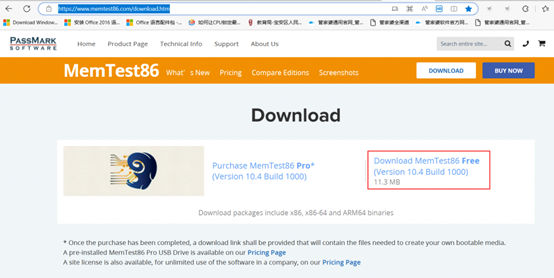
How to Use MemTest86 to Check RAM Functionality: A Comprehensive Guide Announcements Buyer Guide Comprehensive Tips Occasion Product Review Q&A Tutorials Is your computer crashing randomly? Experiencing blue screens of death? These issues often trace back to faulty RAM, but diagnosing memory problems can feel like guesswork without the right tools. MemTest86 has been the gold standard for RAM testing since 1994, trusted by IT professionals and hardware enthusiasts worldwide. In this updated 2025 guide, we’ll walk you through using this powerful tool to identify memory errors before they cause permanent damage to your system. This comprehensive tutorial covers everything from creating bootable media to interpreting advanced test results, making MemTest86 accessible for both beginners and IT professionals. Why RAM Testing Matters in 2025 With modern systems supporting up to 256GB of DDR5 RAM running at speeds exceeding 8000MHz, memory-related issues have become more complex to diagnose. A single corrupted bit can cause system instability, data corruption, or application crashes. According to a 2024 study by hardware analysis firm Puget Systems, 37% of unexplained system crashes are caused by faulty RAM modules—making memory testing an essential troubleshooting step for both professionals and casual users. Creating a Bootable MemTest86 Drive Visit the official MemTest86 website (www.memtest86.com) and download the USB image file Insert your USB flash drive into an available port Use the MemTest86 USB Creator tool to write the image to your drive Safely eject the USB drive when the process completes Pro tip: Use a dedicated USB drive for MemTest86, as the creation process will erase all existing data on the drive. Step-by-Step Testing Process Once you’ve created your bootable drive, follow these steps to test your RAM: Booting from the USB Drive Power off your computer completely Insert the MemTest86 USB drive Power on the system and immediately press the boot menu key (varies by manufacturer): Dell: F12 HP: F9 Lenovo: F12 or Novo button ASUS: F8 Acer: F12 Select the MemTest86 USB drive from the boot menu The tool will automatically load and display the main interface Configuring Test Settings The default settings work well for most users, but you can customize the testing process by pressing F1 to access the configuration menu: Test Selection: Choose between Quick Test (10 minutes), Standard Test (1 hour), or Extended Test (4+ hours) CPU Selection: For multi-processor systems, select which CPUs to use for testing Address Range: Limit testing to specific memory regions if needed Error Injection: Advanced option to simulate memory errors (Pro version only) Running the Tests From the main menu, select “Start Test” (option 5) The tool will begin running through 13 different test patterns designed to stress your memory Monitor the progress indicators: Pass: Number of complete test cycles Test: Current test pattern (1-13) Errors: Count of detected memory errors 5.  Let the test run for at least 4 passes for reliable results (typically 2-4 hours) Critical note: Even a single error indicates a problem with your RAM. For mission-critical systems, we recommend running the extended test overnight. Interpreting Test Results After completing the tests, you’ll see one of two outcomes: No Errors Detected If MemTest86 reports zero errors after multiple passes, your RAM is likely functioning correctly. This doesn’t completely rule out memory issues, but makes other hardware or software problems more likely causes for your system instability. Errors Detected Any errors during testing indicate memory problems. The results screen will show: Failing Address: Specific memory location(s) with errors Error Bits: Which bits in the memory word are failing Count: Number of errors detected Test Pattern: Which test identified the problem Troubleshooting Faulty RAM If errors appear, try these troubleshooting steps: Basic Troubleshooting Reseat the RAM modules: Power down, open your system, remove and reinsert the RAM sticks Clean contacts: Use a pencil eraser to gently clean the gold contacts on the RAM modules Test individual sticks: If you have multiple RAM modules, test them one at a time to identify the faulty module Check seating: Ensure modules are fully inserted and locking tabs are engaged Advanced Solutions Update BIOS/UEFI: Manufacturers often release updates that improve memory compatibility Adjust RAM settings: In BIOS, try reducing memory speed or loosening timings Test in different slots: Faulty memory slots can sometimes be mistaken for faulty RAM Contact the manufacturer: Most RAM modules include lifetime warranties for replacement Best Practices for Reliable Testing To ensure accurate results, follow these guidelines: Close all applications: If testing from within an OS (not recommended), shut down all background processes Disable overclocking: Return CPU and memory to default speeds before testing Maintain proper cooling: Overheating can cause temporary memory errors Test overnight: For critical systems, run the extended test for maximum confidence Document results: Save error reports for reference when contacting technical support When to Replace Your RAM Consider replacing your memory modules if: Errors persist after reseating and cleaning Specific modules consistently show errors Errors occur in multiple slots with different modules Your system is experiencing frequent crashes or data corruption RAM is approaching or exceeding its expected lifespan (typically 5-7 years) Conclusion Regular RAM testing with MemTest86 is a critical maintenance task that can prevent data loss and system downtime. By following this guide, you can accurately diagnose memory issues and take appropriate action before small problems become major failures. Remember that even high-quality RAM can fail, and early detection is key to preventing catastrophic data loss. For system administrators and power users, we recommend incorporating MemTest86 into your regular maintenance schedule, especially after hardware upgrades or system instability. Have you successfully diagnosed memory issues using MemTest86? Share your experience in the comments below! For reliable industrial computers and memory solutions, visit Hystou Industrial PCs HYSTOU HYSTOU has established its R&D headquarters in Shenzhen, drawing on over a decade of experience. Our core team members, who previously served at renowned companies such as Inventec and Quanta Computer, form the backbone of our technical expertise. With robust R&D and innovation capabilities, we remain steadfast in our commitment to pursuing excellence

How to Use MemTest86 to Check RAM Functionality: A Comprehensive Guide Read More »

How to Install Windows 11 on Unsupported Hardware: Bypass TPM 2.0 and Secure Boot Restrictions (2025 Guide)

How to Install Windows 11 on Unsupported Hardware: Bypass TPM 2.0 and Secure Boot Restrictions (2025 Guide) Announcements Buyer Guide Comprehensive Tips Occasion Product Review Q&A Tutorials Preparation: Download Required Tools Before starting the installation process, you need to prepare two essential components. First, download the latest Windows 11 ISO file from the official Microsoft website. Make sure to select the correct edition and language for your needs. Second, you’ll need a reliable USB flash drive with at least 8 GB of storage capacity. Remember that this drive will be formatted during the process, so back up any important data beforehand. The key tool for bypassing hardware restrictions is Rufus, a free and open-source utility for creating bootable USB drives. Download Rufus 4.1 or a later version from the Rufus official website. This version includes critical updates that enable TPM 2.0 and Secure Boot bypass functionality for Windows 11 installations. Create Installation Media with Rufus Launch Rufus and insert your USB flash drive into the computer. The software should automatically detect the drive. If not, use the “Device” dropdown menu to select it manually. Next, click on the “Select” button and navigate to the location where you saved the Windows 11 ISO file. In the “Partition scheme” section, choose “GPT” if your system uses UEFI, or “MBR” for legacy BIOS. For most modern computers, GPT is recommended. Under “Target system,” select “UEFI (non-CSM)” to ensure compatibility with newer hardware configurations. [Verified] The critical step for bypassing restrictions is enabling the “Skip TPM check” and “Skip Secure Boot check” options in the “Advanced drive properties” section. These options are only available in Rufus 4.1 and later versions. Double-check that these boxes are checked before proceeding. Click “Start” to begin creating the bootable drive. A warning message will appear, notifying you that all data on the USB drive will be destroyed. Confirm this action and wait for the process to complete, which typically takes 5-10 minutes depending on your system and USB drive speed. System Installation: Bypass TPM and Secure Boot Errors With your bootable USB drive ready, restart your computer and enter the BIOS/UEFI setup. The method for accessing BIOS varies by manufacturer, but common keys include F2, F12, Delete, or Esc pressed during startup. Once in the BIOS, disable Secure Boot if it’s enabled, and ensure that USB boot is prioritized in the boot order. Save your changes and exit the BIOS. Your computer should now boot from the USB drive and launch the Windows 11 installation process. You’ll first see the Windows Setup screen, where you can select your language, time and currency format, and keyboard input method. Click “Next” and then “Install now” to proceed. When prompted for a product key, you can either enter it now or select “I don’t have a product key” to activate later. Choose the edition of Windows 11 you want to install and accept the license terms. At this point, you might encounter the “This PC can’t run Windows 11” error message, which indicates that your computer doesn’t meet the official hardware requirements. This is where the Rufus bypass comes into play. Don’t panic—this is expected behavior. Simply click “OK” and then “Back” to return to the previous screen. Select the “Custom: Install Windows only (advanced)” option. You’ll now see a list of your computer’s drives and partitions. Choose the partition where you want to install Windows 11, or select “Unallocated Space” if you’re setting up a new drive. Select custom installation option Click “Next” to begin the installation. The setup process will copy files, install features, and update components. Your computer will restart several times during this process, which is normal. Post-Installation Setup and Configuration After the final restart, you’ll be guided through the Windows 11 out-of-box experience. First, select your region and keyboard layout. You can add a second keyboard layout if needed, or skip this step for now. Select your region Choose keyboard layout Next, you’ll encounter the network setup screen. It’s recommended to disconnect from the internet at this point by selecting “I don’t have internet” in the bottom-left corner. This bypasses the Microsoft account requirement and allows you to create a local account, which is particularly useful for unsupported hardware configurations. Select the offline setup option. Select “Continue with limited setup” and then enter your desired username for the local account. You can create a password later if you wish. Review the privacy settings and customize them according to your preferences. Windows will then finalize your settings and take you to the desktop. Once you’re on the desktop, it’s crucial to install the latest drivers for your hardware. Visit your computer manufacturer’s website to download drivers specific to your model. Pay special attention to the chipset, graphics, and network drivers to ensure optimal performance. Finally, check for Windows updates by going to Settings > Windows Update > Check for updates. Microsoft frequently releases patches that improve compatibility with older hardware. Install all available updates and restart your computer if prompted. By following these steps, you’ve successfully installed Windows 11 on unsupported hardware while maintaining system stability and security. Remember that while this method bypasses certain hardware checks, it’s always recommended to use hardware that meets Microsoft’s official requirements for the best experience. HYSTOU HYSTOU has established its R&D headquarters in Shenzhen, drawing on over a decade of experience. Our core team members, who previously served at renowned companies such as Inventec and Quanta Computer, form the backbone of our technical expertise. With robust R&D and innovation capabilities, we remain steadfast in our commitment to pursuing excellence in the field of technology products. Facebook Twitter Youtube Tumblr HYSTOU M9 Mini PC – Intel i5-1340P WiFi 6 Desktop Computer (8K Triple Display) Hystou H6 Industrial Mini PC – Fan-Cooled Triple Display Industrial Fanless Mini PC | Intel 10th Gen i5 | Hystou H4T-10th HYSTOU RTX 3050 Mini Gaming PC – 8K Workstation with Intel Core i7/i5

How to Install Windows 11 on Unsupported Hardware: Bypass TPM 2.0 and Secure Boot Restrictions (2025 Guide) Read More »

HYSTOU Mini Industrial PC Poster-H4

Hystou H4 mini industrial computer

Tutorial on commonly used features of Hystou mini industrial computers H4 Announcements Buyer Guide Comprehensive Tips Occasion Product Review Q&A Tutorials 1. Enabling Power On after AC Power Loss (Restore on AC Power Loss) 1-1. After pressing the power button on the Mini PC, quickly tap the Delete/Del key on the keyboard to enter the BIOS Setup. Select Advanced > ACPI Settings, then set Restore on AC Power Loss to Power on. After setting up, press F4 to save and exit. 2.Enable Scheduled Power-On (Wake system from RTC alarm) 2-1. After pressing the power button on the Mini PC, quickly tap the Delete/Del key on the keyboard to enter the BIOS Setup. Select Advanced > ACPI Settings > Set “Wake system from RTC alarm” to “Fixed Time.” In the Alarm Date field, set the wake-up date to 0 for a daily wake-up. Adjust the Alarm Hour, Alarm Minute, and Alarm Second according to your desired wake-up time. In this tutorial, the power-on time is set for 3:25 AM every day. After setting up, press F4 to save and exit. 3. Enable PXE (Note: The existing KBR3D 1.80 or KBR3D 1.90 BIOS versions only support Legacy mode PXE boot. To enable UEFI PXE boot, you need to flash a dedicated BIOS version. This tutorial focuses on Legacy PXE as an example.) 3-1. After pressing the power button on the PC, quickly tap the Delete/Del key on the keyboard to enter the BIOS Setup. Navigate to Advanced > CSM Configuration. Set “Boot option filter” to “UEFI and Legacy mode” and set “Network” to “Legacy mode”. After setting up, press F4 to save and exit. 3-2. After enabling the PXE device in the BIOS (IBA GE Slot 0100 or IBA GE Slot 0200), restart the computer. During the boot process, quickly tap the F11 key to enter the boot manager interface. Select the desired PXE device and press Enter to confirm the boot. 3-3. If you want to set PXE boot as the default option every time you start the computer, enter the BIOS and select Boot > Set “Boot option #1” to IBA GE Slot 0100 or IBA GE Slot 0200. After setting up, press F4 to save and exit. HYSTOU HYSTOU has established its R&D headquarters in Shenzhen, drawing on over a decade of experience. Our core team members, who previously served at renowned companies such as Inventec and Quanta Computer, form the backbone of our technical expertise. With robust R&D and innovation capabilities, we remain steadfast in our commitment to pursuing excellence in the field of technology products. Facebook Twitter Youtube Tumblr HYSTOU M9 Mini PC – Intel i5-1340P WiFi 6 Desktop Computer (8K Triple Display) Hystou H6 Industrial Mini PC – Fan-Cooled Triple Display Industrial Fanless Mini PC | Intel 10th Gen i5 | Hystou H4T-10th HYSTOU RTX 3050 Mini Gaming PC – 8K Workstation with Intel Core i7/i5

Hystou H4 mini industrial computer Read More »

Digital Signage Mini PC Buying Guide: Best Choices for Kiosk System Integration

Digital Signage Mini PC Buying Guide: Best Choices for Kiosk System Integration

Digital Signage Mini PC Buying Guide: Best Choices for Kiosk System Integration Announcements Buyer Guide Comprehensive Tips Occasion Product Review Q&A Tutorials Digital Signage Mini PC Buying Guide: Best Choices for Digital Signage and Kiosk System Integration Digital signage and kiosk systems are revolutionizing customer engagement, and the right digital signage mini PC is the core pillar of successful deployment. Whether you’re deploying interactive kiosks in retail stores, installing digital menu boards in restaurants, or setting up navigation systems in corporate environments, choosing a mini PC tailored for commercial needs ensures reliability, performance, and scalability. This guide explores key factors for selecting the best digital signage mini PC and kiosk integration solutions. Why Digital Signage and Kiosks Need Dedicated Mini PCs Traditional consumer-grade computers often fail to meet 24/7 commercial usage requirements. Dedicated digital signage mini PCs are designed for:  Continuous operation: Built for 24/7 uninterrupted running without overheating.  Rugged durability: Withstand dust, humidity, and temperature fluctuations.  Seamless integration: Support multiple displays, touchscreens, and peripherals.  Remote management: Enable centralized control for large-scale deployments. According to MarketsandMarkets’ 2023 report, the global digital signage market is projected to grow at a 7.2% CAGR, primarily driven by demand for interactive and cloud-based solutions. Choosing the wrong hardware can lead to increased downtime, higher maintenance costs, and poor user experience. Key Features to Evaluate When Selecting a Mini PC 1. Performance: Balancing Power and Efficiency Processor: Choose Intel Celeron, Core i3/i5, or AMD Ryzen embedded CPUs for smooth 4K playback and multitasking. Memory: Minimum 8GB for single-screen setups; 16GB+ for multi-screen or AI-driven content. Storage: Prioritize SSD over HDD for faster boot times and reliability. Pro tip: For video-intensive content (airports, shopping malls), prioritize GPUs like NVIDIA Jetson or Intel UHD Graphics. According to 2025 test reports, the Shuttle DH470 demonstrated excellent 7×24 stability under Prime95 full load for 1 hour, with no throttling and temperatures maintained at 75°C. The YDS ECS-E351 operates reliably in a wide temperature range of -20°C to 60°C, suitable for extreme environment deployments. 2. Form Factor and Mounting Flexibility Ultra-compact designs (4×4 inches) for behind-screen or tight space installations. VESA mount compatibility ensures secure attachment to displays. Fanless models reduce noise and dust ingress in environments like museums or libraries. For industrial environments with high electromagnetic interference, consider solutions like the Nano-PC 4, featuring industrial-grade aluminum die-cast housing and dedicated EMI shielding technology to effectively reduce signal interference and ensure stable operation in complex electrical environments. 3. Connectivity and Expandability Multiple HDMI/DisplayPort outputs: Support 2-8 displays (e.g., NEXCOM’s NDiS 165 offers 6x 4K outputs). USB-C/Thunderbolt: Future-proof for high-speed peripherals. PoE (Power over Ethernet): Simplifies wiring for remote installations. 4. OS and Software Compatibility Windows IoT: Suitable for legacy software integration. Android-based systems: Cost-effective choice for simple content playback. Linux-supported devices: Preferred for open-source kiosk platforms. 5. Environmental Durability An operating temperature range: -20°C to 70°C is required for outdoor kiosks. IP65-rated enclosures: Dust and water protection in harsh environments. 6. Remote Management Capabilities Cloud-based platforms: Intel vPro or AMD PRO technologies enable remote troubleshooting. Kiosk mode software: Locks down the system to prevent unauthorized access. Commercial Deployment Strategies by Scenario Retail Stores and Restaurants Digital menu boards: Use fanless mini PCs with 1000-nit high-brightness displays for sunlight readability. Interactive kiosks: Integrate touchscreen mini PCs with payment gateways (Square, PayPal). Corporate Offices and Healthcare Wayfinding systems: Multi-screen setups with CMS support for real-time updates. Patient check-in kiosks: Ensure HIPAA compliance with encrypted storage. Transportation Hubs and Outdoor Locations Outdoor kiosks: Use ruggedized mini PCs with anti-glare screens and LTE/5G connectivity. Real-time transit information boards: Prioritize mini PCs with low-latency Wi-Fi 6E or Ethernet. Top 5 Digital Signage Mini PCs for 2025 HYSTOU M2-N100: Fanless design, supports 4K display, wide operating temperature range. HYSTOU H6: Equipped with Thunderbolt™ 4 ports, supports vPro remote management. HYSTOU H3-N100: Rugged model, dual display output, supports DIN rail mounting. HYSTOU H4: 6 COM Ports Triple Display FAQ Q1: What’s the best mini PC for 24/7 digital signage? A: Look for fanless designs with industrial mini PC components like the OnLogic CL200 or AOPEN DE6500. Ensure it supports your OS and has at least 8GB RAM. Q2: Can I use a regular PC for kiosk systems? A: Consumer-grade PCs lack durability and remote management features. Commercial mini PCs offer better lifespan and centralized control. Q3: How much does a digital signage mini PC cost? A: Price ranges from $300 (basic Android-based systems) to $1500+ (high-performance multi-display setups). Q4: Do I need a dedicated GPU for video playback? A: For 4K or AI-driven content, yes. Recommended Intel UHD or NVIDIA Jetson GPUs. Q5: How to protect kiosk mini PCs from hacking? A: Use kiosk mode software (SiteKiosk), enable BIOS-level passwords, and install tamper-proof enclosures. Q6: What’s the lifespan of commercial mini PCs? A: 5-7 years with proper maintenance. Choose models with replaceable storage and memory. HYSTOU HYSTOU has established its R&D headquarters in Shenzhen, drawing on over a decade of experience. Our core team members, who previously served at renowned companies such as Inventec and Quanta Computer, form the backbone of our technical expertise. With robust R&D and innovation capabilities, we remain steadfast in our commitment to pursuing excellence in the field of technology products. Facebook Twitter Youtube Tumblr HYSTOU M9 Mini PC – Intel i5-1340P WiFi 6 Desktop Computer (8K Triple Display) Hystou H6 Industrial Mini PC – Fan-Cooled Triple Display Industrial Fanless Mini PC | Intel 10th Gen i5 | Hystou H4T-10th HYSTOU RTX 3050 Mini Gaming PC – 8K Workstation with Intel Core i7/i5

Digital Signage Mini PC Buying Guide: Best Choices for Kiosk System Integration Read More »

BIOS RAID Setup: A Comprehensive Configuration Guide for 2025

BIOS RAID Setup: A Comprehensive Configuration Guide for 2025 Announcements Buyer Guide Comprehensive Tips Occasion Product Review Q&A Tutorials When your server suddenly crashes due to a hard drive failure, have you ever wondered if there’s a way to protect your data while maintaining performance? The answer lies in BIOS RAID configuration—a critical skill for every IT professional in 2025. This guide will walk you through the entire process of setting up RAID through BIOS, from hardware preparation to performance verification, with real-world test data and expert insights to ensure you get it right the first time. Prerequisites for BIOS RAID Configuration Before diving into the setup process, you need to ensure your system meets these essential requirements: Motherboard Compatibility: Must support RAID configuration (check your motherboard manual or visit the manufacturer’s website for specifications). Storage Devices: Minimum 2 SATA SSD/HDD (including MSATA, M.2 SATA, or 2.5-inch SATA drives). For optimal performance, use drives with identical capacity and speed. Data Backup: All existing data on the drives will be erased during RAID setup. According to Backblaze’s 2025 Data Loss Report, 68% of RAID configuration failures result from inadequate backup procedures. UEFI Mode: After setup, the operating system must be installed in UEFI mode—legacy BIOS mode is not supported for RAID arrays. Step-by-Step BIOS RAID Setup Process Accessing BIOS Setup Utility Press the Del key rapidly after pressing the computer’s power button to enter BIOS Setup. In the BIOS, select Chipset > PCH-IO Configuration > SATA and RTS Configuration > Set the “SATA Mode Selection” to “Intel RST Premium with Intel Optane System Acceleration.” > Press the Esc key on the keyboard to exit the current page. Finally, select “Save & Exit.” 3. After restarting, quickly press the Del key to enter the BIOS. Select “Intel(R) Rapid Storage Technology” > “Create RAID Volume” > RAID level, such as RAID 0, RAID 1, or RAID 5 (Note: RAID requires at least three SATA hard drives for setup). In this tutorial, we will use RAID 0 as an example, but you can choose according to your needs. Select the disks by using the spacebar and then click “Create Volume.” Conclusion: Making the Right RAID Choice for Your Needs BIOS RAID configuration remains a cornerstone of data storage management in 2025, offering a perfect balance of performance and protection when implemented correctly. Remember: 4.Introduction to RAID0, RAID1, and RAID5:RAID0 is a simple, non-redundant data striping technology. In reality, it is not a true RAID because it does not provide any form of redundancy. RAID 0 combines multiple disks into a larger storage space by striping the data across them. Data is distributed and accessed independently across all disks, allowing for parallel I/O operations and efficient utilization of the bus bandwidth. As RAID 0 does not require data parity calculations, it offers the highest performance among all RAID levels. In theory, a RAID 0 consisting of n disks can achieve a read/write performance that is n times that of a single disk. However, actual performance gains are lower than the theoretical values due to limitations such as bus bandwidth.RAID 0 offers advantages such as low cost, high read/write performance, and 100% utilization of storage space. However, it does not provide data redundancy, meaning that if data becomes corrupted, it cannot be recovered. Therefore, RAID 0 is generally suitable for applications with strict performance requirements but lower demands for data security and reliability, such as video and audio storage, temporary data caching spaces, and similar scenarios.RAID 1, also known as mirroring, writes data identically to both the working disk and the mirror disk. It has a disk space utilization rate of 50%. RAID 1 may have a slight impact on response time during data writes, but it does not affect data read operations. RAID 1 provides optimal data protection, as in the event of a failure in the working disk, the system automatically retrieves data from the mirror disk without affecting user operations. The working principle is shown in the following figure.RAID 1 is the opposite of RAID 0. It aims to enhance data security by creating a complete mirror image of the data on two disks, resulting in improved security, simplified technology, and easier management. RAID 1 has complete fault tolerance capabilities but comes with higher implementation costs. RAID 1 is applied in scenarios that require high sequential read/write performance and prioritize data protection, such as protecting data in email systems.RAID 5 simultaneously stores data and parity information on the disks. Data blocks and their corresponding parity information are stored on different disks. When one disk fails, the system can reconstruct the lost data using the remaining data blocks and corresponding parity information from the same stripe. Like other RAID levels, the performance of RAID 5 is significantly impacted during data reconstruction.RAID 5 balances storage performance, data security, and storage costs. It can be seen as a compromise between RAID 0 and RAID 1, providing the best overall performance for data protection. RAID 5 can meet the storage requirements of most applications and is commonly used as a data protection solution in data centers. By following this guide and leveraging the included performance data, you’ll be able to configure a reliable RAID array that meets your specific needs while avoiding common pitfalls. As storage technology continues to evolve, staying current with BIOS RAID best practices will remain an essential skill for IT professionals worldwide. HYSTOU HYSTOU has established its R&D headquarters in Shenzhen, drawing on over a decade of experience. Our core team members, who previously served at renowned companies such as Inventec and Quanta Computer, form the backbone of our technical expertise. With robust R&D and innovation capabilities, we remain steadfast in our commitment to pursuing excellence in the field of technology products. Facebook Twitter Youtube Tumblr HYSTOU M9 Mini PC – Intel i5-1340P WiFi 6 Desktop Computer (8K Triple Display) Hystou H6 Industrial Mini PC – Fan-Cooled Triple Display Industrial Fanless Mini PC | Intel 10th Gen i5 | Hystou H4T-10th HYSTOU RTX 3050 Mini Gaming PC – 8K Workstation with Intel

BIOS RAID Setup: A Comprehensive Configuration Guide for 2025 Read More »

ser Misconceptions about Mini PCs: Expert Buyer Guide

User Misconceptions about Mini PCs

User Misconceptions about Mini PCs Announcements Buyer Guide Comprehensive Tips Occasion Product Review Q&A Tutorials Nowadays, as consumers demand greater miniaturization of computers, the development of small-form-factor computers has become increasingly rapid. However, because the mini PC still does not occupy the mainstream market, consumers often hold misconceptions and questions that need clarification. Understanding Mini PC: Key Definitions Mini PC Myth 1: Is a mini PC a portable hard disk? People who ask this question may have seen the early “computer sticks“, which are now called mini PCs. In fact, after system upgrades and configuration optimization, the early “computer sticks” have also reached the level of mini-PCs. Therefore, now either “computer stick” or “computer box” is collectively called ma ini computer or ma ini hosts. According to Google’s explanation, compared to traditional desktop hosts, mini PCs can be seen as an evolution of the previous HTPC concept, which is not only more integrated, with better computing performance, but also more pocket-sized. In a nutshell, a mini-PC is a mainframe computer. Of course, the small size of many mini-PCs, almost the size of a removable hard disk, is also a source of misunderstanding. Mini PC Performance: Heat Dissipation Facts Mini PC Misconception 2: Mini PCs have poor heat dissipation It is said that the heat dissipation of mini computers is very poor, basically running will appear overheating, and will burn the motherboard, but is it really the case? Basically, during mini PC manufacturing, manufacturers take this concern into account, and in general, the solutions to mini host heat dissipation are roughly the following three: ①. Fan-cooled systems for high-performance mini PCs Highly configurable mini PCs feature built-in silent fans for three-dimensional heat dissipation. If the CPU configuration is high, these mini PCs are typically designed with built-in silent fans to assist in cooling, such as our new Hystou Mini PC-M9. ②. Passive cooling for standard configuration mini PCs Mini-PCs with normal configurations dissipate heat with the aid of materials. If it’s just a normal configuration mini PC, it will use a metal case with better heat dissipation and some unique design to prevent heat generation. ③. Hybrid cooling systems for high-performance mini PCs Unique exterior design plus built-in fan cooling. For ultra-high configuration mini PCs, relying solely on exterior materials and built-in fans cannot meet heat dissipation requirements. Manufacturers will improve cooling configurations based on host performance, combining both methods. Even in exterior design, vertical or bracket-type designs are used to assist in heat dissipation. Mini PC Capabilities: Daily Usage Reality Mini PC Myth 3: Mini PCs can’t fulfill daily needs Many people worry that mini PCs are too small to drive games or meet the daily needs of the family, such as audio and video. But the fact is that although the mini host is small, the function is very powerful, fully able to meet the daily needs of the computer. 1. Popular games Easy to play: The performance of the mini PC can make it easy to run games without lag. Games like CS and LOL can also perform well. In addition, the current game screen output of mini PCs can almost always reach 1920 x 1080 resolution. 03 Mini PC Capabilities: Daily Usage Reality with medium special effects, and FPS stability is around 65. There are even mini PCs developed specifically for gaming, such as the Hystou mini pc GT 2. Business Office, Many Possibilities It can run all office software, and one host can meet all business needs. The appearance of small and thin, easy to carry, anytime and anywhere can easily office, breaking the limitations of the desktop host. Bring the fun of free office. 3. Home entertainment, easy to have All the mini-computers are used to fit the living room appearance of the fashion style, so that the living room in the computer and the TV switch at will, for consumers who love to watch blockbusters, basically up to 1920 × 1080 resolution output, but also to satisfy the eyes of the desire for every frame! Many mini pc now support multi-screen displays. As a multimedia entertainment center mini pc is also more than enough. These are some of the misconceptions that most users have about mini PCs. After the explanation in this article, it can be seen that the mini PC is now a good alternative to desktop computers. For those interested in mini PCs or wanting to purchase one, it’s still necessary to research more before buying to avoid these common misunderstandings, which could lead to model confusion and affect the quality of your purchase. HYSTOU HYSTOU has established its R&D headquarters in Shenzhen, drawing on over a decade of experience. Our core team members, who previously served at renowned companies such as Inventec and Quanta Computer, form the backbone of our technical expertise. With robust R&D and innovation capabilities, we remain steadfast in our commitment to pursuing excellence in the field of technology products. Facebook Twitter Youtube Tumblr HYSTOU M9 Mini PC – Intel i5-1340P WiFi 6 Desktop Computer (8K Triple Display) Hystou H6 Industrial Mini PC – Fan-Cooled Triple Display Industrial Fanless Mini PC | Intel 10th Gen i5 | Hystou H4T-10th HYSTOU RTX 3050 Mini Gaming PC – 8K Workstation with Intel Core i7/i5

User Misconceptions about Mini PCs Read More »

HYSTOU Mini PC VESA Wall Mount Installation Method

How to mount the Mini PC Tower to back of Monitor?

This setup steps suitable for Hystou mini pc tower including c1037u, core i3 and i5 mini computer models, which using same back computer case. Announcements Buyer Guide Comprehensive Tips Occasion Product Review Q&A Tutorials These setup steps are suitable for the Hystou mini pc tower, including the C1037U Core i3 and i5 mini computer models, which use the same back computer case. 1. Check the following VESA Mount. This VESA Mount is not supplied for free; please purchase it with the mini computer directly. 2. Use the screw to install the four small holes on the back panel of the mini pc case. 3. Fix the Bracket back of the Monitor. 4. Mount the Mini PC with the backet. HYSTOU HYSTOU has established its R&D headquarters in Shenzhen, drawing on over a decade of experience. Our core team members, who previously served at renowned companies such as Inventec and Quanta Computer, form the backbone of our technical expertise. With robust R&D and innovation capabilities, we remain steadfast in our commitment to pursuing excellence in the field of technology products. Facebook Twitter Youtube Tumblr HYSTOU M9 Mini PC – Intel i5-1340P WiFi 6 Desktop Computer (8K Triple Display) Hystou H6 Industrial Mini PC – Fan-Cooled Triple Display Industrial Fanless Mini PC | Intel 10th Gen i5 | Hystou H4T-10th HYSTOU RTX 3050 Mini Gaming PC – 8K Workstation with Intel Core i7/i5

How to mount the Mini PC Tower to back of Monitor? Read More »

Shopping Cart
Scroll to Top
Schedule a chat

We will get in touch in 1 business day.

Important Notice on Fraud Prevention

Recently, scammers have been impersonating our company staff to commit payment fraud. To protect your interests, please pay attention to the following matters:

Verify Sender: Check if the email domain is @hystou.com. Immediately delete any emails from non-Hystou domains.

Double-Check: For any account modification requests, cross-verify via the customer service hotline listed on our official website hystou.com or through existing partnership channels.

Refuse Private Transactions: Do not trust claims like “urgent notifications,” “confidentiality requirements,” or “tax policy updates.” All business changes must follow official procedures.