Switch fTPM to TPM in H4T BIOS
What You Need to Know Before Starting
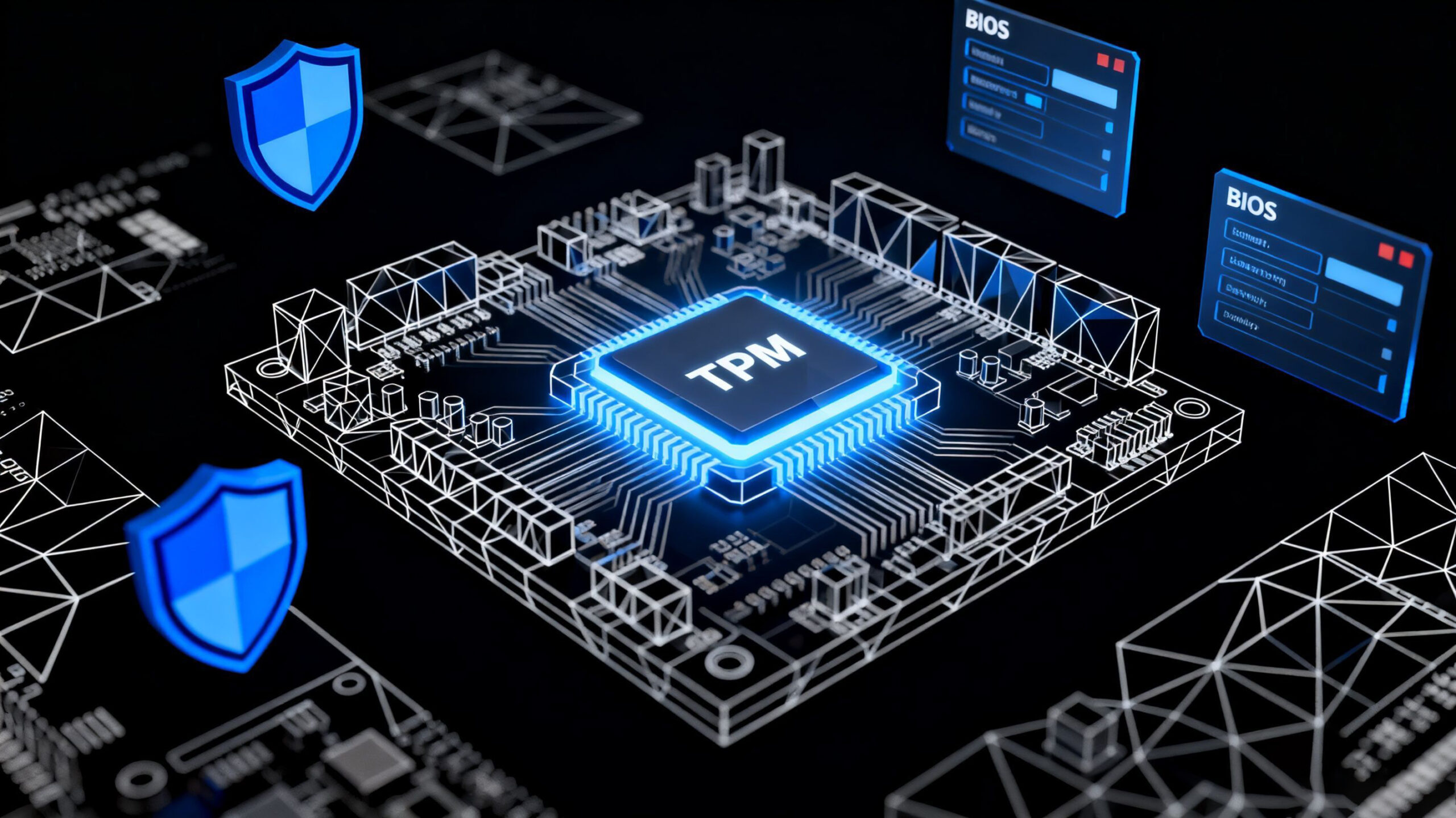
Before diving into the technical steps, it’s crucial to understand what fTPM and TPM are, and why you might need to switch between them. fTPM (firmware TPM) is a virtual security module embedded in your system’s firmware, while TPM (Trusted Platform Module) is a physical hardware chip that provides enhanced security features.
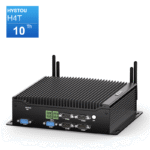
Our guide specifically applies to H4T models with BIOS version WSK3D 1.40 X64, including the H4T-i5-10210U, i5-10310U, and i5-10710U. If you’re using a different BIOS version or hardware configuration, the steps may vary. Always back up your data before making changes to BIOS settings to prevent potential issues.
Understanding TPM and fTPM Differences
What is fTPM?
fTPM, or firmware TPM, is a software-based security solution integrated into your system’s UEFI BIOS. It mimics the functionality of a physical TPM chip without requiring additional hardware. While convenient, fTPM may not offer the same level of security as a dedicated TPM module, especially for enterprise-level applications.
What is TPM?
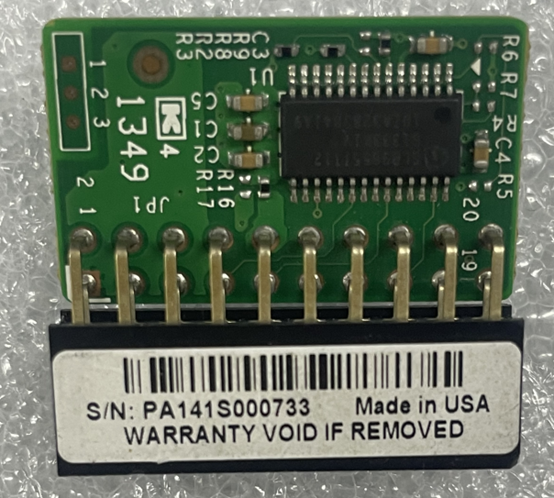
A physical TPM module is a hardware chip installed on your motherboard. It provides secure storage for encryption keys, passwords, and certificates, offering robust protection against unauthorized access and tampering. For users requiring advanced security features like BitLocker drive encryption or Windows Hello, a physical TPM is often recommended.
Step-by-Step Guide to Switch fTPM to TPM
1. Prepare the TPM Module Installation
First, power off your H4T device and remove the cover. Locate the JTPM1 header on the motherboard—this is where the TPM module will be installed. Align the module with the header and gently press it into place. Secure the module with the provided screw if necessary.
2. Access BIOS Settings
Power on your computer and immediately press the Delete key repeatedly to enter the BIOS setup utility. Once in the BIOS, navigate to the Chipset menu using the arrow keys. From there, select PHC-IO Configuration and locate the TPM Device Selection option.
3. Configure TPM Mode
Change the TPM Device Selection from fTPM to dTPM (discrete TPM). This tells the system to use the physical TPM module instead of the firmware-based solution. Press F10 to save your changes and exit the BIOS. Your system will restart automatically.
4. Verify TPM Status in Windows
After rebooting, press Windows Key + R, type tpm.msc, and press Enter. The TPM Management console should display “The TPM is ready for use,” confirming that the physical TPM module is active. If you encounter issues, double-check the BIOS settings and ensure the TPM module is properly seated.
Bluetooth Functionality on H4T Models
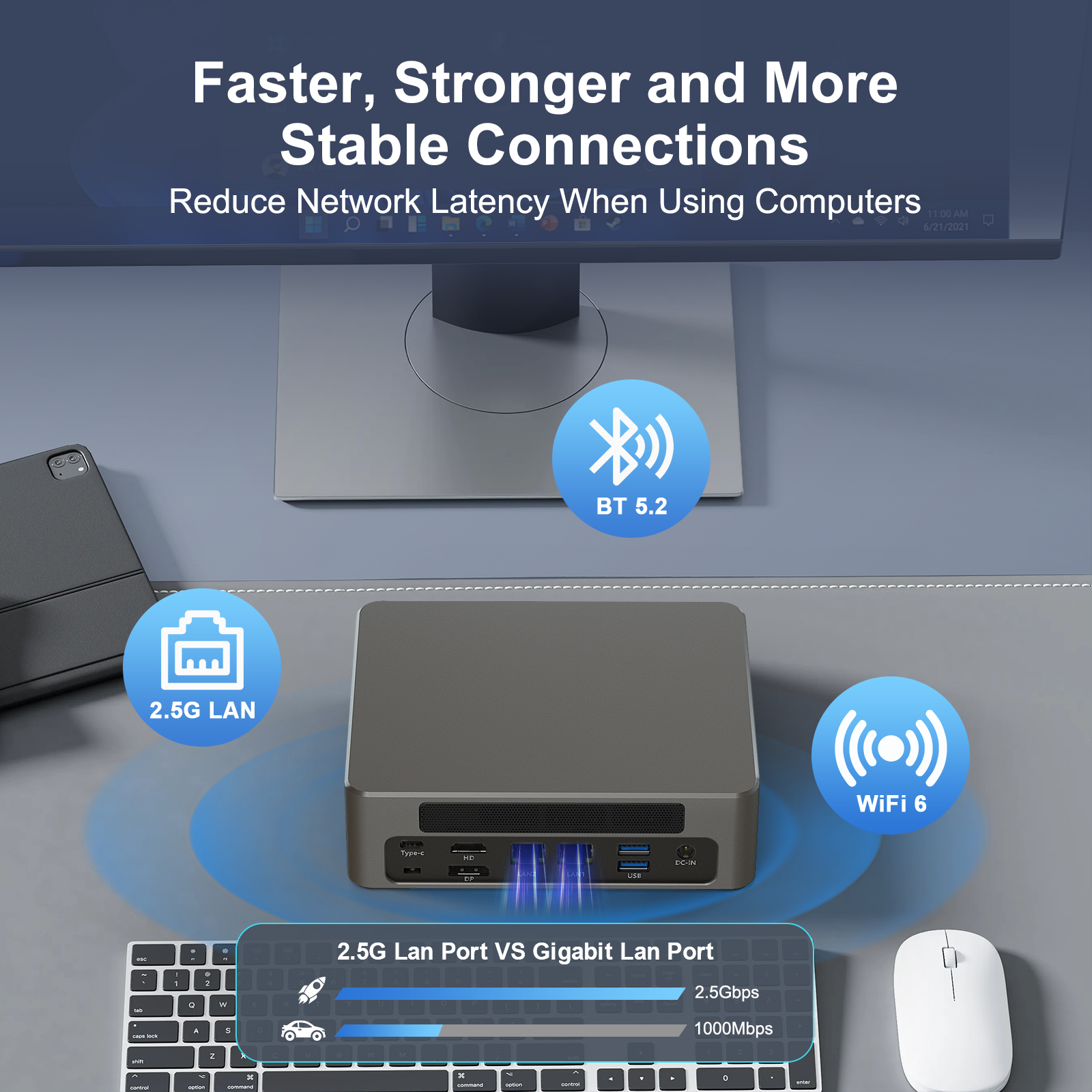
The H4T series integrates Intel 802.11ac dual-band WiFi with Bluetooth 4.2. Unlike TPM, Bluetooth functionality requires no additional hardware configuration.
Troubleshooting Common Issues
TPM Not Detected After Installation
Check BIOS Settings: Ensure TPM is enabled and set to dTPM mode.
Re-seat the Module: Power off the system, remove and reinsert the TPM module.
Update BIOS: Through Windows update
Error Messages During Reboot
“TPM Device Not Found”: Verify the module is compatible with your H4T model.
“Secure Boot Violation”: Disable Secure Boot temporarily to complete the TPM configuration.
Why Choose Physical TPM Over fTPM?
While fTPM is sufficient for basic security needs, physical TPM offers several advantages:
Enhanced Security: Hardware-based encryption is harder to bypass than software solutions.
Compliance: Many enterprise environments require physical TPM for regulatory compliance.
Stability: TPM modules are less prone to firmware updates or system changes affecting security features.
For most home users, fTPM may be adequate, but for businesses or users handling sensitive data, the upgrade to physical TPM is worthwhile.
Final Recommendations
Regular Updates: Keep your BIOS and TPM firmware updated to address security vulnerabilities.
Security Best Practices: Combine TPM with strong passwords and encryption tools like BitLocker for maximum protection.
Professional Assistance: If you’re unsure about any step, contact Hystou support or a certified technician to avoid damaging your system.
By following this guide, you’ve successfully switched from fTPM to a physical TPM module, enhancing your H4T device’s security.
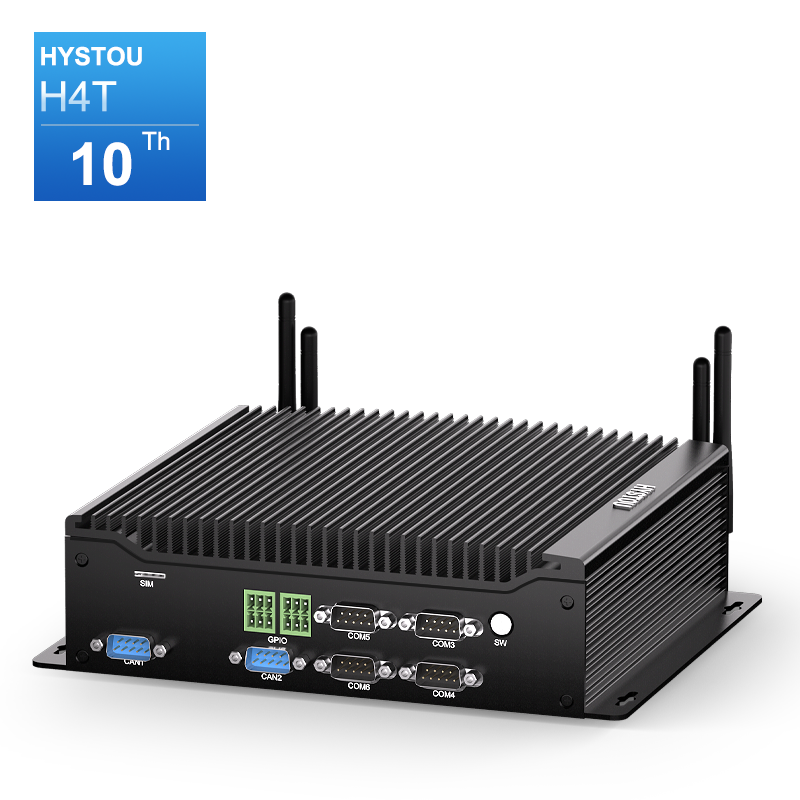
Industrial Fanless Mini PC | Intel 10th Gen i5 | Hystou H4T-10th
- Processor: Intel 10th Gen i5-10210U/i5-10310U / i7-10710U(up to 4.4GHz Turbo, 15W TDP)
- Graphics: Intel UHD Graphics
- Memory: 2×DDR4 SODIMM slots (max 64GB)
- Storage: 1×M.2_2280 SATA SSD slot (up to 2TB)
- Network: 2×Gigabit RJ45 LAN, Intel 802.11ac dual-band WiFi (Bluetooth 4.2)
- Display Output: HDMI/EDP/Type-C triple display support
- Fanless design for silent operation
- Aluminum alloy casing for industrial environments

HYSTOU
HYSTOU has established its R&D headquarters in Shenzhen, drawing on over a decade of experience. Our core team members, who previously served at renowned companies such as Inventec and Quanta Computer, form the backbone of our technical expertise. With robust R&D and innovation capabilities, we remain steadfast in our commitment to pursuing excellence in the field of technology products.