

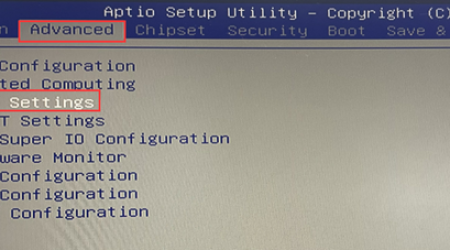
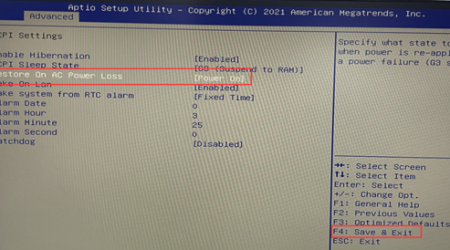
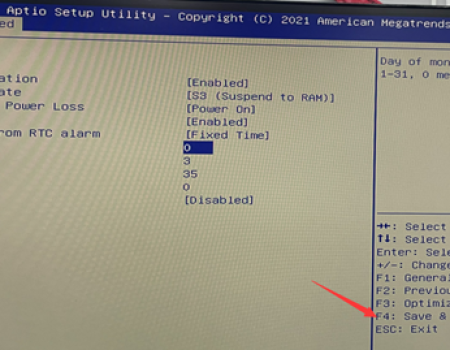


1-1. After pressing the power button on the Mini PC, quickly tap the Delete/Del key on the keyboard to enter the BIOS Setup. Select Advanced > ACPI Settings, then set Restore on AC Power Loss to Power on. After setting up, press F4 to save and exit.
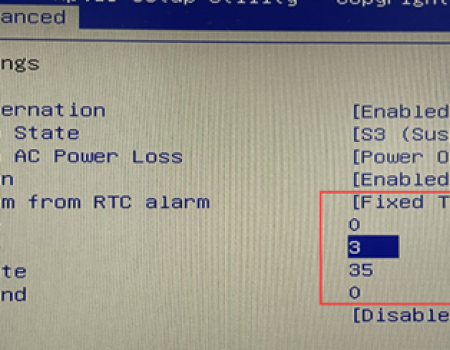
2-1. After pressing the power button on the Mini PC, quickly tap the Delete/Del key on the keyboard to enter the BIOS Setup. Select Advanced > ACPI Settings > Set “Wake system from RTC alarm” to “Fixed Time.” In the Alarm Date field, set the wake-up date to 0 for a daily wake-up. Adjust the Alarm Hour, Alarm Minute, and Alarm Second according to your desired wake-up time. In this tutorial, the power-on time is set for 3:25 AM every day. After setting up, press F4 to save and exit.
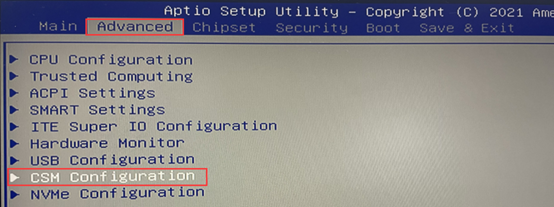
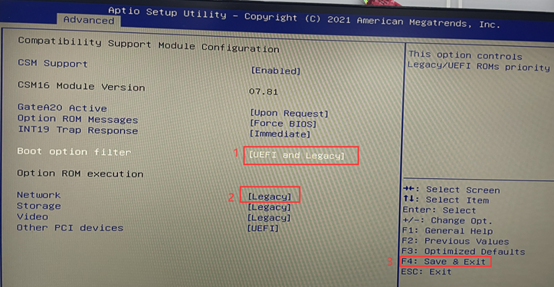
3-1. After pressing the power button on the PC, quickly tap the Delete/Del key on the keyboard to enter the BIOS Setup. Navigate to Advanced > CSM Configuration. Set “Boot option filter” to “UEFI and Legacy mode” and set “Network” to “Legacy mode”. After setting up, press F4 to save and exit.
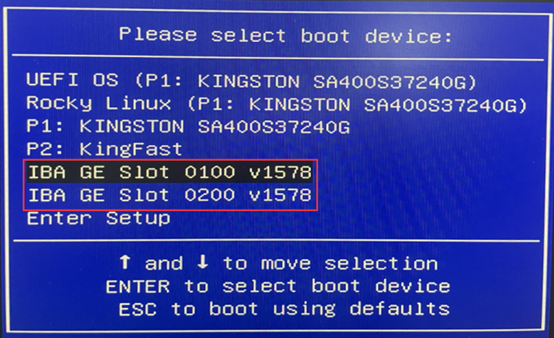
3-2. After enabling the PXE device in the BIOS (IBA GE Slot 0100 or IBA GE Slot 0200), restart the computer. During the boot process, quickly tap the F11 key to enter the boot manager interface. Select the desired PXE device and press Enter to confirm the boot.
3-3. If you want to set PXE boot as the default option every time you start the computer, enter the BIOS and select Boot > Set “Boot option #1” to IBA GE Slot 0100 or IBA GE Slot 0200. After setting up, press F4 to save and exit.
HYSTOU
HYSTOU has established its R&D headquarters in Shenzhen, drawing on over a decade of experience. Our core team members, who previously served at renowned companies such as Inventec and Quanta Computer, form the backbone of our technical expertise. With robust R&D and innovation capabilities, we remain steadfast in our commitment to pursuing excellence in the field of technology products.
Recently, scammers have been impersonating our company staff to commit payment fraud. To protect your interests, please pay attention to the following matters:
Verify Sender: Check if the email domain is @hystou.com. Immediately delete any emails from non-Hystou domains.
Double-Check: For any account modification requests, cross-verify via the customer service hotline listed on our official website hystou.com or through existing partnership channels.
Refuse Private Transactions: Do not trust claims like “urgent notifications,” “confidentiality requirements,” or “tax policy updates.” All business changes must follow official procedures.