How to Fix Unusually Loud Fan Noise in Hystou Mini PCs
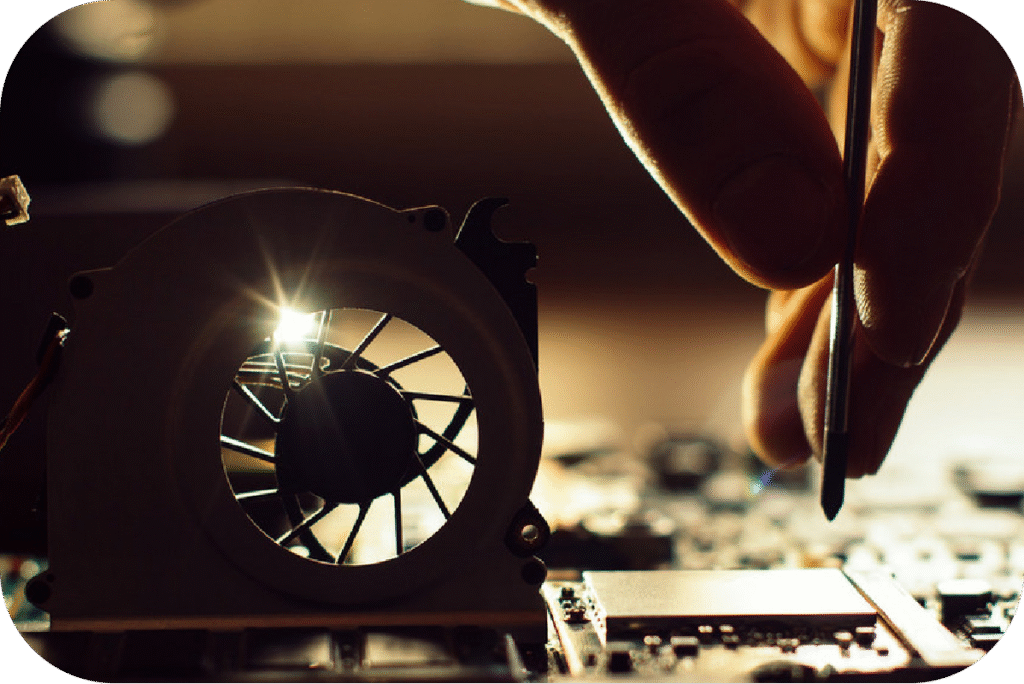
Introduction
Cause 1: Improper Cable Arrangement or Insecure Fan Installation
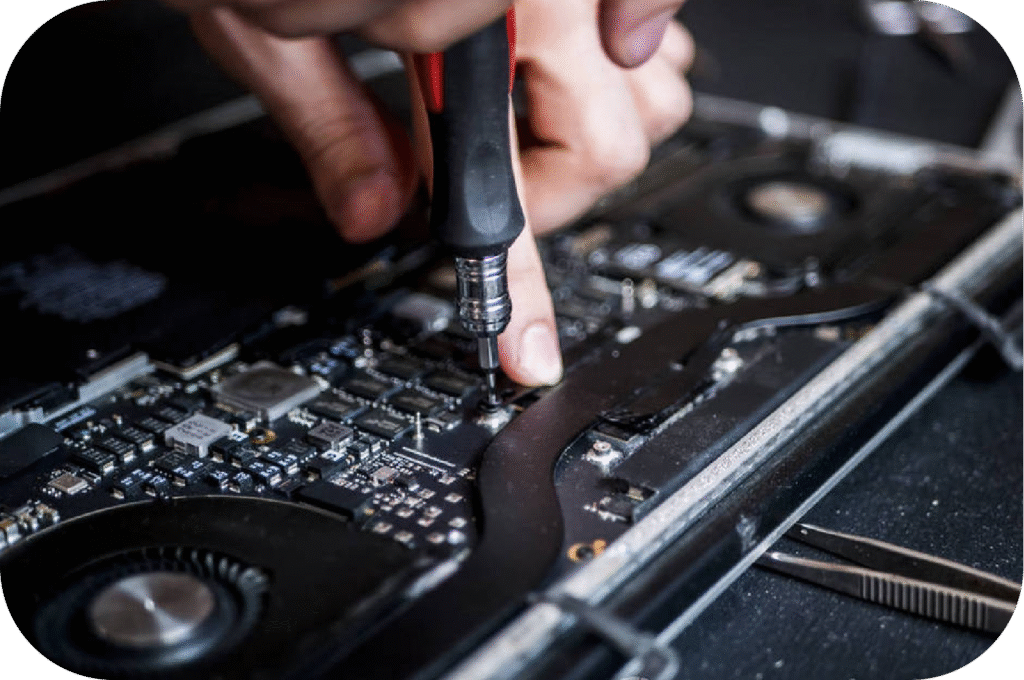
- Power off your Hystou mini PC and disconnect all cables (AC adapter, USB devices, etc.).
- Open the case using a Phillips-head screwdriver.
- Gently rearrange internal cables (e.g., SATA, power cables) to avoid contact with fan blades. Use cable ties to secure them to the case.
- Check the 4 screws holding the fan in place. Tighten any loose screws using a small screwdriver—ensure they are snug but not over-tightened to avoid damaging the fan housing.
- Close the case, reconnect cables, and power on the PC to test for noise reduction.
Cause 2: Dust Buildup Affecting Fan Performance
The compact vents on Hystou mini PCs are prone to dust accumulation. Over time, dust clogs fan blades and heatsinks, forcing the fan to spin faster to maintain optimal CPU temperatures—resulting in louder operation.
- Power off the mini PC and unplug it from the power source.
- Use a can of compressed air (hold it 6–8 inches away from the vents) to blow dust out of the fan and heatsink.
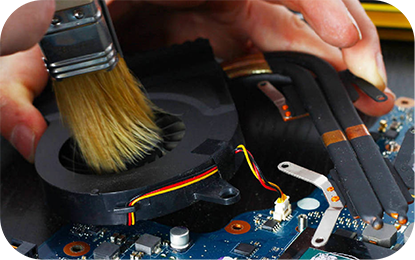
- Use a small soft-bristle brush (e.g., a makeup brush) to gently wipe dust off fan blades—avoid applying pressure to prevent bending the blades.
- Reassemble the PC and power it on. For best results, repeat this cleaning process every 3–6 months (more frequently if used in dusty environments like workshops).
Cause 3: Virus or Trojan Causing High CPU Usage
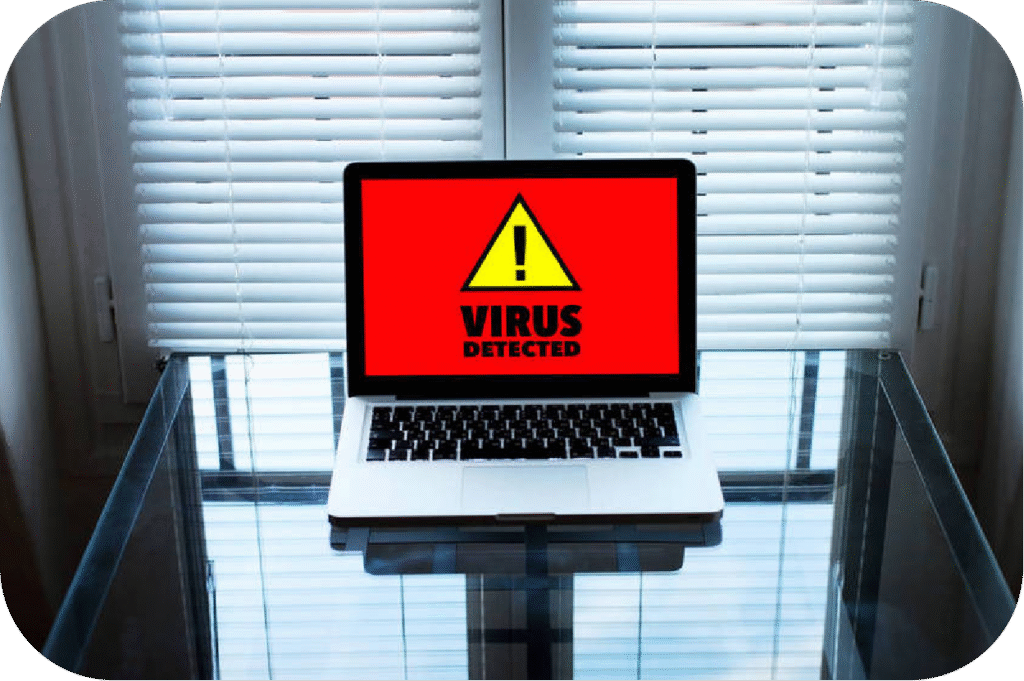
Hystou mini PCs typically use low-power CPUs (e.g., i5-1340P) with compact cooling systems. When malware (viruses, trojans, or crypto-miners) infects the system, it can cause high CPU usage (90%+), triggering the fan to run at maximum speed to cool the processor.
- Boot your Hystou mini PC into Safe Mode (press F8 during startup for Windows models).
- Run a full system scan using a trusted antivirus tool—we recommend Malwarebytes or Windows Defender (pre-installed on Hystou Windows 11 models).
- Quarantine or delete any detected threats. For persistent malware, use Hystou’s recovery partition to reset the PC to factory settings (back up data first).
- After cleaning, monitor CPU usage via Task Manager (Ctrl+Shift+Esc). Normal idle usage for Hystou mini PCs should be 5–15%.
Cause 4: Resonance
- Place soft, non-slip pads
- Avoid placing the PC near other vibrating devices (e.g., printers, speakers). Maintain a 6-inch gap between the PC and other electronics.
- For desktop placement, use an elevated stand to improve airflow and reduce contact with the surface.
Cause 5: Fan Wear and Tear
- Identify the faulty fan: Power on the PC and listen for noise
- Check if your PC is under warranty: Hystou offers a 3-year warranty. Contact Hystou support with your serial number to request a replacement.
- For out-of-warranty PCs: Purchase a compatible fan
Conclusion
- Perform monthly visual checks for dust buildup.
- Run quarterly antivirus scans.
- Use Hystou’s official accessories (pads, stands, fans) for compatibility.
FAQ Section

HYSTOU
HYSTOU has established its R&D headquarters in Shenzhen, drawing on over a decade of experience. Our core team members, who previously served at renowned companies such as Inventec and Quanta Computer, form the backbone of our technical expertise. With robust R&D and innovation capabilities, we remain steadfast in our commitment to pursuing excellence in the field of technology products.