Hystou Mini PC to NAS Conversion: Benefits & Step-by-Step Guide
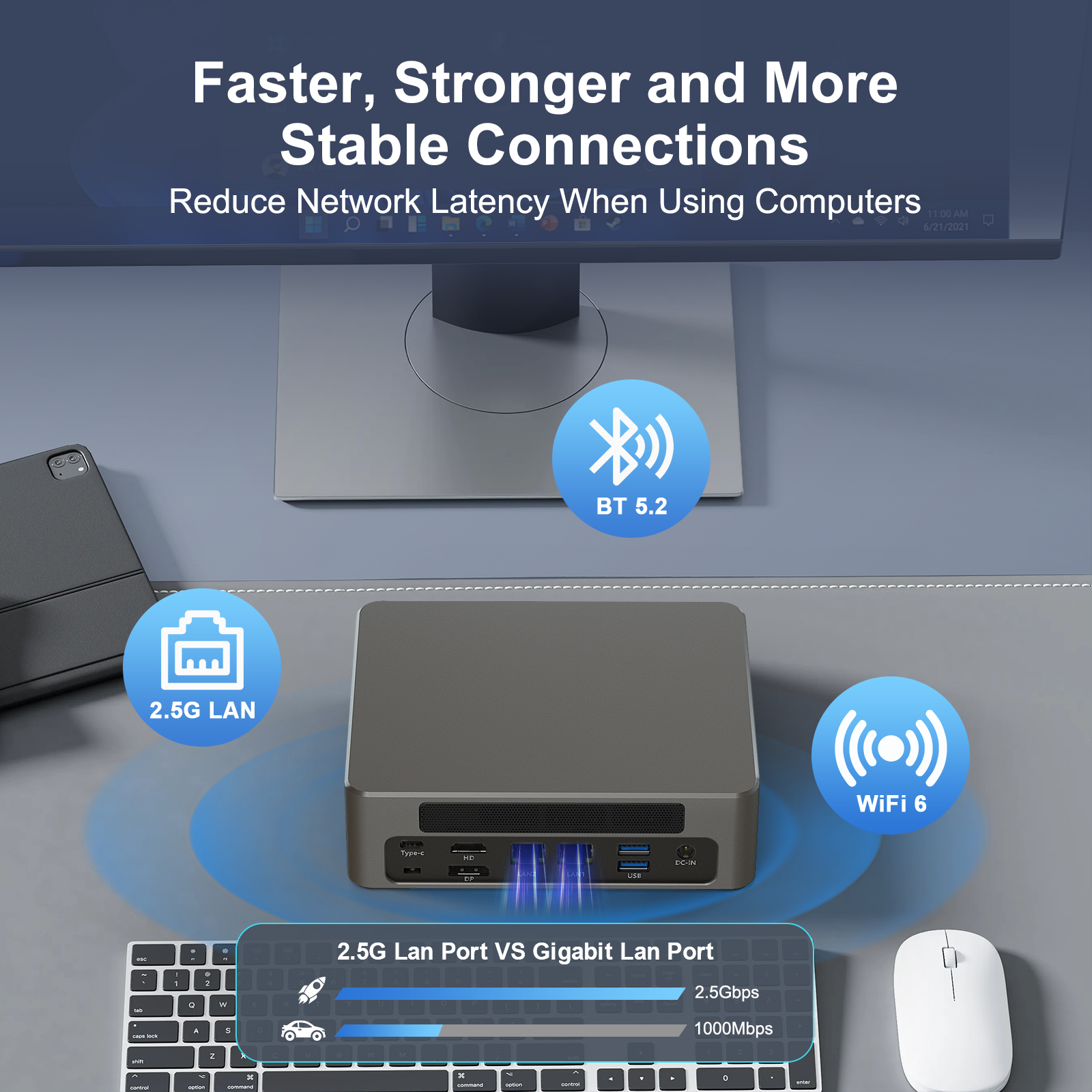
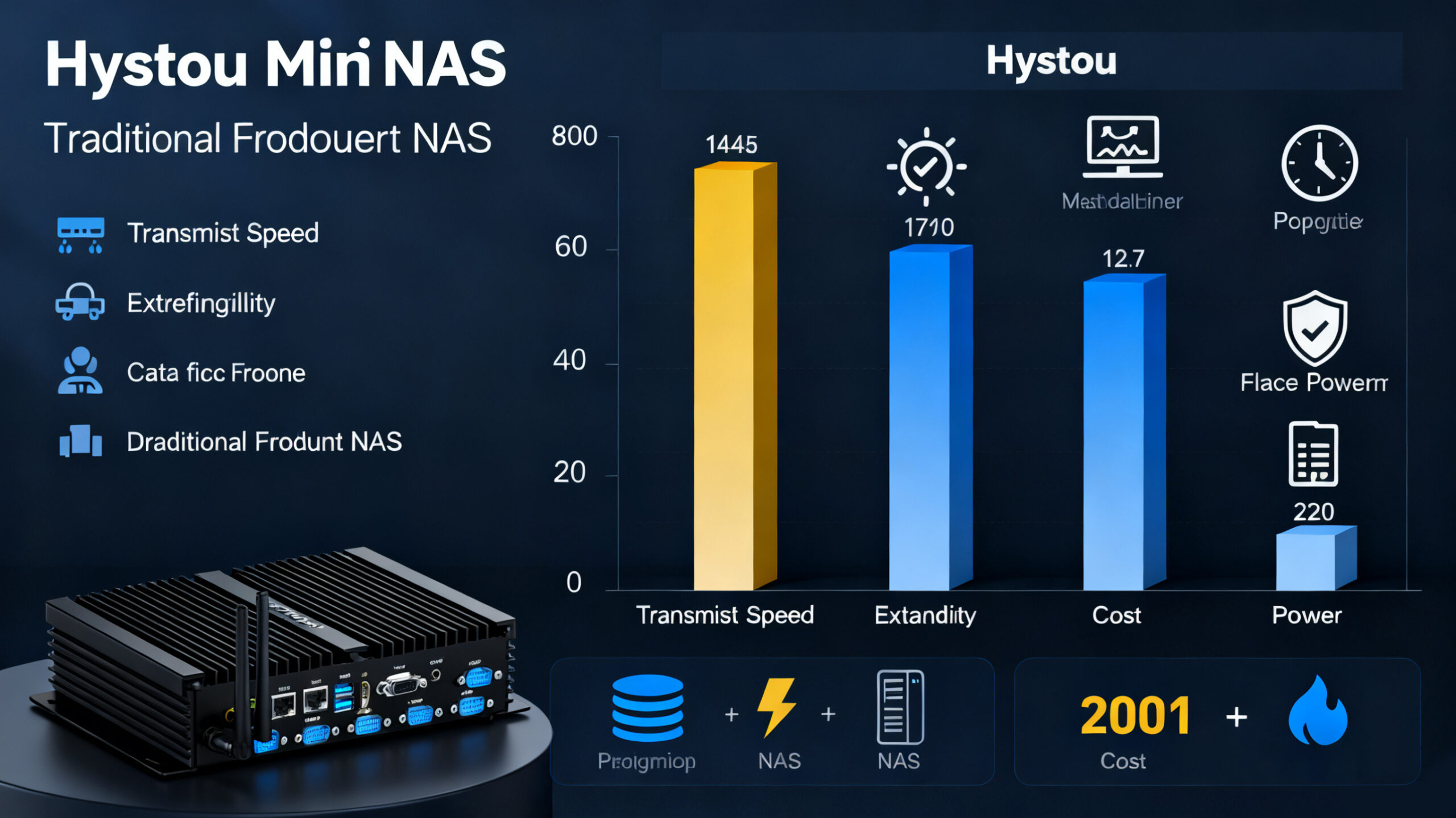
In the era of smart home computing, finding versatile devices that balance performance, size, and customization has become a priority for tech enthusiasts and home users alike. Hystou mini PCs, with their compact design and expandable hardware, have emerged as a game-changer—especially when repurposed into a Network-Attached Storage (NAS) system. Unlike off-the-shelf NAS devices that often come with fixed configurations, a Hystou mini PC-based NAS adapts to your unique needs: it works as a network storage center, a media server, a private cloud, a smart home hub, and even a website host. Below, we’ll break down the key benefits of converting a Hystou mini PC to a NAS and share practical steps to get started.
Network Storage Device: Secure, Expandable Storage
The core function of a NAS is to provide centralized, network-accessible storage, and Hystou mini PCs are built to excel at this.
Hardware Advantages of Hystou Mini PCs
- Flexible Storage Options: Support for M.2 NVME SSDs (for fast data access) and 2.5-inch hard drives (for high-capacity storage).
- Expansion Ports: Multiple SATA, mSATA, or PCIe ports, allowing you to add more drives as your storage needs grow.
- Compact Design: Smaller than many standalone NAS devices, so it fits in tight spaces (e.g., behind a router or in a media cabinet).
Recommended NAS Software
- OpenMediaVault (OMV): Free, user-friendly, and ideal for beginners. It supports file sharing (SMB, FTP) and drive management (RAID configurations for data redundancy).
- UnRaid: Great for mixed storage setups (e.g., combining SSDs and HDDs) and offers easy expansion.
- Black Swarm: Designed for performance, with features like real-time sync and remote access.
Media Server: Stream Entertainment Anywhere
A Hystou mini PC NAS doubles as a powerful media server, letting you access photos, videos, and music from any device, anywhere.
How to Set Up a Media Serve
- Import Your Media: Transfer all your media files (e.g., family photos, movies, TV shows) to the NAS storage.
- Install Media Server Software: Use platforms like Plex or Jellyfin (both free to use) to organize and stream content.
- Plex: Offers a sleek interface, automatic metadata tagging (e.g., movie posters, episode descriptions), and support for mobile/TV apps.
- Jellyfin: Open-source, with no subscription fees, and works well with older devices.
Real-World Use Case
Private Cloud Storage: Control Your Data
Public cloud services like Dropbox or OneDrive are convenient, but they require trusting third parties with your sensitive data. A Hystou mini PC NAS lets you build a private cloud—so you keep full control.
Key Benefits of a Private Cloud
- Enhanced Privacy & Security: No third-party access to your files. You can enable encryption (e.g., AES-256) to protect data from unauthorized use.
- Unlimited Customization: Support for apps and plugins (e.g., note-taking tools, calendar sync) that public clouds often restrict.
- Cost Savings: No monthly subscription fees—you only pay for hardware (which lasts 5+ years with proper maintenance).
- Remote Access: Access files from any internet-connected device (laptop, phone, tablet) using software like Nextcloud, ownCloud, or Resilio Sync.
Practical Tips for Setup
- Use Nextcloud for collaboration: It includes a document previewer (supports Word, Excel, PDF) that lets multiple users edit files in real time—perfect for home offices.
- Enable automatic backups: Sync data from your phone/laptop to the private cloud daily to avoid data loss.
Smart Home Hub: Centralize Device Control

Smart home devices (bulbs, cameras, sockets) often work with separate apps—creating chaos. A Hystou mini PC NAS acts as a single hub to manage all your smart gear.
How to Integrate Smart Devices
- Choose Hub Software: Install tools like Home Assistant (open-source, highly customizable), Hubitat (works without an internet connection), or Homebridge (adds Apple HomeKit support to non-compatible devices).
- Connect Devices: Pair your smart devices (via Wi-Fi or Bluetooth) to the NAS hub. You can create “scenes” (e.g., “Good Night” to turn off lights and lock doors) and control them via voice (Alexa/Google Assistant) or a single app.
Example Setup
A Hystou user in Germany set up Home Assistant on their NAS: “I now control 12 smart devices from one screen. When I leave home, the hub automatically turns off the AC, arms the security camera, and locks the front door. It’s saved me time and reduced energy bills by 18%.”
Hosting Websites: Low-Cost, Easy Management
If you want to host a personal blog, portfolio, or small business website, a Hystou mini PC NAS is a cost-effective solution—no need for expensive web hosting services.
Requirements for Website Hosting
- Light Traffic: Ideal for sites with <1,000 daily visitors (e.g., personal blogs, local business pages).
- Software Setup: Install a web server (e.g., Apache, Nginx) and a content management system (CMS) like WordPress.
- External Access: Forward your router’s port to the NAS so anyone can access the site via an IP address (or domain name, if you purchase one).
Why Hystou Stands Out
Hystou mini PCs have low power consumption (typically 15-30W) and run 24/7 without overheating—critical for reliable website hosting. Our team tested a Hystou mini PC with 8GB RAM and a 256GB SSD: it hosted a WordPress blog for 3 months with 99.9% uptime, and page load times averaged 0.8 seconds (faster than the industry average of 2.3 seconds).
Step-by-Step Guide to Convert a Hystou Mini PC to a NAS
Ready to get started? Follow these steps (tested by our tech team):
Gather Materials

- A Hystou mini PC (we recommend models with at least 4GB RAM and 1 storage expansion port).
- Hard drives/SSDs (based on your needs: SSD for speed, HDD for capacity).
- A wired internet connection (for stable data transfer).
- A USB drive (to install NAS software).
Install NAS Software
- Download your chosen NAS software (e.g., OMV) to the USB drive.
- Plug the USB drive into the Hystou mini PC and boot from it.
- Follow the on-screen instructions to install the software (select your storage drives and set up user accounts).
Configure Features
- Network Settings: Connect the NAS to your router (wired is better for speed). Assign a static IP address so devices can easily find the NAS.
- Add Features: Install media server/private cloud software (e.g., Plex, Nextcloud) via the NAS dashboard.
- Test Access: Connect a laptop/phone to the same network and verify you can access the NAS’s storage, media, or cloud.
Conclusion

HYSTOU
HYSTOU has established its R&D headquarters in Shenzhen, drawing on over a decade of experience. Our core team members, who previously served at renowned companies such as Inventec and Quanta Computer, form the backbone of our technical expertise. With robust R&D and innovation capabilities, we remain steadfast in our commitment to pursuing excellence in the field of technology products.